From PPT to Video: Create a Narrated Micro-Lecture with Zendeck
From PPT to Video: Create a Narrated Micro-Lecture with Zendeck
You've spent hours building a beautiful slide deck. Then someone says, "Can you turn this into a video?" And your heart sinks. Because recording yourself talking over slides is a whole different beast — the lighting, the mic, the retakes, the editing. It's the reason so many great courses never make it past the slide stage.
But here's the thing: learners don't want to read your slides. They want to watch and listen. And in 2026, you don't need a camera crew to make that happen.
01. Why Static Slides Fail in Online Learning
When you upload a static PPT to your LMS, you're asking learners to do all the work. They have to read every bullet, interpret the visuals, and mentally connect the dots. That's exhausting. And it's why completion rates for slide-only courses are notoriously low.
The fix is simple: add a human voice. A narrated micro-lecture guides the learner through the material, highlights what matters, and keeps the pace moving. It's the difference between handing someone a map and walking them through the terrain.
The outcome? Higher engagement, better retention, and courses that actually get finished. Learners can watch at their own pace, rewind when they miss something, and absorb the material in a format that feels natural — because listening is how humans have always learned.
02. What PPT-to-Video Actually Does (and Doesn't)
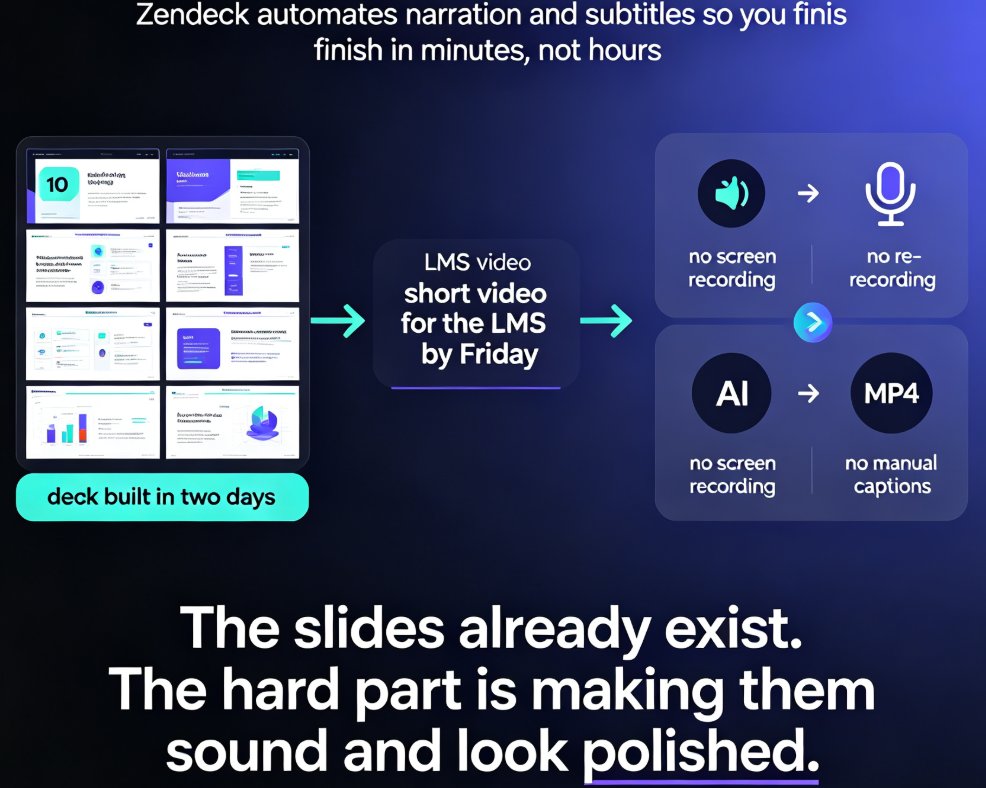
Let's be clear about what we're talking about. Zendeck's PPT-to-video feature isn't a screen recorder. It doesn't just capture your slides while you talk. Instead, it takes your existing deck and rebuilds it as a video — with AI-generated narration, synchronized timing, and optional subtitles.
What it does: - Converts your slides into a timed video sequence - Adds AI voiceover in a natural, human-sounding voice - Syncs narration to slide transitions - Generates subtitles automatically - Exports as a shareable video file
What it doesn't do: - It won't replace your in-person charisma (sorry) - It won't fix a deck that's fundamentally broken - It won't add complex animations you didn't build
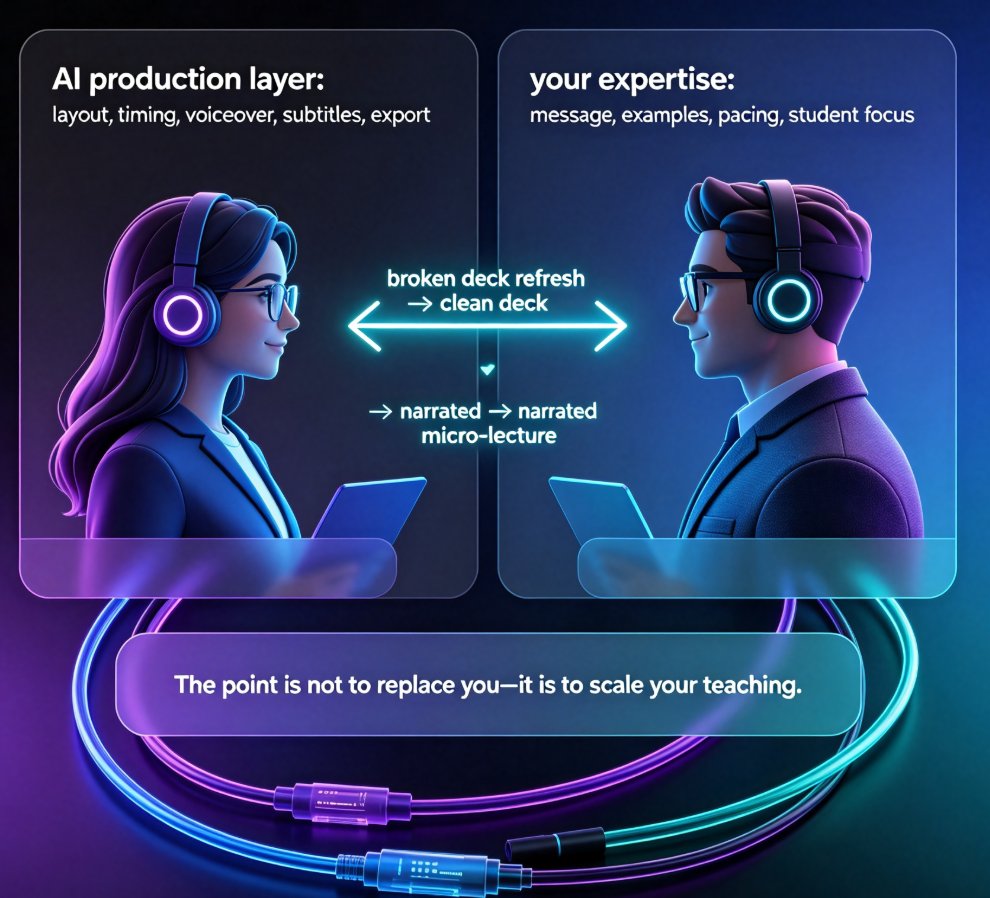
In other words, it handles the production work so you can focus on the teaching. That's the whole point of AI-assisted content creation — the tool does the heavy lifting, and you bring the expertise.
03. Step-by-Step: Turn Your PPT into a Narrated Micro-Lecture
Step 1: Prepare your slides
Before you convert, make sure your deck is in good shape. Remove walls of text, keep one idea per slide, and use visuals that support your message. Zendeck can help with smart layouts if your slides need a refresh — check out our guide on AI-driven design automation if your deck needs a makeover.
Step 2: Upload your outline or slides
Zendeck accepts Word outlines, Markdown, or TXT files. If you already have a PPT, you can work from your existing structure. The platform will generate a clean, consistent deck if you need one. This is especially handy if your slides were built by five different people over three years and look like it.
Step 3: Choose your narration style
Pick a voice that fits your content. Zendeck offers multiple AI voices with different tones — from warm and conversational to crisp and professional. You can also adjust the pacing. A good rule of thumb: slower for complex topics, faster for overviews.
Step 4: Generate and review
Hit generate, and Zendeck builds your narrated video. Review the timing, check the voiceover, and make adjustments. You can tweak the script, change the voice, or adjust slide duration. This is where the tool shines — you can iterate quickly without re-recording anything.
Step 5: Add subtitles and export
Subtitles are a game-changer for accessibility and for learners who watch without sound. Zendeck generates them automatically. Then export your video and upload it to your LMS, YouTube, or wherever your learners live.
The whole process takes minutes, not days. That's the real magic of AI-powered video creation. And if you want to go deeper on the narration side, check out our guide on adding narration to slides.
04. Narration Tips That Keep Learners Watching
A narrated micro-lecture is only as good as its script. Here are a few things I've learned from years of watching (and making) educational videos:
Keep slides to 30-60 seconds each. If a slide needs more time, split it into two. Learners lose focus when a single visual lingers too long.
Write for the ear, not the eye. Short sentences. Active voice. Conversational tone. If you wouldn't say it out loud, don't write it into your script.
Pause between ideas. A beat of silence after a key point gives learners a moment to process. Zendeck lets you adjust pacing, so use that breathing room.
Don't read your slides. The narration should add context, not repeat what's on screen. If your slide says "Q3 revenue up 20%," your narration should explain why that matters.
A narrated micro-lecture is the single highest-leverage upgrade you can make to your existing course content. You already have the slides. You already have the knowledge. Adding a voice turns that static material into something learners can actually engage with.
05. Beyond the Classroom: Corporate Training Use Cases
Micro-lectures aren't just for educators. Corporate training teams are using narrated video decks for everything from onboarding to compliance training. The reason is simple: video is easier to consume than a slide deck, and it scales.
Think about your last onboarding deck. It probably had 40+ slides covering policies, culture, and tools. Now imagine that as a 15-minute narrated video that new hires can watch at their own pace. That's not just more engaging — it frees up your trainers to focus on higher-value work.
We've written more about this in our piece on AI PPT-to-video in corporate training. And if you're building courses from scratch, our guide on AI agents in course creation shows how the whole pipeline can be automated.
06. PPT-to-Video vs. Traditional Recording: A Quick Comparison
| Aspect | Traditional Recording | Zendeck PPT-to-Video |
|---|---|---|
| Equipment needed | Camera, mic, lighting | None — just your slides |
| Production time | Hours to days | Minutes |
| Retakes | Reshoot or re-record | Edit script and regenerate |
| Voiceover | Your voice, live | AI voice, consistent |
| Subtitles | Manual or external service | Auto-generated |
| Updates | Re-record everything | Edit slides, regenerate |
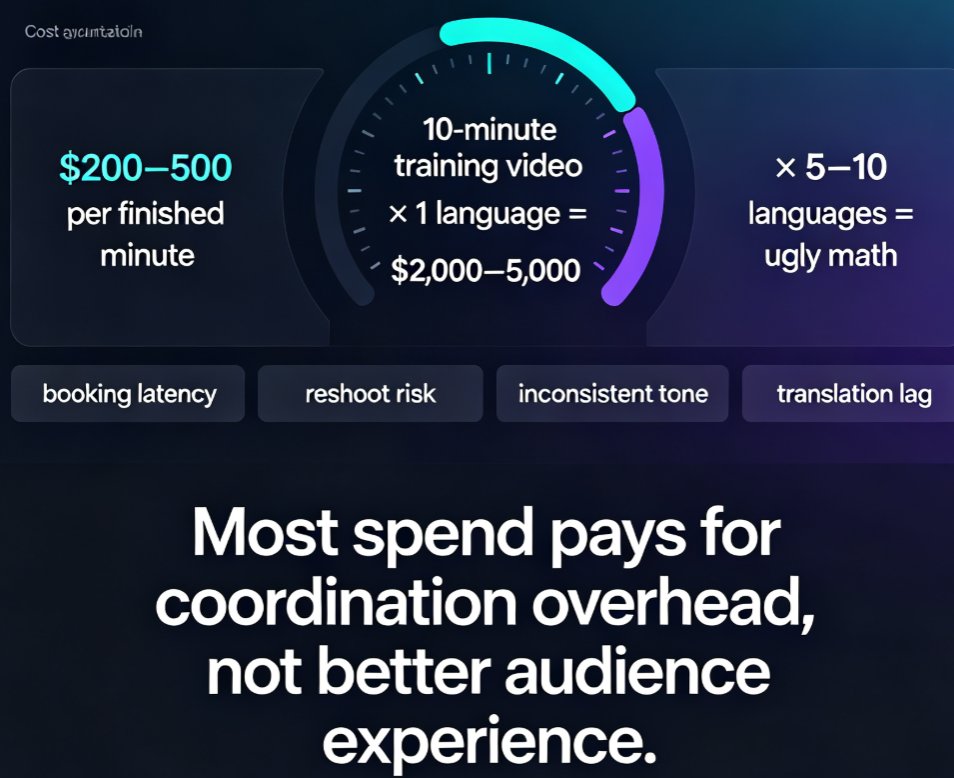
| Cost | High (equipment, editing) | Low (subscription) |
The table above isn't about "better" — it's about "faster and more sustainable." Traditional recording has its place, especially when you need a personal connection. But for scalable, repeatable course content, AI-generated video is hard to beat.
Here's a visual look at the workflow:
07. FAQ
Q: Do I need to record my own voice for Zendeck's PPT-to-video?
No. Zendeck uses AI-generated voiceover. You can choose from multiple voices and adjust pacing. If you prefer your own voice, you can still use the tool for layout and timing, then swap in your own audio.
Q: Can I edit the narration after generating the video?
Yes. You can edit the script and regenerate the voiceover. Zendeck makes it easy to tweak individual sections without starting over.
Q: What formats can I export?
Zendeck exports your narrated video as a standard video file that works with most LMS platforms, YouTube, and social media.
Q: Is this suitable for corporate training?
Absolutely. Many training teams use Zendeck's PPT-to-video for onboarding, compliance, and product training. It's faster to produce and easier to update than traditional video.
Q: Do I need design skills to use this?
No. That's the whole point. Zendeck handles the design and production. You bring the content.