Turn a Word Outline into a Professional Presentation with Zendeck AI
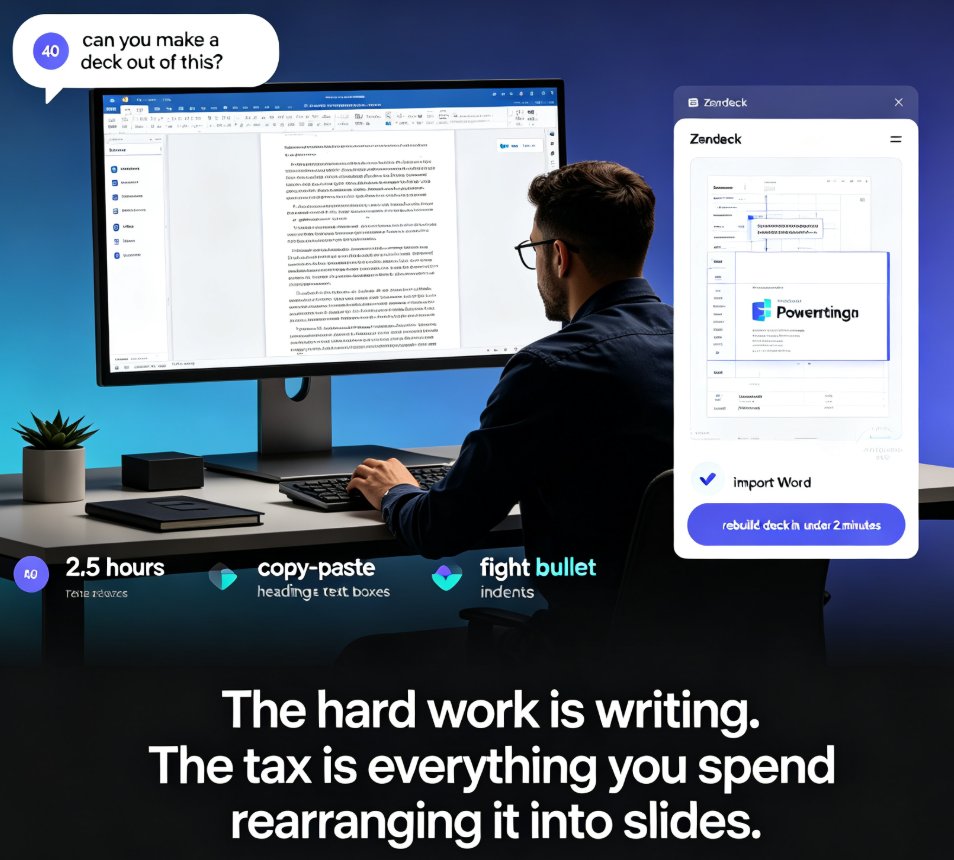
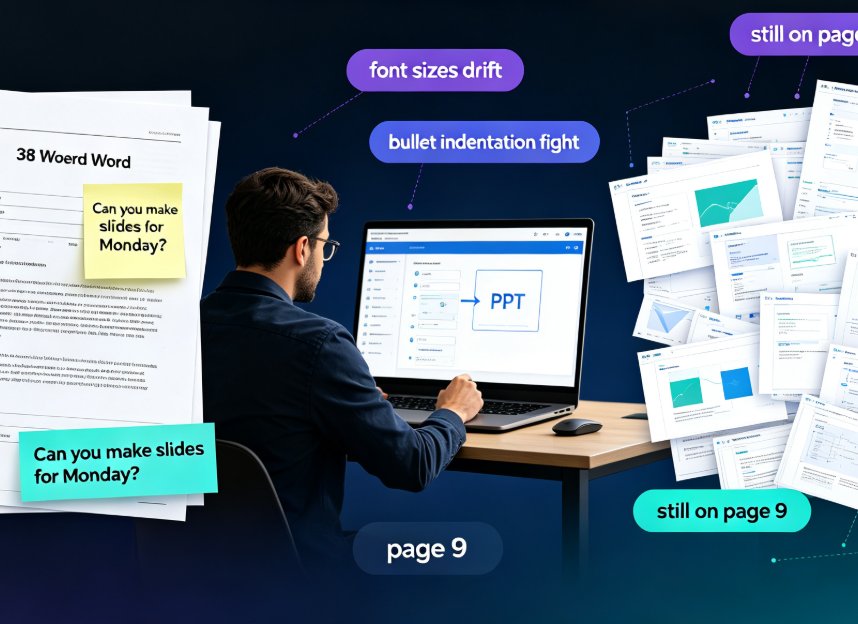
Here's a scene most knowledge workers know too well: you've spent days writing a solid Word document — a training manual, a product brief, a meeting recap — and now a manager says, "Make a deck out of that." You stare at 30 pages of good thinking and realize you're about to spend another four hours dragging text into text boxes, fighting bullet indentations, and picking fonts. The content is done. The presentation is not. That gap between "finished writing" and "ready to present" is exactly what Zendeck's outline-to-presentation workflow was built to close.
Let's be real: an outline is not raw material for a designer — an outline is already 80% of the presentation. What's missing is structure, layout, and visual consistency. Zendeck's job is to make that remaining 20% take five minutes instead of five hours.
This guide walks you through the full workflow: what outline-to-PPT actually means, how to prepare your document for the best results, the exact steps inside Zendeck, and the hidden payoffs (like turning the result into a narrated video). By the end, you'll have a repeatable system for converting any written content into a polished deck — no design skills required.
01. The Outline Problem: Why Good Content Keeps Dying in PowerPoint
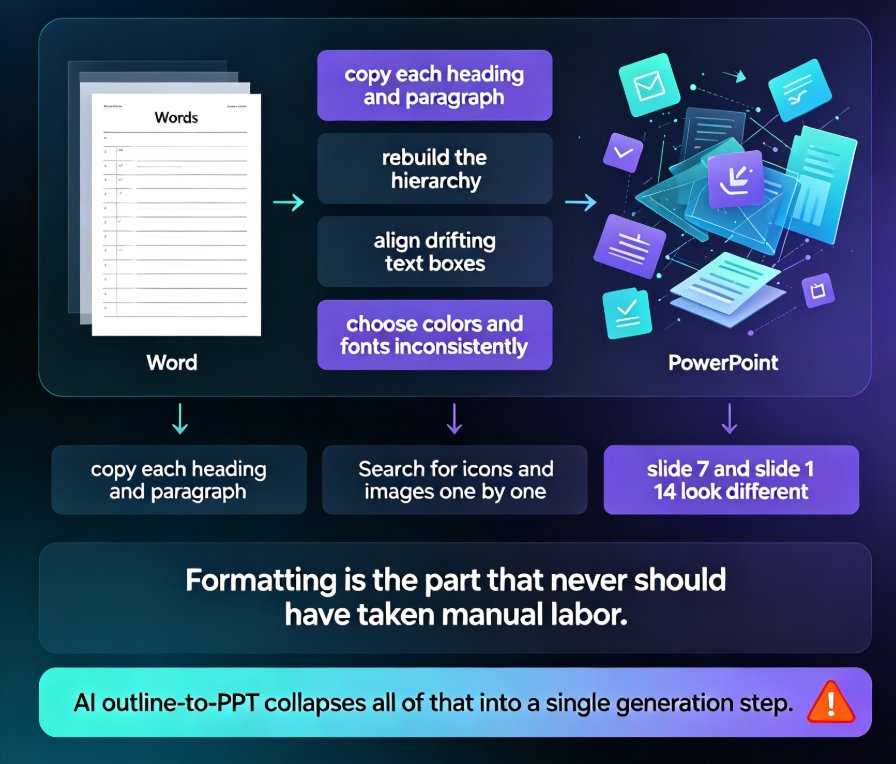
Most people don't have a design problem. Most people have a formatting problem — and formatting is the part that never should have taken manual labor in the first place.
The typical manual workflow looks like this:
- Copy each heading and paragraph from Word into a slide
- Rebuild the hierarchy because PowerPoint doesn't understand your outline
- Spend 20 minutes aligning text boxes that have drifted
- Choose colors and fonts over and over, inconsistently
- Search for icons and images that fit, one by one
- Realize slide 7 and slide 14 look like they belong to different companies
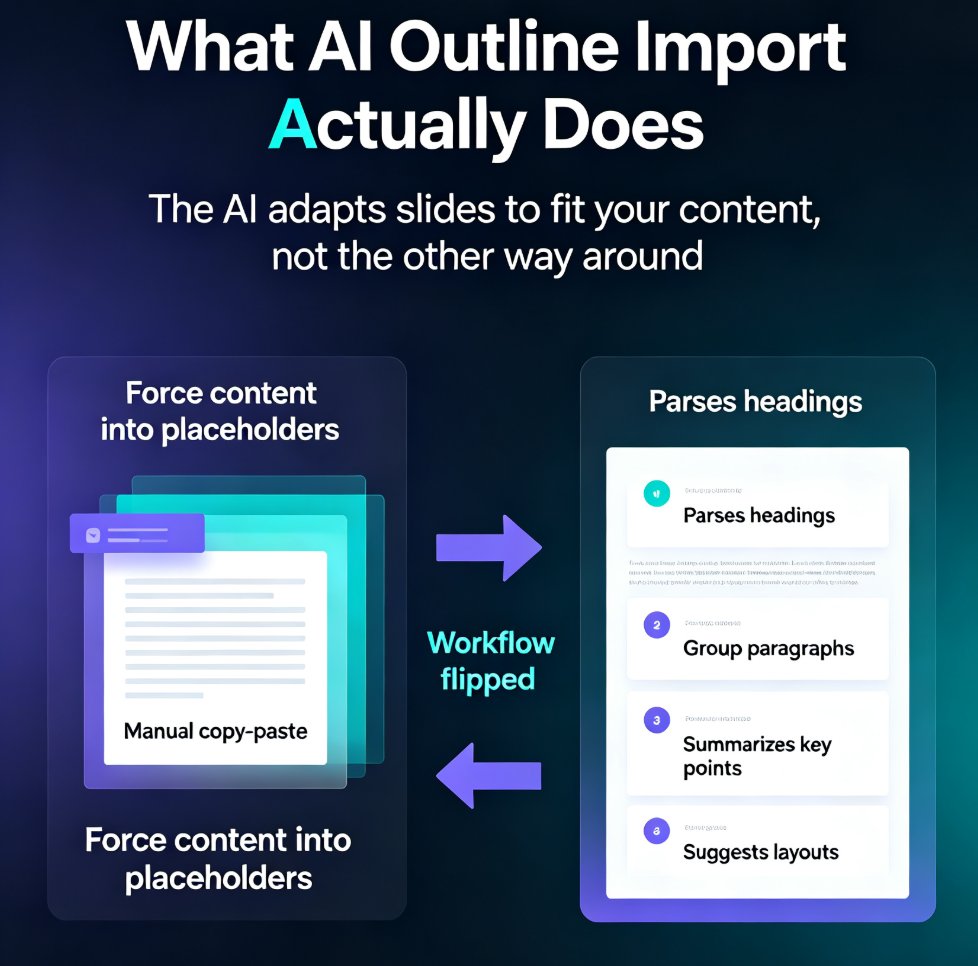
An AI outline-to-PPT tool collapses all of that into a single generation step. It reads your document's structure — headings become slide titles, sub-points become bullet levels, paragraphs become speaker notes — and applies a consistent design system across every slide. The time sink disappears; the content quality stays.
This is why the workflow is exploding. Modern AI presentation tools accept anything from a messy meeting-note dump to a clean Markdown file and produce editable slides in minutes, not hours. The question is no longer "can AI build my deck" but "how do I feed it well."
02. What "Outline to Presentation" Actually Means in Zendeck
Before we dive into steps, let's define the entity clearly. Outline-to-presentation conversion is the process of turning text-based hierarchical content (headings, subheadings, bullet points) into a structured slide deck. It sits at the intersection of three capabilities:
- Content parsing — the AI reads document structure, not just raw words
- Smart layout — each slide's layout is generated from its content type (title, list, data, comparison)
- Visual governance — typography, color, and spacing stay consistent across the whole deck
Zendeck handles all three. Paste a Word outline or Markdown, and the platform generates structured slides with narrative flow, relevant imagery, and consistent typography. It's a different beast from traditional PowerPoint because you're not formatting slides at all — you're feeding content and letting design automation happen behind the scenes. If you want to go deeper on why this is beating manual approaches, this breakdown of smart layouts in 2026 explains the shift.
03. The 5-Step Word-to-Deck Workflow in Zendeck
Step 1: Prepare Your Outline (Two Minutes, Not Two Hours)
The single biggest mistake people make is over-cleaning the document. You don't need perfect formatting — the AI thrives on structure, and it tolerates mess. What matters is that your document has a clear hierarchy:
- Use Heading 1 for main sections → these become slide titles
- Use Heading 2 / Heading 3 for sub-sections → these become section divider or content slides
- Use bullet points for lists → these become bullet layouts
- Keep key sentences as standalone paragraphs → these become talking points or speaker notes
If you're starting from a Markdown file or plain text, the same rules apply: # for slide titles, ## for sub-sections, - for bullets. Zendeck even handles nested bullets and stream-of-consciousness writing if you skip the cleanup — but a tiny bit of structure pays off in slide quality.
Step 2: Import Into Zendeck
Upload your .docx file directly, or paste Markdown/plain text into the editor. Zendeck's integration with Word-style documents is smooth, and you can also bring in content from Google Docs workflows — here's how AI presentation tools integrate with Word and Docs if you want the full mechanics.
Step 3: Set Your Parameters
Before generating, you control the output with a few simple settings:
- Slide count — typically 5 to 50+; a 2,000-word outline usually maps to 10–20 slides
- Language — Zendeck supports 40+ languages, so the same outline can produce a localized deck
- Tone — technical, casual, boardroom-ready, or training-friendly
- Audience — the AI tailors language complexity and depth based on who you're presenting to
Step 4: Generate and Review
The AI builds the entire deck — layout, imagery, typography, and visual hierarchy — in one pass. You get a fully designed product, not a draft. Preview it as a slideshow, then refine individual slides: swap an image, change a chart type, or rewrite a heading. Some of the best hidden features for refining decks live at this stage.
Step 5: Reskin, Brand, and Export
Here's where Zendeck shines over a generic AI generation: the one-click reskin. If the first design direction isn't right, you don't rebuild — you apply a new template or your custom brand kit, and every slide updates instantly. This is the difference between a tool that makes one pretty deck and a tool that enforces consistent brand identity across hundreds of decks. For teams, creating a custom brand kit turns this into a repeatable standard.
Then export to PPTX, share a link, or (the hidden payoff) convert it into a narrated video — more on that in section 06.
04. How to Structure an Outline That Generates a Great Deck
Not all outlines are born equal. Give the AI a clean hierarchy and you get a board-ready deck; give it a wall of undifferentiated text and you get a wall of slides. Here's the practical playbook:
| Outline element | How to write it | What Zendeck turns it into |
|---|---|---|
| Main section heading | One clear, declarative phrase | Slide title |
| Sub-section heading | A logical grouping of points | Section divider slide |
| Bullet points | 3–5 short items per group | Content slide with bullet layout |
| Standalone paragraph | A single key claim or takeaway | Highlight / callout slide |
| Numbers or comparisons | Stated plainly in text | Chart-ready slide (AI can suggest a chart) |
| Long data table (5+ columns) | Keep as an appendix item | Appendix slide |
A few rules of thumb that consistently produce better decks:
- Keep it to 200–2,000 words for a 10–20 slide presentation. Too short? The AI expands topics. Too long? It creates a main deck plus appendix slides.
- One idea per heading. If a heading contains three ideas, the AI will either cram them or drop them.
- Let the AI pick the layout first. Resist the urge to specify "I want two columns here" in the outline; generate, then adjust. This gives the design system room to work. Zendeck's contextual template selection is covered in this guide on how it picks the right look.
05. The Numbers: What You Actually Save
Let's put the time math on the table. The chart below shows a typical solo workflow for building a 15-slide deck from an existing 1,500-word document — one person, no design team, no template mastery. The manual row is what most people experience; the Zendeck row is the same content through the outline-to-deck workflow. (Illustrative estimates based on common user scenarios.)
The takeaway is simple: the tasks that eat your afternoon — layout, formatting, visual consistency — collapse from about three hours to under 30 minutes. That's not a productivity hack; that's the math of removing manual design labor from content that already exists.
06. Outline-to-PPT vs. Starting From a Template: Which Should You Use?
Outline-to-PPT isn't always the right move. Here's an honest comparison for when each approach wins:
| Scenario | Start from template | Start from outline (Zendeck) |
|---|---|---|
| You have a finished written document | Re-typing content manually | Best — import the content directly |
| You have a rough idea and slides in your head | Best — browse templates to scaffold | Works, but the AI may over-structure |
| You're building a sales pitch deck | Works, but you'll re-write a lot | Best — your story is already in prose |
| You need strict brand consistency fast | Requires manual theming | Best — one-click reskin + brand kit |
| You're creating training or course material | Decent | Best — plus PPT-to-video for micro-courses |
The rule of thumb: if the content already lives in a document, you're wasting time by re-entering it into slides. Let the AI do the extraction. If you're starting from a blank page, templates are still the faster scaffold — our AI pitch deck generator guide covers that path.
07. The Hidden Payoff: Your Deck Becomes a Micro-Course
Here's the part most people don't expect. Once your outline becomes a structured, visually consistent deck, that deck can become a narrated video with a single workflow. Zendeck's PPT-to-video feature converts static slides into micro-courses with auto-generated subtitles and voiceover options.
This changes the value equation completely:
- A training deck you built for one live session becomes reusable e-learning
- A product brief becomes a shareable explainer video for remote teams
- A conference talk becomes an on-demand resource for everyone who missed it
For teams building training content, this outline-to-video path is quickly becoming the standard — here's why AI PPT-to-video is the 2026 corporate training norm. And if accessibility matters, the auto-generated subtitles give you a head start on making micro-courses accessible by default.
One honest tip from experience: don't try to force every deck into a video. Outline-to-video works best when your deck is educational — teaching a concept, explaining a process, onboarding a team. For a persuasive pitch to your board, keep the live deck. Knowing the difference saves you from producing videos nobody watches.
08. The Bottom Line
You read the content once; you write it well; and then you should never have to reformat it manually again. The outline-to-PPT workflow is the closest thing we have to a "design department for a document" — it takes the structure you already wrote and turns it into a professional presentation with all the layout, typography, and brand consistency that usually costs hours (or a designer's salary).
If you have a Word document, a training manual, or even a messy brain-dump sitting on your desktop, that's not a pile of formatting work waiting to happen. In the time it takes to make a coffee, Zendeck can turn it into a presentation you'd be proud to put in front of a room.
For the full set of scenarios, browse the AI courseware category or dive into the presentation tutorials for more hands-on workflows.
FAQ
What file formats can I import into Zendeck to generate a presentation?
You can upload a Word .docx file or paste Markdown and plain text directly into Zendeck. The AI handles messy formatting, nested bullets, and even stream-of-consciousness writing, so you don't need to clean anything up before importing. Paste text works for any block of copy — emails, meeting notes, training manuals — and the tool detects the structure automatically.
How long should my outline be for the best results?
A sweet spot is roughly 200 to 2,000 words for a 10 to 20 slide presentation. If your outline is shorter, Zendeck can expand topics into talking points; if it's a 50-page manual, the tool will create a main deck plus appendix slides. There's no hard limit.
Can Zendeck add images and graphics automatically?
Yes. Based on the content of each slide, Zendeck pulls relevant imagery, icons, charts, and illustrations from its asset library. You can keep the auto-selected visuals or swap any of them out individually after generation. You never have to source graphics from scratch.
Can I change the design after Zendeck generates the deck?
Absolutely. Zendeck's one-click reskin instantly unifies fonts, colors, and layouts across the whole deck, and you can apply a custom brand kit to match your company style. You can keep the content structure and iterate on the look as many times as you want.
Can I turn the generated slides into a video?
Yes. Zendeck's PPT-to-video feature converts your finished slides into narrated micro-courses, with options to add voiceover and auto-generated subtitles. This is ideal for turning a one-time presentation into reusable training content.