Word to PPT in Minutes: Turn an Outline into Slides with Zendeck
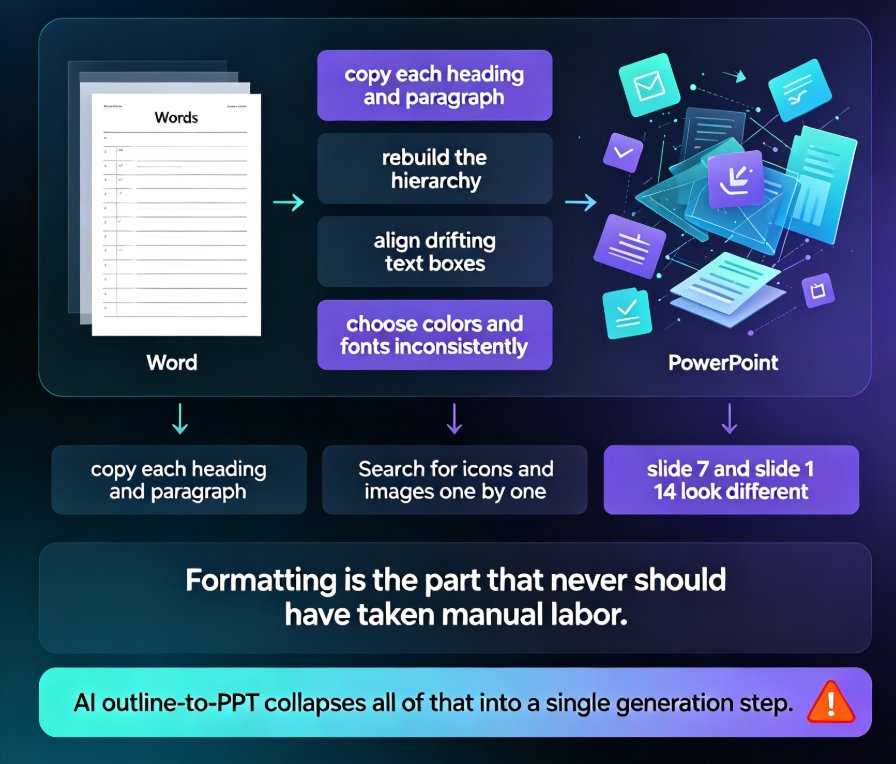
Let me guess what your last Monday actually looked like. You had a finished document open in Word — a business plan, a training manual, a project proposal, maybe a 40-page SOP — and someone casually said, "can you make a deck out of this?" Cue the next two and a half hours of copy-pasting headings, resizing text boxes, and fighting bullet indents. Sound familiar?
There's a name for this. Product leader Dan Itzkovitz calls it the "presentation tax" — the hours teams burn on formatting instead of refining the actual message. Think about it: the hard work was already done when you finished writing. The thinking, the structure, the argument — it's all in that Word file. The tax is everything you spend re-arranging it into slides.
Here's the good news: you don't have to pay it anymore. Zendeck's Word import reads your document, extracts the key points, and rebuilds the whole thing into a designed, fully editable PowerPoint deck in under two minutes. Let's walk through how it works, where it saves the most time, and how to prep your Word file so the AI does exactly what you want.
01 The real cost of manually converting Word to PPT
Let's put a number on this. For a typical 10- to 15-page Word document with headings, paragraphs, and a few tables, most professionals I've worked with spend somewhere between two and three hours converting it into a deck. And what do they get for those hours?
The pain points are painfully familiar:
- Endless copy-paste of text blocks
- Tables that decide to reformat themselves mid-slide
- Bullet indent wars that never end
- Fonts and colors that drift slide by slide
- Zero time left to think about the story
The kicker is that the output is usually worse, not better, than the source. People paste way too much text because fewer slides feel like fewer decisions, then end up reading whole paragraphs off the screen — which your audience definitely doesn't need.
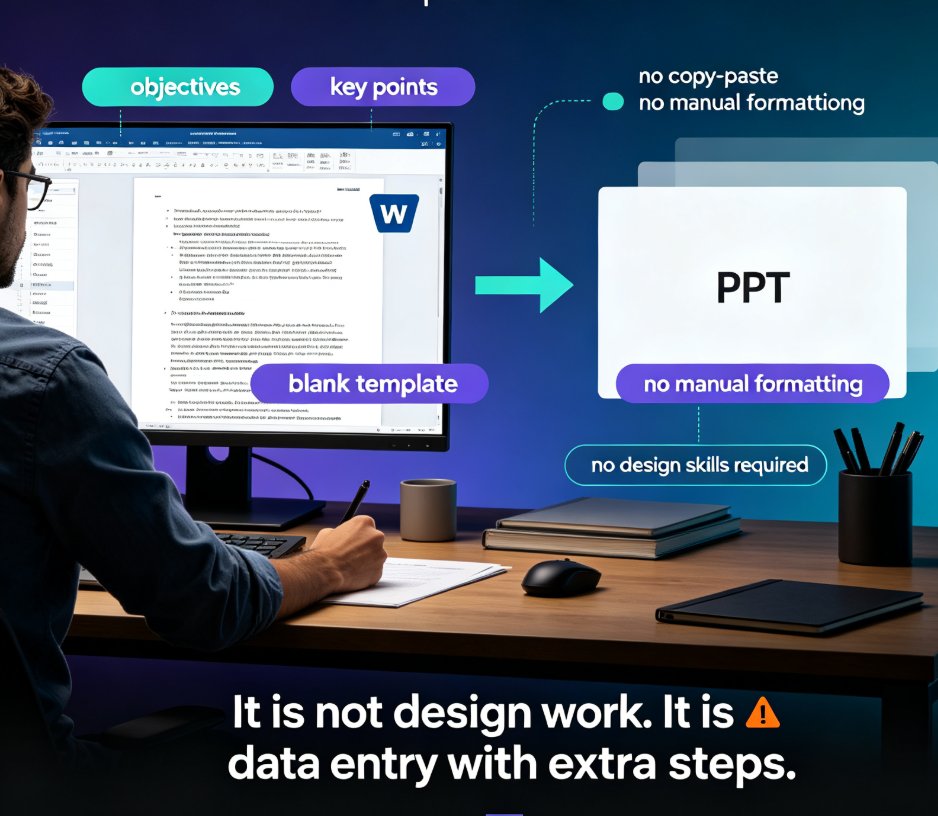
The pain isn't the writing. The pain is the reformatting — and that part is 100% mechanical. That's the exact part a machine should be doing. And there's an emotional cost too: by the time the deck actually looks presentable, you're so drained that you have no energy left to rehearse the delivery, which is the thing that actually wins the room.
◉ How much time does manual Word-to-PPT conversion really take?
In my experience running comms and course-development projects, a 12-page document averages 2-3 hours to convert by hand, including the final "tidy up" pass. A template-based tool gets you to about 30-60 minutes if you're disciplined. Zendeck's Word import does it in under two minutes. Check out the difference:
| Approach | Time for a 10-page doc | Design quality | Fully editable | Design skill needed |
|---|---|---|---|---|
| Manual copy-paste | 2-3 hours | Inconsistent | Yes | Yes |
| Template-based tool | 30-60 minutes | Uniform but generic | Yes | Patience |
| Zendeck Word import | Under 2 minutes | Context-aware, on-brand | Yes | None |
02 What Zendeck actually does with your Word file
Here's where most "Word to PPT" tools fall short: they treat your document as a text dump. They copy every sentence onto a slide and call it a day, which just moves the wall of text from MS Word to PowerPoint. Zendeck works differently.
When you upload a .docx or paste a Markdown / TXT outline, the AI reads the full document, understands the hierarchy, and rebuilds the content as slides the way a good designer would:
- Headings become slide titles
- Body copy gets condensed into key points
- Tables stay tables but get resized to fit slide layouts
- Long sections get split into multiple slides naturally
- The deck gets a consistent, on-brand visual system instantly
Every slide is fully editable — nothing is locked, no watermarks hiding your own text. You get the same raw PowerPoint file you'd have made by hand, minus the two hours of fiddling.
It's the same philosophy behind other core Zendeck flows: if you prefer working from prompts instead of an existing file, the AI prompt-to-deck flow generates professional slides from plain text in minutes. Word import is the sibling that starts where your document already lives — and if you're curious how this integrates with Google Docs and other document tools, we covered how AI presentation tools integrate with Word and Google Docs in more depth.
◉ Does Zendeck preserve my Word formatting and structure?
Yes — and this is the part people don't expect. The importer recognizes your document's hierarchy. Headings map to slide titles, subheadings become section markers, tables are carried over as clean table slides, and bullet lists are converted into properly spaced bullet points instead of a mid-air text block. This is exactly the behavior you'd hope to see from any AI deck generation engine that's replacing traditional PPT workflows.
03 Step-by-step: from Word file to finished deck in two minutes
The workflow is short enough to memorize:
Step 1: Prepare your source. Open your Word document. The best candidates have real heading styles (not just bolded text) — but honestly, even a plain file works because the AI infers the structure for you.
Step 2: Import. In Zendeck, choose Word import, upload the .docx, or paste the content as Markdown/TXT. The AI parses the document in seconds.
Step 3: Review the generated outline. Zendeck shows you the slide structure it plans to build. This is your chance to fix anything before the design pass — swap sections, merge slides, or delete boilerplate.
Step 4: Design. The AI picks a layout and applies a consistent visual style, pulling from your brand kit or a template. If you want to see what the template selection logic looks like under the hood, read about how Zendeck picks the right template look.
Step 5: Edit and export. Tweak any slide directly, then download as .pptx or share via link.
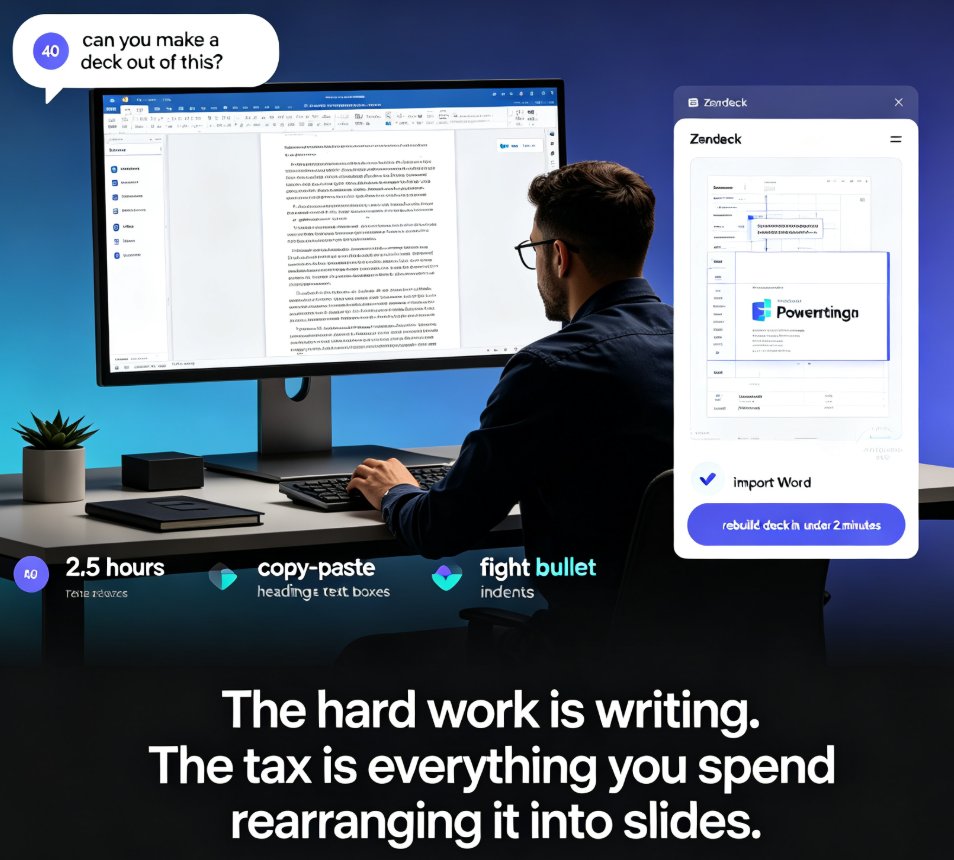
Total time: under two minutes to a designed deck — versus 2-3 hours the old way.
04 How to structure your Word outline for the best results
You'll get the best output if you treat your Word file like a blueprint, not a novel. A few things that genuinely matter:
- Use heading levels. Documents with Heading 1 / Heading 2 styles give the AI a crystal-clear map. It's the single biggest lever for accuracy.
- Keep paragraphs digestible. Long walls of text get condensed automatically, but your job is to make sure the key message lives at the start of each section.
- Let tables stay tables. Don't flatten data into prose. The importer handles table slides much better than it handles paragraphs of numbers.
- Cut the throat-clearing. The AI will pull key points from the first section anyway, so a "Dear team" intro isn't helping anyone.
The rule of thumb: if you can see the skeleton of your argument by scanning the headings, Zendeck will turn it into a strong deck. If the document is a rambling 40-page essay, the AI will still condense it — but you'll get a much better result if the underlying structure is clean. This kind of outline-driven workflow is exactly what we wrote about for course creators turning outlines into published assets. And if you're building courseware specifically, the dedicated AI courseware category has more scenario-specific examples.
05 Real scenarios where Word import saves you the most
This isn't a theoretical workflow. In my coaching work, these five scenarios come up constantly — all of them are painful by hand, all of them take minutes with Zendeck:
- Sales pitches from a one-pager or proposal. You already wrote the proposal. Now the client wants the 10-minute version.
- Training decks from SOPs and process documents. Your ops team has the manual; the onboarding session needs slides.
- Client presentations from reports. The quarterly report is 30 pages; the board meeting needs 12 slides.
- Investor decks from a business plan. Same content, radically different format.
- Webinar slides from a script. You have the narration — the visual layer is the missing piece.
Every one of these is a "document already exists" situation. That's the gap Zendeck's Word import is built for, and it's the same reason AI deck generation is quietly replacing traditional PPT in fast-moving teams.
◉ What about turning the finished deck into video?
Once the deck is built, you don't have to stop there. If your sales deck or course needs a voiceover for async viewing, Zendeck's PPT-to-video turns static slides into narrated micro-courses — and we cover the accessibility side of that in the micro-courses with auto-subtitles guide. Word-to-deck is step one; presentation-to-video is a natural step two for many teams.
06 Beyond conversion: why this is more than a file format trick
Word import isn't just a convenience feature. It changes the entire working rhythm for people who produce content professionally. Here's why I think it matters:
- It separates writing from designing. Write in Word, where you're fast. Let the AI design. Neither skill has to block the other.
- It kills the blank-slide problem. Designers and non-designers alike freeze on an empty slide. There's no blank canvas here — the content is already organized.
- It keeps your brand honest. When combined with a custom brand kit, every generated deck follows your brand's fonts, colors, and layout rules automatically. The custom brand kit guide shows how to set that up once and benefit forever.
The tools we used to call "presentation software" are becoming content engines — Word import is the on-ramp for everything you've already written. It's one of those hidden features of AI presentation tools that ends up saving the most time because you use it every single week, not once a quarter.
FAQ
Can Zendeck import a Word document and generate slides automatically?
Yes. Upload a .docx file or paste Markdown/TXT content into Zendeck's Word import, and the AI parses the document, extracts key points, and builds a structured, designed slide deck in under two minutes. The output is fully editable.
How long does it take to convert a Word outline into a PPT with Zendeck?
For most documents, the full process — upload, outline review, and design — takes under two minutes. A manual conversion of the same 10-15 page document typically runs 2-3 hours.
Will Zendeck preserve my headings, tables, and structure from Word?
Yes. The importer recognizes heading hierarchy (Heading 1 / Heading 2), maps headings to slide titles, carries tables over as clean table slides, and condenses paragraphs into key points. Subheadings become logical slide breaks.
Can I edit the slides after Zendeck generates them?
Absolutely. Every slide is fully editable inside Zendeck — change text, swap layouts, replace visuals, or restructure slides — and you can export the result as a standard .pptx file.
What's the best way to prepare a Word document for clean slide generation?
Use real heading styles instead of bolded text, keep sections digestible, and let tables stay as tables. A clear heading skeleton is the single biggest predictor of a clean deck output.