From Word Outline to Micro-Course: The 2026 AI Pipeline Evolution
You have 40 pages of battle-tested Word notes, a training session that can't slip, and a manager who keeps asking, "so where's the courseware?" Sound familiar? This is the exact moment the old way of producing training content quietly dies — because in 2026, the distance between a Word outline and a polished, narrated micro-course has effectively collapsed.
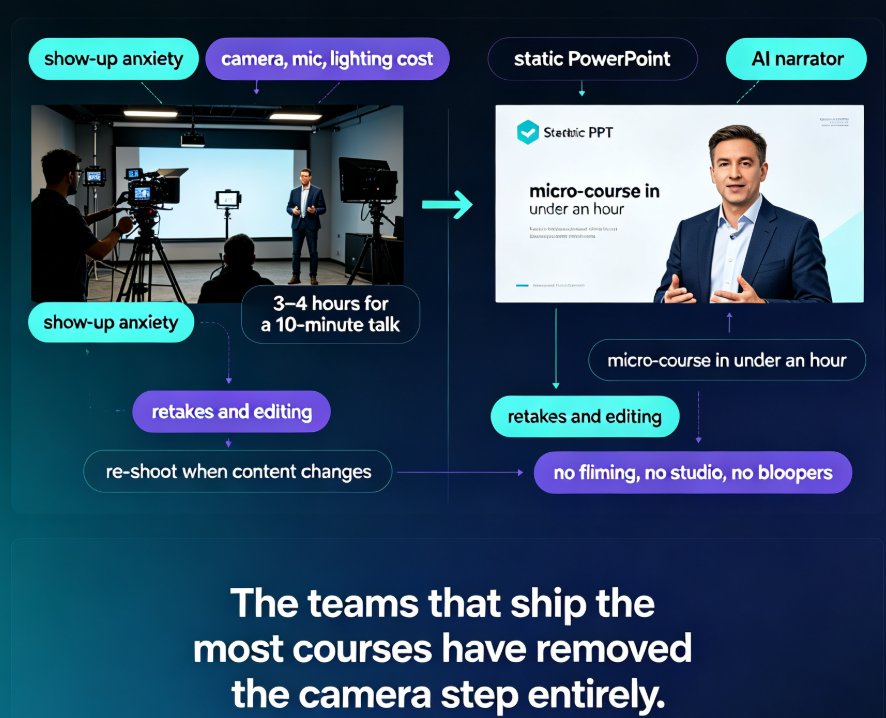
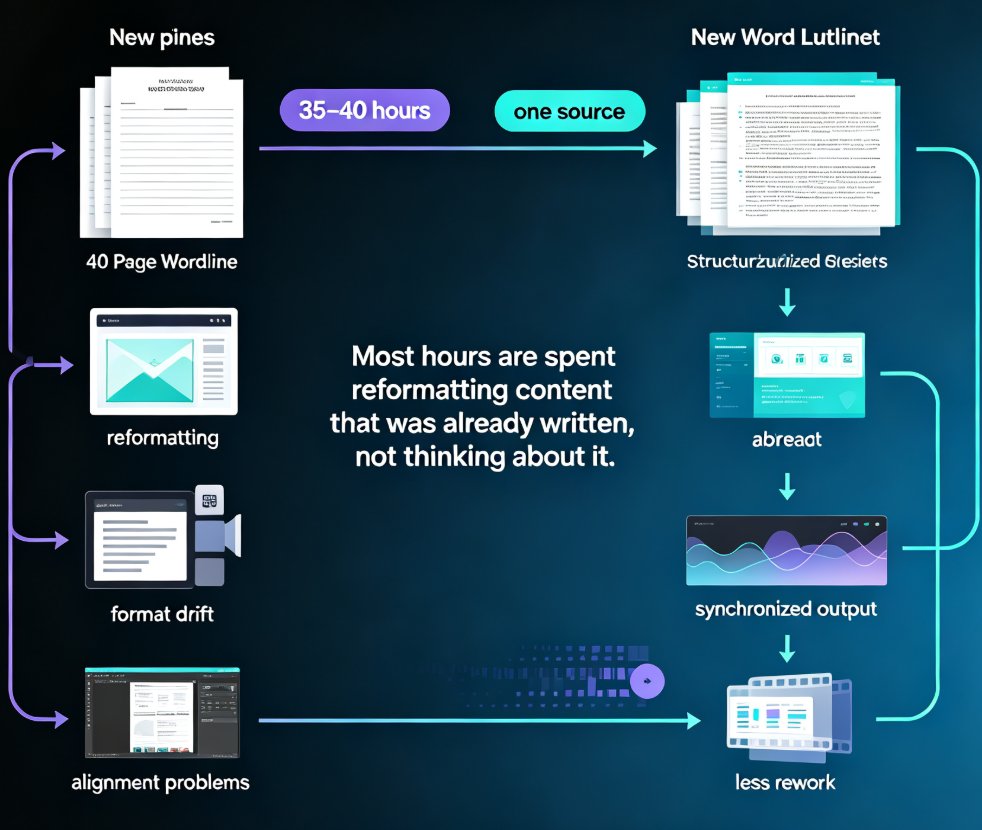
The manual pipeline was never broken in the drafting stage. It leaked at every handoff. Content moved from doc to slide, slide to design, design to voiceover, voiceover to captions — and each transfer re-introduced formatting drift, alignment problems, and rework.
The average manual micro-course build still consumes 35-40 hours of combined authoring, design, recording, and editing time — and most of it is reformatting content that was already written, not thinking about it.
The 2026 shift changes that math at the pipeline level, not just at the template level. Let's break down what actually changed, which numbers matter, and how you can ship a polished course in a single working day.
I. The 2026 Shift: From "Slide Tool" to "Content Pipeline"
For years, AI presentation tools promised to save you time on layout. And they did — modestly. But the bigger opportunity was always the pipeline: the chain of conversions that turns a raw source document into a finished, distributable course.
By 2026, that chain has become continuous. According to the 2Slides State of AI Presentations report, AI-generated presentations now represent a $4.7 billion market, with 62% of enterprises adopting AI tools in their presentation workflows. Those aren't slide-counting metrics; they're proof that organizations are betting their production capacity on this shift.
◉ Why the "Pipeline" Is the Real Trend, Not Just Another Template
The word "pipeline" gets thrown around loosely, so let's be specific. In the old workflow, you produced artifacts sequentially: draft in Word, build in PowerPoint, record in a screen-capture tool, edit captions in a video editor. Each step was a separate tool, a separate session, a separate chance to introduce inconsistency.
In the new pipeline, one source document feeds every downstream format. The same content that becomes your slide deck also becomes your speaker notes, your narration script, and your video captions — generated once, synchronized automatically.
The line between "slides" and "video courses" has blurred so thoroughly that by 2026, most creators don't think about producing a deck anymore — they think about producing a course that happens to exist in multiple formats.
◉ The MCP Layer: Why Word Docs Can Now Talk Directly to Video Decks
One technical development made this seamless: the Model Context Protocol (MCP). MCP has become the standard interface for connecting AI models to presentation services. Instead of exporting a text file and importing it somewhere else, the AI assistant calls the presentation service directly and hands over structured content.
The practical result for course creators: no more copy-paste purgatory between your Word outline and your slide tool. 2Slides reports that 14% of its presentation volume now originates from MCP-originated calls — and that number is climbing as enterprise teams wire MCP into onboarding flows and automated reporting chains.
For you, that means the outline you wrote this morning can become a structured deck by this afternoon, with the software handling the translation layer.
II. The Five-Stage Word-to-Micro-Course Pipeline, Stage by Stage
Let's walk through the modern pipeline the way you'd actually run it. Each stage replaces a manual chore with an automated step — and the hours saved compound quickly.
Stage 1: Outline Import (What Used to Take: 10 minutes of formatting; Now: Instant)
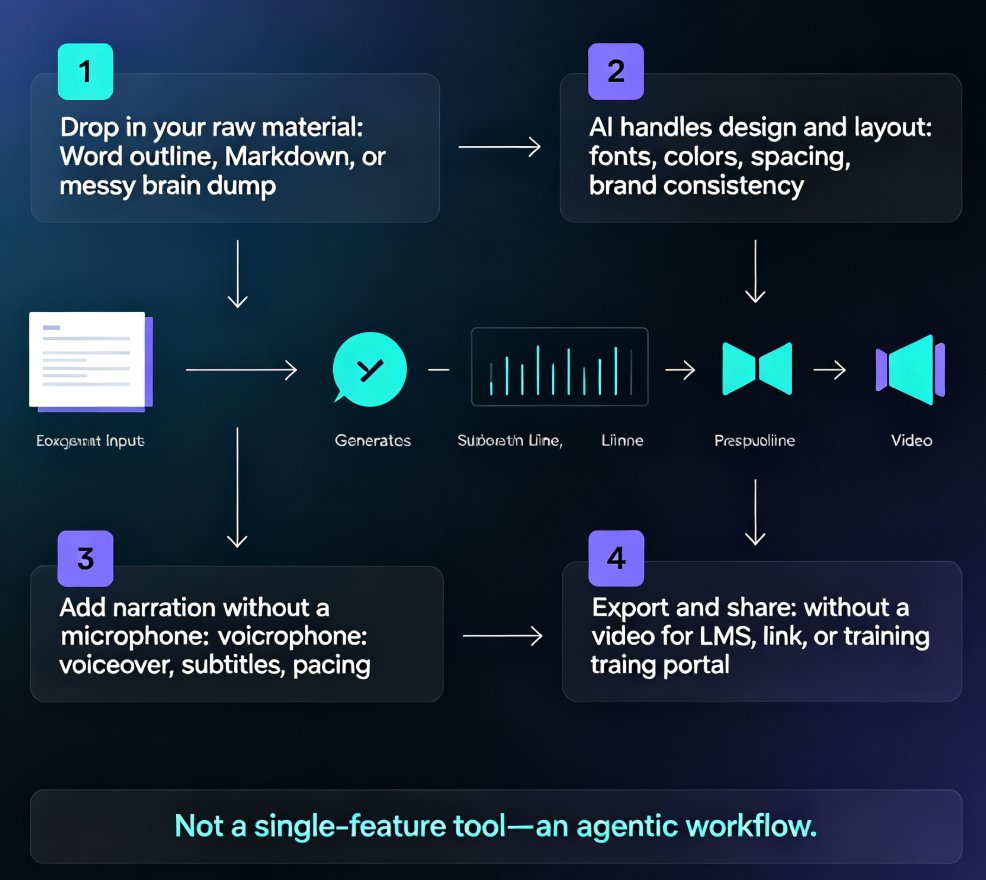
You paste your Markdown or upload your Word document. The AI parses headings, bullet levels, and paragraph structure — converting your outline's hierarchy directly into slide structure. This is the moment your document stops being text and starts being a course skeleton.
Stage 2: Auto-Layout and Design (Used to Take: 12-15 Hours; Now: 30-60 Minutes)
Here's where the hours really vanish. The AI matches each content block to an appropriate slide layout, applies consistent typography and color logic, and unifies every page through a single design system. When your course has 40 slides, this stage alone saves you a weekend.
Stage 3: Narration and Voiceover (Used to Take: 6-8 Recording Hours; Now: Minutes of Review)
AI narration generates a natural voiceover per slide from your script — or, if you prefer your own voice, tools record once and align audio to slide timings automatically. The retakes you used to do for a stumble on slide 17? Gone.
Stage 4: Captions and Subtitles (Used to Take: Hours of Manual Sync; Now: Auto-Generated)
Generated directly from the narration track, in sync with each slide transition. This is a silent accessibility win — auto-captions make your course WCAG-friendlier without you doing any extra work. (If you're building public or enterprise-facing training, this alone is worth the switch.)
Stage 5: Export and Distribution (Used to Take: 1-2 Hours of Format Juggling; Now: Minutes)
One click gives you video, PPTX, PDF, and a shareable link. No more exporting and reformatting for different platforms.
III. The Numbers That Matter: Manual vs AI Pipeline
This is the part I always grab for first when pitching leadership on a new workflow: the raw time comparison.
The chart above assumes a 40-slide micro-course built end-to-end. If your courses run 60-100 slides — which is common in enterprise training — the savings scale nearly linearly.
| Stage | Manual Pipeline | AI-Assisted Pipeline | Typical Savings |
|---|---|---|---|
| Outline drafting | 4-5 hrs | 4-5 hrs (still your thinking time) | 0% |
| Slide layout and design | 12-15 hrs | 30-60 min | ~90% |
| Recording narration | 6-8 hrs | 30-90 min | ~85% |
| Editing and captions | 8-10 hrs | 10-30 min | ~95% |
| Export and packaging | 1-2 hrs | 5-10 min | ~90% |
| Total | ~35-40 hrs | ~6-8 hrs | ~80%+ |
◉ What This Means for a Content Team
For a team producing 10 courses a quarter, the AI pipeline turns a 400-hour quarterly burden into an 80-hour one. That's four work weeks per quarter returned to actual instructional design, learner feedback analysis, or simply shipping more courses.
The trade-off you're making in 2026 is not "quality vs. speed" — it's "manual drudgery now" vs. "strategic oversight forever." The tools handle layout, captioning, and export; you keep the thinking, the storytelling, and the pedagogical judgment.
IV. Where Zendeck Sits in This Pipeline
If this trend sounds compelling but still abstract, here's a concrete way to feel it: open Zendeck, paste a Word document, and watch a structured deck emerge. Then run the deck through its PPT-to-video feature to generate narration and subtitles — the same workspace that started with your outline now exports a finished micro-course.
Zendeck was built for exactly this pipeline collapse. It handles the layout and design layer with AI-driven design automation, bridges your Word docs into slide structure with Word and Google Docs integration, and converts the finished deck into a narratable course with narration and subtitles — without you ever leaving the platform.
V. The Practical Playbook: Shipping a Micro-Course in a Day
If you're ready to run this pipeline on Monday, here's a sequence that works:
- Write your outline in Word or Markdown. Skip the slides. Structure headings the way you'd structure slides — your H1s become section dividers, your bullets become content blocks.
- Import into an AI deck tool and review the auto-layout. Spend 20 minutes fixing content order, not design. If your tool has a one-click reskin, use it to enforce brand consistency before you start polishing individual slides.
- Generate or record narration. If you're using AI voice, listen once at 1.5x speed and fix any pronunciation issues. If you're recording your own voice, do it in one take; the tool aligns audio to slide timing.
- Auto-generate captions and export. Review the first 60 seconds of output for sync drift, then export the video, deck, and PDF in one pass.
- Ship and iterate. Because the source is a text document, updating next quarter's version is a matter of editing the doc and re-running the pipeline — not replaying the entire production process.
◉ A Note on Quality Guardrails
The biggest mistake I see teams make with AI pipelines is treating the output as final without review. The pipeline removes mechanical work, not thinking. Budget 20-30 minutes of human review per course for content accuracy, and use the accessibility features (auto alt text, captions, readable contrast) that modern tools ship with.
FAQ
Q: Can I really convert a Word document into a micro-course without manually designing slides?
A: Yes. In 2026, AI presentation tools parse Word outlines or Markdown, map headings to slide structure, and apply consistent layouts automatically. Tools like Zendeck handle the design layer natively, so your only manual step is reviewing the content structure.
Q: How much time does the AI pipeline actually save per course?
A: For a typical 40-slide micro-course, manual production runs 35-40 hours, while an AI-assisted pipeline finishes in roughly 6-8 hours — a saving of about 80% of production time. The savings come mainly from layout, narration, and captions.
Q: Do AI-generated courses need human review before publishing?
A: Always. The pipeline eliminates mechanical work, not judgment. Review the auto-layout for logical flow, check narration for pronunciation, and verify captions against the audio. Most tools allow quick inline edits before export.
Q: Is video narration included, or do I need a separate tool?
A: Modern pipeline tools include narration. Zendeck, for instance, generates AI voiceover per slide and auto-syncs subtitles, so the entire journey from Word outline to published video course happens in one workspace.
Q: How does this trend benefit learners, not just producers?
A: Faster production means more courses, updated more often, with subtitles and accessibility features built in by default. Learners get fresher material, better accessibility, and consistent visual quality across your entire course library.