Top 5 Zendeck Collaboration Features for Team Presentation Workflow
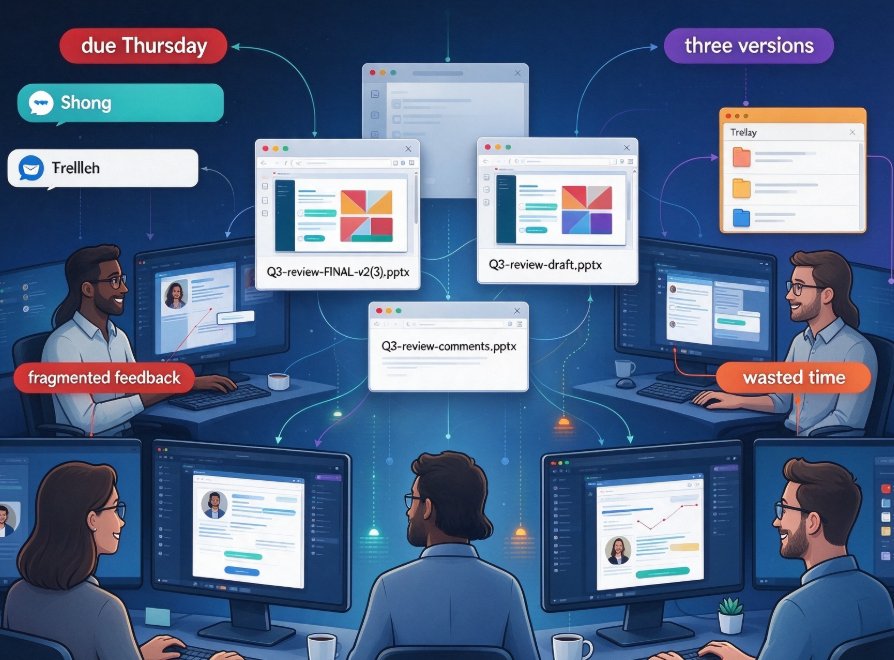
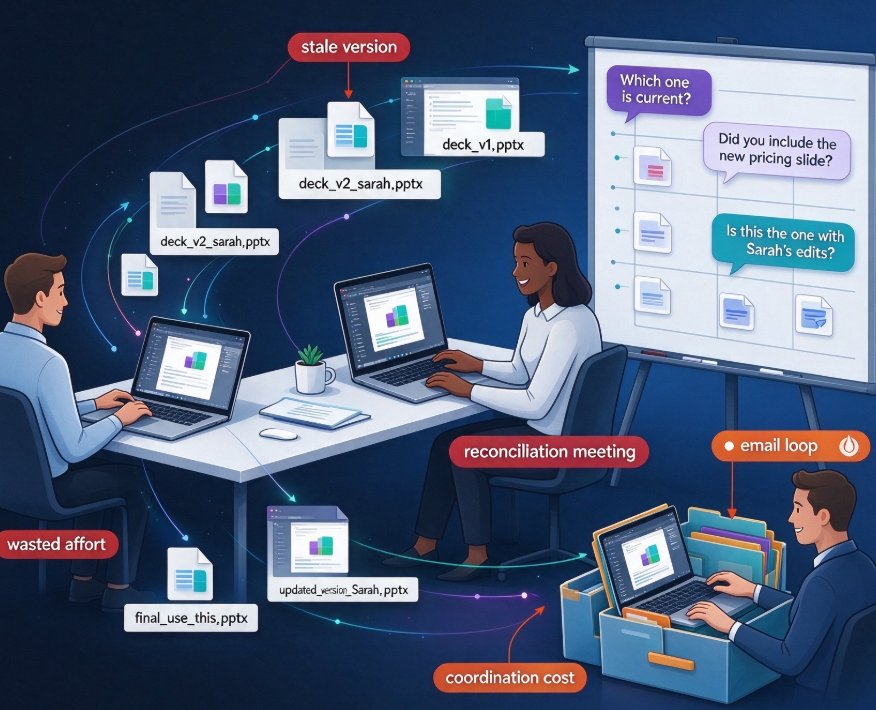
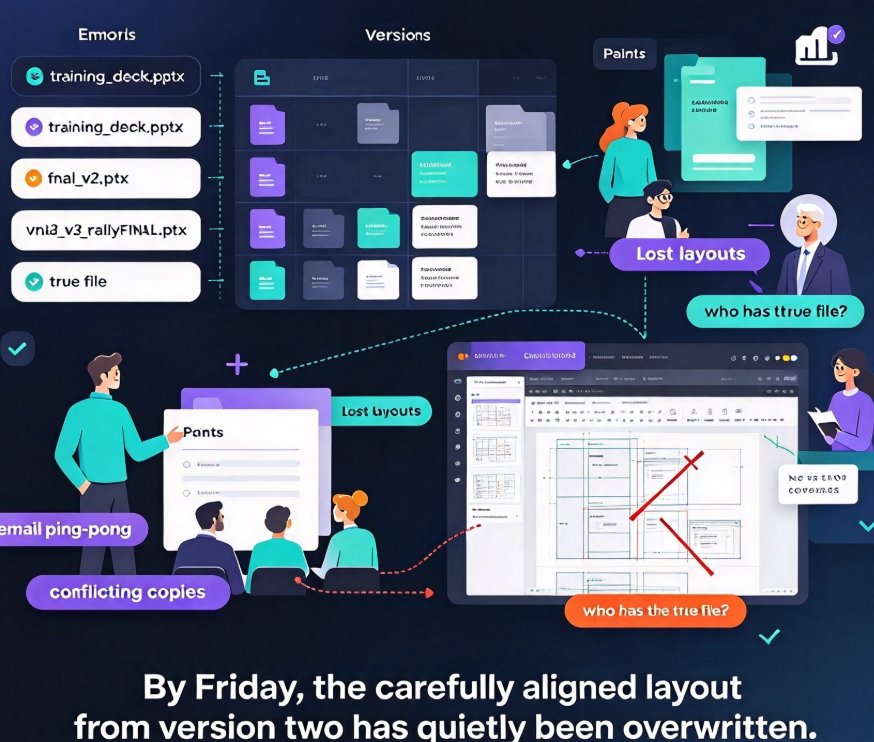
Let's be honest — the "classic" way of collaborating on a presentation is painful. You design a training deck on a Tuesday, email it to a colleague Wednesday morning, get "final_v3_reallyFINAL.pptx" back Thursday, and by Friday someone discovers the carefully aligned layout from version two has quietly been overwritten. Now the whole team is digging through email attachments wondering who has the "true" file.
It doesn't have to work that way. Teams using Zendeck's collaboration suite can build, review, and finalize training decks, courseware, and business proposals in one shared space — no email ping-pong, no conflicting copies, no lost layouts.
Here are the five features that make Zendeck the workflow tool your team's presentations have been missing.
01. Real-Time Co-Editing: Everyone Works on the Same Living Deck
The old rules said "divide the slides, edit in turns, merge manually." They also cost teams entire afternoons.
With Zendeck, multiple teammates can open the same deck at the same time and watch each other's changes appear live. One person rewrites the agenda slide while another re-skins the color palette and a third polishes the speaker notes — all without stepping on each other's toes. You see the deck come together in real time, rather than waiting for someone to "finish their part" before you can move.
Think about your L&D team prepping a quarterly onboarding deck: the instructional designer updates the learning objectives while the graphic person swaps in new visuals and the reviewer flags a sourcing question. Everyone arrives at the same final file without a single attachment in the thread.
A finished deck arrives sooner because the team stops coordinating and starts creating. No more "who's editing right now?" messages. No more merge conflicts on a Tuesday night.
This is exactly where the broader collaboration space is heading — AI presentation collaboration in 2026 is all about shared workspaces and live co-editing, not file transfers.
02. Contextual Comments: Feedback That Lives on the Slide, Not in an Email
We've all seen it: a reviewer writes "can we tweak the middle part?" in an email, and nobody knows whether "the middle part" means slide seven, the chart on slide nine, or the entire section. So you schedule a 30-minute call just to clarify a two-line note.
Zendeck solves this by tying comments directly to specific slides — and even to specific elements within them. Leave a note on the pricing chart, tag a teammate with @mention, and they'll know exactly what you're referring to the moment they open the deck. Questions and answers stay in one threaded conversation, so context never gets lost in a separate inbox.
Contextual feedback converts vague review notes into actionable changes — and review cycles shrink from days to hours. Your team can finalize a proposal in a single sitting, with every comment resolved before you even think about exporting the final file.
This is the kind of practical feature that doesn't show up on a feature list but quietly changes how your team debate works.
03. Secure Link Sharing with Granular Permissions
The scariest words in teamwork are: "Just send me the file." Once a PPTX leaves your drive, you lose control — who has it, who edited it, which version is current. If a contractor or a client holds onto an old copy, that outdated draft keeps floating around and creating confusion.
Zendeck's link sharing puts you back in charge. You decide whether a teammate gets view-only, comment-only, or full edit access, and you can revoke access the moment it's no longer needed. Sharing a deck becomes as simple as pasting a link — no giant attachments, no duplicates circulating through inboxes.
Practical outcome: your deck stays one source of truth, even when it's in ten people's browsers. That's a meaningful upgrade if your team ships training decks, courseware, or client-facing proposals on a weekly schedule.
Getting the permissions right matters more as teams grow more distributed — it's one of those hidden AI-presentation features that quietly boost team productivity without making headlines.
04. Version History: The Deck's Memory, On Demand
We all have a "final final v7" horror story somewhere in our careers. Someone renamed a file, someone saved over the good version, and suddenly the deck you spent three weeks perfecting exists only in fragments across two inboxes and a shared drive.
Zendeck's version history eliminates the drama: every significant change is tracked automatically, and you can roll back to any earlier version at any time. Accidentally deleted a slide in round three? Restore it. Client loved the blue palette from last week? Recover that version and re-skin in one click.
Version history gives your team the freedom to experiment without the fear of breaking something permanent. Try a new layout, rework a narrative, test a different template — if it doesn't work, you're one click away from the version you loved.
That sense of safety changes behavior. Your designers experiment more boldly and your subject-matter experts feel comfortable proposing big edits, because nothing is truly lost. If you want to see where this is heading, the 2026 AI deck trends point toward memory-rich tools that remember your choices across sessions — and version history is the foundation that makes that possible.
05. A Collaboration Workflow That Fits Your Real Team
The most underrated part of Zendeck's collaboration features is how naturally they fit into a working week. Because everything lives in the browser, your team skips "please install this plugin" and jumps straight into editing. Designers, trainers, educators, and reviewers all work on the same deck with the same tool — nobody is locked out because they don't own a particular desktop app.
That matters when the deck is part of a bigger production pipeline, like turning a training deck into a narrated micro-course. The same deck you co-edit today can become a video tomorrow, keeping your whole course-production pipeline inside one tool instead of stitching together five different platforms.
And when the deck is finally approved, the transition from collaboration to delivery is seamless — you export, share, or publish without re-exporting through a dozen handoffs. If your team lives in office-efficiency workflows, that's the difference between a tool you log into and one you actually rely on.
The takeaway: collaboration shouldn't be a separate phase of your workflow — it should be woven into the tool you already use. Zendeck means your team debates, refines, and ships presentations without ever leaving the workspace.
What These Features Replace: A Quick Comparison
Still skeptical that this beats the old way? Let's put it side by side.
| Capability | Zendeck | Traditional PPT + Email | Generic AI Slide Tools |
|---|---|---|---|
| Real-time co-editing | Yes | No — files emailed back and forth | Limited |
| Contextual comments on slides | Yes | No | Basic or absent |
| Granular sharing permission (view / comment / edit) | Yes | No | Limited |
| Automatic version history & rollback | Yes | Manual — "save as" naming | Basic |
| Cross-tool collaboration (deck → video) | Yes | No | Rare |
| Works in the browser, no installation | Yes | Partial | Often yes |
The verdict is pretty clear. If your team still collaborates by sending files, you're spending hours every week re-coordinating instead of creating. Zendeck's collaboration suite collapses that overhead into a single shared workspace.
FAQ
Can multiple people edit the same Zendeck deck at the same time? Yes. Zendeck supports real-time co-editing, so several teammates can work on the same deck simultaneously and see each other's changes as they happen.
How do I control who can view or edit my shared deck? When you share a link, you can assign view-only, comment-only, or full edit permissions per person, and revoke access at any time from the sharing settings.
Are comments tied to specific slides? Yes. Comments attach to the exact slide (or element on the slide) they refer to, and you can @mention teammates to send them directly into the conversation thread.
What if two people edit the same slide at the same time? Zendeck's live co-editing handles concurrent changes on the same slide gracefully; the version history also lets you review and restore earlier states if you ever need to.
Can I restore an old version of a deck? Absolutely. Version history is automatic, so you can roll back to any previous version whenever needed — and recover anything that was accidentally changed or deleted.