From Word Outline to Polished Slides: Zendeck's AI Workflow
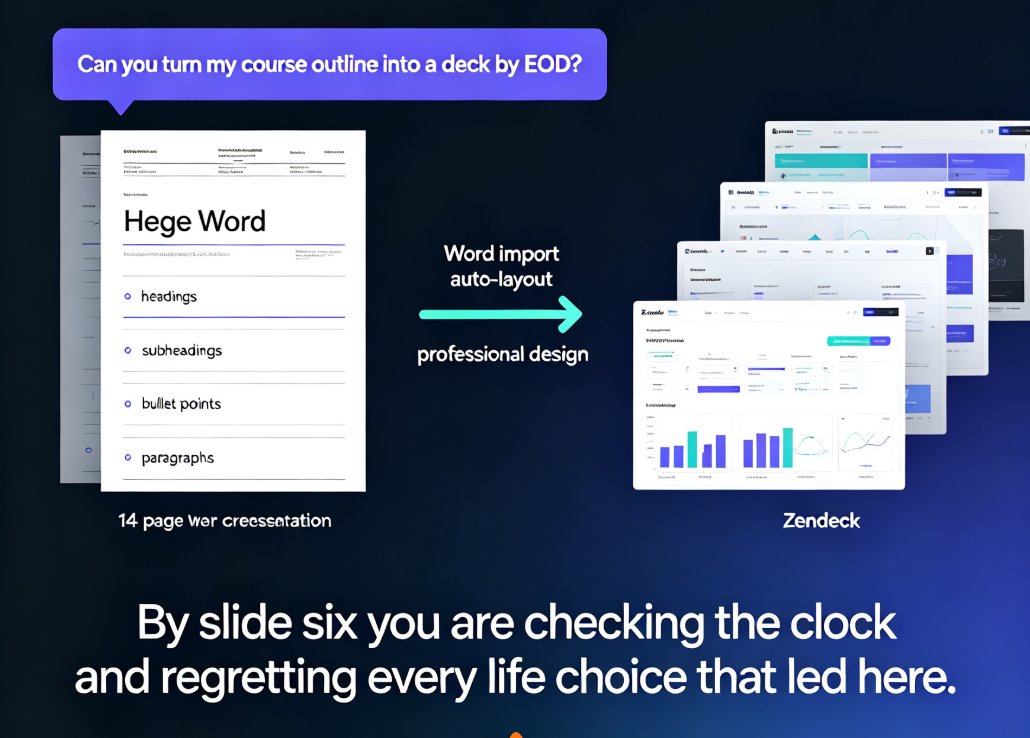
You know the scene. Wednesday afternoon, a training manager pings you: "Can you turn my course outline into a deck by EOD?" The outline is a 14-page Word document — headings, subheadings, bullet points, a scattering of paragraphs. Your options? Copy each bullet into a blank slide, pray the text doesn't overflow, re-align title bars, pick fonts that don't clash... by slide six you're checking the clock and regretting every life choice that led here.
It doesn't have to be this way. Zendeck's whole pitch is simple: you write the outline, the AI builds the deck. The Word-import workflow turns a document you already have into a structured, professionally designed presentation in minutes — and for educators, trainers, and content operators who can't afford to spend afternoons formatting, it's become the fastest path to a finished deck.
01 Why the Word-to-slides pipeline still wastes your afternoon
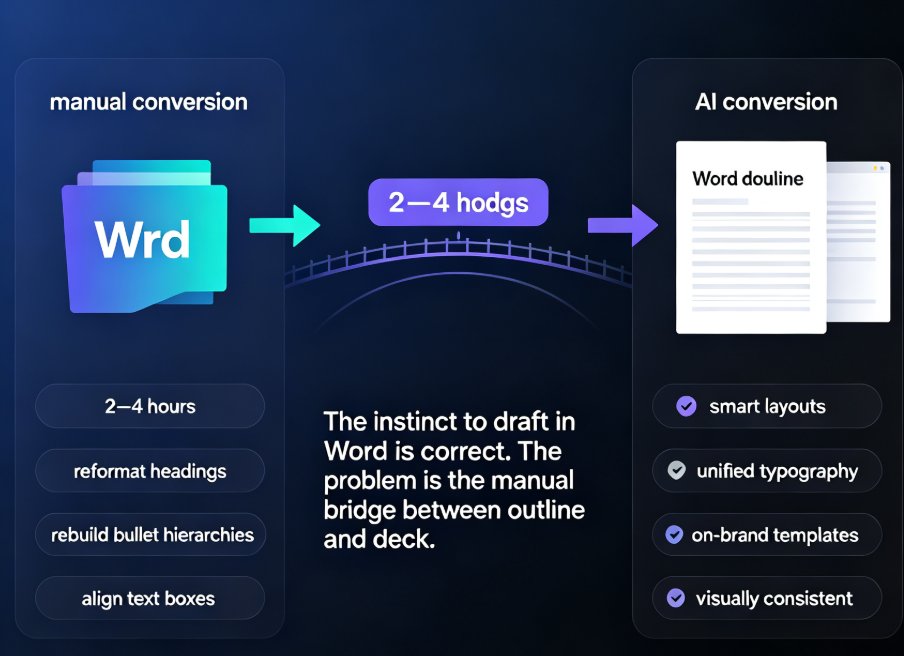
Let's be honest about the manual route. You open PowerPoint, you create a blank slide, you copy a heading, you paste bullet points, you resize the text box so nothing overflows, you move a graphic that decided to shift three pixels left... then you repeat that 15 times. Every slide is a small act of manual labor, and the quality depends entirely on how patient you're feeling that day.
Three specific pain points come up again and again:
- Copy-paste drift. Word's formatting doesn't translate cleanly into PowerPoint. You paste, then spend minutes fixing fonts, bullet indents, and line spacing.
- Structure gets lost. The whole point of an outline is hierarchy — main points, sub-points, evidence. Manually rebuilding that hierarchy on slides is slow, and it's the part most likely to get messy.
- Inconsistent design. Unless you're disciplined about templates, every deck ends up looking slightly different — different font sizes, mismatched colors, misaligned titles. That's a brand problem hiding as a time problem.
This is exactly why AI presentation tools that integrate with Word exist. Rather than treating slides as blank canvases, they treat your outline as the source of truth and do the layout work for you.
02 How to prep your outline so the AI reads it correctly
The good news: you don't need to reformat your entire document. The slightly-annoying news: a little structure up front saves a lot of rework afterward.
Here's what a clean outline for Zendeck looks like:
- Use heading styles (Heading 1, Heading 2, Heading 3) in Word — not just bold text that looks like a heading. This is the single most important step.
- Keep each main section as a Heading 1 (those become slide sections or chapter dividers).
- Use Heading 2 for individual slide topics.
- Put supporting details as bullet points under the headings.
- Avoid giant paragraphs inside the outline. Keep it scannable; the AI will turn bullets into slide content, and dense walls of text just make more editing work later.
Friend-to-friend advice: you don't need to be obsessive about this. Zendeck's AI is forgiving — it groups related points even if your document is a little messy. But the cleaner the heading hierarchy, the better the slide structure comes out, and the less time you spend rearranging afterward.
Once your document is ready, the actual conversion takes about three minutes of your attention.
03 The step-by-step Zendeck workflow: from .docx to deck
The whole flow is designed for someone who has a deadline, not someone who enjoys fiddling with toolbar menus. Here's exactly what happens:
Step 1 — Upload your Word document. In Zendeck, click the "Upload Word" button and select your .docx file. Alternatively, paste the outline as text or Markdown. No formatting cleanup required first — the AI handles the parsing.
Step 2 — Tell the AI how to treat your content. You can adjust deck length and density, set the tone (formal, conversational, educational), and even add a prompt guiding the structure. If you want three slides per section instead of five, this is where you say so.
Step 3 — Pick a look. Choose from Zendeck's premium template library, or let the AI suggest a template that matches your content type — a training deck, an executive brief, a classroom lecture. If your team uses a custom brand kit, apply it here and the colors, fonts, and logo lock in automatically.
Step 4 — Generate. The AI processes the outline and produces a structured deck, complete with title slides, section dividers, and content slides organized by your heading hierarchy. This takes a couple of minutes for a standard 15-20 slide deck.
Step 5 — Edit and export. The generated deck is fully editable. Rearrange slides, tweak wording, swap visuals, and adjust layouts with Zendeck's smart editing tools. When you're happy, export as PPT, PDF, or PNG.
04 What Zendeck actually does after you hit import
This is where the magic — and the time savings — actually happen. Behind the scenes, Zendeck's AI does four things that would take you hours manually:
- It maps your outline structure to a deck structure. Each major section becomes a logical group of slides. The AI doesn't just dump content onto pages; it understands that a Heading 2 with five bullets probably deserves its own slide, while a single line might become a section divider.
- It applies smart layouts. Instead of one rigid template, Zendeck uses smart layouts that adapt to the content — short text gets breathing room, long bullet lists get structured containers, and nothing overflows the slide.
- It enforces visual consistency. Every title uses the same style, every bullet aligns to the same grid, every color comes from one palette. The result looks like a designer touched it, even when no designer was involved.
- It keeps everything editable. The AI doesn't render to an image. It produces real, editable objects, so you can change a word, swap a chart, or reorder slides without fighting the tool.
You don't need design skills to turn a Word outline into a great deck. You need a tool that reads structure — and knows what to do with it.
05 How much time you really save (and where it goes)
The headline number everyone cares about: according to a documented case study from a training team using Zendeck, slide creation time dropped by roughly 70% compared to the old manual workflow. That's not a marketing guess — it's a real scenario where a training manager converted existing course outlines into decks in about a quarter of the usual time.
Here's a typical breakdown for a 20-slide deck, based on that case study:
Where does the saved time actually come from? It's not the generation itself — that's just a few minutes. The real win is what you no longer have to do:
- No more copying and pasting content slide by slide.
- No more fixing broken formatting after pasting.
- No more manually aligning text boxes, resizing headers, or re-coloring bullets.
- No more starting over when someone asks for "a different look" — reskinning in Zendeck is one click, not a redo.
The biggest time saver isn't the generation itself. It's never having to re-align a heading, re-size a text box, or re-check a font again.
06 Who gets the most out of this workflow
Any workflow tool has a sweet spot, and this one sits squarely with people who are constantly asked to "make a deck from this document." Let's break down who benefits most:
| Workflow step | Manual (PowerPoint) | Zendeck AI Workflow |
|---|---|---|
| Outline prep | Format manually, add slide notes | Keep a clean heading structure — done |
| Slide generation | Copy & paste slide by slide | One-click upload & import |
| Layout & alignment | 15-30 min per slide | Auto via smart layouts |
| Brand consistency | Manually check every font & color | Apply brand kit once, done |
| Style changes | Rebuild or reformat entire deck | One-click reskin |
| Total for 15-20 slides | ~5 hours | ~90 minutes |
Trainers and educators get the biggest immediate payoff — most of them already write lesson plans or course outlines in Word, and Zendeck turns those into teaching decks without the late-night formatting session. If you're building courseware regularly, this becomes your default workflow. And once the deck exists, you can even convert it into a narrated video for micro-learning with Zendeck's PPT-to-video feature.
Business teams and content operators benefit just as much. Executive briefs, pitch decks, internal reports — they almost all start life as a document. The same import flow applies; you can even create a winning pitch deck with AI when you're starting from a problem statement rather than a finished outline.
The one group that should be careful? People who want total pixel-level control over every slide. If you need to design something wildly custom, you'll still want a traditional editor — but for turning outlines into polished, on-brand decks at speed, no manual workflow comes close.
Want to go deeper on the surrounding workflow? Check out how AI presentation tools handle Word and Google Docs integrations, or explore hidden features that boost team productivity. And if you're a trainer specifically, the template library guide for trainers shows how to keep your decks consistent across an entire training program.
FAQ
What file formats does Zendeck accept for the outline-to-slides workflow? Zendeck's core path is a Word document (.docx), but you can also paste plain text, Markdown, or TXT directly into the editor and generate slides from that. The AI reads heading structure and bullet hierarchy, so any of those formats works as long as you keep the outline clean.
Do I need design skills to turn a Word outline into a deck with Zendeck? No. Once the AI imports your outline, Zendeck applies smart layouts, consistent fonts, and a matching color palette automatically. If you want a specific look, you can pick a premium template from the library or apply your company brand kit — no design background required.
Will Zendeck keep my company branding and colors after import? Yes. If you've set up a custom brand kit in Zendeck, the generated deck automatically inherits your logos, fonts, and brand colors. You can also apply a brand kit after generation, and the one-click reskin feature updates the entire deck consistently so nothing clashes.
How long does it take to convert a Word outline to a full presentation? Generation itself takes a few minutes for a 15-20 slide deck. Realistically, people spend about 90 minutes total from import to polished final version — including content tweaks, one template switch, and export. That's roughly a 70% time saving compared to building the same deck manually in PowerPoint.
Can I edit the generated deck and export it back to PowerPoint? Absolutely. Zendeck keeps everything editable online — you can reorder slides, change text, swap charts, and adjust layouts. When you're happy, export to PPT, PDF, or image formats, or go further with Zendeck's PPT-to-video feature to add narration and turn the deck into a micro-course.