How to Turn a Word Outline into a Polished Slide Deck with Zendeck
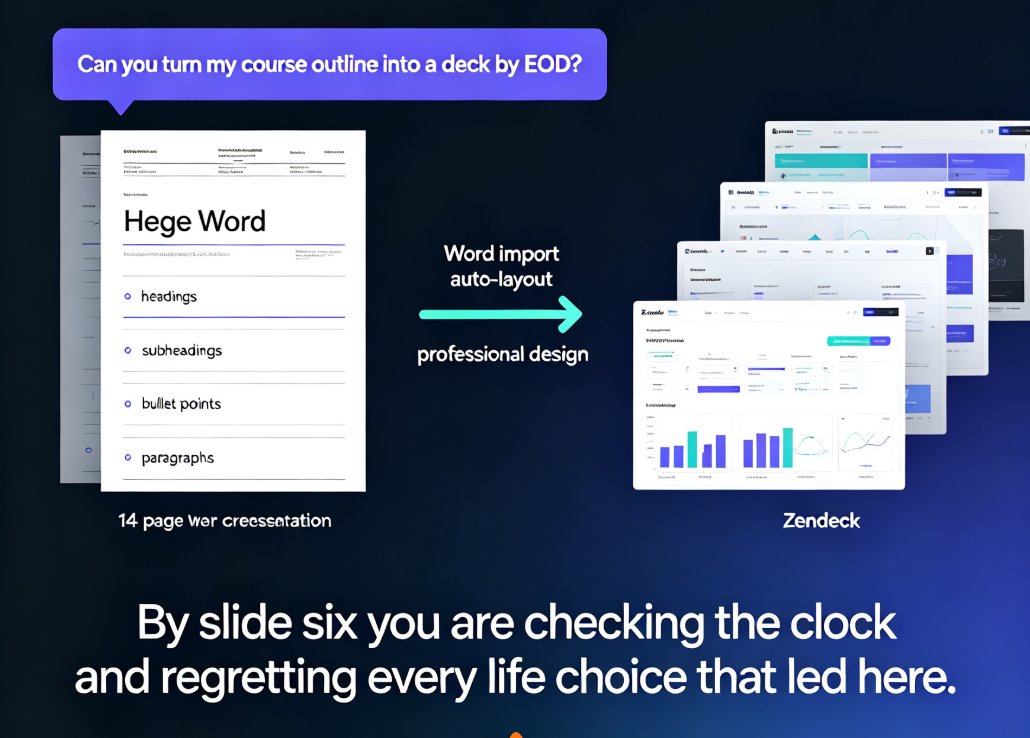
Let's be real for a second. You probably didn't wake up this morning hoping to spend four hours converting a Word outline into slides. Yet thousands of educators, trainers, and content operators end up doing exactly that every week — not because they lack design skills, but because their best work starts in a plain document.
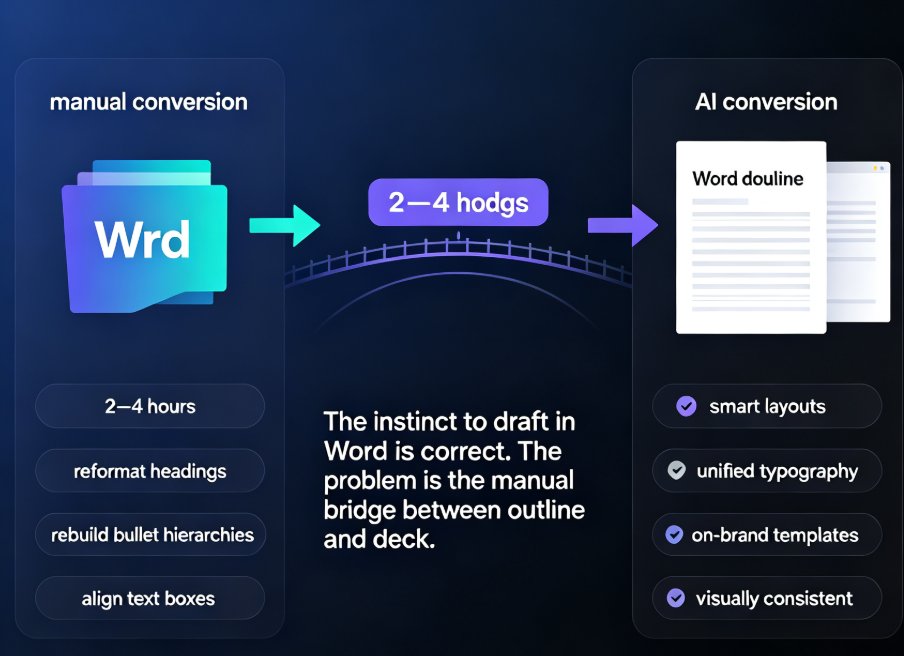
That instinct to draft in Word is correct. The problem is the manual bridge between "outline" and "deck." Most people lose two to four hours reformatting headings, rebuilding bullet hierarchies, and aligning text boxes when that bridge should be automated.
AI presentation tools now handle this conversion for you. Platforms like Zendeck take a well-structured Word outline and generate a complete, visually consistent presentation — with smart layouts, unified typography, and on-brand templates applied automatically. This guide walks through exactly how that works, including what to fix before you import and what you should never do again.
01 — Why Most Professionals Still Draft in Word First
Let's be honest about the workflow reality: people open Word when they need to think, and PowerPoint when they need to present. Word is where ideas get structure. You build the argument, layer in the evidence, and refine the narrative before any visual concerns enter the picture.
More often than not, this is also how teams collaborate on content. A training lead drafts the course outline in Word, four subject-matter experts add comments and edits, and only when the text is final does anyone think about slides. That collaborative drafting phase is invaluable — you simply can't run the same review cycle inside a slide deck.
The smartest move is to keep drafting in Word, then let AI handle the slide-making. That way you preserve everything that works about document-first workflows — focus, collaboration, version control — while eliminating the one part that adds zero value: the manual conversion.
02 — The Manual Conversion Trap: Where Hours Disappear
Here's the scenario. You open PowerPoint with your final Word outline beside you. You create slide after slide, copy-paste headings, convert body text to bullets, then start styling:
- Adjusting font sizes because the text overflows the placeholder
- Manually unifying colors and fonts across forty slides
- Fixing bullet indentations that broke during paste
- Searching for a chart or icon that actually fits the slide
- Repeating the whole process when the boss asks for a different color scheme
Now let's add some numbers to that pain.
| Aspect | Manual conversion in PowerPoint | Zendeck AI conversion from Word |
|---|---|---|
| Time for a 25-30 slide deck | 2-4 hours | 5-15 minutes |
| Heading detection | Manual: apply outline levels by hand | Automatic: reads Heading 1/2/3 styles |
| Design consistency | Manual: you chase fonts and colors slide by slide | Automatic: smart layout unifies everything |
| Template styling | Manual theme selection | Context-aware template matching |
| Revisions / re-theming | Re-do formatting across all slides | One-click reskin |
| Result for a non-designer | Inconsistent, or “too plain” | Polished, on-brand, presentation-ready |
The average professional spends two to four hours converting a 30-slide Word outline into a half-decent deck. Zendeck compresses that to a single session — minutes of review and refinement instead of hours of manual layout work.
03 — How to Structure a Word Outline So It Converts Cleanly
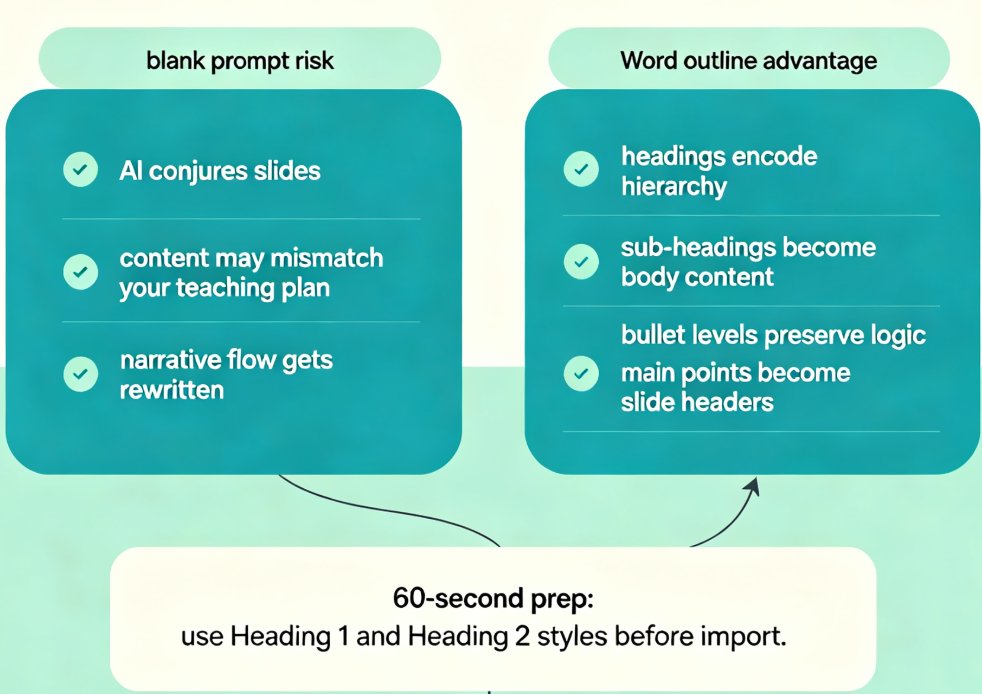
Before you import anything, make sure your Word document uses proper heading styles. This is the single biggest factor in how smoothly the conversion goes.
- Use Heading 1 for slide titles. Every Heading 1 becomes a new slide. This is the level that maps directly to your deck structure.
- Use Heading 2 for the main bullet points on each slide. These become the key talking points.
- Heading 3 is perfect for sub-bullets or supporting details.
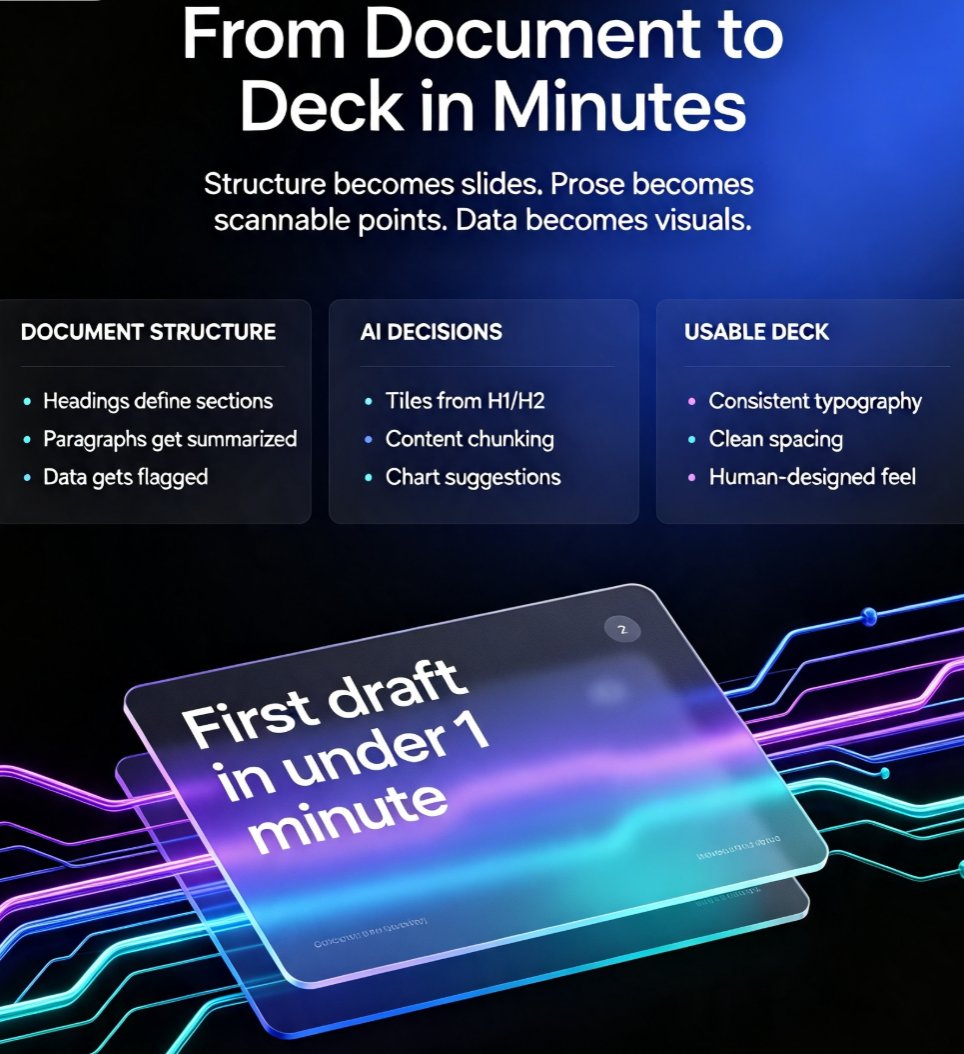
A well-structured Word outline — clean heading hierarchy, no stray "Normal" text — converts dramatically better than one that relies on manual bold formatting or indent tricks. That's true whether you're using PowerPoint's built-in outline importer or an AI tool like Zendeck. In fact, most AI presentation tools depend entirely on reading those document structure signals to understand how to slice your content into slides.
If you want the full picture on how templates get selected during this process, our deep dive on AI deck template selection covers exactly how the system picks the right look for your content.
04 — Step-by-Step: Turn a Word Outline into a Deck with Zendeck
The process itself could not be simpler — and it saves your evenings in the process.
Step 1 — Prepare your outline. Open your Word document and apply Heading 1 to each section you want as a slide, Heading 2 for key points. If your document is already structured this way, you're good to go.
Step 2 — Upload or paste. In Zendeck, upload your Word file or paste the text directly. The platform reads the heading hierarchy to understand your structure.
Step 3 — Let the AI generate. Zendeck analyzes your outline, selects an appropriate template, and generates a complete slide deck. Each Heading 1 becomes a slide title, each Heading 2 becomes a structured bullet or content block. Layout decisions happen automatically.
Step 4 — Review and refine. The generated deck is a draft — a very good one — but it's yours to refine. Swap templates with one click, tweak wording, adjust visual elements. You stay in control while letting the AI do the heavy lifting.
Step 5 — Share or export. Once the deck feels right, export as PowerPoint, PDF, or continue working online — share the link with your team for feedback in real time.
Step 6 — Optional: turn it into a video. If this is training content, you can turn those slides into a narrated micro-course with Zendeck's PPT-to-video feature, adding voiceover and subtitles without ever exiting the platform.
05 — What You Actually Get: Speed, Consistency, and Your Afternoons Back
The value here isn't just “slides exist faster.” It's the compounding effect on quality and consistency across everything you produce.
Zendeck doesn't just convert text — it produces a presentation with a unified visual language from the first slide to the last. You get structured layouts that match content type, consistent typography, and design that looks intentional rather than improvised. For a team producing training materials or courseware week after week, that consistency is worth more than the time savings alone.
Let's talk use cases:
- Educators: Win back the hours you'd spend formatting courseware and spend them on lesson design instead.
- Trainers: Turn detailed workshop outlines into decks in minutes, not evenings.
- HR teams: Convert policy documents and onboarding guides into structured presentations without design overhead.
- Content operators: Maintain a regular output cadence because decks stop being a production bottleneck.
The workflow fits squarely into a broader shift we're seeing — AI deck generation is actively replacing traditional PPT workflows across industries, and document-to-deck conversion is one of the clearest examples of the trend in action.
06 — Common Document-to-Deck Mistakes (and How to Avoid Them)
Even with AI handling the heavy lifting, the quality of what comes out depends on what you put in. Here are the pitfalls worth knowing about:
Mistake 1: Skipping heading styles. If your Word document relies on manual bold text instead of real Heading styles, the converter — whether PowerPoint or AI-based — cannot read your structure. Fix this in Word before importing.
Mistake 2: Overloading slides. A single slide cannot faithfully carry twelve bullets. If your outline has too many points per section, the generated slides will look cramped, no matter how good the layout engine is. Split the content or keep bullets to four to six per slide.
Mistake 3: Forgetting your audience. AI produces structurally sound slides, but only you know whether the tone and depth match your audience. Spend your saved time on what AI can't remove: context, storytelling, and audience awareness.
Mistake 4: Checking out completely. An AI-generated draft is not a "set and forget" deliverable. Review every slide before it reaches your audience. The tool gives you a running start — it's still your name on the deck.
For a broader look at common traps across AI presentation tools, here's our checklist of AI presentation mistakes to avoid in 2026 — and if your team is producing decks regularly, you might also appreciate these hidden features of AI presentation tools that boost team productivity.
The bottom line: keep drafting in Word, stop manually building decks. AI tools like Zendeck bridge that gap cleanly — reading your outline, structuring your content, and delivering a visually consistent presentation in minutes. The time you reclaim goes right back into the work that actually matters: better content, better training, better presentations.
FAQ
Does Zendeck support .docx files and other document formats? Yes. Zendeck accepts Word documents, and also supports pasting Markdown or plain text directly. For best results, make sure your document uses proper heading styles before uploading.
Do I need design skills to convert a Word outline with Zendeck? No. Zendeck handles layout, typography, and template selection automatically. Your job is to review the output and fine-tune content — no design skills required.
What if my Word document doesn't use heading styles? You can apply heading styles in Word before uploading (takes just a few minutes) or restructure the text when pasting it into the platform. AI conversion works best with clear structural signals, so heading styles make a real difference in slide quality.
Can I edit the slides after they're generated from my outline? Absolutely. The generated deck is fully editable. You can change templates, adjust text, swap visuals, and reskin the whole deck with one click if you need to match a brand or client requirement.
How long does it take to turn a Word outline into a complete deck? Most conversions complete in under 15 minutes. A 30-slide deck that would take two to four hours manually is typically generated in 5 to 15 minutes, including your review time.