Word Outline to Slide Deck: Zendeck's AI Import Feature in 5 Steps
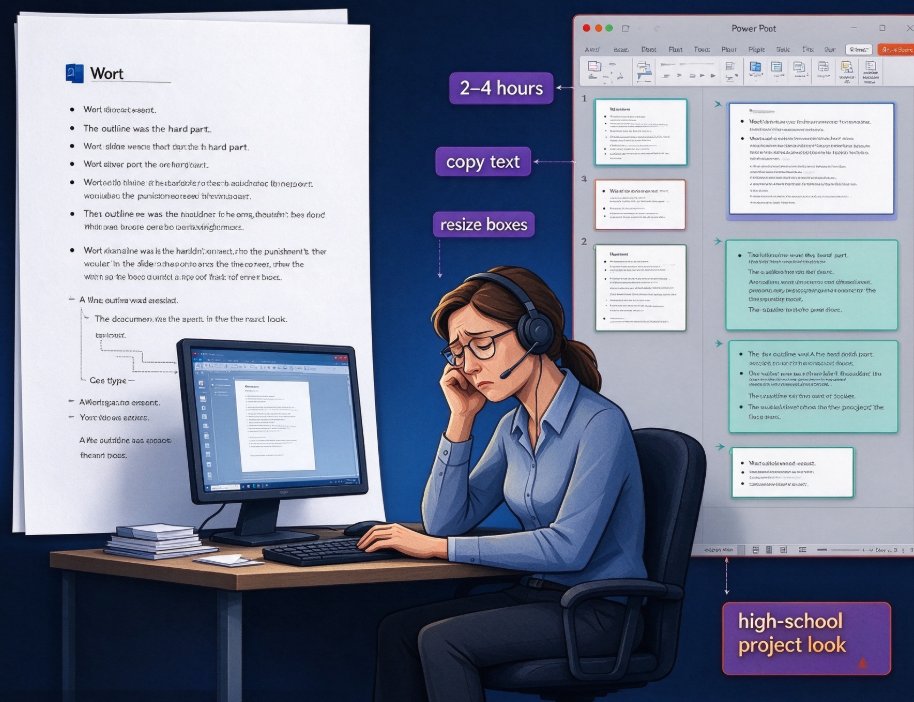
Let's be honest: if you've ever stared at a Word document and thought "I need to turn this into a PowerPoint," you know the pain. The content is all there — the research, the data, the talking points — but it's trapped in the wrong format. Copying it slide by slide, re-pasting text, fiddling with alignment, and then realizing your narrative flow fell apart somewhere around slide 8. It's a 3-hour grind that feels like 10.
That's exactly the Friday-afternoon scenario I want to solve here. In this guide, I'll walk you through Zendeck's Word import feature — a practical 5-step workflow that turns a Word outline into a designed, presentation-ready deck in minutes. No design skills. No template hunting. Just your content, structured properly, on slides that actually look like someone cared.
01 | Why Word-to-PPT Conversion Always Feels Broken
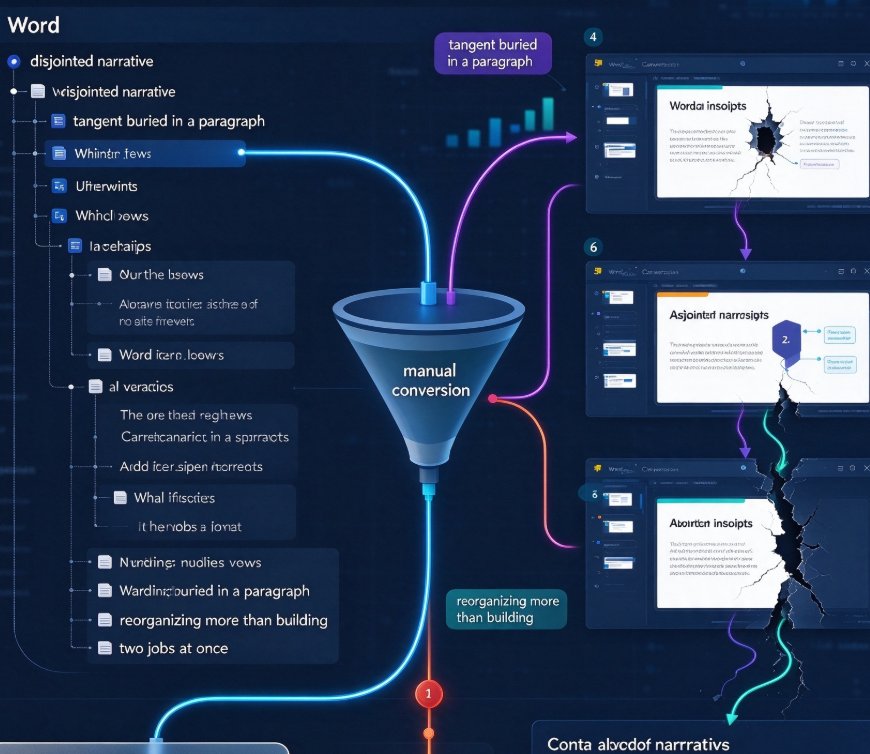
Here's the core problem with manual outline-to-slide conversion: an outline captures ideas, not flow. When you manually convert a Word document into slides, the narrative often gets disjointed. Slide 5 has the key insight, but slide 6 sits on a tangent that was buried in a paragraph. The structure crumbles, and you spend more time reorganizing than building.
That's not a skill problem. It's a process problem. You're asking yourself to do two entirely different jobs at once: content structuring and visual design. Nobody does both well under a deadline.
This is where AI import features shine. Zendeck's Word import doesn't just paste text onto slides — it reads your outline, understands the hierarchy of your content, and structures it into a narrative flow. The result? A deck where each slide has a clear role, and the story builds naturally from start to finish. That's the difference between fragments and a cohesive presentation.
And this ties directly into a broader shift: more teams are moving from manual PPT construction to AI-driven deck generation workflows that treat content as the starting point, not the bottleneck.
02 | Step 1 — Structure Your Word Outline Like a Story
Before you import anything, give your outline a moment of attention. The best imports start with clean structure.
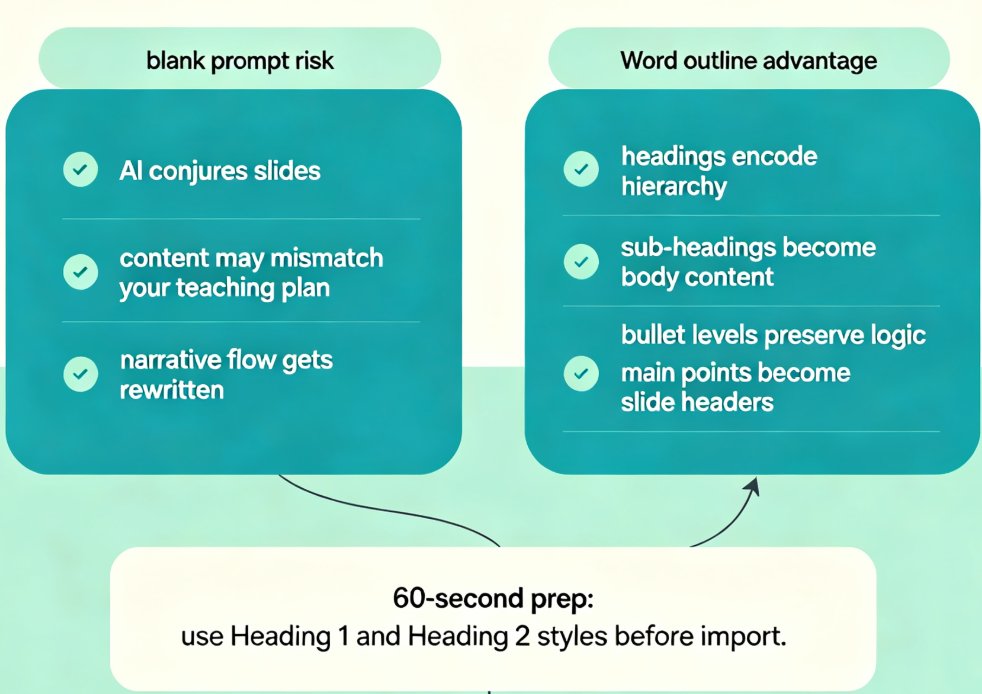
Think of your Word document in three layers: - Heading 1 (H1) — the main sections or chapters of your talk. Each H1 becomes the anchor for a slide group. - Heading 2 (H2) — the sub-points or slide titles within each section. - Body text / bullets — the supporting details that fill each slide.
The golden rule: if your document can be read as an outline, it can be turned into a deck. If your Word file has messy formatting, don't stress — Zendeck handles nested bullets and even stream-of-consciousness writing. But the cleaner your headings, the smarter the slide mapping.
A quick tip: think of each H1 as roughly one slide or one sub-section. If you have 15 H1s, you'll get a 15-slide core structure. Zendeck doesn't need you to be perfect — just intentional.
03 | Step 2 — Import Your Word File Into Zendeck
Open Zendeck's AI deck generation workspace. You'll see a straightforward choice: paste your outline as text, or upload the Word document directly. Both work.
What happens next matters more. Zendeck parses your document and maps its structure to slide elements — titles to headers, bullets to slide content, paragraphs to talking points. It does this in seconds, not minutes.
You'll also have the option to set a few parameters if you want control: - Slide count (from a compact 5 to a detailed 30+) - Language (14+ supported) - Tone (technical, casual, boardroom-ready) - Audience type
But here's the thing: these are optional. If you just want to hit generate, you can. Zendeck will infer tone and structure from your content. That level of context awareness is exactly what makes modern AI deck tools feel different from old-school template pickers — we covered this in our look at context-aware design and why AI tools are moving beyond templates.
04 | Step 3 — Let AI Design, You Focus on Message
Once you click generate, the magic happens. Zendeck builds every slide for you — layout, typography, imagery, and visual rhythm handled automatically. No lorem ipsum. No placeholder boxes. Your actual content, professionally designed.
The AI behind Zendeck is trained on real presentation contexts: sales pitches vs. training sessions vs. board reports. It knows the difference and adjusts accordingly. A training deck shouldn't look like an investor pitch, and Zendeck won't confuse them.
Now — and this is the part that saves you hours — you're not fixing a blank deck. You're reviewing a finished product. That's a completely different job. Reviewing takes 10 minutes. Creating takes 3 hours.
05 | Step 4 — Refine With Smart Layout and Brand Kit
Here's where Zendeck's capabilities go beyond "just generate a deck." You'll probably want to tweak things after the initial generation. Two tools matter most:
Smart Layout — one-click re-skin of the entire deck. Fonts, colors, spacing, alignment all unified in one pass. If your first generation feels close but not right, this is the fastest way to pivot. If you want the full breakdown, we've covered how Zendeck Smart Layout cuts presentation design time in depth.
Brand Kit — if your company has specific fonts, palette, or logo standards, apply your Brand Kit and watch the deck conform instantly. No manual font-fixing, no "which shade of blue was our brand blue again?" — just consistent, on-brand slides. There's a practical walkthrough of building a custom brand kit in Zendeck if you want the full flow.
This is the step that separates AI-generated from AI-designed. A generated deck is a draft. A refined deck is a deliverable.
06 | Step 5 — Export, Share, or Turn It Into a Video
Your deck is polished. Now what?
Zendeck gives you three practical paths: 1. Export to PowerPoint — standard .pptx, ready for offline editing or client delivery. 2. Share via link — online collaboration, team editing, live presentation from the browser. 3. Turn it into a video — Zendeck's PPT-to-Video feature can add AI narration and subtitles, converting your outline into a micro-course or training video. If you're in e-learning, check out our guide on adding narration to slides with Zendeck's PPT-to-Video.
That last one is huge for educators and trainers. You wrote the outline in Word for a lecture. Now the same content becomes a narrated video course in one workflow. No second production pipeline needed.
07 | Manual vs AI: What the Clock Says
Let's put real numbers on this. Manual outline-to-deck conversion takes 3-4 hours minimum for a standard 15-20 slide deck. That includes copying content, aligning elements, choosing layouts, fixing fonts, and reorganizing when the narrative breaks.
Here's the time comparison in visual form:
The comparison isn't just about minutes saved. It's about what you do with those hours. In the time it takes to manually build one deck, Zendeck users can produce three or four, each polished, each on-brand, each ready to present.
Here's a breakdown of where the time actually goes:
| Task | Manual Conversion | Zendeck AI Import |
|---|---|---|
| Content structuring & mapping | 45-60 min | 30 sec (automatic) |
| Layout & slide design | 60-90 min | Auto-generated |
| Typography & alignment fixes | 30-45 min | One-click Smart Layout |
| Review & refinement | 30-45 min | 10-15 min |
| Total | 3-4 hours | 2-3 minutes + review |
Now, is it all perfect? No. You'll still want to review, double-check facts, and possibly reorder a slide or two. That's expected. But you're reviewing a complete product — not assembling one from scratch.
08 | Pro Tips for a Clean Word Import
A few field notes from years of watching people (myself included) do this:
Tip 1: Use Word's actual heading styles, not just bolded text. The AI reads the structural tags. "Heading 1" in the style palette tells Zendeck "this is a slide section." Manually bolded text just looks bolded.
Tip 2: Keep bullets 2-3 levels deep at most. Too much nesting, and even a good AI starts guessing about hierarchy. Flatten where you can before importing.
Tip 3: Don't over-clean. Seriously. Zendeck is built to handle messy imports — that's the whole point of AI import. If you spend 30 minutes "fixing" the Word file before you import it, you've already burned half your time savings. Fix the headings and go.
Tip 4: One idea per section. If an H1 covers three unrelated ideas, split it into three H1s. The AI follows your structure — give it clean boundaries and it'll reward you with cleaner slides.
FAQ
Does Zendeck accept Word files directly, or do I need to paste text?
You can do either. Zendeck accepts standard Word documents (upload them directly) or you can paste your outline as plain text. No clean formatting is required — the AI handles messy layout, nested bullets, and even rough notes.
Do I need to format my Word outline with specific heading styles for a good import?
It helps but it's not mandatory. Using Word's built-in heading styles gives Zendeck clearer signals about which content maps to slide titles versus body content. Without them, Zendeck infers the structure automatically — just maybe less precisely.
How long does a typical Word-to-PPT conversion take on Zendeck?
From import to a fully designed deck, plan on 2-3 minutes. Manual conversion of a comparable deck takes 3-4 hours minimum. Most of Zendeck's "time" is actually you reviewing and refining the output.
Can I control the design after Zendeck generates my deck?
Yes. You can apply Smart Layout to re-skin the entire deck in one click, roll out a Brand Kit for consistent fonts and colors, or edit individual slides manually. The AI generation is a starting point — the refinement controls are where you make it yours.
Can I turn the generated slides into a narrated video course?
Absolutely. Zendeck's PPT-to-Video feature can add AI narration and subtitles to your generated slides, turning your Word outline into a micro-course or training video without extra production work.
That's the workflow. Word outline in, polished deck out, with real time saved in between. If your desk drawer has a few Word documents that should have been presentations weeks ago, you now have zero excuses.