Word Outline to PPT in Minutes: Smart Import Guide
You spent three hours writing that training document in Word. The headings are clean, the arguments are tight, and the bullet points already tell a story. Now you need a slide deck for the executive review tomorrow—and the thought of copying every line into a PowerPoint makes your eyes glaze over.
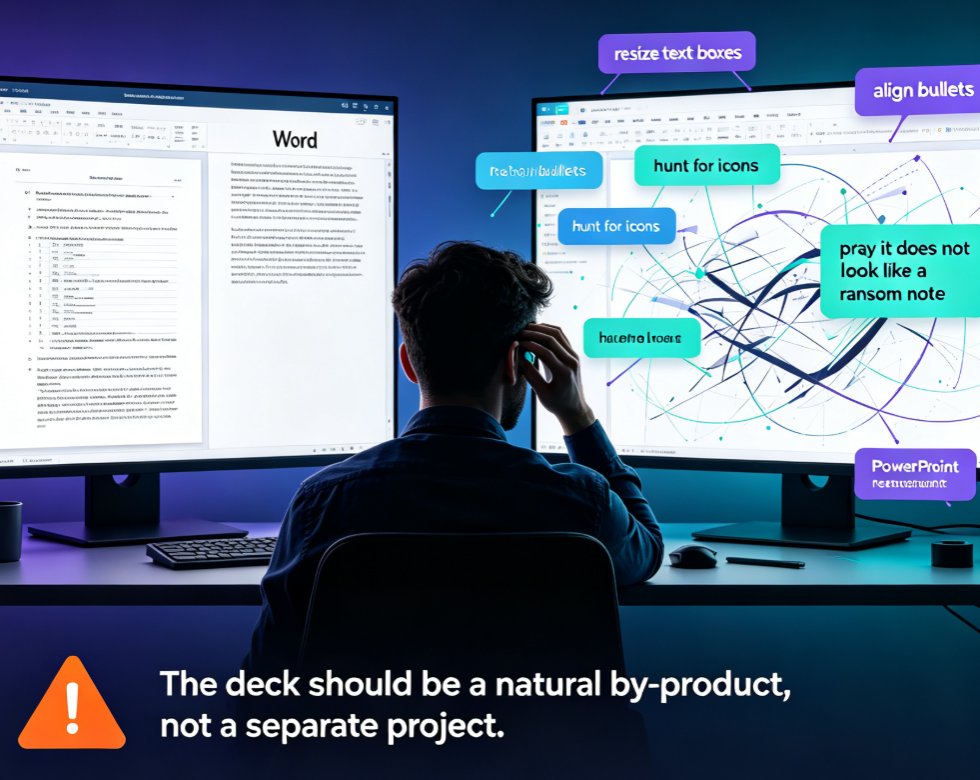
Let's be real: manually rebuilding a Word outline into a presentation is one of the most tedious tasks in the modern workplace. It's not just copy-paste—you have to resize text boxes, align bullets, hunt for icons, and pray that the final deck doesn't look like a ransom note. The good news? There's a smarter way. And it's not just about saving a few minutes—it's about changing how you approach slide creation altogether.
I. Why Word Outlines Are the Secret Weapon for Fast Decks
Trainers, educators, and business analysts live in Word. They write course outlines, proposals, and reports in a document first—because that's where thinking happens. The structure is already there: headings, subheadings, and supporting points. The deck should be a natural by-product, not a separate project.
The core idea is simple: your Word headings are the skeleton of your slides. If you've used Heading 1 for main topics and Heading 2 for supporting points, you already have a perfectly organized presentation outline. The challenge is translating that structure into a visual deck without losing your mind.
Most people default to the built-in PowerPoint import—but as we'll see, that's only the first rung on the ladder.
II. The Classic Move: PowerPoint's "Slides from Outline" Feature
PowerPoint has offered a native import for years. It's a legitimate option, and knowing how it works helps you appreciate where the bottlenecks are.
Here's the process, straight from a 2026 tutorial by Online Training for Everyone:
- Open PowerPoint and go to Home > New Slide > Slides from Outline.
- Select your Word document (the .docx file).
- PowerPoint reads the heading styles: Heading 1 becomes a new slide title, Heading 2 becomes bullet points.
- Hit Insert, and you've got a raw deck in seconds.
The catch? The deck looks like a default template from 2003. Text overflows, bullet levels get lost, and images and tables often land in awkward positions. You then spend 45 minutes fixing alignment, adding visuals, and tweaking the theme. That's not automation—that's just moving the pain.
There's also a silent failure mode: if your Word file doesn't use proper heading styles, PowerPoint treats everything as body text and dumps it all onto one slide. A small mistake in formatting breaks the entire import.
III. Where the Traditional Import Falls Short
Let's walk through the typical pain points you'll hit with PowerPoint's native import—the ones that make you wonder if it's even worth it.
1. Design Goes Out the Window
Your carefully written content gets jammed into a generic layout. No brand colors, no custom fonts, no visual hierarchy. The deck looks flat, and if you're presenting to clients or executives, that's a career risk.
2. Formatting Headaches Multiply
Lists that were perfectly nested in Word come out as a single block of bullets. Tables lose their column widths. Images float off-center. You'll spend more time fixing the layout than you would have spent building from scratch.
3. Zero Brand Consistency
Unless your company has a shared PowerPoint template—and let's face it, most don't—every team member ends up with their own version of what a slide should look like. That's how decks end up with three different fonts and mismatched color palettes.
The truth is: PowerPoint's import gives you a starting point, not a finished product. It's like handing a chef a pile of ingredients without a recipe—you still have to do the cooking.
IV. The Smart Alternative: AI-Powered Import with Zendeck
This is where Zendeck enters the picture. Instead of just dumping text onto default slides, Zendeck reads your Word outline and applies intelligent design logic in seconds.
Zendeck takes your document's heading structure, maps it to slide titles, and generates a polished, fully-formatted deck—complete with consistent fonts, colors, and layouts.
Here's how it works:
- Upload your Word file (or paste the outline in Markdown/TXT).
- Zendeck's AI detects Heading 1 and Heading 2 styles—even if you didn't use them consistently.
- It selects an appropriate template from your preferred library or auto-applies a clean base.
- Each slide gets balanced text, proper bullet hierarchy, and automatically placed images or charts.
- You can then reskin the entire deck with one click if you want a different theme, or export to PowerPoint for further tweaks.
What used to take an evening now takes five minutes. And because Zendeck enforces design consistency automatically, your deck looks like a professional designer spent hours on it—not like an engineer fell asleep on the keyboard.
V. Step-by-Step: From Word Outline to Polished Deck in Under 10 Minutes
Let's walk through a realistic scenario. You're an L&D manager who just finished writing a 40-page course outline in Word. You need a 25-slide presentation for the pilot cohort.
Step 1: Clean Up Your Word Headings (Optional But Recommended)
Open your document and check the Styles Gallery. Apply Heading 1 to each section title you want as a slide, and Heading 2 to the sub-points. Keep titles under 60 characters—long titles get truncated on slides, and short ones are easier to scan.
If your document is already structured, skip this. Zendeck's AI is forgiving enough to infer the hierarchy even if you've used manual formatting.
Step 2: Upload to Zendeck
Log in, create a new deck, and choose Import from Word. Select your file or paste the content. Zendeck processes the document and returns a draft deck almost instantly.
Step 3: Review and Adjust
The draft deck will have your outline mapped correctly. Now's the time to:
- Reskin the template if you want a different look (Zendeck has a library of premium templates).
- Add visuals from the asset library—icons, charts, illustrations.
- Rearrange slides if needed—drag and drop is smooth.
Step 4: Export or Collaborate
Share the deck with your team via link, leave comments, or export to PowerPoint with formatting intact. You can even convert to video if you want to repurpose the content into a micro-course.
The outcome? You've taken a Word document that was already structured and turned it into a presentation that looks like it took hours—because Zendeck did the heavy lifting.
VI. Pro Tips for Formatting Word Outlines That Convert Cleanly
Based on the best practices from 2026 tutorials and real user experience, here are a few tips that save you from the most common import fails.
1. Use Heading Styles, Not Just Bold Text
PowerPoint and Zendeck both rely on heading styles to understand the document structure. If you've manually bolded text instead of applying the Heading 1 style, the import will treat it as regular body text—and you'll get a wall of text on one slide.
2. Keep Bullets Short and Scannable
Long paragraphs don't translate well on slides. If a bullet in your Word doc is more than two lines, break it into two bullets or trim it. Remember: slides are for the audience, not for reading your entire thesis.
3. Mind the Title Length
Slide titles should be short—ideally under 40 characters. If your Word heading is a long sentence, Zendeck will automatically truncate it, but you'll lose the meaning. Better to edit it in Word first.
4. Don't Overload with Tables and Images
If your document has massive tables, they'll need to be broken across slides. Zendeck can handle it, but it's cleaner to split large tables into smaller chunks manually. Same with images—if you have a 10MB image, it'll bloat your deck. Compress first.
VII. Comparison: Manual Copy-Paste vs. PowerPoint vs. Zendeck
To give you a clear picture, here's how the three approaches stack up.
| Method | Time to Draft | Design Quality | Formatting Control | Collaboration | Final Polish Effort |
|---|---|---|---|---|---|
| Manual copy-paste | 2–4 hours | Low | Full manual control | Limited | Very high |
| PowerPoint's Slides from Outline | 5 minutes | Low (default template) | Minimal until imported | None | High (fix layout) |
| Zendeck smart import | 3–5 minutes | High (template + auto-design) | Automatic + adjustable | Real-time, link share | Low (minor tweaks) |
The winner is obvious. Unless you're on a desert island with no internet, why would you ever rebuild a deck by hand?
VIII. When to Use Each Method (Honest Advice)
Let's not pretend Zendeck is the answer to everything. Sometimes the native PowerPoint import is fine—like when you just need a quick internal working draft and don't care about aesthetics. But the moment you need to present to a client, teach a course, or represent your company brand, investing in the smart import pays for itself in time saved and credibility gained.
If your Word document is a mess—no headings, random formatting—you'll need to clean it up regardless. Spend 10 minutes applying heading styles before importing. That's the difference between a smooth import and a disaster.
For anyone who regularly converts Word to PPT—trainers preparing courseware, consultants drafting pitch decks, HR building training modules—Zendeck's workflow is a no-brainer. You can even pair it with other time-savers like the brand kit feature to keep every deck on-message.
IX. Beyond the Import: Why This Matters for Your Workflow
Converting a Word outline isn't just about saving time on one task. It changes the way you think about content creation. When the structural work you've done in a document can instantly become a visual narrative, you stop treating presentations as a separate activity and start treating them as a natural extension of your writing.
That's the real value of AI-powered tools. They don't just automate the boring parts—they give you the confidence to iterate. You can create a draft, share it for feedback, generate a video version for remote learners, and update the original Word doc without starting from scratch.
If you're curious about the broader shift, check out how AI deck generation is replacing traditional PPT workflows, or explore the latest trends in contextual templates. The 2026 reality is that the slide deck is becoming a living artifact, and the import step is just the beginning.
FAQ
Q: How does Zendeck import a Word outline into PowerPoint? A: Zendeck reads your Word document's heading structure directly. Upload the .docx or paste the outline, and its AI maps Heading 1 to slide titles and Heading 2 to bullet points, then applies a consistent template and layout automatically.
Q: Do I need to format my Word document with heading styles before importing into Zendeck? A: It helps. If your document already uses Heading 1 and Heading 2 styles, Zendeck will interpret it perfectly. If not, you can still paste plain text and let the AI infer the structure—or quickly apply heading styles in under a minute.
Q: Can Zendeck keep images and tables from the Word document when creating slides? A: Yes. Zendeck detects embedded images, tables, and lists within your outline and places them into appropriate slide layouts. You can also replace or refine them later with assets from its built-in library.
Q: Is Zendeck better than PowerPoint's 'Slides from Outline' feature? A: For a quick, plain deck, PowerPoint's native import works. But Zendeck goes further: it applies brand-consistent templates, balances text, adjusts spacing, and offers one-click reskins—so your deck looks designed, not default.
Q: Does Zendeck support real-time collaboration after importing the Word outline? A: Absolutely. Once your deck is generated, you can share a link, leave comments, and work with your team in real time. You can also export back to PowerPoint or PDF without losing formatting.