Turn a Meeting Agenda into a Visual Deck with Zendeck in 4 Steps
Monday, 9:47 AM. You're about to run the weekly team sync. You've got a Word document open — bullet points, time slots, names. You share your screen and start reading. Ninety seconds in, two people are checking their phones, and one is clearly replying to an email.
Here's the uncomfortable truth: your agenda isn't the problem. The format is.
A plain-text agenda is a to-do list, not an invitation to engage. It tells people what will be discussed, but it does nothing to make them want to be there. And when you're the one leading the meeting, that's a silent productivity killer that repeats itself every single week.
The fix isn't more bullet points. It's turning that agenda into a visual deck — something people can scan in seconds, follow along with, and actually remember. And with Zendeck's outline-to-slide feature, you can do it in about four steps and under ten minutes.
Let's walk through exactly how.
01 Why a Plain-Text Agenda Is Sabotaging Your Meeting
Let's be honest about what happens when you share a text agenda. People skim it once, maybe twice. They see their name next to a topic, nod, and close the tab. By the time the meeting starts, half the room has forgotten what's on the table.
The core problem is cognitive load. A dense block of text forces your team to parse, prioritize, and remember — all before the meeting even begins. That's work you're asking them to do, and most people simply won't do it. They'll nod along, show up, and then ask "so what are we covering today?" in the first five minutes.
There's also a hierarchy problem. In a plain-text agenda, every item looks equally important. The 5-minute status update gets the same visual weight as the 20-minute strategic decision. Your team can't tell what actually matters, so they mentally check out of everything.
A visual deck changes the equation. When the agenda is structured as slides — one topic per screen, clear time allocations, visible owners — it becomes scannable. Your team can absorb the plan in seconds, not minutes. They walk in knowing what's expected of them, which means the meeting starts faster and ends sooner.
The outcome is simple: a visual agenda turns passive attendees into prepared participants. And that single shift can cut meeting time by a meaningful margin while raising the quality of every discussion. People stop asking "what are we doing here?" and start asking "what do we need to decide?"
02 Step 1: Write Your Agenda as a Clean Outline
Before you touch any tool, you need your agenda in a structured format. The good news: you probably already have it in a Word doc or a notes app. The key is to structure it like an outline, not a paragraph.
Here's what a clean agenda outline looks like:
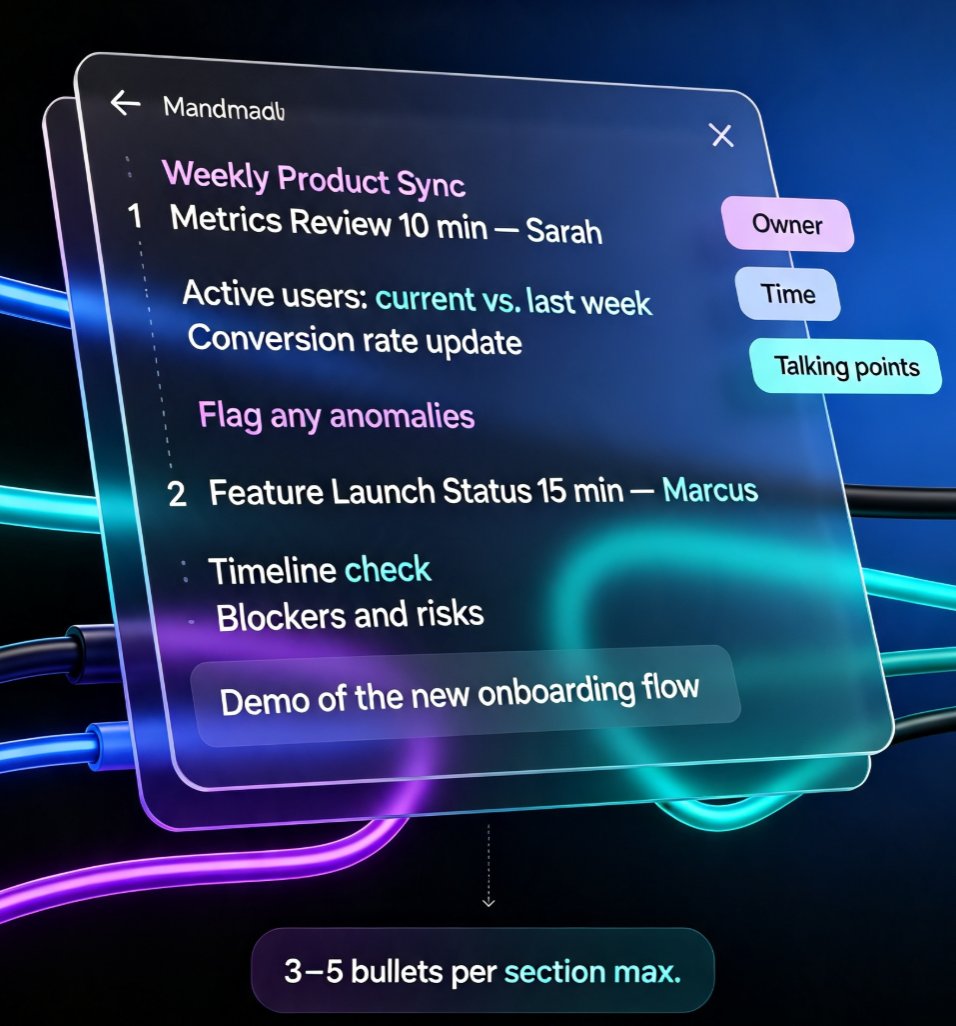
# Weekly Product Sync
## 1. Metrics Review (10 min) — Sarah
- Active users: current vs. last week
- Conversion rate update
- Flag any anomalies
## 2. Feature Launch Status (15 min) — Marcus
- Timeline check
- Blockers and risks
- Demo of the new onboarding flow
## 3. Customer Feedback Roundup (10 min) — Priya
- Top 3 complaints this month
- Proposed prioritization
## 4. Open Discussion (10 min) — Everyone
Notice what's happening here. Each section has a clear owner, a time allocation, and specific talking points. That's not just an agenda — it's a contract for the meeting. Everyone knows who's responsible for what, and how long they have. If someone's running late, they can check the deck and jump in at the right moment instead of derailing the flow.
If you're starting from a messy brain dump, don't worry. You can sketch this outline in any text editor, in Markdown, or directly in Word. The structure matters more than the tool. And if you need help turning a scattered draft into a clean outline, Zendeck's AI can help you turn a brain dump into a structured presentation without breaking a sweat.
One tip from experience: keep each section to three to five bullet points max. If a topic needs more, it's probably two topics. The outline should be a map, not a transcript.
03 Step 2: Import the Outline into Zendeck
This is where the magic happens. In Zendeck, you don't rebuild your agenda slide by slide. You import the outline and let the platform do the heavy lifting.
You have two options:
- Upload a Word document — if your agenda already lives in a .docx file, just upload it.
- Paste Markdown or TXT — if you wrote your outline in a notes app, copy and paste it directly.
Zendeck parses the hierarchy automatically. Your top-level headings become section slides, your bullet points become content blocks, and the structure you created in Step 1 maps directly onto the deck. No copy-pasting between documents, no manual slide creation, no fighting with text boxes.
This is the step that saves you the most time: what used to take 30 to 60 minutes of manual formatting now takes about two minutes. You're not designing slides; you're letting the tool translate your outline into a visual structure. The agenda you already wrote becomes the deck you actually need.
04 Step 3: Let Smart Layout Handle the Design
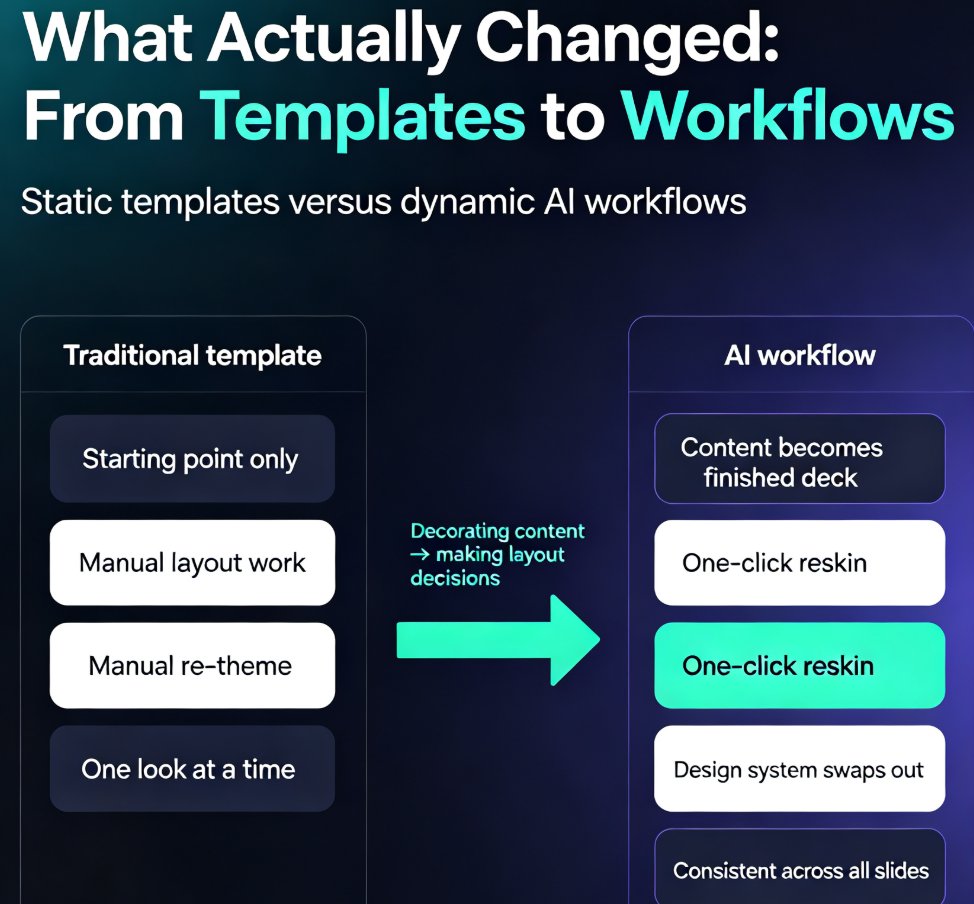
Here's where most people get stuck with other tools. You generate a deck, and it looks... fine. Generic. Off-brand. The fonts don't match, the colors clash, and the layout feels like a template from 2012.
Zendeck's smart layout fixes that in one click. The platform automatically unifies fonts, colors, and spacing across every slide. Your agenda deck gets a consistent visual rhythm without you touching a single design setting. Headers align, bullet points breathe, and the whole thing looks like it was made by someone who actually cares about design.
Want to go further? Apply a brand kit so the deck matches your organization's style guide — logo, colors, typography, all enforced automatically. If you haven't set one up yet, it's worth the ten minutes: setting up a brand kit in Zendeck means every future deck is on-brand from the start. No more borrowing a colleague's template and hoping the colors match.
And if you want to tweak something after generation? Every slide is fully editable. You can manually edit AI-generated slides — move elements, swap layouts, add icons from the asset library. The AI does the heavy lifting, but you stay in control.
The result: a deck that looks professionally designed, even if your design skills stopped at choosing a font in Google Docs. And because the layout is consistent, your team starts to associate that visual quality with your meetings — which is a nice side effect for your personal brand, honestly.
05 Step 4: Share, Present, and Iterate
Your visual agenda is ready. Now what?
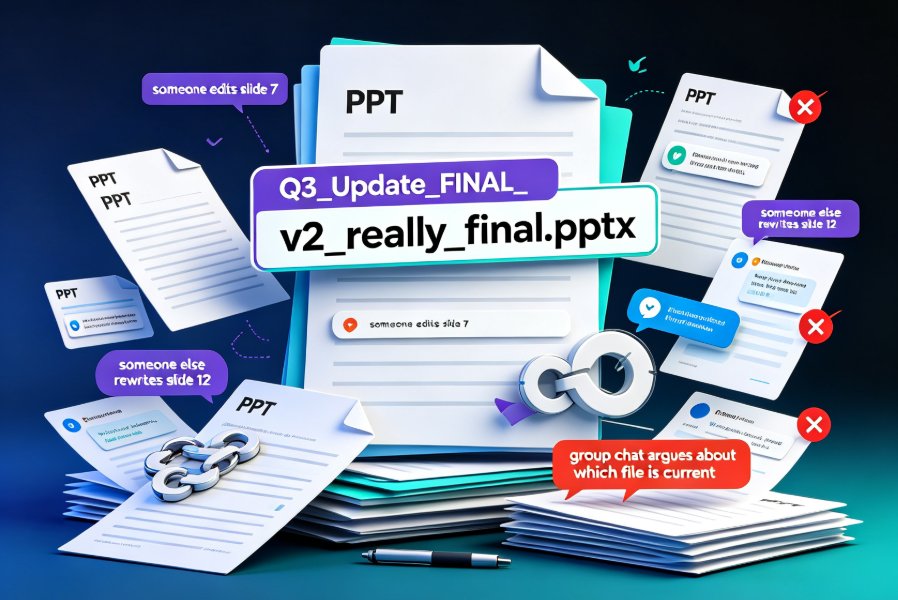
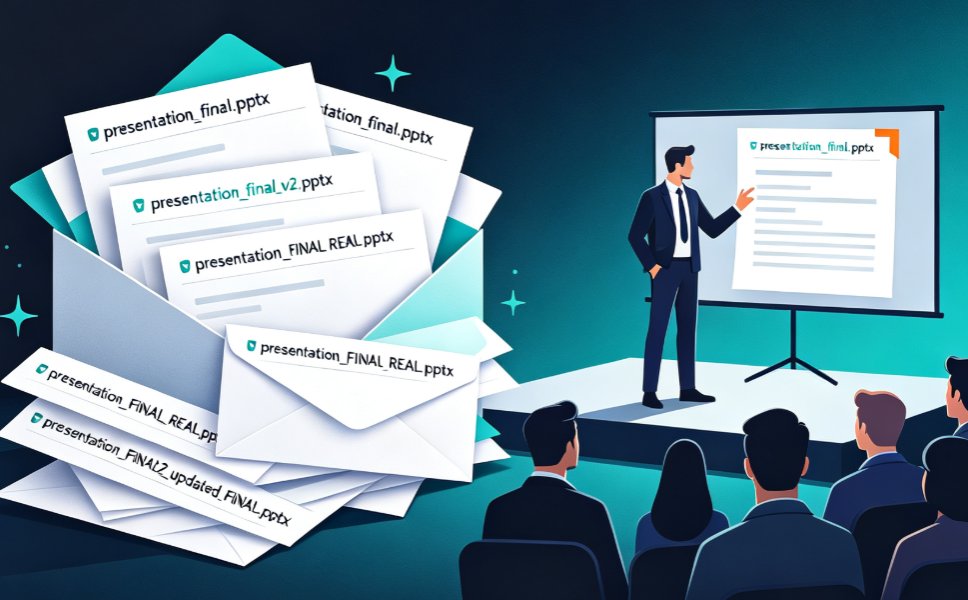
First, share it before the meeting. Send a link instead of an attachment. Your team can open it on any device, skim the slides, and come prepared. No more "can you resend that?" or "I never got the file." And because it's a live link, you can update the deck up to the last minute — everyone sees the latest version, not a stale attachment from Tuesday.
Second, present from the deck itself. Instead of reading bullet points aloud, you're walking through a visual narrative. Each slide gives you a natural pause point, a visual anchor for discussion. Your meeting becomes a conversation, not a recitation. When someone asks a question, you can point to the relevant slide and keep the thread going.
Third, think about what happens after the meeting. The deck doesn't have to die in a folder. You can add speaker notes for context, or even turn the deck into a narrated video for teammates who couldn't attend. That's a game-changer for distributed teams — the meeting recap becomes a self-contained asset instead of a long email thread.
If you want to go deeper on the async angle, Zendeck's PPT-to-video feature lets you turn your agenda deck into a short narrated walkthrough. Perfect for teams working across time zones, or for stakeholders who just want the highlights without sitting through the full sync.
And here's a workflow worth stealing: keep a running agenda deck for recurring meetings. Update it each week, share the link, and let the deck become the living record of what's been discussed and what's coming next. You'll stop hunting through old emails for "what did we decide last month?" because the answer is in the deck.
06 Plain Text vs. Visual Deck: A Quick Comparison
Still skeptical? Here's the difference laid out side by side:
| Dimension | Plain-text agenda | Visual deck (Zendeck) |
|---|---|---|
| Readability | Dense walls of text | Scannable, visual hierarchy |
| Engagement | Passive reading | Active participation |
| Prep time | 30–60 min of formatting | ~2 min with auto-layout |
| Shareability | Email attachments, version chaos | Link sharing, live updates |
| Brand consistency | Manual, error-prone | Auto-applied brand kit |
| Async catch-up | Long email recaps | Narrated video or link |
The pattern is consistent: a visual deck wins on every dimension that actually matters for meeting effectiveness. And the prep-time gap is the kicker — you're not trading effort for polish. You're getting both.
If you're tired of watching your team zone out during agenda recaps, this is the easiest fix you'll make all quarter. Write the outline, import it, let the layout engine do its thing, and share the link. Four steps, ten minutes, and your next meeting starts with people actually paying attention.
For more ways to streamline your daily workflow, check out the office efficiency guides in our library.
FAQ
Can I import a Word document agenda directly into Zendeck? Yes. Zendeck accepts Word outlines and Markdown/TXT files. Just structure your agenda with clear headings and bullet points, upload it, and Zendeck parses the hierarchy into slide sections automatically.
Do I need design skills to make the agenda deck look professional? No. Zendeck's smart layout automatically applies consistent fonts, colors, and spacing. You can also apply a brand kit or pick a template, so the deck matches your organization's style without touching a design tool.
Can I edit the slides after Zendeck generates them? Absolutely. Every slide is fully editable — change text, swap layouts, move elements, or add icons from the asset library. The AI does the heavy lifting, but you stay in control.
How do I share the agenda deck with people who missed the meeting? Share a link for live collaboration, or export the deck to video with narration so absent teammates can catch up asynchronously.