Turn Word into PPT in Seconds: Zendeck Imports Your Outline
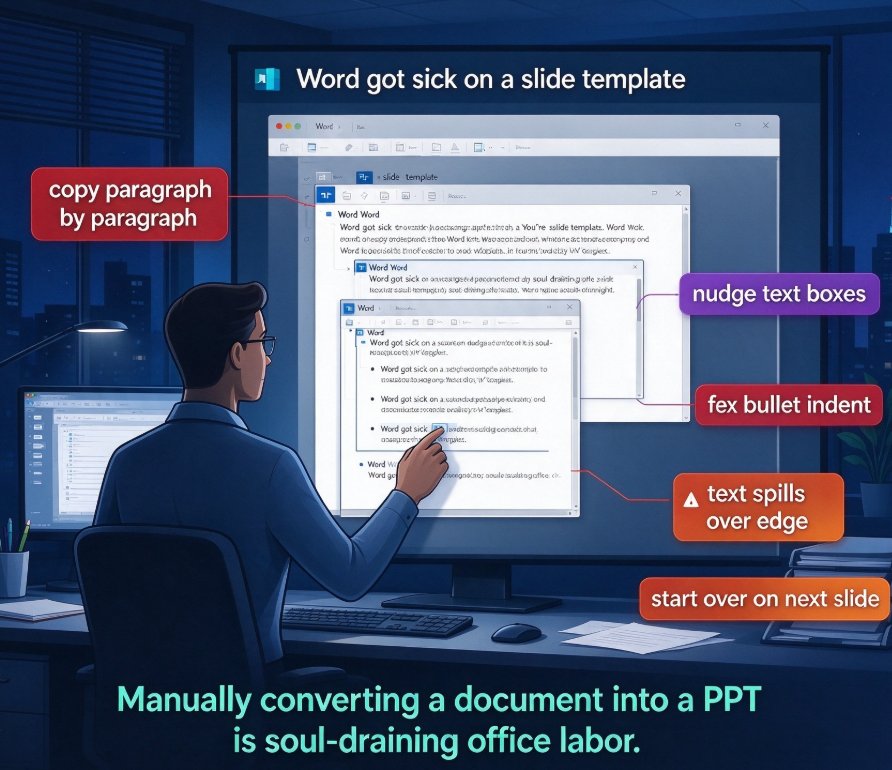
You know the drill: the client emails a 14-page Word brief at 4pm, and the pitch meeting is at 9am. So you do what everyone does — copy paragraph by paragraph, paste into a blank slide, nudge the text boxes, fix the bullet indent, curse the auto-fit that spills text over the edge, and start all over on the next slide. Three hours later, you have a deck that looks like Word got sick on a slide template.
Let's be real: manually converting a document into a PPT is one of the most soul-draining tasks in office life. The content is already written, the structure is already there. All you are doing is pushing the same words into boxes. AI tools that read your document and generate slides were built precisely for this moment.
01. The Productivity Drain Nobody Budgets For
Anyone who builds training material, courseware, investor decks, or weekly status updates pays a recurring tax every time a document has to become a slide deck. Here is what the manual conversion actually costs:
- Time. Most mid-length decks — 15 to 25 slides from a 10-page document — take 2 to 4 hours by hand. That is a half day spent on content that already exists.
- Quality drift. When five people format the same company deck on their own, fonts, colors, and bullet indents drift from slide to slide. The result is a deck that does not look like your brand.
- Rework. Every edit to the source Word doc means fixing the corresponding slide. Slide 7 changed? You will find out 10 minutes before the meeting.
In our experience coaching teams on presentation workflows, the biggest lever is not learning PowerPoint better — it is removing the formatting step entirely. Document-to-PPT tools that import your file and auto-generate slides eliminate the repetitive grunt work. As the document-to-PPT research from presenti.ai summarizes, the key advantages are that AI tools analyze your document and translate it into a structured slide deck, ensure clear and consistent visual formatting through automatically applied templates and typography, and enhance overall presentation quality with icons, diagrams, and layout optimization.
If you have ever shipped a 20-slide deck where every slide uses a slightly different bullet size, you already know what this section is about. The formatting work is not a design problem — it is a repetition problem, and repetition is exactly what AI is good at.
02. The Old 'Slides from Outline' Trick — and Why It Still Hurts
Before AI import tools existed, the standard workaround was PowerPoint's 'Slides from Outline' feature. Community advice, such as this Adobe thread on converting Word documents to PPT automatically, recommends a three-step ritual:
- Open the Word document in Outline View.
- Assign Heading 1 to slide titles and Heading 2 to supporting points.
- Save the file as DOCX, RTF, or TXT — on Mac, save as RTF — then in PowerPoint go to Home > New Slide > Slides from Outline.
It works, technically. But let's be honest about its limits:
- You still have to style every slide. The outline import only brings in text hierarchy. Visual design, colors, icons, and layout remain your job, and most people do a full design pass after the import.
- Platform quirks. PowerPoint for the web does not support outline import at all. If your Word doc is not structured with heading styles, the clean import turns into a mess of randomly split slides.
- It solves structure, not quality. The output still looks like a document with slide numbers on it.
The Adobe community reply even suggests standardizing all source documents on heading styles first so the import works cleanly every time. That is fine advice, but it treats the symptom. You still have to redesign the deck afterward.
03. What AI Import Actually Changes
The jump from 'Slides from Outline' to AI document import is not a small upgrade. It changes three things.
First, the analysis step. AI tools do not simply copy your headings into slides. They analyze the document, extract the content structure, summarize key ideas, and decide how to distribute them across a deck. That is why the same source document produces a clean, logical 10-slide deck instead of a 30-slide monster with one bullet per page.
Second, the design step. Templates, themes, and layout rules are applied automatically. Smart features generate icons, diagrams, and speaker notes. What used to take a dedicated design pass happens during generation.
Third, the maintenance step. When the source document changes, regenerating the deck is a few clicks away — not another three-hour session.
This is exactly where Zendeck's Word import workflow fits. Upload a structured .docx (or paste Markdown/TXT), and Zendeck generates a visually consistent, layout-ready deck: slide titles from Heading 1, supporting bullets from Heading 2, and a template applied across all slides. No retyping, no font-swapping, no bullet-indent wrestling.
04. Zendeck's Word Import, Step by Step
If you have an existing Word document, here is the two-minute workflow:
- Prepare the outline. Structure the doc with Heading 1 for slide titles and Heading 2 for supporting points. If the document already uses headings — most training materials and briefs do — skip this step.
- Upload or paste. Zendeck accepts .docx uploads, or you can paste Markdown/TXT straight into the editor. The tool reads the heading hierarchy automatically.
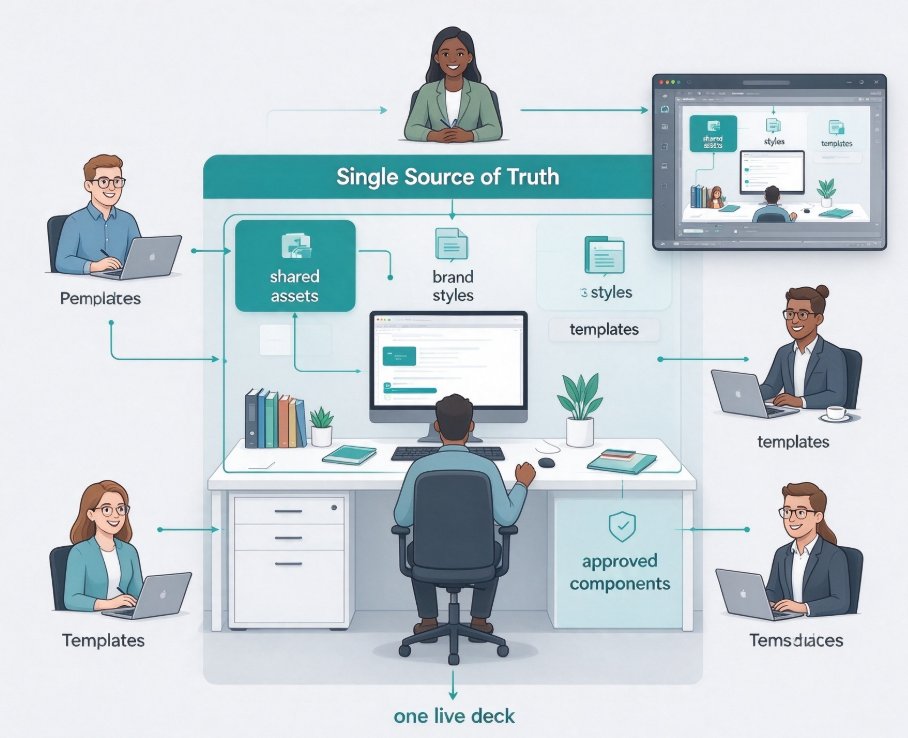
- Pick a template, or not. For brand consistency, apply a custom brand kit or a template; Zendeck enforces fonts, colors, and layout on every slide. If you would rather let it choose, template selection is AI-driven based on content type.
- Generate and refine. Within seconds you have a draft deck. Need to move content, merge slides, or change the flow? That is ordinary editing — no re-import required.
The result: a deck in about two minutes that would have taken you three hours of manual formatting. And because the source of truth is your Word document, you can update the outline and regenerate without rebuilding the presentation.
If you are new to this workflow, two resources will save you time:
- Our guide on how Zendeck Smart Layout cuts presentation design time covers the auto-layout mechanics behind the import.
- The office-efficiency category collects more workflows like this one.
05. How to Structure a Word Doc for Clean Imports
The single biggest factor in a clean Word-to-PPT conversion is heading structure. What to keep in mind:
- Use real heading styles, not bold text. Heading 1 becomes slide titles; Heading 2 becomes bullets. Bold text without a heading style is treated as body copy.
- One idea per Heading 1. If a slide title would contain the word 'and', split it into two slides. AI tools mirror your structure closely.
- Keep bullet depth shallow. Two levels (Heading 2 and Heading 3) import cleanly; deeper nesting gets cramped on a slide.
- Leave images and tables out of the text flow if you can. Import text first, then add charts, screenshots, and icons from the asset library. That keeps the layout predictable.
One tip from our team's workflow, learned the hard way: if your Word document is a mess — no heading styles, dense paragraphs, no visual hierarchy — spend five minutes cleaning it up before you import. It is not extra work; it is five minutes that saves an hour of slide-by-slide fixing later. Same principle as the Adobe community advice about standardizing on heading styles: once your documents are structured, the import works cleanly every time.
That principle scales beyond Word too. If you are building courseware, check out how AI agents turn an outline into a published micro-course in our outline-to-micro-course guide.
06. What Happens After the Import
Turning a document into slides is the first milestone, not the last. Three ways to take the deck further:
- Reskin old decks. If you are importing a legacy deck that does not match your current brand, Zendeck's AI one-click reskin unifies the whole presentation in a single pass.
- Generate speaker notes. AI-generated speaker notes and rehearsal tools turn a bare deck into something you can actually present — see our AI-generated speaker notes guide.
- Turn the deck into a video. Zendeck's PPT-to-video adds narration and subtitles, converting slides into micro-courses for internal training or online courses.
07. Manual vs. Outline Import vs. AI Import: Head-to-Head
For a clear comparison, here is how the three workflows stack up for a typical 20-slide deck from a 10-page Word document:
| Workflow | Approx. time to 20 slides | Design consistency | Post-import reformatting |
|---|---|---|---|
| Manual copy-paste | 3-5 hours | Low — everyone formats differently | Constant — every slide needs tweaks |
| PowerPoint 'Slides from Outline' | 1.5-3 hours | Medium — text hierarchy only | Moderate — still needs a design pass |
| Zendeck AI Word import | ~2-5 minutes | High — template + layout applied automatically | Minimal — mostly final tweaks |
Time figures are illustrative estimates based on typical workflows we have seen; your actual results will vary with document complexity.
Here is the same comparison as a quick visual:
FAQ
Q: How does Zendeck import a Word document into slides?
A: You upload a .docx file or paste Markdown/TXT into the editor. Zendeck reads the heading hierarchy — Heading 1 becomes slide titles, Heading 2 becomes supporting bullets — and applies a template with consistent fonts, colors, and layout. No manual retyping needed.
Q: Do I need design skills to use the Word import?
A: No. Design, layout, and typography are applied automatically during generation. For brand consistency, apply a custom brand kit or pick from the template library. You can refine the deck later with Smart Layout or a one-click reskin.
Q: What if my Word document has no heading styles?
A: Spend a few minutes applying Heading 1 and Heading 2 in Word's outline view — or write your structure with clear titles and bullet lines. Zendeck can infer the structure from well-organized text even without formal styles.
Q: Will the imported deck keep my brand colors?
A: Yes. Attach a brand kit or choose a template, and Zendeck applies consistent styling — fonts, colors, spacing — across every slide. No slide-by-slide color fixing.
Q: Can I turn the imported deck into a video later?
A: Yes. Zendeck's PPT-to-video adds narration and subtitles, turning slides into micro-courses for internal training or online education.