Modernize Old Slides with Zendeck's AI One-Click Reskin
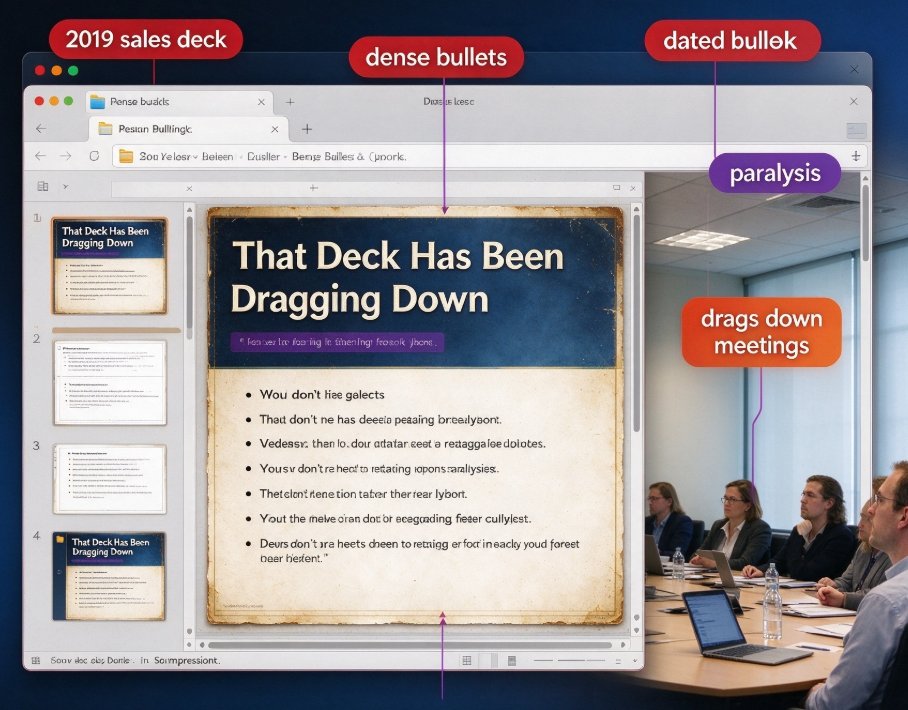
Every team has that deck. The 2019 sales deck still living in your shared drive, dense with bullets, crowned with a title slide that looks older than the person presenting it. You know it needs to feel modern. But the thought of redesigning it from scratch makes your eyes glaze over — so it stays, quietly dragging down every meeting it's shown in.
Here's the honest fix: you don't need to rebuild a deck to make it feel current. AI one-click reskinning, the kind Zendeck has baked into its platform, takes the deck you already have and applies a modern visual treatment — new layouts, colors, typography — without touching the words you carefully wrote. The message stays. The impression changes completely.
A whole wave of tools — Gamma, SlidesPilot, Sharayeh, and others — have rolled out "restyle" or "beautify" features in the last couple of years. Zendeck's version stands apart because the AI actually reads your content, not just the slide shapes. It understands what each slide is trying to say and applies a design that fits. Let's walk through how it works, what it can and can't do, and whether your deck is a good candidate.
01 Why Old Decks Feel Dated — and Why It Costs You
Let's be honest: your deck isn't "vintage." It's dated. The difference matters because your audience feels it on a subconscious level before you even open your mouth.
Outdated design signals outdated thinking. When a slide has tiny 10-point text, awkward clip-art-era icons, and a color palette straight from 2016, people assume the data behind it is stale too — even if you updated the numbers last week. Visuals leak credibility, and that leak is expensive in a pitch, a training session, or a quarterly review.
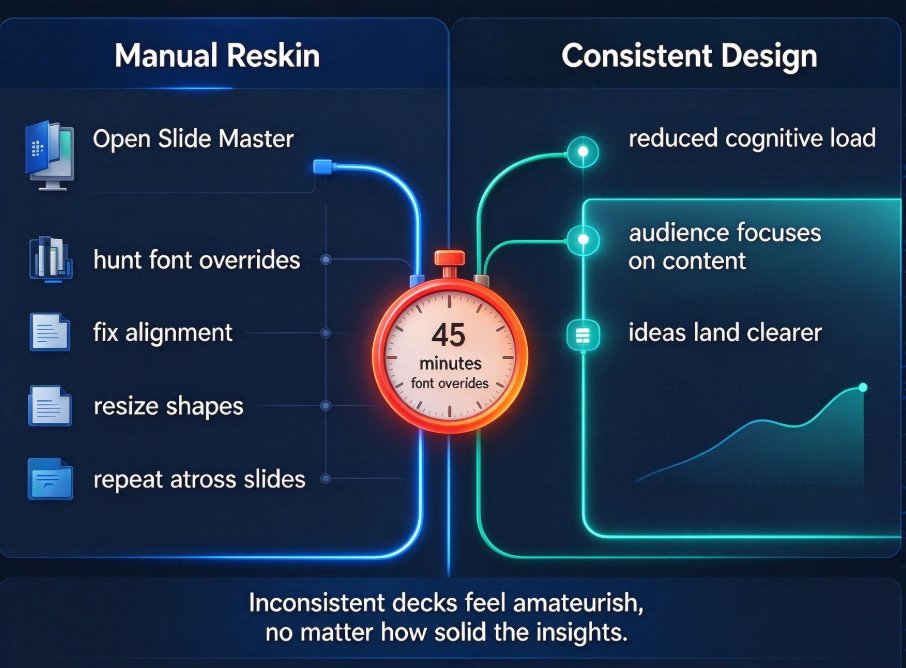
The real damage isn't just impressions, though. It's the hours you lose every time you have to fix one more slide in a deck you already know is broken. You open it, sigh, and spend 20 minutes re-aligning boxes that will never look right. That's 20 minutes you could have spent refining the message.
So the problem has two layers: the deck looks old, and every attempt to patch it makes you feel like you're fighting the design instead of using it. That's exactly the scenario one-click reskin was built to solve.
02 What AI Reskin Actually Does Under the Hood
"Reskin" is a useful word because it describes the process precisely: you're replacing the skin of the design, not the skeleton. The skeleton is your content — the arguments, the data, the story flow. The skin is the visual system wrapped around it.
When you hit reskin in Zendeck, the AI does three things at once:
- Re-reads your content — it analyzes each slide's text, hierarchy, and structure to understand what's a headline, what's a supporting point, and what's a throwaway line.
- Applies a modern visual system — fresh typography, generous spacing, stronger color contrast, and layouts shaped by the number of elements on each slide.
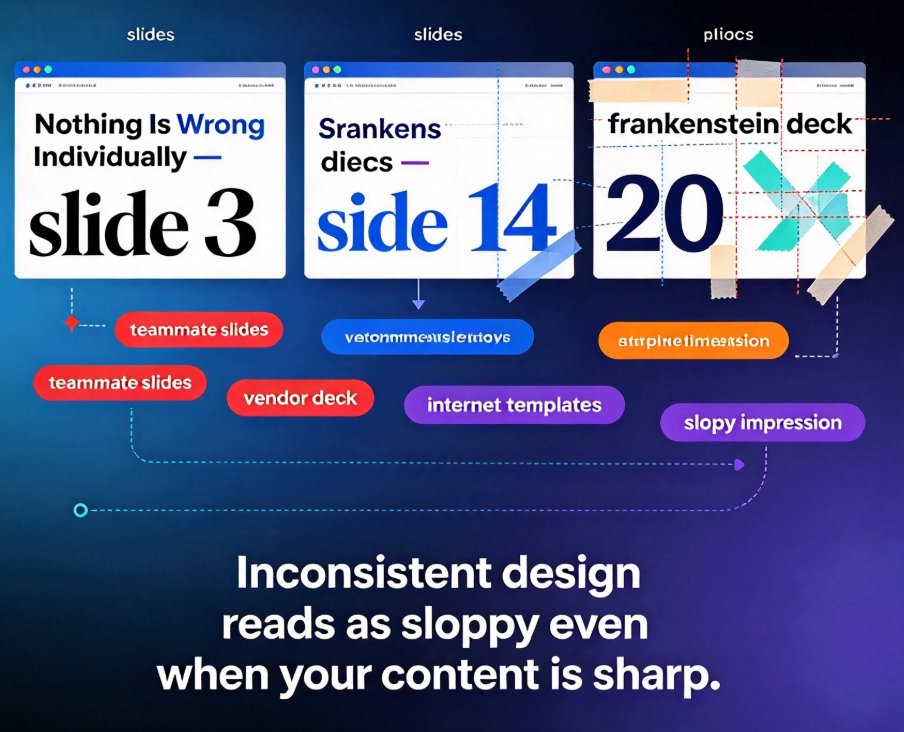
- Keeps consistency across the deck — the same fonts, colors, and styling rules propagate to every slide, so the deck stops feeling like a patchwork of old and new.
This is where Zendeck diverges from simple template-swapping. A template just paints a new background behind your old layout. Reskin actually modifies the layout itself — it might split a crowded slide into a cleaner grid, turn a wall of bullets into a structured hierarchy, or give your title slide room to breathe.
The nearest concept in the industry is what we'd call context-aware design — the AI interprets the meaning of your slide, not just the pixels. That's a meaningful leap from the older generation of tools that treated every slide as a blank rectangle waiting for a theme. If you want to dig deeper into how that shift is reshaping the tool landscape, this breakdown of the move beyond templates explains it well.
You don't need to rebuild your deck from scratch to make it feel fresh. A smart AI reskin can modernize your slides while preserving the message you already worked hard to craft. That's the core promise, and it's also the honest limit — the AI takes your content seriously and refuses to bury it under decoration.
03 Step-by-Step: Reskinning a Deck in Zendeck
The practical workflow in Zendeck takes about the time it takes to brew a coffee. Here's the full path from dated deck to modern presentation.
Step 1: Bring Your Content In
Zendeck accepts three common routes:
- Paste a Word outline — the fastest way if your deck content already lives in a Word document.
- Paste Markdown or TXT — ideal for people who keep their notes in plain text.
- Upload an existing deck — bring the PowerPoint you already have and let the AI analyze its structure.
Whichever route you choose, the AI first reads your content structure and builds a clean skeleton. This matters because reskin works best when the underlying content is already well-organized.
Step 2: Pick Your Visual Direction
Before the reskin, choose a template from the library or set up a brand kit. If you already use a custom brand kit, the AI will pull your colors, fonts, and logo treatment into the new design automatically. This is where you decide whether your deck gets a subtle refresh or a bold new identity.
Step 3: Hit One-Click Reskin and Let the Smart Layout Kick In
The core move: one click triggers the reskin. The AI applies modern layouts across every slide based on the content each slide carries. This is the smart layout engine at work — the same mechanism Zendeck uses to unify fonts, colors, and composition in generated decks. If you're curious about how much time this design step saves across a typical deck, this breakdown of five ways smart layout cuts design time walks through the details.
Step 4: Preview, Compare, Adjust
After the reskin, you'll see a side-by-side view: your original slide on the left, the reskinned version on the right. You can:
- Accept the new version if it's an improvement.
- Refine any remaining content or design issue directly in the editor.
- Revert a specific slide to the original if the AI's take doesn't match your intent.
This slide-by-slide control is a quiet but crucial feature. You're never forced to accept a wholesale transformation. You can accept 38 slides and hand-tune the two that carry your CEO's pet chart.
04 What Reskin Does NOT Do (Honest Limitations)
Every tool has edges, and pretending otherwise helps nobody. Knowing what reskin won't do keeps your expectations sane and your workflow efficient.
It won't rewrite your content. If your slide is a wall of 200 words, reskin will make it a readable wall of 200 words. It won't magically distill your argument into a punchy three-liner. The AI preserves your message — it doesn't edit it. If your content itself is bloated, that's a separate cleanup step you own.
It won't invent missing visuals. Reskin improves layout, typography, and color. It won't generate a chart from your raw data table or conjure an illustration that says what you mean. For charts and icons, you'd pull from the asset library or add them manually after the reskin.
It won't fix fundamental structural problems. If your deck's narrative is tangled — slides in the wrong order, a pitch with no clear problem statement — no skin can rescue that. Reskin is a design upgrade, not a story rewrite.
This isn't a list of excuses; it's a map. Stay inside these boundaries and you'll have a smooth experience. Push past them and you'll be frustrated.
05 Manual Redesign vs. AI Reskin vs. Rebuild from Scratch
When you compare the three common paths honestly, the differences show up fast. Here's the side-by-side:
| Factor | Manual Redesign | AI Reskin (Zendeck) | Rebuild from Scratch |
|---|---|---|---|
| Time per deck | Hours to days | Minutes | Days to weeks |
| Design skill required | High (you do the layout) | Low to none | High (you design everything) |
| Content preservation | High (if you're careful) | High (keeps your words) | Low (you rewrite everything) |
| Visual consistency | Inconsistent, depends on effort | Consistent in one click | Inconsistent at first |
| Risk of new errors | Moderate | Low | High (typos, lost nuance) |
What this table doesn't show is the real cost of the slow options. Manual redesign sounds noble — you're in control — but for a 40-slide deck, that's a weekend. Rebuilding from scratch sounds clean — start fresh — but you'll spend days reconstructing the story, and you'll very likely lose a crucial detail that lived on slide 27 and nobody remembers now.
The real win with AI reskin isn't just speed — it's consistency. One click applies the same modern treatment across every slide, so your deck stops feeling like a patchwork of old and new. You get the outcome of a thorough redesign without the weekend.
06 When to Reskin and When to Rebuild
Reskin isn't always the answer. Sometimes you really do need to start over. Here's the decision framework I use with my own decks.
Reskin when your content is solid but the visuals are stuck in the past. You're confident in your argument, your data is current, and the story flow works. The deck just looks old. This is the sweet spot — reskin gives you maximum return for near-zero effort.
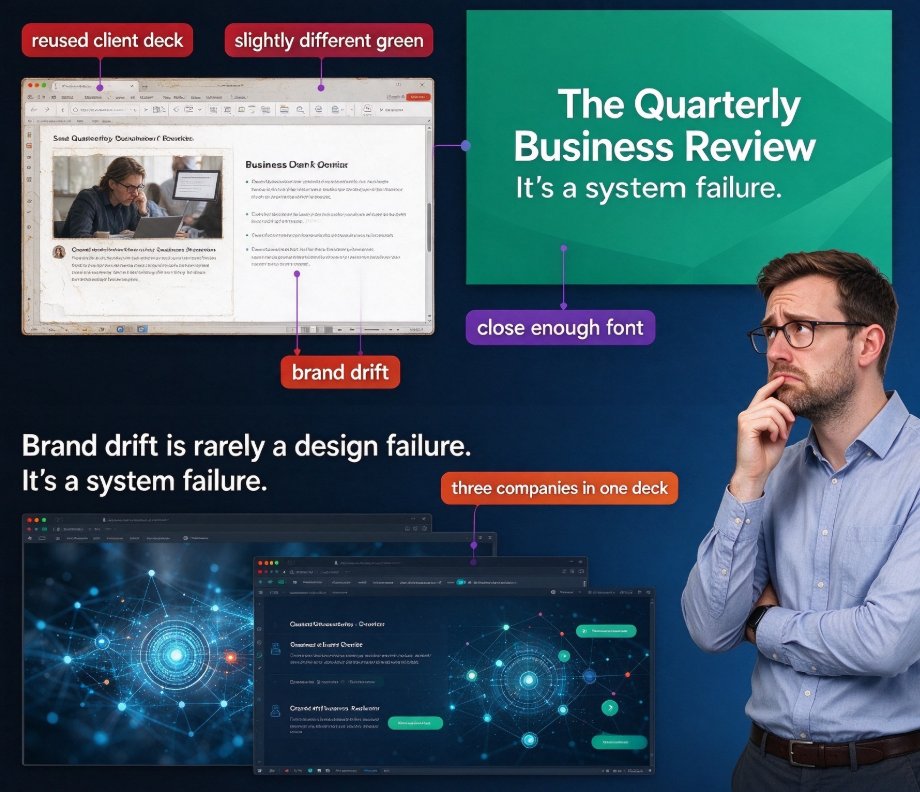
Reskin when you need brand consistency across a set of decks. If you have five department decks that each look like they came from a different company, a unified reskin brings them under one visual roof. Pair that with a well-configured brand kit and you're enforcing consistency without policing every slide manually.
Rebuild when your message has fundamentally changed. New positioning, different audience, rewritten narrative — these justify a full rebuild. Reskin would just be polishing a story that's no longer the one you want to tell.
Rebuild when the structure is broken. If the deck's organization itself is a mess — slides out of order, duplicate content, no clear arc — reskin will only preserve that chaos in prettier packaging.
For most legacy decks, honestly, the answer is reskin. Most of us are overestimating how much our content has changed and underestimating how much good visual treatment can do. If you're still unsure, start with a reskin on your most painful deck. See the result. Decide from evidence, not assumptions.
Conclusion: Modern Doesn't Mean Starting Over
We've been trained to think that a fresh look means a fresh start. Rip it up, rebuild, start from blank. That instinct is expensive, and it's exactly what AI reskin challenges.
The most valuable deck you own isn't a blank canvas — it's the one with the hard-won lessons, the carefully phrased arguments, the data you spent weeks gathering. Those assets are worth keeping. What they needed all along was a new skin, not a new identity.
Zendeck's one-click reskin is the fastest path from "dated" to "current" that I've found, and it works hardest precisely when your content is already doing its job. If you'd like more hands-on guidance, the full collection of presentation tutorials covers the workflow from outline to final deck. Take the deck that's been embarrassing you, reskin it, and see the difference in your next meeting.
FAQ
Will Zendeck's AI reskin change my original wording or messaging?
No. Reskin reworks the visual layer — layout, colors, typography, spacing, and icon treatment — it does not rewrite your text. What you wrote stays intact; what changes is how the audience experiences it. If the tool suggests tweaking a headline or reordering a bullet, you can accept or reject that edit, but your original content always remains the baseline.
How long does it take to reskin a full presentation in Zendeck?
Most decks can be reskinned in a few minutes. You upload your outline or existing deck, let the AI generate the new design, then preview slide by slide. For larger decks, you can spot-check a handful of slides and accept the rest in one batch — the workflow is built for speed, not pixel-pushing.
Can I apply my own brand colors and fonts during the reskin?
Yes. You can set up a custom brand kit in Zendeck or choose from the template library, and the reskin will apply those styles across all slides. That's the difference between a generic 'new look' and an on-brand modern look — the kind of consistency that makes a deck feel professionally produced.
Does the AI reskin work on decks imported from PowerPoint or Word?
It works two ways. You can paste a Word outline or Markdown/TXT and Zendeck generates a structured deck you can reskin. For an existing PowerPoint, you can also work slide by slide — pick the slides that need the most visual help, reskin them, and compare the result with the original before choosing which version to keep.