Reskin Your Deck with Zendeck's Smart Layout in One Click
Reskin Your Deck with Zendeck's Smart Layout in One Click
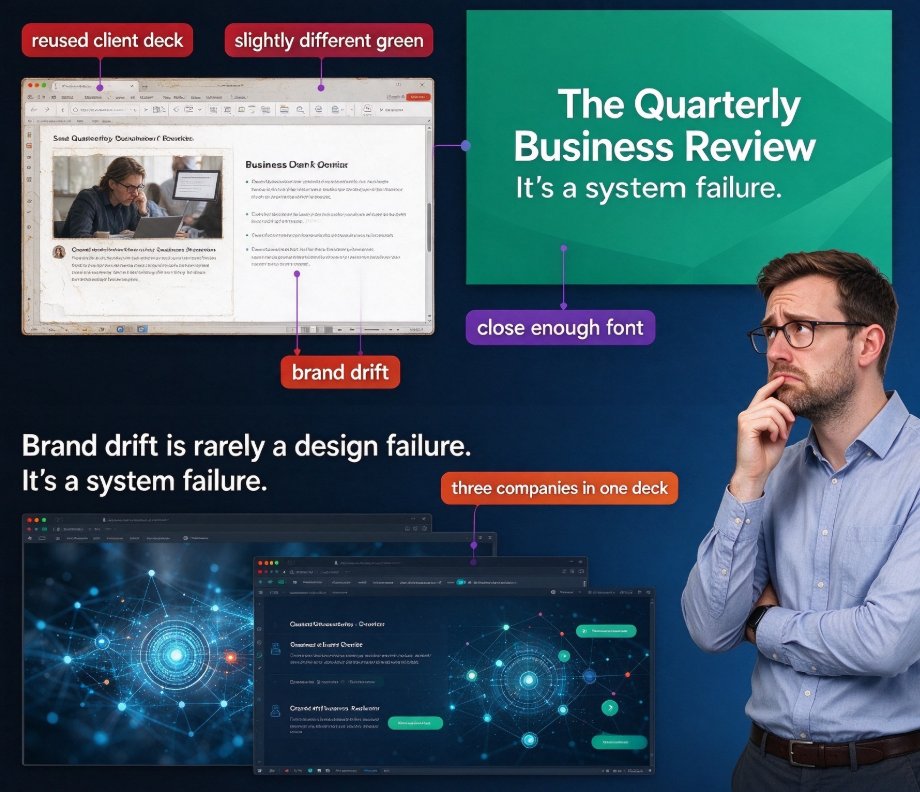
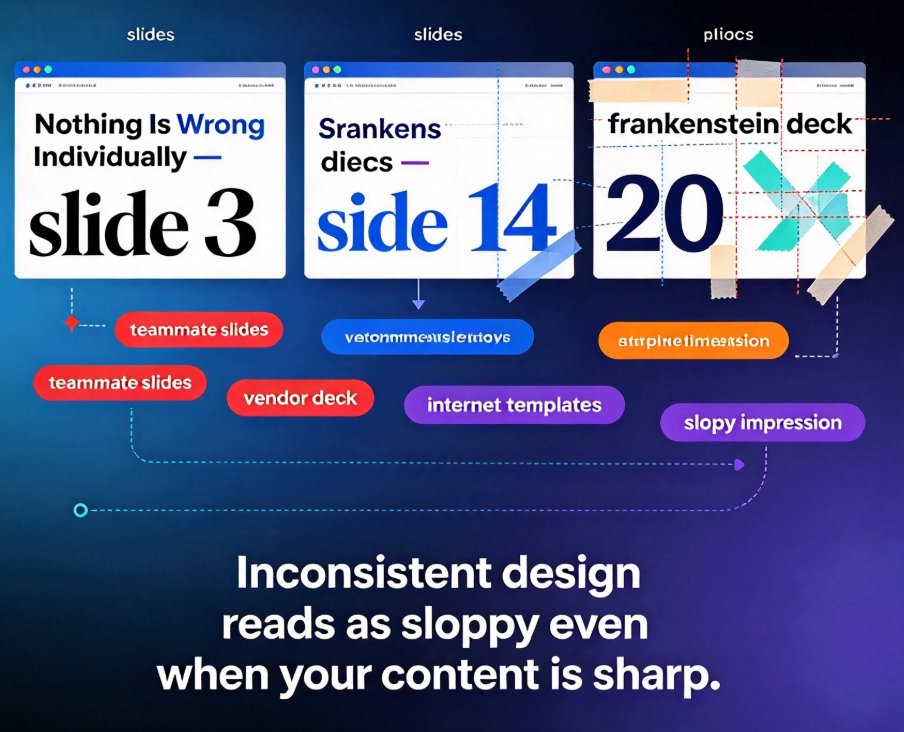
You've got a deck that's due tomorrow, but it looks like it was built by three different people in three different decades. Fonts clash, colors wander, and the layout shifts like a sand dune. Sound familiar? The manual path—opening Slide Master, hunting through every slide for font overrides, fixing alignment—can eat an afternoon. And honestly? You've got better things to do.
Here's the good news: reskinning an entire presentation no longer has to be a manual slog. With Zendeck's Smart Layout, you can unify fonts, colors, and layout across every slide in one click. This isn't just about looks—it's about reclaiming hours, enforcing brand consistency, and making your content feel credible before anyone reads a word.
01 Why Reskinning Feels Like a Chore
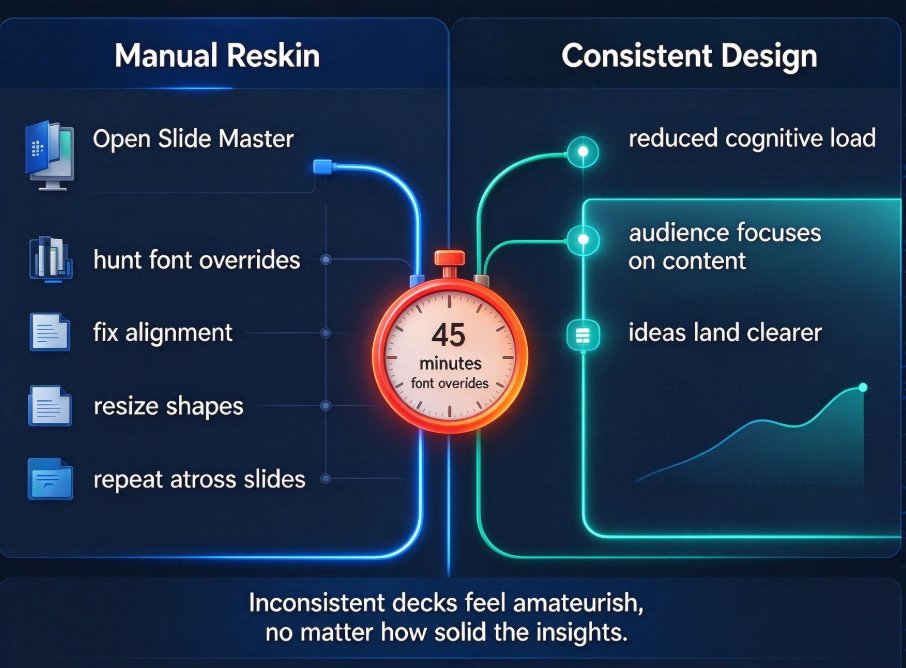
Let's be real: inheriting a deck from a teammate or a previous quarter is a special kind of pain. There's always that one slide with a different bullet style, or a title that's 16 pixels larger than it should be. You might try PowerPoint's Slide Master, but it only touches template-level styling. Any manual formatting you or someone else added—inline font changes, individual shape resizing—stays stubbornly put.
The result? You spend 45 minutes just hunting down font overrides before you even start on colors. Research shows that consistent design reduces cognitive load—audiences spend mental energy on your content, not on decoding your formatting. Inconsistent decks, on the other hand, make the whole thing feel amateurish, regardless of how solid your insights are.
Here's the painful truth: if your deck looks thrown together, your ideas will be judged accordingly. That's why a one-click reskin isn't a luxury. It's a competitive edge.
02 What Zendeck's Smart Layout Actually Does
Zendeck's Smart Layout is built to rescue you from design chaos. It doesn't just swap a theme—it intelligently re-applies a unified visual system across every slide. That means:
- Unified typography – one header font, one body font, with consistent sizes and hierarchy.
- A coherent color palette – brand colors applied to backgrounds, accents, and text.
- Consistent layout patterns – alignment, spacing, and grid structures that give your deck a professional rhythm.
The magic is that it works on slides you've already built—not just fresh templates. That's what makes it a true "reskin" rather than a restart.
◉ How does Zendeck's Smart Layout work?
It's deceptively simple. You upload your existing deck (or start from a Word outline), pick a brand kit or template style, and hit the reskin button. Behind the scenes, Zendeck analyzes your content and re-renders each slide's design elements—text boxes, shapes, charts, and images—into the new system. The result is a deck that looks like it was designed by one person, for one brand, all in one go.
03 Step-by-Step: Reskin a Deck in One Click
If you've got a deck sitting in your drive that needs a glow-up, here's the process in five steps:
- Open or import your deck in Zendeck. You can paste a Word outline, upload a .pptx, or pull in a Markdown file.
- Pick a visual style – either from Zendeck's template library or your own brand kit. If you haven't built a custom brand kit yet, Zendeck can auto-extract one from your logo, colors, and existing materials. (Check out our guide on 5 Ways to Create a Custom Brand Kit in Zendeck for Consistent Decks to get that set up.)
- Click "Reskin" in the Smart Layout panel. Zendeck will scan your entire deck and apply the new system.
- Review the result – Zendeck's AI handles the heavy lifting, but you can still tweak individual slides if something needs a nudge.
- Export or share – download as PowerPoint, PDF, or push it straight to a video micro-course if you're flipping it into training.
That's it. No manual hunt for font overrides. No fighting with alignment.
04 The Hidden Payoff: Brand Consistency and Cognitive Load
Here's the part that matters long after the reskin is done: a clean, consistent deck doesn't just look nice—it changes how your audience perceives you. According to research from Deckary, presentations with visuals are 43% more persuasive than text-only decks, and consistent design reduces cognitive load, helping viewers focus on your message instead of your formatting.
In other words, a reskinned deck isn't a vanity project. It's a persuasion tool. When your slides share the same typography, color palette, and layout patterns, your brand looks more professional, your arguments land more cleanly, and your call-to-action feels more credible.
That consistency is exactly what Zendeck's one-click reskin delivers—without you touching a single slider.
The payoff extends to your team too. If you're in HR, marketing, or course development, a shared brand kit means every deck—whether it's made by a new intern or a senior manager—comes out looking like it belongs to the company. That's not just efficiency; it's brand governance made effortless. For a deeper dive, see how AI Governed Brand Consistency: How AI Templates Enforce Consistency is changing the game.
05 When to Reskin vs. Redesign
One question that always comes up: "Doesn't reskinning just polish a bad deck?" Fair point. Reskinning handles the visual wrapper, not the content strategy. If your slide is crammed with 12 bullet points, no amount of font unification will save it. That's where you need a redesign—rethinking content, flow, and structure.
So here's a quick decision guide:
| Scenario | What You Need | Why |
|---|---|---|
| Deck has solid content, but looks dated or inconsistent | Reskin | You just need a visual refresh to reapply brand consistency. |
| Deck has weak structure, too much text, or unclear flow | Redesign | You need to rethink content hierarchy and slide architecture. |
| Both problems exist | Reskin + Edit | Reskin first to see what's left, then trim content. |
Zendeck's Smart Layout is built for the reskin case, but the platform also supports editing, so you can combine both. If you're worried about losing your content structure during a reskin, remember that Zendeck preserves your text and data—it only changes the visual layer.
06 Time Saved: The Chart Nobody Will Give You
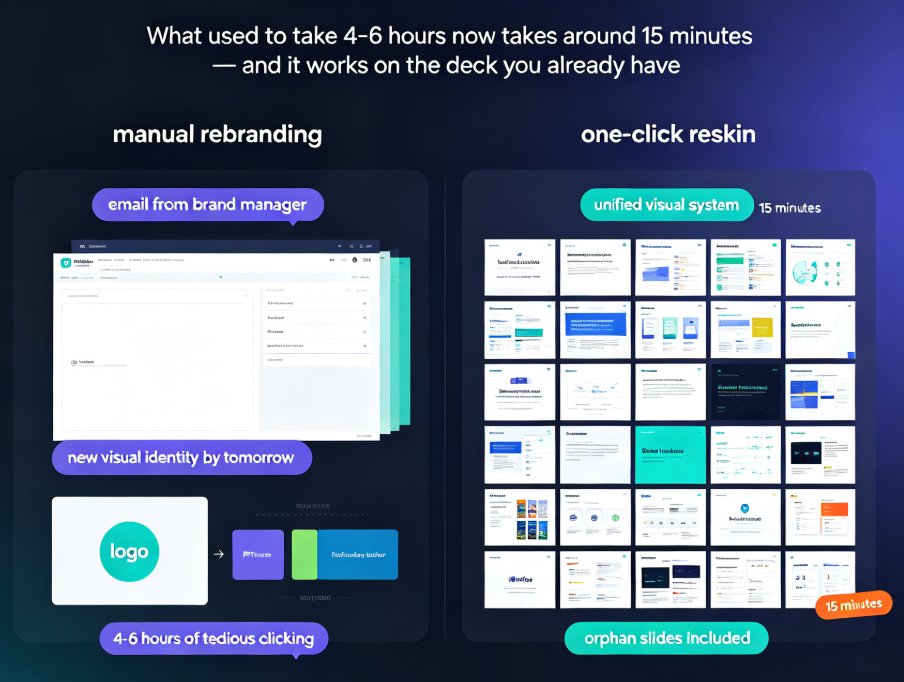
Let's put some numbers to this. Based on typical user workflows, manually reskinning a 20-slide deck (changing fonts, colors, and aligning layouts) takes about 90 minutes of grinding through slide-by-slide tweaks. With Smart Layout's one-click reskin, that's reduced to under 5 minutes—including review time. Check out the comparison below:
That's a 94% reduction in design time for a single deck. Multiply that across a quarter of decks, and you've recovered hours—hours you could spend on content, research, or actually rehearsing.
Time saved is time you can reinvest in what actually matters: your message and your audience.
07 Tips from the Trenches
Before you click that button, a few things I've learned from years of wrestling with decks:
- Don't reskin a deck that's 90% text. Run a quick content pass first. Delete the clutter—your audience will thank you.
- If you have a brand kit, use it. Don't rely on the default templates. Your deck will look like you, not like everyone else.
- After reskinning, do a 2-minute spot check. Look for any slide where a chart label got cut off or a text box overflowed. Zendeck is smart, but it can't read your mind.
- If you're working in a team, share the brand kit. Then everyone's decks are consistent from day one, not just after they've been reskinned three times.
These habits turn a one-click tool into a long-term workflow. And if you're looking for more ways to speed up your process, check out 5 Ways Zendeck Smart Layout Cuts Presentation Design Time and our AI-Driven Design Automation: The 2026 Shift to Smart Layouts piece.
08 The Bottom Line
Reskinning a deck used to be a tedious, soul-sucking chore. Now it's a button. Zendeck's Smart Layout doesn't just make your slides look better—it makes your process faster, your brand more consistent, and your audience more receptive.
If you're still wrestling with fonts and colors on a deck that's due in a few hours, stop. Give the reskin a shot. You'll likely be surprised at how much polish a single click can add.
And if you're curious about how this fits into the broader shift toward AI-powered design automation, browse our PPT Tutorial collection for more practical guides.
FAQ
Q1: What exactly does Zendeck's Smart Layout reskin?
A1: It unifies typography, colors, and layout patterns across your entire deck in one click. It works on existing slides, not just new templates, so you can bring an old or inherited deck back to brand-standard without manual adjustments.
Q2: Can I use my own brand colors and fonts with Smart Layout?
A2: Yes. You can create a custom brand kit in Zendeck—either manually or by auto-extracting from your logo and materials—and then apply it via Smart Layout. See our 5 Ways to Create a Custom Brand Kit article for the full walkthrough.
Q3: How is reskinning different from redesigning?
A3: Reskinning changes only the visual layer—fonts, colors, spacing, and layout patterns—while preserving your content and structure. Redesigning involves rethinking slide content, hierarchy, and flow. Zendeck supports both, but Smart Layout is specifically for the visual refresh.
Q4: Will Smart Layout mess up my charts and images?
A4: No. Zendeck's Smart Layout respects your data and media. It re-styles containers, labels, and borders to fit the new theme, but it doesn't alter underlying data or replace your assets.
Q5: How long does the reskin take?
A5: It's near-instant—usually under a minute for a standard deck, plus whatever time you want for review and tweaks. That compares to roughly an hour of manual work for a 20-slide deck.