One-Click Reskin: How to Rebrand a 50-Slide Deck in Minutes
One-Click Reskin: How to Rebrand a 50-Slide Deck in Minutes
Let's be real: opening your inbox to an email from your brand manager that says "every slide needs the new visual identity by tomorrow" is a specific kind of stress. The old way to handle this — PowerPoint's slide master, manual color replacements, hunting through 50 slides for a stray logo — turns a simple branding update into a full-day project.
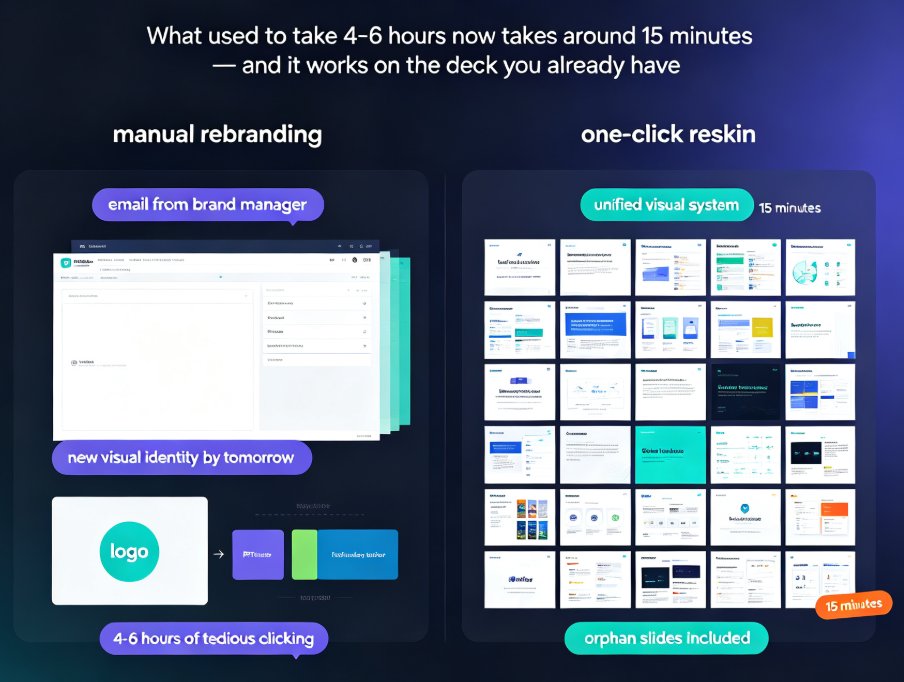
A one-click reskin changes the math: what used to take four to six hours of careful, tedious clicking now takes around 15 minutes. And it works on the deck you already have, not just new ones built from scratch.
In this guide, I'll show you exactly how reskinning works with Zendeck, why the manual approach fails on real-world decks, and when you should — and shouldn't — reskin instead of rebuilding.
01 Why rebranding an existing deck is so painful
I've been in war rooms where rebranding a partner's deck meant opening slide master, swapping hex codes one by one, and recreating the cover page six times because the logo kept resizing itself. This isn't a tool problem. It's a workflow problem.
The core issue: most decks aren't built cleanly. They're assembled from borrowed slides, pasted charts from analyst reports, and fonts that quietly changed three versions ago. Slide master only touches slides that follow the template. The moment you have orphan slides — and every real deck has a few — you're back to manual edits.
The result? Rebranding a 50-slide deck by hand typically takes:
- 2–3 hours just for font and color consistency
- 1–2 hours for logo replacements and placement fixes
- 1+ hour of QA clicking through every slide to catch stragglers
And that's before you deal with the awkward "wait, this slide uses a completely different template" moments.
If you're new to the bigger picture of how AI is changing this workflow, it's worth understanding why AI deck generation is replacing traditional PPT in 2026. But for the task at hand — updating what already exists — reskin is the shortcut.
02 What a one-click reskin actually does (and what it doesn't)
Before you trust AI to touch your deck, you deserve a straight answer about what reskin does.
One-click reskin analyzes every slide in your deck and applies a unified visual system — fonts, colors, layout rhythm, logo placement — across all of them, including orphan slides that break template rules.
Here's what happens under the hood:
- Scan — The engine inspects each slide's content structure, text elements, shapes, and existing colors.
- Map — It identifies the target theme, either a template you choose or a custom brand kit you've saved.
- Apply — Fonts, sizes, colors, and spacing are remapped to match the target system.
- Flag — Slides where content may conflict with the new layout get flagged for human review.
- Preview — You see the full reskinned deck before committing.
For a deeper dive on how AI enforces consistency across a whole deck, this article on AI-governed brand consistency with smart templates covers the broader picture.
03 Manual vs. reskin: the step-by-step comparison
Let me walk you through both workflows so you can see exactly where the time goes.
The manual way (what you're probably doing now)
If you're using PowerPoint's slide master:
- Open slide master view and edit the parent slide.
- Change the master fonts and colors.
- Replace the logo on the master — if your slide master actually uses one consistently.
- Discover 12 slides don't follow the master and fix each by hand.
- Open each orphan slide, select all text, manually change the font.
- Recolor any charts or graphics that used hard-coded colors.
- Check every slide for leftover old-brand elements.
For a deck of 50 slides, that's a solid 4–6 hour project, minimally.
The reskin way (Zendeck)
- Import your existing deck into Zendeck.
- Pick your target template or saved brand kit.
- Hit reskin.
- Review the flagged slides and make small tweaks.
- Export the unified deck.
That's it. Five steps, 10 to 15 minutes for a 50-slide deck. No slide master archaeology, no per-slide font surgery.
If you're setting up a brand kit to make this repeatable across your whole team, here's a guide on creating a custom brand kit in Zendeck for consistent decks.
04 The time math: what reskin actually saves you
The numbers matter more than the promise. Here's a realistic comparison based on decks I've seen across corporate teams:
| Deck Size | Manual Rebrand (PowerPoint) | Zendeck One-Click Reskin | Time Saved |
|---|---|---|---|
| 20 slides | ~2 hours | ~5 minutes | ~1 h 55 min |
| 50 slides | ~4–5 hours | ~10–15 minutes | ~4 h 30 min |
| 100 slides | ~8–10 hours | ~20–30 minutes | ~9 h 15 min |
On a 50-slide deck, reskin saves roughly 4.5 hours of manual work — and eliminates the repetitive, error-prone clicking that makes rebranding so draining. That's not just time; it's mental energy you get back for the work that actually matters.
05 When to reskin — and when to rebuild
Reskin is the right tool for:
- Brand consolidation — You've aligned on new colors and typefaces; every deck needs updating now.
- Client-specific versions — Same content, different brand look per client, needs to ship fast.
- Template adoption — You want an old deck to match a new house template without rebuilding.
- Rapid iteration — You're testing two visual directions and need side-by-side comparisons quickly.
Reskin is NOT the right tool for:
- Structural overhauls — Content order, messaging, or narrative needs to change (hint: think outline-to-deck instead).
- Repair of broken decks — Charts are broken, images are missing, or data is wrong.
- From-scratch builds — There's no existing deck worth saving; start clean with Zendeck's modern template-to-automation approach.
The general rule: fix content first, reskin last. Content problems don't disappear under a new coat of paint — they just get better-looking.
If you're new to AI deck tools and worried about common pitfalls, this rundown of 5 AI presentation mistakes to avoid in 2026 (and how Zendeck fixes them) is worth a read before you start.
06 Tips from the field: getting the best reskin results
A few things I've learned from reskinning real decks across teams:
1. Clean up before you reskin. Remove placeholder text, duplicate slides, and obvious layout glitches first. A reskin amplifies what's there; it doesn't fix broken content. Yes, it's extra work, but it's 20 minutes that saves you 2 hours of fixing weird output later.
2. Define your target brand kit once. Save the logos, colors, and fonts you actually use. Teams that invest 20 minutes in a solid brand kit save hours on every future reskin. It compounds.
3. Review flagged slides carefully. The engine flags slides where content might conflict with the new layout. These are usually orphan slides with dense content — give them a human pass before exporting.
4. Check numbers and data pages. Charts and tables often carry hard-coded colors. After reskin, flip through every data slide to confirm nothing became unreadable. Contrast is your friend; near-invisible labels are not.
5. Test with a small deck first. Before reskinning your 200-slide sales master, run a 10-slide test to see how the brand kit translates. Adjust before going all-in. One small tip from experience: verify your logo looks good on both light and dark slide backgrounds before you roll it out everywhere.
And one honest piece of advice: don't use reskin as an excuse to skip content quality. A consistent, beautiful deck with weak content is still a weak deck. The best teams use reskin to remove the visual noise so the actual ideas shine.
FAQ
Q: Does Zendeck's one-click reskin work on slides that don't follow a template?
Yes. The reskin engine analyzes each slide's actual content and layout, then applies the target theme — fonts, colors, spacing — even to orphan slides that don't follow the original template. It also flags slides where content may need manual review.
Q: How long does rebranding a 50-slide deck take with Zendeck?
For a typical 50-slide corporate deck, reskin takes roughly 10–15 minutes including review time. Compare that with 4–6 hours of manual slide-master editing and per-slide fixes in PowerPoint.
Q: Can I apply my company's brand colors and fonts instead of a template?
Yes. You can save a custom brand kit — logo, colors, fonts, accent styles — and apply it as the target for reskin. This is the most reliable way to keep presentation output consistent across teams.
Q: What should I fix before I reskin a deck?
Before reskinning, clean up obvious issues: remove placeholder text, fix broken images, and standardize content order. Reskin standardizes visual style, but it won't rewrite bad content or repair broken charts. Fix content first, then reskin.
Q: Can reskin be reversed if I don't like the result?
Zendeck keeps a version history, so you can compare the original and reskinned versions and revert if needed. It's a two-way street — reskin, review, and roll back if the design direction isn't right.