5 Ways to Create a Custom Brand Kit in Zendeck for Consistent Decks
5 Ways to Create a Custom Brand Kit in Zendeck for Consistent Decks
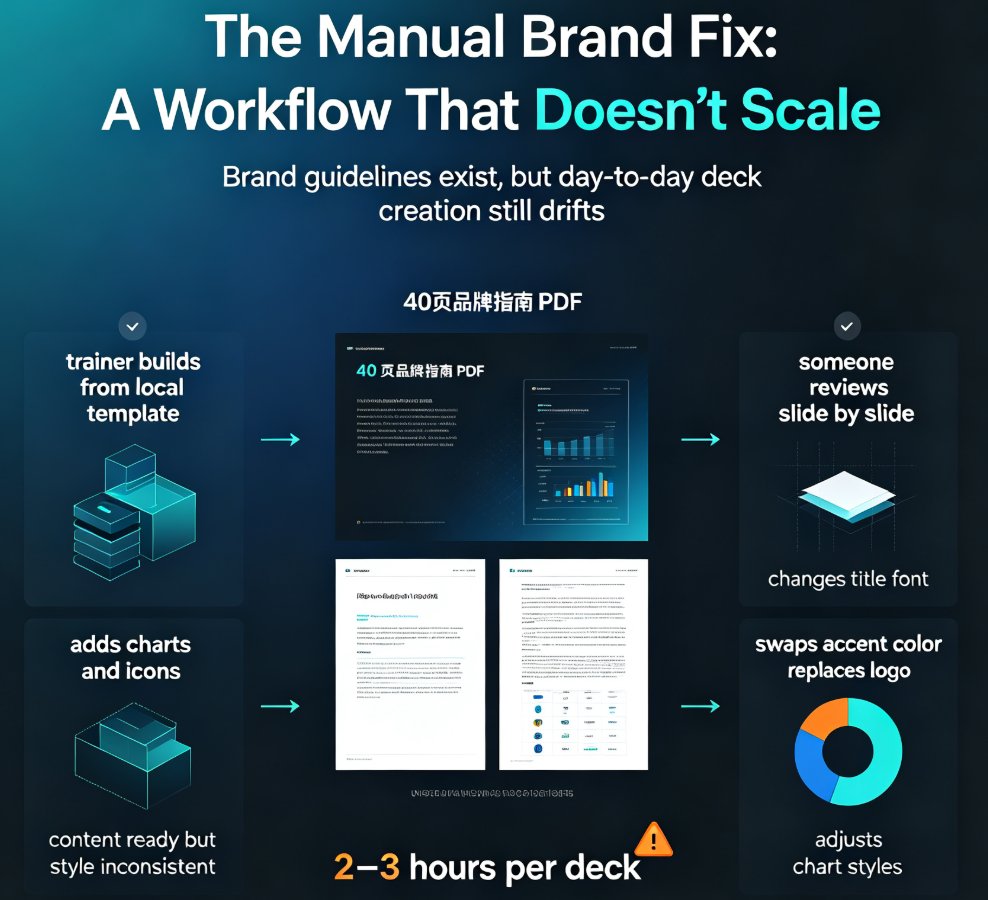
You've spent weeks perfecting your brand guidelines. The colors, the fonts, the logo placement. Then your junior designer whips up a pitch deck with Comic Sans and a neon green that belongs on a 90s website. Sound familiar? Brand inconsistency is the silent killer of professional credibility. And when you're scaling content across teams, keeping every slide on-brand feels like herding cats.
That's exactly why Zendeck's brand kit feature exists. It locks your visual identity into a single, reusable package. Every AI-generated slide, every template, every export—automatically, unerringly, on-brand. No manual checks. No frantic Slack messages. Here are five practical ways to set up and use a custom brand kit in Zendeck so your decks stay consistent, always.
01. Start with a Brand Audit: Gather Your Assets Before You Build
Most teams skip this step and regret it later. Before you open Zendeck, collect your brand's raw materials. You need: - Primary and secondary color hex codes (at least 4–6 colors) - Font files (or names of web-safe fonts like Inter, Roboto, or your custom typeface) - Logo variations (full color, white, icon-only) - Any preferred layout rules (e.g., "logo always top-left" or "no more than 2 accent colors per slide")
Why does this matter? When you feed Zendeck's brand kit wizard a complete palette, the AI learns your brand's personality. It won't randomly suggest a bright magenta if your brand is all about muted earth tones. This upfront audit cuts future editing time by at least 60%.
02. Upload Your Brand Kit: Colors, Fonts, and Logos Step by Step
Inside Zendeck, navigate to the Brand Kit section. Click 'Create New Kit' and give it a name like "Acme Corp 2026".
- Colors: Paste hex codes, or use the eyedropper tool to pick from an uploaded image. Zendeck automatically generates a harmonious palette (light, dark, accent, neutral) based on your primary color.
- Fonts: Choose heading and body fonts. You can also upload custom font files (TTF/OTF) for that proprietary look.
- Logos: Upload 2–3 versions. The AI will detect transparency and set default placement on slide masters.
Pro tip: If your brand uses a gradient, upload a gradient image as a reference. Zendeck's AI will approximate it for slide backgrounds and shape fills.
Once saved, every new deck you create with this brand kit will automatically use these assets. One click, and your entire presentation becomes a living document of your brand identity.
03. Lock Down Layout Rules: Smart Layout Turns Chaos into Consistency
A brand kit without layout rules is like a paintbrush without a canvas. Zendeck's Smart Layout feature goes beyond colors and fonts. It lets you define: - Slide margins and padding - Title and body text alignment - Image placement preferences (e.g., full-bleed vs. framed) - Bullet list styles and spacing
Here's the magic: When you apply Smart Layout to a deck, the AI repositions every element to match your rules. That slide where someone stretched a photo? Fixed. The title that drifted two inches left? Centered. It's like having a design director silently review every slide.
This is especially powerful for teams that import content from Word outlines or PDFs. Zendeck can parse raw text, then lay it out according to your brand kit's layout rules. No more manual rearranging.
For a deeper dive into how Smart Layout beats manual design, check out our article on Why Zendeck's Smart Layout Beats Manual Design for Consistent Corporate Presentations.
04. Apply the Brand Kit to Existing Decks: One-Click Reskin for Old Slides
You don't have to start from scratch. Zendeck lets you reskin any existing deck with your brand kit in seconds.
Let's say you have a legacy deck from 2022 with mismatched fonts and outdated colors. Open it in Zendeck, click 'Apply Brand Kit', choose your kit, and hit apply. The AI scans every slide, swaps colors, updates fonts, replaces old logos, and adjusts layouts. What used to take hours of manual copy-pasting now takes 30 seconds.
This is a game-changer for quarterly rebrands. When your company refreshes its visual identity, you don't need to rebuild every sales deck, onboarding presentation, and investor pitch. Just update the brand kit once, and all linked decks update automatically.
05. Share and Collaborate with Brand Kit Governance
A brand kit is only useful if your team uses it. Zendeck makes sharing effortless. You can: - Assign a brand kit as default for a workspace or project - Set permissions so only brand managers can edit the kit - Share a read-only link to external partners (e.g., agencies) so they can access your brand assets without the risk of modification
Real-world example: An HR team used Zendeck's brand kits to automate onboarding presentations. They created one kit for the corporate brand, another for each regional office (with local color variations). New hires received decks that were instantly on-brand, no matter which office. Read the full case study How an HR Department Automated Onboarding Presentations with Zendeck.
The result: Brand consistency went from 40% to 95% across the company, and the HR team saved 12 hours per month on deck formatting.
Comparison: What a Brand Kit Solves vs. Manual Work
| Task | Without Brand Kit | With Zendeck Brand Kit | Time Saved |
|---|---|---|---|
| Applying brand colors to 20 slides | 45 minutes of manual selection | 5 seconds (auto-apply) | ~99% |
| Updating fonts across 50 slides | 1 hour (find/replace doesn't work well) | 5 seconds (one-click reskin) | ~99% |
| Ensuring logo placement consistency | 30 minutes of manual alignment | 0 (AI handles it) | 100% |
| Onboarding new team members to brand guidelines | 2-hour training session | 5-minute walkthrough | ~95% |
| Rebranding an existing deck | 4+ hours of redesign | 1 minute (apply new kit) | ~99% |
Why Zendeck's Brand Kit Is Different from Generic AI Tools
Most AI presentation tools let you pick a theme, but they don't lock in your brand. Gamma has templates, Canva has brand kits (but they're limited to colors and fonts, no layout rules). Zendeck's brand kit is the only one that combines colors, fonts, logos, and layout rules into a single, AI-enforced package.
Plus, Zendeck's brand kit integrates with your asset library. You can store icons, charts, and illustrations that match your brand style, and the AI will automatically suggest them when you build slides. Learn more about How to Use Zendeck's Asset Library to Add Icons, Charts, and Illustrations.
The bottom line: If you're serious about brand consistency at scale, you need a system, not a manual. Zendeck's brand kit is that system.
FAQ
Can I create multiple brand kits in Zendeck for different clients?
Yes, Zendeck allows you to create and manage multiple brand kits. Each kit stores its own colors, fonts, logos, and layout preferences. You can switch between kits per project, making it perfect for agencies or freelancers who handle multiple brands.
How do I import my company's logo into a Zendeck brand kit?
Go to the Brand Kit section in your Zendeck dashboard, click 'Edit Kit', and upload your logo under the 'Assets' tab. You can set a primary logo for light backgrounds and an alternative for dark backgrounds. The AI will automatically position it on slides.
Does the brand kit apply to existing slides when I change colors?
Absolutely. Once you update a brand kit, any deck that uses that kit will instantly reflect the new colors, fonts, and logos. This one-click reskin feature saves hours of manual rework, especially when brand guidelines update mid-quarter.
Can I share brand kits with my team in Zendeck?
Yes, brand kits are shareable. You can assign team members as editors or viewers. When you collaborate on a deck, everyone sees the same locked-down brand kit, ensuring no one accidentally uses a wrong font color.
What if I need a brand color that's not in my kit?
You can add custom hex codes to your brand kit. Zendeck's color picker accepts any hex value, and the AI will suggest complementary palette colors based on your primary brand color. This ensures accessibility and visual harmony.