How to Create Interactive Training Modules with Zendeck's PPT-to-Video Feature
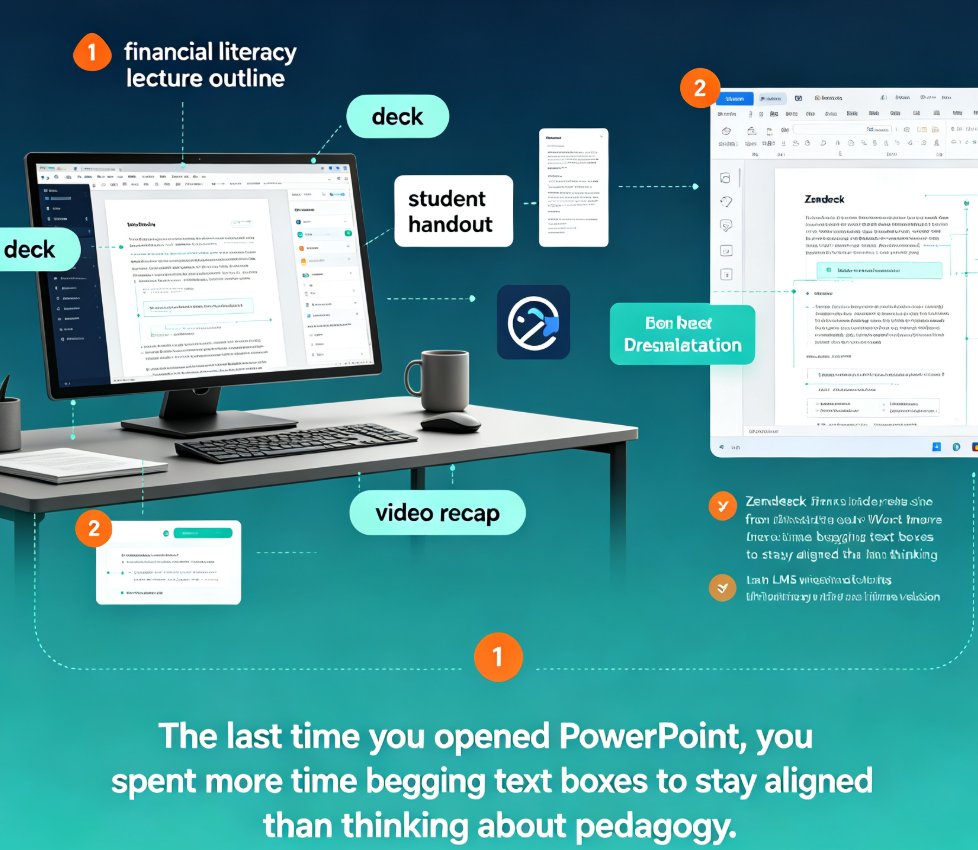
Let's be real: you've spent hours perfecting a slide deck for onboarding new hires, but when you hit 'present,' eyes glaze over. Static slides just don't cut it anymore. Employees expect content that moves, talks, and interacts. But the thought of learning video editing software? That's a hard pass.
Enter Zendeck's PPT-to-video feature. It bridges the gap between your slide deck and a polished micro-course, adding narration, transitions, and even interactive elements — all without touching a single video editing timeline. Here's how to use it to create training modules that actually stick.
01 | Why Static Slides Are Not Enough for Modern Training
Studies show that 70% of employees prefer video over text or slides for learning new information (source: general industry reports). But producing a quality training video traditionally requires a team: scriptwriters, voice actors, video editors, and animators. That's a budget most L&D departments don't have.
Pain point: You have the content (in your slide deck) but no way to deliver it in a format that engages today's workforce.
Solution: Use an AI tool that treats your slides as the starting point and adds the missing elements — narration, timing, and visual flow — automatically.
Outcome: A professional-looking micro-course that employees can watch on their own time, on any device, without you becoming a video editor.
02 | How Zendeck's PPT-to-Video Feature Bridges the Gap
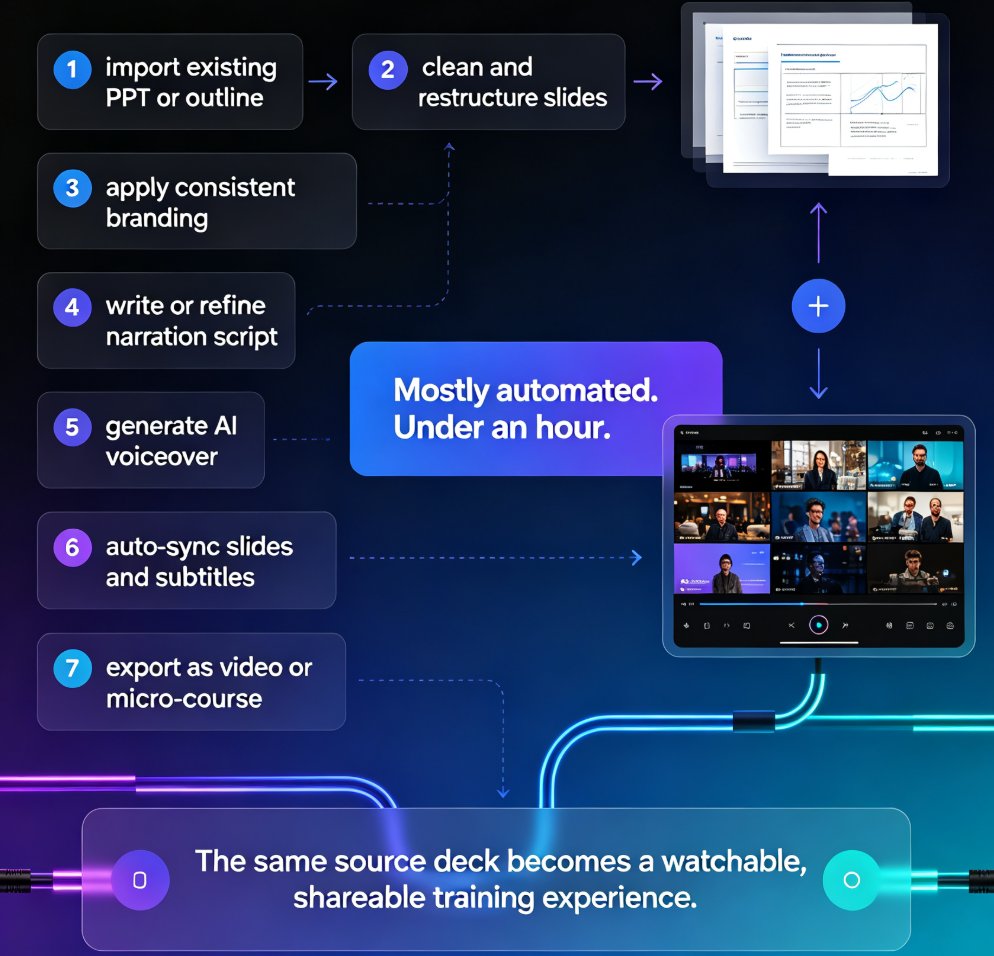
Zendeck's PPT-to-video tool is designed for exactly this scenario. You upload your existing slides (PPTX, PDF, or even a Word outline), and the AI:
- Analyzes each slide for key points and visual hierarchy.
- Generates a script for the narration — you can edit it before finalizing.
- Adds a voiceover from a selection of AI voices (or you can record your own).
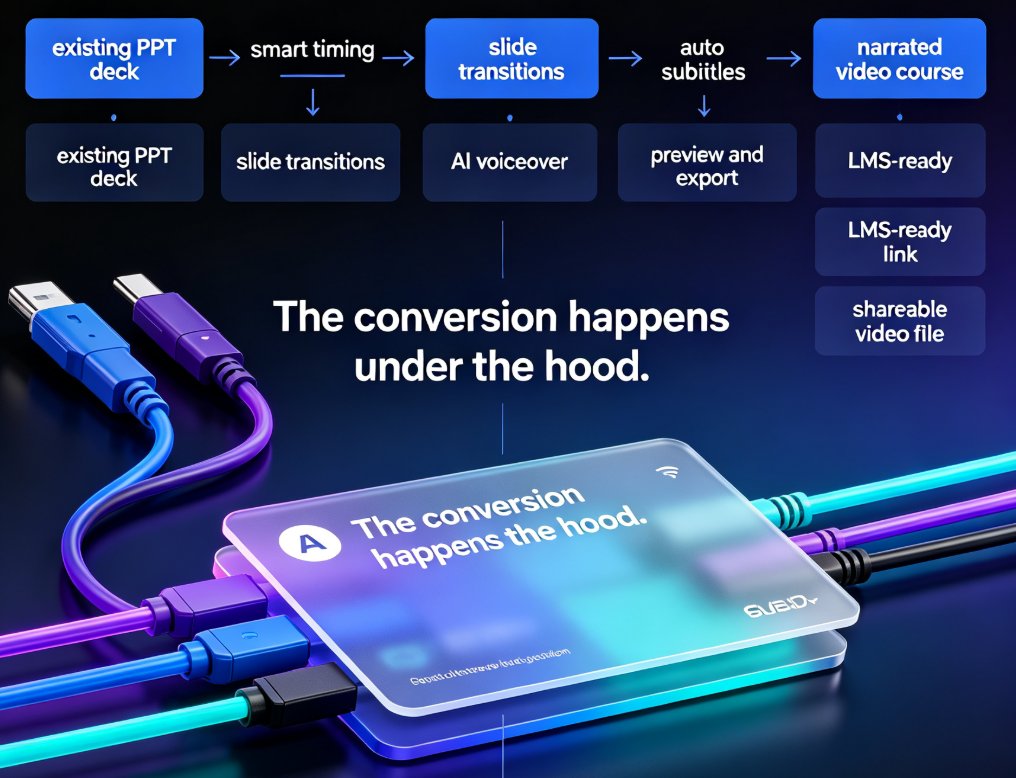
- Inserts transitions between slides — fade, slide, zoom — to keep the flow smooth.
- Exports as MP4 video or an interactive HTML5 module that can be embedded in your LMS.
The result is a narrated micro-course in minutes, not days.
03 | A Step-by-Step Workflow: From Slide Deck to Narrated Micro-Course
Let's walk through a real scenario: you need to create a compliance training module for 200 new hires. Your existing deck is 25 slides, mostly bullet points and a few diagrams.
Step 1: Prepare Your Content
Clean up your slide deck. Remove slides that are purely decorative (e.g., title slides with no content, transition slides). Zendeck works best with content-rich slides. If you have a Word document or outline, import it directly using the Word import feature — it will generate slides for you.
Step 2: Import into Zendeck
Click "New Project" → "Import" and select your file. Zendeck will convert each slide into a scene. You can rearrange slides, add new ones, or delete duplicates.
Step 3: Choose a Voice and Script
Pick an AI voice that matches your company's tone. For compliance training, a neutral, professional voice works best. Review the AI-generated script — it's surprisingly accurate at extracting key points, but you can tweak the wording to match your specific policies.
Step 4: Add Visuals and Transitions
Zendeck's Asset Library lets you insert icons, charts, and illustrations to replace text-heavy slides. Set transitions between slides (e.g., "Fade" for a calm feel, "Slide" for a more dynamic pace).
Step 5: Preview and Export
Play the preview. Adjust timing, fix any awkward pauses, and then export as MP4 or embed directly into your LMS using a link. The entire process takes under 30 minutes for a 25-slide deck.
Pro tip: If your training includes a quiz or interactive elements, use Zendeck's "interactive hotspot" overlay — you can add clickable areas that pause the video and ask a question. This turns a passive video into an active learning experience.
04 | Traditional Video Production vs. Zendeck's Approach
| Aspect | Traditional Video Production | Zendeck PPT-to-Video |
|---|---|---|
| Time to produce a 20-slide module | 3–5 days (scripting, recording, editing, revisions) | 15–30 minutes |
| Skills required | Scriptwriter, voice actor, video editor, motion designer | None (basic slide editing) |
| Cost per module | $2,000–$10,000 (freelance rates) | Included in subscription (or $0 if using free tier) |
| Revisions | 1–2 rounds; each revision takes hours | Instant; edit script or slides and regenerate |
| Brand consistency | Manual; easy to miss colors or fonts | Automatic with brand kits |
| Interactivity | Requires custom development | Built-in (hotspots, quizzes, branching) |
The takeaway: Zendeck doesn't replace a full video production team for complex projects. But for 80% of training needs — onboarding, compliance, product updates — it's faster, cheaper, and just as effective.
05 | Real-World Scenario: Compliance Training for 200 New Hires
A mid-sized tech company needed to deliver a 30-minute compliance training module to 200 new hires across three time zones. They had a static PowerPoint deck that was 40 slides long. The HR team spent two weeks trying to record a voiceover using their phones — the audio quality was terrible, and the slides didn't sync with the narration.
They switched to Zendeck.
- Imported the PPTX file (40 slides) → Zendeck generated scenes and a draft script.
- Edited the script to match their exact legal language (took 20 minutes).
- Selected a professional AI voice and added transitions.
- Exported as an MP4 video and uploaded to their LMS.
Outcome: The module was ready in 1 hour, with consistent narration and professional transitions. Employee feedback improved from "boring slide deck" to "clear and easy to follow." The HR team now uses Zendeck for all new hire modules.
06 | Best Practices for Creating Engaging Narrated Micro-Courses
Based on our experience working with L&D teams, here are a few tips that make a big difference:
- Keep slides text-light. One key concept per slide. The AI narration will expand on the point, so the slide should be a visual cue, not a script.
- Use a conversational tone. The AI voice sounds more natural when the script is written in plain English, not corporate jargon. Read the script out loud before exporting.
- Add a "call to action" slide. At the end of the video, ask viewers to click a link, take a quiz, or discuss with their manager. This turns passive viewing into active learning.
- Brand your videos. Use Zendeck's brand kit to ensure company colors, logo, and fonts appear on every slide. This builds trust and professionalism.
FAQ
Q: What file formats does Zendeck support for importing slides? A: Zendeck supports importing PPTX, PDF, and Word outlines, as well as pasting Markdown or TXT content. You can then generate slides and turn them into videos.
Q: Can I customize the AI voiceover in the video? A: Yes. Zendeck offers a selection of AI voices (different genders, accents, and tones). You can also adjust the speaking speed and pitch, or upload your own audio recording.
Q: How long does it take to generate a narrated micro-course? A: Depending on the number of slides and complexity, a 20-slide deck with narration can be ready in 10–30 minutes. Most of the time is spent on reviewing and tweaking the AI output.
Q: Can I edit the video after it's generated? A: Absolutely. Zendeck allows you to reorder slides, edit the script, change the voiceover, and adjust transitions. The video is regenerated on the fly with your changes.
Q: Is Zendeck suitable for compliance training with strict content requirements? A: Yes. Zendeck's AI ensures consistency and accuracy. You can create a brand kit with your company's approved colors, fonts, and logos, and apply it to every slide. The narration can be reviewed and edited before final export.
Ready to turn your static slides into training videos that actually engage? Start with a free Zendeck account and import your first deck today.