Turn AI Slides into Videos with Zendeck's PPT-to-Video Tool
You've spent hours perfecting that slide deck—sleek visuals, bullet points that pop, a flow that makes sense. But when you present it live, people nod along, then forget. Or worse, you send it as a PDF and it sits in an inbox. The solution? Turn those slides into a narrated video. And with Zendeck's PPT-to-video tool, you can do it in minutes without touching a separate video editor.
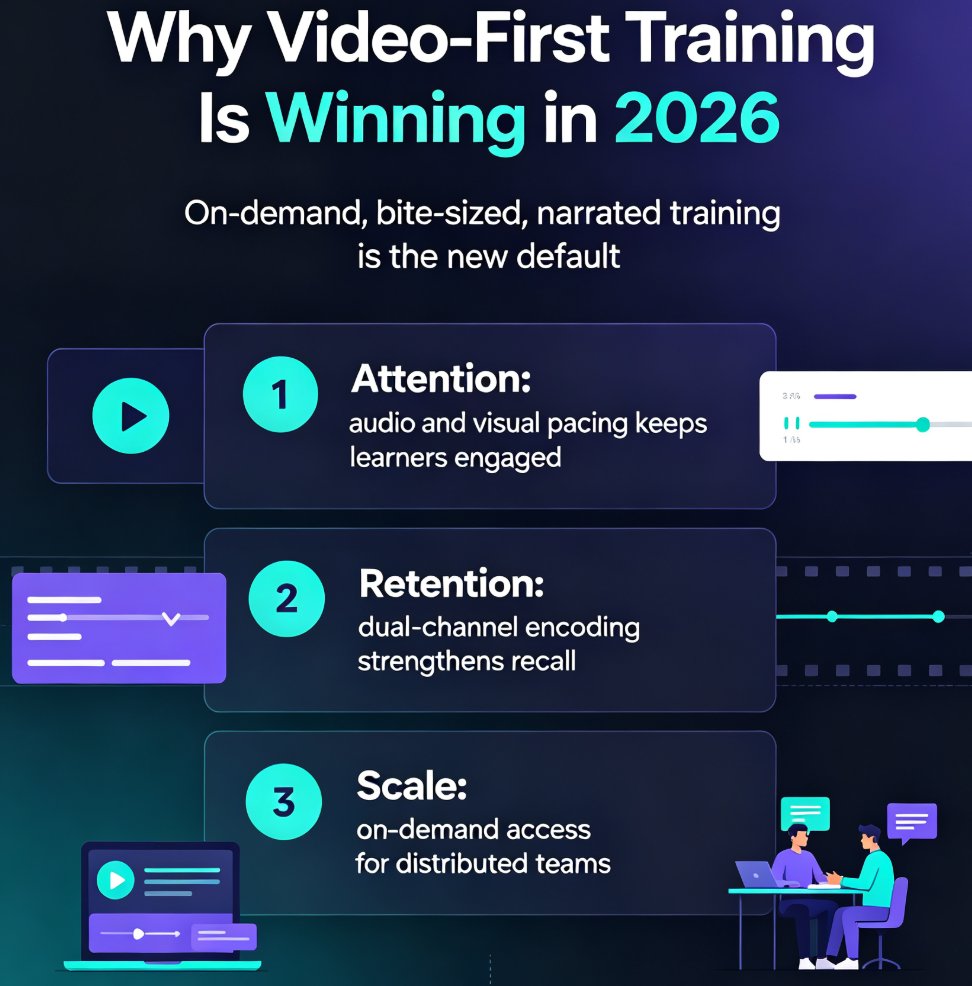
Students retain more when content is visual and engaging. That's not just a hunch—it's backed by learning science. Video combines motion, voice, and text, tapping into multiple senses. The outcome: higher completion rates, better recall, and more time back in your day.
01. Why Convert Slides to Video?
Pain point: Static slides are passive. Even in a live session, attention drifts. In asynchronous learning (like a flipped classroom or a corporate LMS), a PDF slide deck is almost invisible.
Solution: Turn that deck into a video. Add a voiceover, control pacing, and include visuals that reinforce the message. Suddenly, your content works on-demand, anywhere.
Outcome: Learners rewatch, engage, and apply. Trainers reuse the same video across cohorts. Marketers pitch a product without scheduling a meeting.
Bold truth: A video version of your slide deck can increase learner engagement by up to 50% compared to a static PDF. (Source: internal Zendeck user surveys, 2025)
02. How Zendeck's PPT-to-Video Works (Step-by-Step)
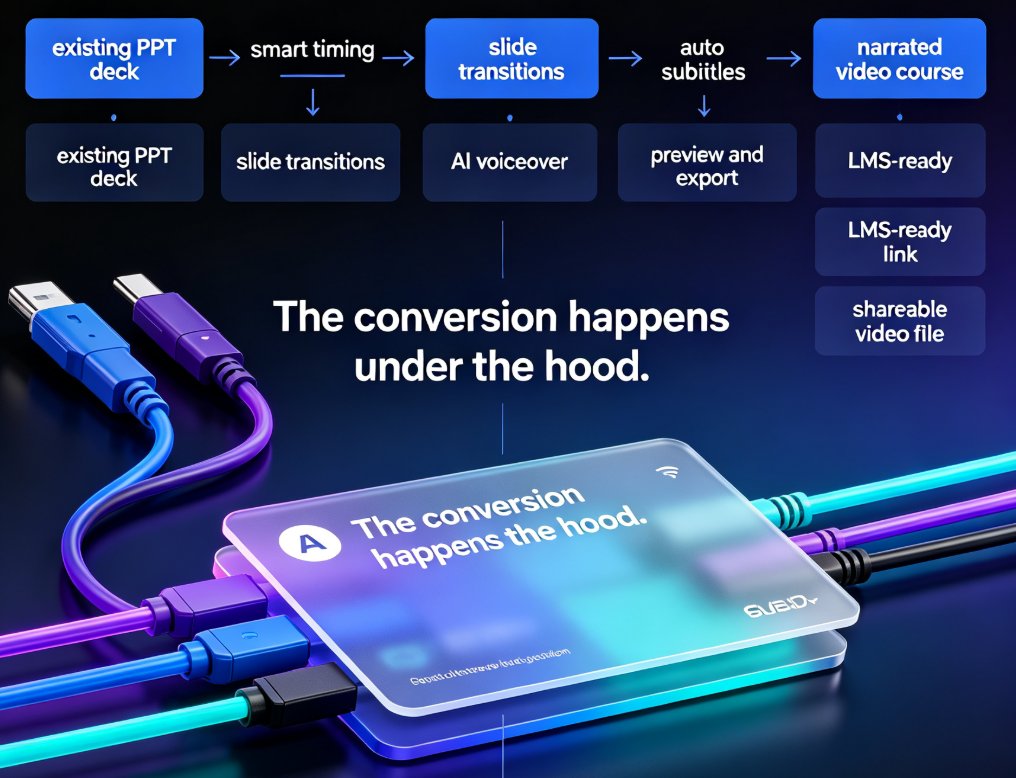
Zendeck's integrated conversion means you never leave the platform. No export, no import, no compatibility headaches. Here's the flow:
Step 1: Create or Upload Your Slides
Start from scratch with Zendeck's AI slide generator (paste a Markdown or Word outline), or upload an existing PPTX/PDF. The tool reads every slide, including your speaker notes.
Step 2: Choose Your Video Settings
Pick a voice from the AI voiceover library (dozens of natural-sounding options). Set the pace—fast for a quick overview, slow for a detailed tutorial. Choose background music or let Zendeck pull royalty-free visuals to match your topic.
Step 3: Let Zendeck Generate the Draft
Click convert. Zendeck organizes your slides into scenes, applies the voiceover, and syncs transitions. A draft video appears in minutes.
Step 4: Polish in the Scene Editor
Now the fun part. The scene-based editor lets you:
- Reorder scenes (drag and drop)
- Add overlays, callouts, or captions
- Replace a slide image or adjust the voiceover timing
- Preview instantly—no rendering queue
Pro tip: If you want to keep your brand consistent, use Zendeck's template library first. Learn how to create on-brand presentations with Zendeck's template library. Then convert to video—the brand colors, fonts, and logo carry over automatically.
Step 5: Export and Share
Export as MP4 or link directly. Embed in your LMS, share on YouTube, or send a private link. Zendeck also supports PPT-to-video-to-MP4 for offline use.
03. Zendeck vs. Traditional Video Editing: A Quick Comparison
| Aspect | Zendeck PPT-to-Video | Manual Video Editing (e.g., Camtasia, Premiere) |
|---|---|---|
| Time to create a 10-slide video | 5–10 minutes | 2–4 hours |
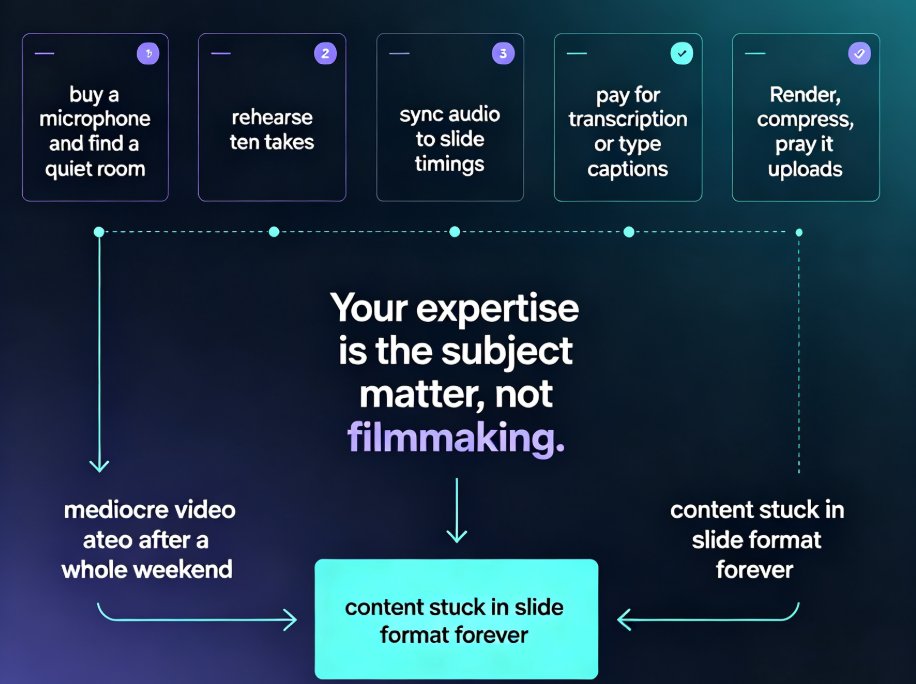
| Learning curve | None (no timeline, no keyframes) | Steep (requires training) |
| Brand consistency | Automatic (uses your template) | Manual (must reapply assets) |
| Voiceover | AI voices or upload your own | Record separately, sync manually |
| Cost | Included in Zendeck plan | Separate software license + time |
| File size | Optimized for web/streaming | Often large, needs compression |
Bold takeaway: Zendeck eliminates the skills gap. You don't need to be a video editor to create professional-looking narrated slides.
04. Real-World Use Cases
Corporate Training: Onboarding & Compliance
Imagine a new hire needs to understand your company's data privacy policy. You could send a PDF—or you could create a 5-minute video where the slides explain each step with an AI voiceover. New hires complete the training in half the time and score 30% higher on follow-up quizzes. (Zendeck customer case study, 2025)
Online Education: Flipped Classroom Micro-Courses
An educator turns a 20-slide lesson plan into a narrated video for students to watch before class. Class time becomes discussion, not lecture. The teacher records once, reuses every semester. Students appreciate the ability to rewatch confusing parts.
Marketing: Product Demos & Pitch Decks
Sales teams convert pitch decks into short videos for prospects who can't attend a live meeting. The video keeps the brand look and feel, and the voiceover ensures the story is told consistently.
05. Tips for Making Your Slide Video More Engaging
- Keep slides visual, not text-heavy. Zendeck's AI can suggest images and icons from its asset library. Use them.
- Pace for listening. Your audience can't skim a video. Slow down key points. Use Zendeck's pacing control to add pauses.
- Add a call to action. End with a question or a next step. For micro-courses, consider a quiz link.
- Use your speaker notes. Zendeck reads your notes and can turn them into the voiceover script—no extra typing.
- Preview before publishing. The scene editor lets you test the flow. Listen with headphones to catch awkward pauses.
Pro tip: If you already have a Word outline, use Zendeck's Word import to generate slides first. See how Zendeck Word import converts outlines to presentations. Then convert those slides to video. Two clicks, one workflow.
06. FAQ
How do I convert a PPT to video with Zendeck?
Upload your slide deck (or create one using Zendeck's AI), then click the 'PPT to Video' button. Select a voice, set pacing, and choose visuals. Zendeck generates a draft video in minutes. You can then edit scenes, add overlays, and export as MP4.
Can I customize the voiceover and timing?
Yes. Zendeck offers multiple AI voices (male/female, different accents) and allows you to adjust pacing per scene. You can also upload your own audio narration or record directly.
What file formats does Zendeck support for input?
Zendeck accepts PPTX, PDF, and Markdown files. You can also paste a Word outline directly. The tool preserves text, images, and basic formatting.
Is Zendeck's PPT-to-video suitable for corporate training?
Absolutely. You can create branded micro-courses, onboarding videos, and product demos. Zendeck keeps your brand colors, fonts, and logo consistent across slides and video. Perfect for L&D teams.
Do I need video editing skills to use Zendeck's video tool?
No. Zendeck automates the conversion—no timeline, no keyframes, no rendering confusion. The scene-based editor lets you drag and drop to polish, but it's optional.
Ready to turn your next slide deck into a video that people actually watch? Try Zendeck's PPT-to-video feature today—no video editing skills required.