Turn Static Training Decks into Video Courses with AI Narration
Let's be real: the 47-slide compliance deck you built in 2019 isn't getting watched. It's getting skimmed, skipped, or silently archived in a shared drive. You know it, your learners know it, and yet the content itself is still solid — it's just trapped in a format that modern learners ignore.
Here's the good news: you don't need to rebuild your training library from scratch. With Zendeck's PPT-to-video, you can turn those static decks into narrated video courses with AI voiceover — in hours, not weeks, and without touching a video editor.
01 — Why Static Decks Fail Modern Learners
Static slides fail because they demand attention without earning it. No pacing, no voice, no emotional cue to tell the learner what matters. When you present live, your voice carries the narrative. When the deck sits alone, that narrative disappears.
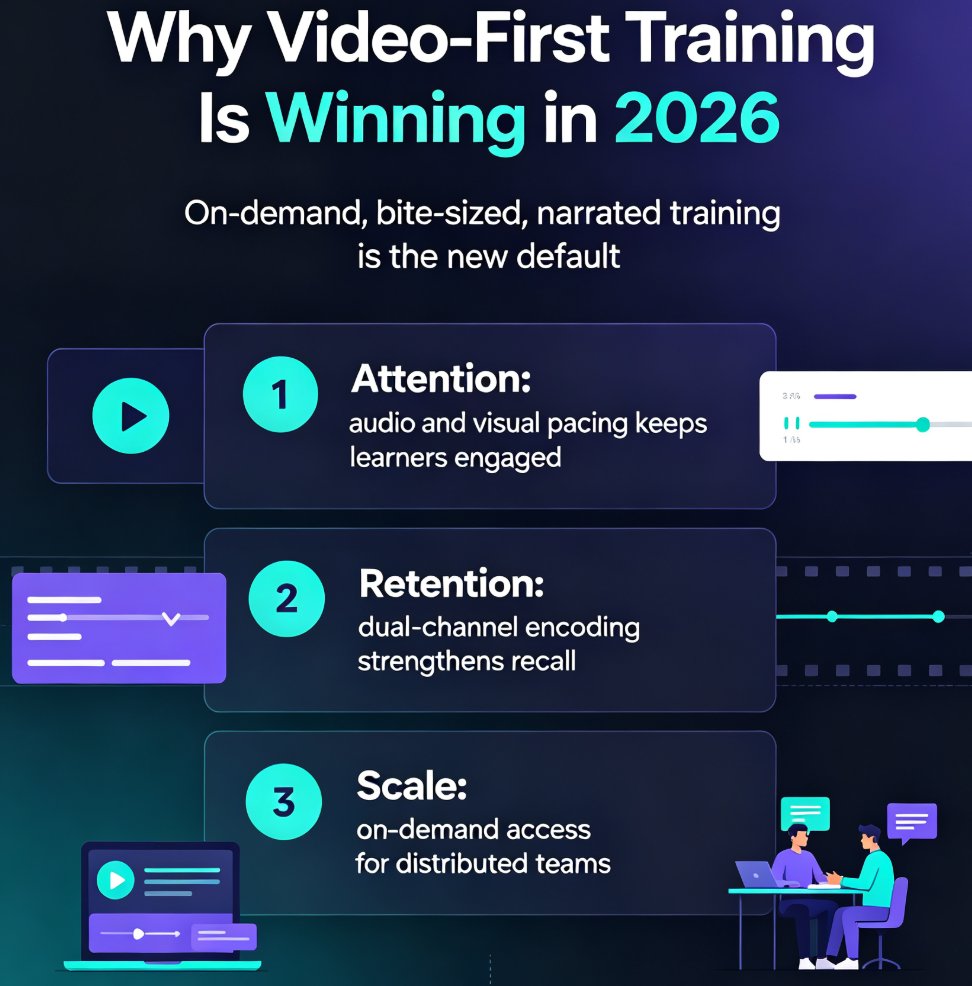
Think about the last time you opened a training PDF. You scrolled. You skimmed. You closed it. That's not a failure of your attention span — it's a failure of the format. Video, on the other hand, gives learners a reason to stay: it has rhythm, a human voice, and a clear beginning, middle, and end.
The pain point is familiar to every L&D professional: you spent days building a training deck, and then it sits in a shared drive. Learners open it, scroll for 30 seconds, close it. Engagement metrics are embarrassing. And the content itself is still good — it's just presented in a format that modern learners ignore.
The solution isn't to rebuild everything from scratch. It's to repurpose what you already have. Video is the format learners actually consume, and converting your existing slides into narrated video is dramatically faster than producing a new course from zero. You're not starting over; you're upgrading the delivery.
02 — What Zendeck's PPT-to-Video Actually Does
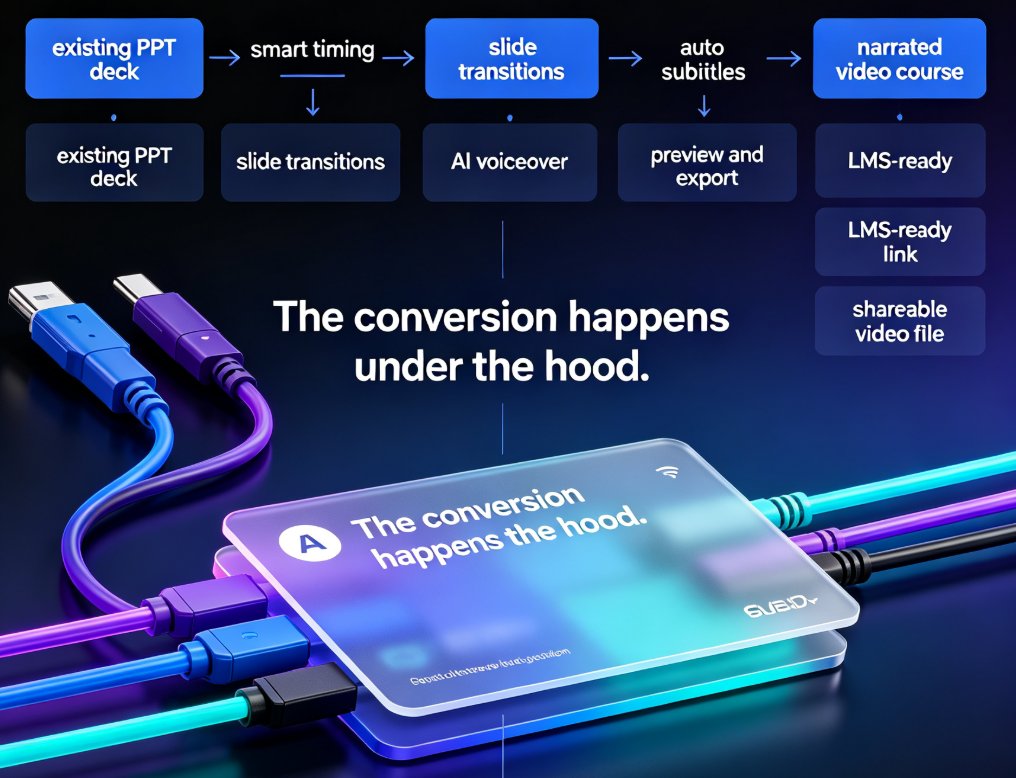
Zendeck's PPT-to-video takes your existing slide deck and turns it into a narrated video course. Here's what happens under the hood:
- Your slides become the visual track, with timing and transitions applied automatically
- AI voice synthesis reads your speaker notes or a script you provide
- Subtitles are generated automatically for accessibility and comprehension
- The output is a shareable video file or link you can drop into your LMS
The key insight: you don't need to redesign your slides or learn video editing. The tool handles the conversion, and you handle the content decisions. If you're already using Zendeck to build decks, the video conversion is a natural extension of the same workflow. And if you want to go deeper on the narration side, our guide on adding narration to slides with Zendeck's PPT-to-video walks through the voiceover options in detail.
03 — Step-by-Step: From PPT to Narrated Video Course
Let's walk through the actual workflow. This is the part I wish someone had shown me the first time.
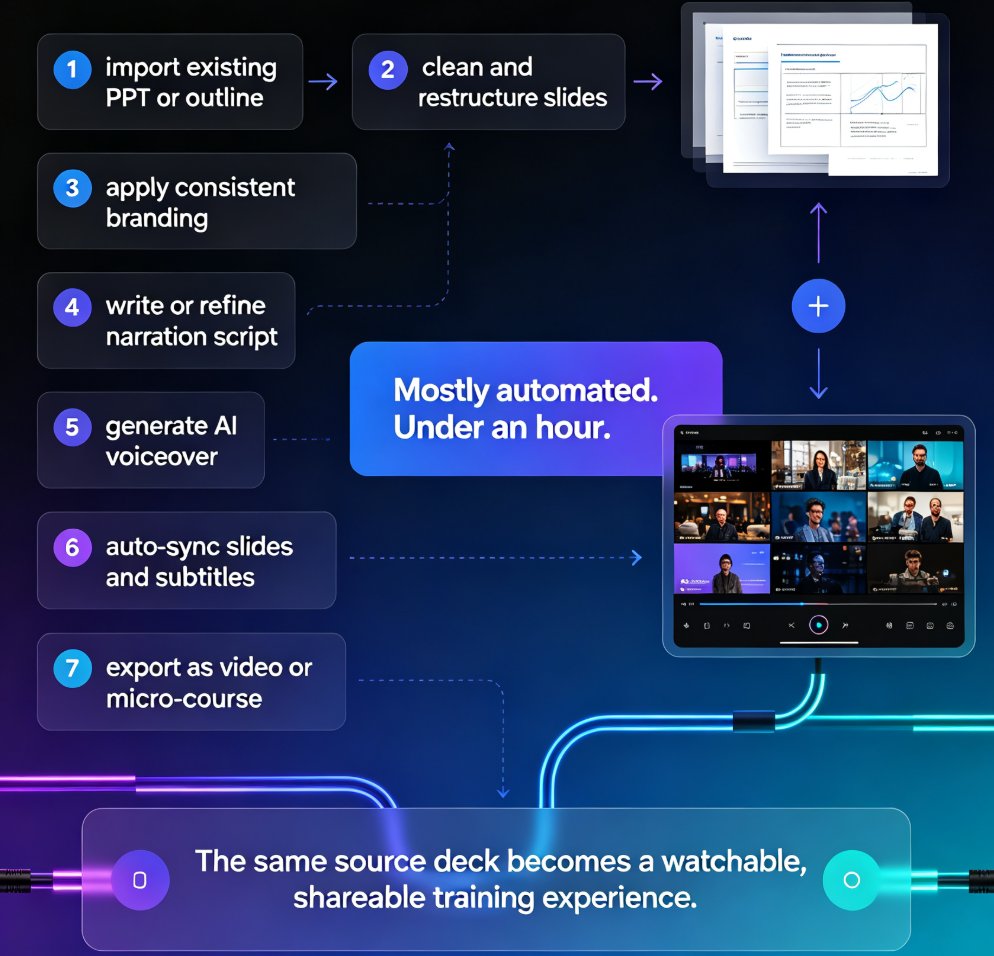
Step 1: Clean Up Your Deck
Before you convert, spend 15 minutes on slide hygiene. Remove slides that are pure agenda or filler. Make sure each slide has one clear message. If a slide has a wall of text, that's a red flag — video narration will only amplify the clutter. A slide with 40 words of bullet points becomes a video frame with 40 words of bullet points and a voice reading them. Nobody wants that.
Step 2: Write or Refine Your Speaker Notes
Your speaker notes become the script. If your notes are thin, write 2-3 sentences per slide. If they're long, trim them. The best narration is conversational, not read-aloud — write the way you'd actually explain the slide to a colleague over coffee, not the way you'd read a legal document.
Here's a trick: read your notes out loud. If you stumble or sound like a robot, rewrite. The ear catches what the eye misses.
Step 3: Choose a Voice
Zendeck offers multiple AI voices. Pick one that matches your content's tone. A compliance training video needs a calm, authoritative voice. A product demo benefits from something more energetic. Don't overthink it — you can preview and switch in seconds. If you're producing a series, stick with the same voice across all videos for consistency.
Step 4: Set Timing and Generate
Let Zendeck auto-time the slides based on your narration length, then generate. You'll get a preview you can tweak — adjust pacing, re-record a section, or swap the voice. This is where the tool earns its keep: you can iterate in minutes, not days.
Step 5: Export and Distribute
Export as video, upload to your LMS, share a link, or embed it in your learning portal. Done. If you want to add subtitles or fine-tune the voiceover, check out our walkthrough on adding voiceover and subtitles to your slides with Zendeck's AI.
04 — Making AI Narration Sound Natural
Here's where most people get it wrong. AI narration sounds robotic when you feed it robotic text. The fix is in the script, not the voice settings.
Write short sentences. Use contractions ("don't" instead of "do not"). Read your script out loud before generating — if you stumble, your learners will too. Add natural pauses with punctuation. And don't be afraid to sound like a human: "Here's the thing" beats "It is important to note" every time.
Another tip: keep each slide's narration under 30 seconds. If a slide needs more time, split it into two slides. Short segments keep learners engaged and make the video easier to update later. When you need to change one fact, you regenerate one segment — not the whole course.
Common Mistakes to Avoid
- Writing for the eye, not the ear. If your script reads like an email, it'll sound like one. Write for listening.
- Cramming too much into one slide. If a slide needs more than 30 seconds of narration, split it.
- Ignoring pacing. A monotone voice with no pauses is exhausting. Use punctuation to create natural breathing room.
- Skipping the preview. Always listen to the generated narration before exporting. A 30-second fix saves a 30-minute redo.
The broader trend here is worth noting: AI-generated video decks are increasingly replacing traditional corporate training videos. If you're curious about where this is heading, our analysis of AI-generated video decks replacing traditional corporate training covers the shift in depth.
05 — Traditional Video Production vs AI Narration
Let's put the two approaches side by side.
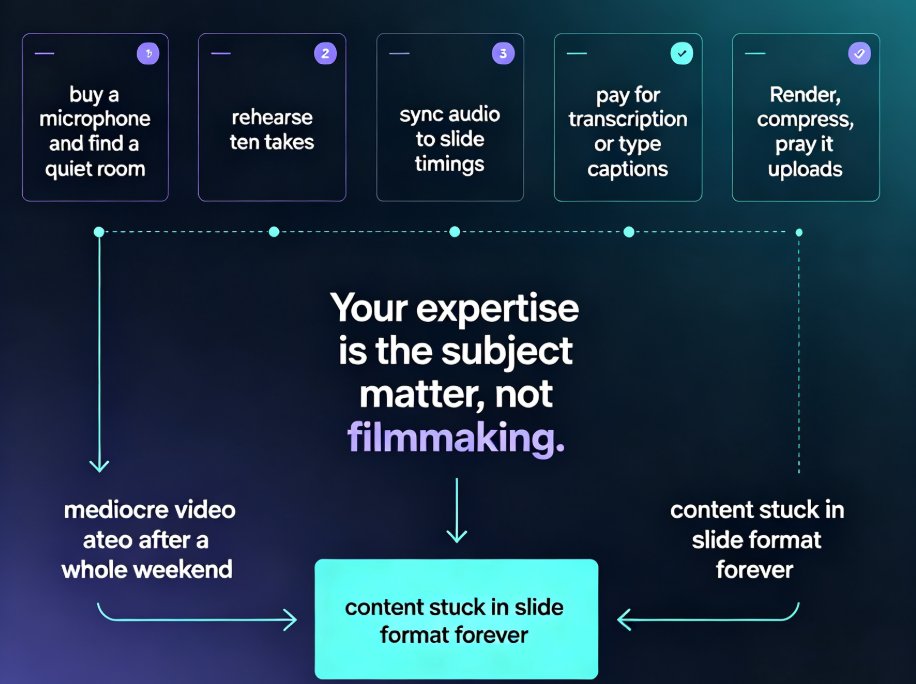
| Factor | Traditional Video Production | Zendeck PPT-to-Video |
|---|---|---|
| Time to produce a 10-min course | Weeks (script, storyboard, studio, editing) | Hours |
| Cost | High (studio, talent, editor) | Low |
| Skills required | Video editing, motion graphics, audio engineering | None — just your deck and notes |
| Updating content | Re-shoot or re-edit | Regenerate in minutes |
| Consistency | Varies by shoot | Uniform across all videos |
| Learner experience | Polished but slow to update | Fast, consistent, modern |
The trade-off is real: traditional video wins on cinematic polish, but AI narration wins on speed, cost, and updateability. For most corporate training, speed wins. Your learners don't need a cinematic masterpiece — they need clear, accurate, engaging content that's current. A video that's 80% polished and available today beats one that's 100% polished and available next quarter.
This is why AI PPT-to-video is becoming the standard for corporate training. The shift isn't about replacing human creativity — it's about removing the production bottleneck that keeps good content from reaching learners.
06 — When to Use PPT-to-Video (and When Not To)
Use it for: - Compliance refreshers that need to be updated every quarter - Onboarding modules that introduce company policies and culture - Product training updates that change with each release - Sales enablement decks that field teams need to review quickly - Any content that changes frequently and needs to stay current
Skip it for: - High-stakes executive presentations where a human on camera builds trust - Brand campaigns that need cinematic production values - Content where visual demonstration matters more than explanation (e.g., physical product demos)
The sweet spot is content that's informational, structured, and needs to be updated regularly — which describes most corporate training. If your deck is already well-organized and your notes are decent, you're 80% of the way to a video course.
For more on the broader workflow, our guide on AI PPT-to-video as the 2026 corporate training standard explores why L&D teams are making this shift. And if you're building courses from scratch rather than repurposing, the micro-course production section has you covered.
07 — FAQ
Q: Do I need to redesign my slides before converting them to video?
A: No. Zendeck works with your existing slides. That said, slides with one clear message and minimal text convert best. Spend 15 minutes cleaning up your deck before conversion — it makes a noticeable difference in the final video.
Q: Can I use my own voice instead of AI narration?
A: Yes. Zendeck's PPT-to-video supports both AI voice synthesis and recorded narration. You can record your own voiceover and sync it to the slides, or let the AI handle it.
Q: How long does it take to convert a 20-slide deck into a video?
A: Most users complete the process in under an hour, including script refinement and voice selection. The actual generation takes minutes.
Q: Will the AI narration sound robotic?
A: Not if you write the script well. Use short sentences, contractions, and conversational phrasing. Zendeck's voice options are designed to sound natural, but the script quality is the biggest factor.
Q: Can I update the video after it's generated?
A: Yes. That's the biggest advantage over traditional video. Change a slide, update the script, and regenerate. No re-shooting, no re-editing.