No Camera, No Studio: Turn PPT into Narrated Micro-Courses with Zendeck
Every course creator eventually hits the same wall. The slides are done — content is locked, the flow works, the design is clean. And then someone says the magic words: "Can we make it a video?"
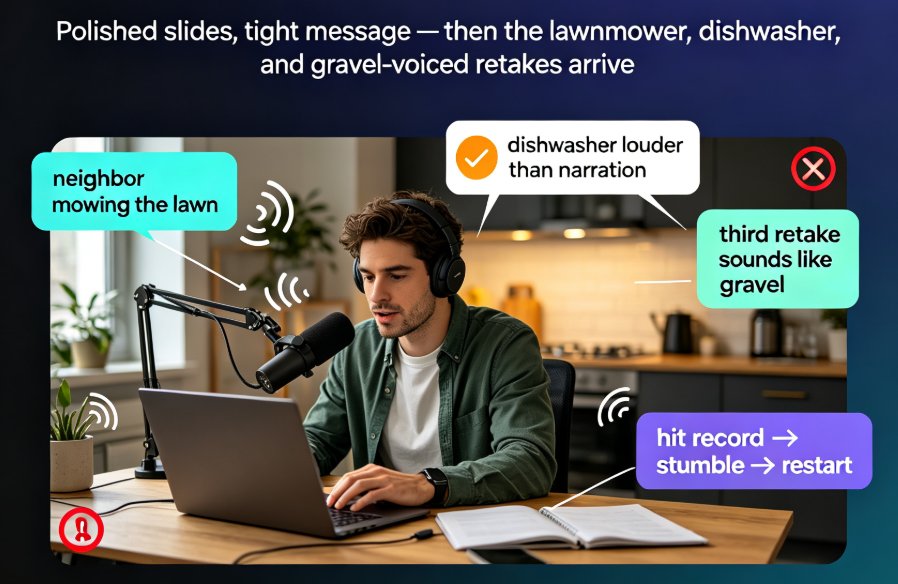
You know what follows. A camera you don't own. A microphone that picks up your dishwasher. Editing software with a learning curve. And about six hours of your weekend that you'll never get back.
Teachers feel this every semester when they need to produce online lessons. HR trainers feel it when a compliance module has to ship by Friday. Content operators feel it when a webinar deck needs a second life as a reusable asset.
Here's what nobody tells you: you can publish a professional, narrated micro-course from a slide deck you already own — no camera, no studio, no editing timeline. That's the entire premise of Zendeck's PPT-to-video workflow, and it's quietly reshaping how teams think about slide content.
I. Why most slide decks never become videos
Let's be honest about the real reason we avoid turning decks into videos. It isn't a lack of content — it's the production barrier. Every step of traditional video creation carries a cost that's hard to justify when your actual expertise is the subject matter, not filmmaking.
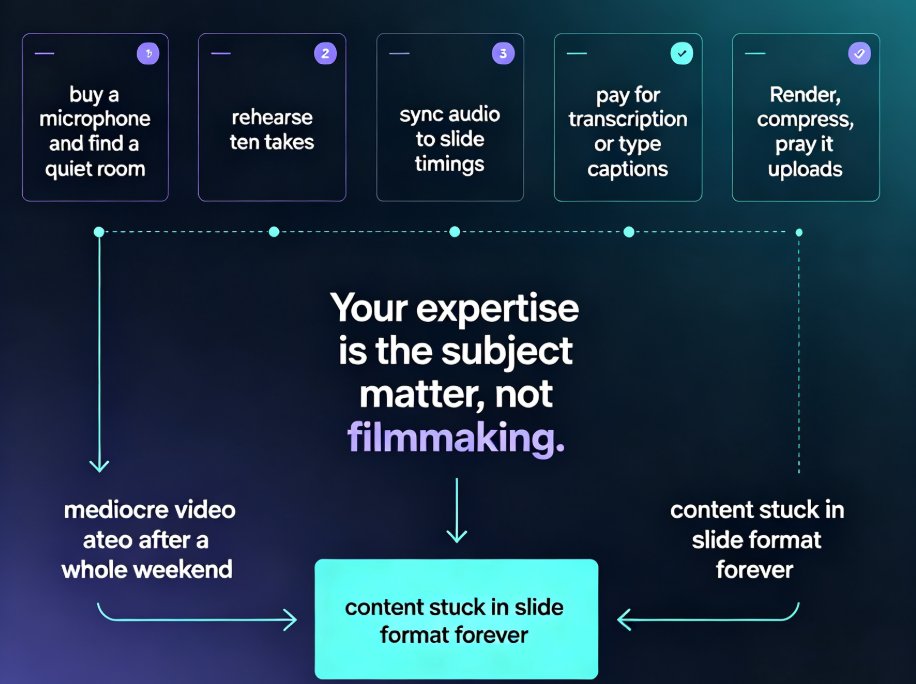
Pain point: you need clean audio, which means buying a microphone, finding a quiet room, and accepting that your first ten takes will be unusable. Then you need to sync that audio to slide timings, which means either rehearsing like a perfectionist or fiddling with export settings for an hour. Then captions — either pay for transcription or type them by hand. Then rendering, compressing, and praying the file uploads to your LMS without breaking.
The outcome is predictable: either you burn a whole weekend producing one mediocre video, or you shelve the project and leave your content stuck in slide format forever.
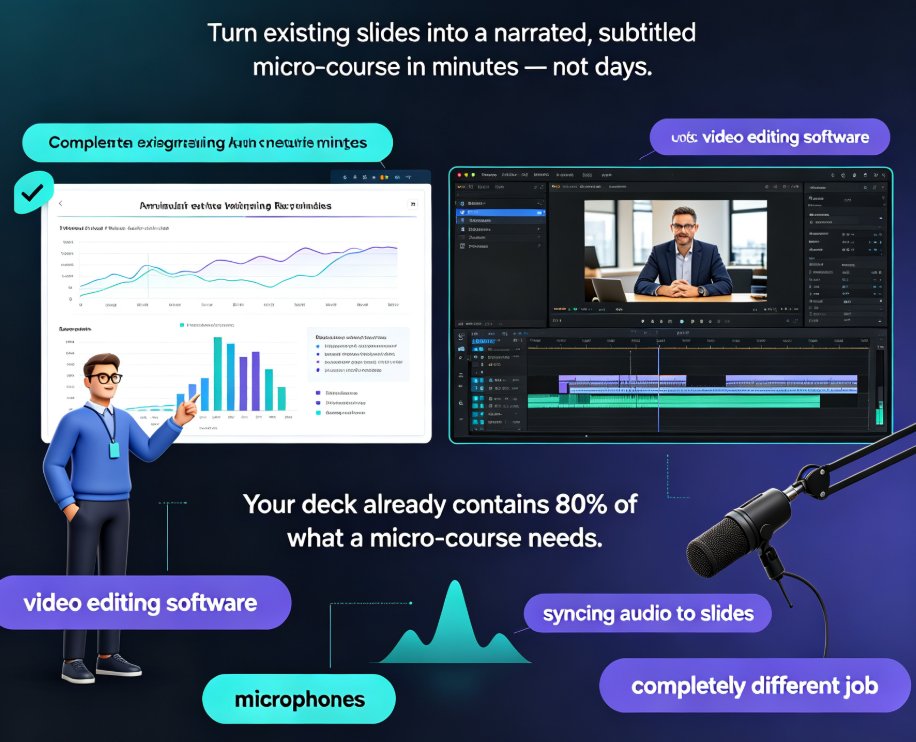
Now here's where the landscape has changed. AI tools have systematically removed every single step of that pipeline. Zendeck built its PPT-to-video workflow around exactly this pain point, and the result is that the slide deck you already have can be a finished video, sitting on your desk, twenty minutes later.
II. What Zendeck's PPT-to-video actually does
Zendeck's PPT-to-video isn't a screen recorder, and it isn't a glorified slideshow exporter. It's a content transformation engine: it takes your existing slides, rebuilds them as a timed, narrated video track, adds auto-generated subtitles, and optionally places an AI digital human presenter on screen — the kind of "talking head" presence that used to require a studio, minus the studio.
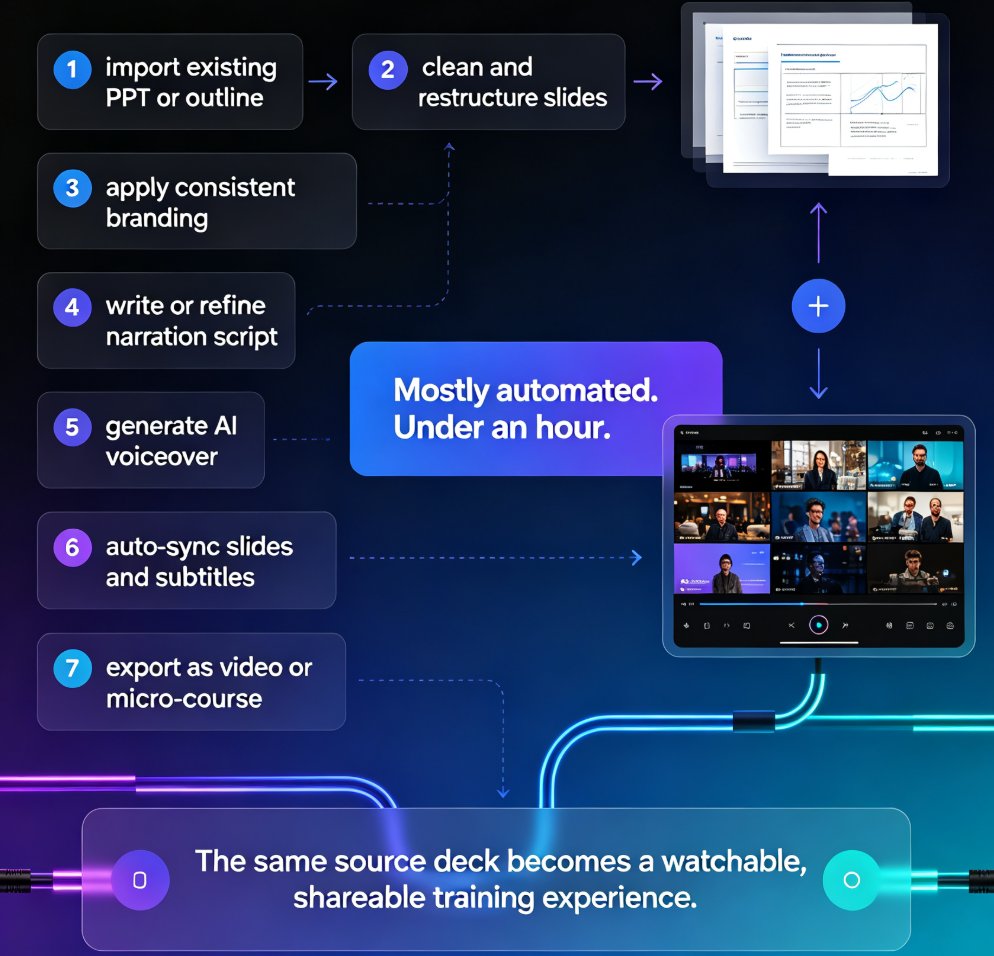
The pipeline works like this:
- Upload a finished deck, or generate one from a Word outline
- Select an AI voice and language for the narration
- Zendeck generates the voiceover, syncs it to slide timings, and builds subtitle captions automatically
- Optionally, assign a digital human presenter to specific scenes
- Export a polished MP4 that's ready for your LMS, YouTube, or internal portal
The entire process takes minutes, not days — and the output stays consistent with your brand because it inherits your deck's design rather than fighting against it.
That consistency point matters more than most people realize. When you record at home, production value varies by the hour — lighting changes, background noise creeps in, your energy dips. When Zendeck renders a deck, every slide gets the same voice, the same pacing, the same caption styling, the same visual rhythm. Uniform in a way manual recording simply isn't.
◉ So what does "no camera" really mean?
It means the presenter is generated, not filmed. The digital human avatar uses your chosen voice and script, so there's no lighting rig, no wardrobe decision at 7 a.m., no blooper reel. For organizations that need a human presence for engagement but don't have the facilities or budget to create one, this closes a gap that used to have only two options: spend a fortune, or skip it.
III. Step-by-step: from static PPT to narrated micro-course
Let's walk through the actual workflow, the way you'll use it in a real week.
Step 1: Start with a deck you already own
If you have a finished PPTX, import it directly. If you're starting from scratch, drop a Word outline or Markdown into Zendeck and let the AI build the deck first — this is covered in more detail in our guide on adding narration to slides. What matters at this stage is that your slides are content-complete; the AI can't add substance you haven't provided, and you'll always want to review the narrative before you narrate it.
One piece of friendly advice: don't obsess over the final design before you export to video. Zendeck's one-click reskin can reflow fonts, colors, and spacing across all slides right before you hit render, so the video picks up a consistent visual identity without you doing line-level cleanup.
Step 2: Choose your AI voiceover
This is where the "no camera, no studio" promise gets its teeth. Zendeck's AI voiceover lets you pick a voice, a language, and a delivery pace for your course. The engine reads your slide notes or your narration script — and it doesn't sound like a 2015 text-to-speech bot. It delivers natural phrasing, decent emphasis, and the kind of steady tone that works well for instructional content.
If your expertise is in a language you speak conversationally but not natively, this is a serious unlock. You can produce a perfectly fluent, professional-sounding voiceover without recording a single syllable yourself. For globally distributed teams, that's the difference between shipping an English course and shipping five localized versions.
A workflow that works well in practice:
- Write the narration as a plain-text script, one block per slide
- Paste it into the voiceover editor
- Preview one slide to check voice and pacing before committing to the deck
- Adjust the timing to match the density of each slide's content
AI voiceover is the single biggest time-saver in this workflow, because it eliminates the most unpleasant part of video creation: your own imperfect first takes.
Step 3: Let subtitles generate themselves
Subtitle generation used to be an entire project on its own. You'd export the audio, run it through a transcription service, clean up the errors, then manually timestamp everything while your patience evaporated.
Zendeck handles captioning the right way — it auto-generates subtitles from the voiceover track and syncs them to the narration timing. The result: your micro-course is watchable not just in a quiet office, but on a moving train with the sound off, which is increasingly how professional learners consume content.
There's an accessibility angle here that's becoming impossible to ignore. WCAG compliance is no longer a nice-to-have for training materials, and auto-captions are exactly the difference between a course that passes an accessibility audit and one that gets flagged. If you want the full picture, we wrote a dedicated piece on voiceover and subtitles setup that covers the details.
Step 4: Add a digital human presenter when it helps
This is the feature that makes people do a double-take. If you want a presenter on screen — the way platforms like Synthesia approach it — Zendeck can place an AI digital human into your video who narrates your content with your chosen voice.
No camera, no lighting rig, no schedule coordination. The presenter is generated, consistent, and never calls in sick.
But here's some honest advice from someone who has seen this go wrong: use the digital human with intent. For a dense technical explanation, an animated presenter on screen is more distracting than helpful. For a course introduction, a leadership message, or a subject where human rapport matters, a face — even a synthetic one — builds connection. Match the tool to the moment.
Step 5: Export and publish
Rendering is where Zendeck's efficiency is most visible. You pick your export quality, and the final MP4 is produced and ready to upload. Drop it in your LMS, share it as a link, or push it to YouTube — the file is a standard format that plays anywhere.
The full loop — from static PPT to published micro-course — takes less time than it takes you to finish your coffee.
IV. The time math: traditional vs AI-powered production
Let's put actual numbers on this, because "faster" means nothing without a baseline. The table below compares the realistic effort to produce a single 10-slide course video across four common approaches.
| Production method | Equipment needed | Time per 10-slide course | Editing skill required | Output consistency |
|---|---|---|---|---|
| Professional studio | Camera, lights, mic, crew | 2-3 days | High | High |
| Home DIY recording | Camera, mic, quiet room | 6-10 hours | Medium | Low |
| PowerPoint native export | Mic for narration | 2-3 hours | Low | Medium |
| Zendeck AI PPT-to-video | None | 20-30 minutes | None | High |
Those DIY numbers aren't pulled from thin air — they represent the realistic cost of recording, re-taping, syncing, and captioning a deck by hand, with all the second takes and timestamp corrections that come along with it.
If you're building an actual content pipeline, the difference compounds monthly. Here's what cumulative output looks like over six months when a team produces four videos per month via traditional studio, versus sixteen per month with an AI workflow:
The real paradigm shift: every slide deck in your organization is now a potential video. The only variable that remains is how fast you decide to convert it. This trend is exactly why AI-generated video decks are now being described as the 2026 corporate training standard.
V. Why this matters for teachers, HR trainers, and content teams
The workflow isn't a novelty — it's reshaping how organizations produce educational content.
For teachers, it means the slide deck built for a live lecture becomes a reusable video lesson. Students can rewatch it at their own pace, which is far better for retention than a single pass in a noisy classroom. Live lectures vanish; video micro-courses accumulate into a library.
For HR and L&D teams, it means any approved PowerPoint can become a training module on demand. Compliance refreshers, onboarding materials, product training — the bottleneck shifts from video production to content approval, which is exactly where it should be. If you're running a full L&D program, our guide on replacing corporate training with AI-generated video decks covers the strategic angle.
For content operators, it's the difference between shipping one recast webinar per month and shipping a weekly micro-course. The content calendar stops depending on studio availability.
◉ Who benefits most right now?
Three groups get disproportionate value immediately:
- Solo educators who teach online but have zero equipment budget
- HR teams in mid-size companies that need multilingual training without a translation budget
- Agencies and content shops that need to repurpose client decks at scale
If you fall into any of those buckets, this workflow is worth testing this week, not next quarter.
VI. Common mistakes when starting out
We've watched enough teams adopt this workflow to know where the early stumbles happen. Here are the ones worth avoiding.
- Reading slide text verbatim. The AI narrator will happily read what's on the slide, but good narration adds connective tissue. Write for the ear, not the eye.
- Too many slides, too fast. A micro-course should run 5-10 minutes max. If your deck is 40 slides, split it into chapters.
- Ignoring the pacing settings. Default pacing works for some decks and drags for others. Spend one minute per slide adjusting timing before you render — it's the highest-value minute you'll spend.
- Skipping the accessibility pass. Enable subtitles every time. There is no legitimate reason to publish a narrated video without captions in 2026.
FAQ
Q: Do I need PowerPoint installed to use Zendeck's PPT-to-video feature? A: No. You can upload a PPTX file directly, or generate slides from a Word outline or Markdown inside Zendeck. The video export runs entirely in the browser.
Q: Can I choose different AI voices for different slides? A: Yes, you can assign voices per slide or use one consistent voice across the deck. For multi-guest modules, per-slide voice assignment lets you simulate different presenters.
Q: Are the auto-generated subtitles editable before export? A: Yes, Zendeck lets you review and edit the caption text before rendering, so you can fix terminology, names, or phrasing without regenerating the voiceover.
Q: What file format does the final video export to? A: The video exports as MP4, which plays anywhere — LMS platforms, YouTube, Vimeo, or your company's internal training portal.
Q: How long does it take to convert a 15-slide deck? A: In a typical session, you can go from uploaded slides to a rendered MP4 in roughly 20-30 minutes, most of which is spent reviewing voice pacing and captions.