PPT to Video: How to Add Voiceover Without Recording Yourself
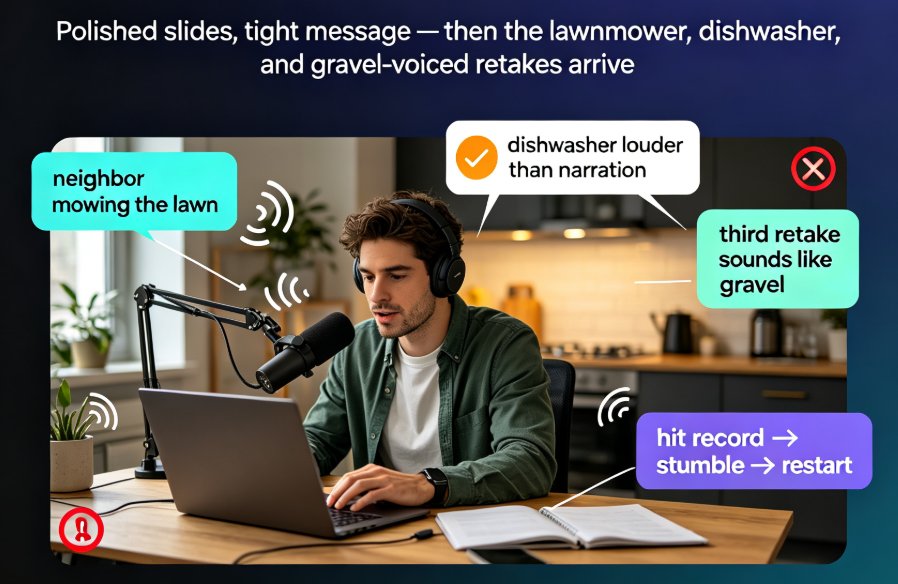
Let's be honest about the unglamorous part of making a micro-course: the voiceover. You polish the slides, tighten the message, and then you hit record on your laptop mic — only to realize the neighbor's mowing the lawn, the dishwasher is louder than your narration, and your third retake sounds like you've been gargling gravel. If this scene feels uncomfortably familiar, you're not broken. You're just hitting the wall that almost everyone hits when they try to turn slides into video.
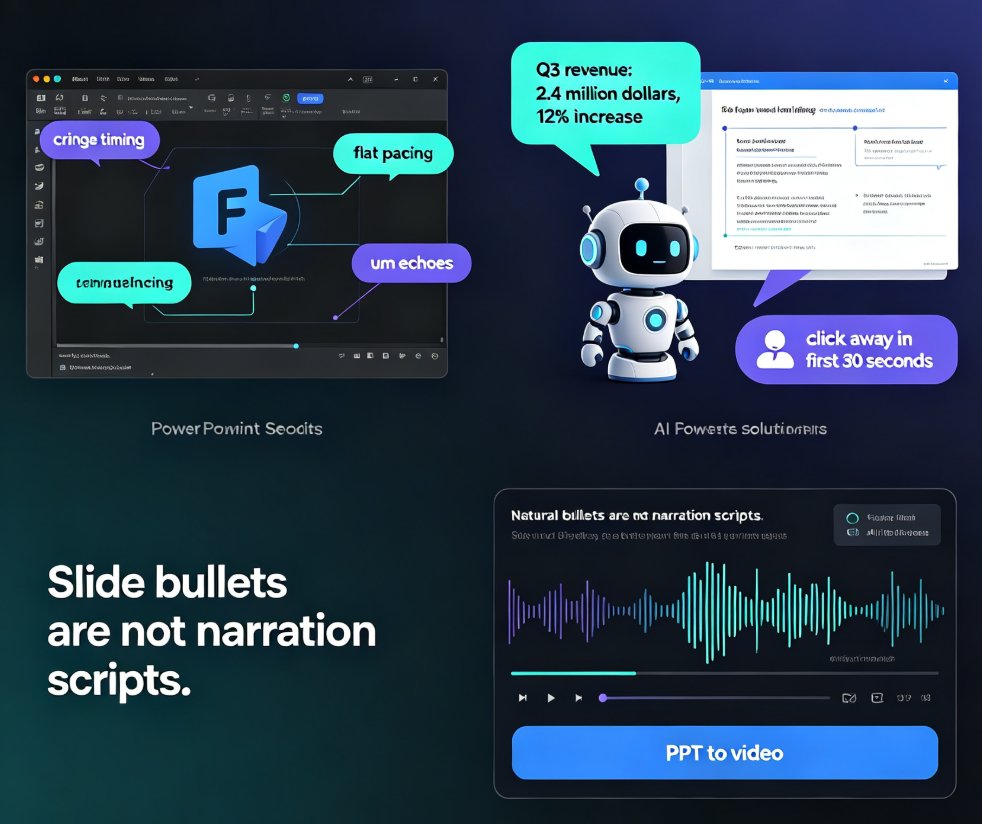
Here's the workaround that most teams are quietly adopting: skip the recording entirely and let AI voice synthesis narrate your slides for you. Zendeck's PPT-to-video feature turns any deck into a narrated video with a natural-sounding voice — no microphone, no soundproof room, no vocal warm-ups, no 45-minute retake spiral.
Before you roll your eyes at 'another robot voice,' hear me out. The bar for text-to-speech has moved a lot in the last couple of years, and the way smart creators use it isn't by autopiloting their script. It's by nailing two things that have nothing to do with audio gear: script pacing and slide timing. This guide covers both, plus the honest limits of AI narration — because you deserve a tool that works, not a hype loop.
I. Why Recording Your Own Narration Is the #1 Bottleneck
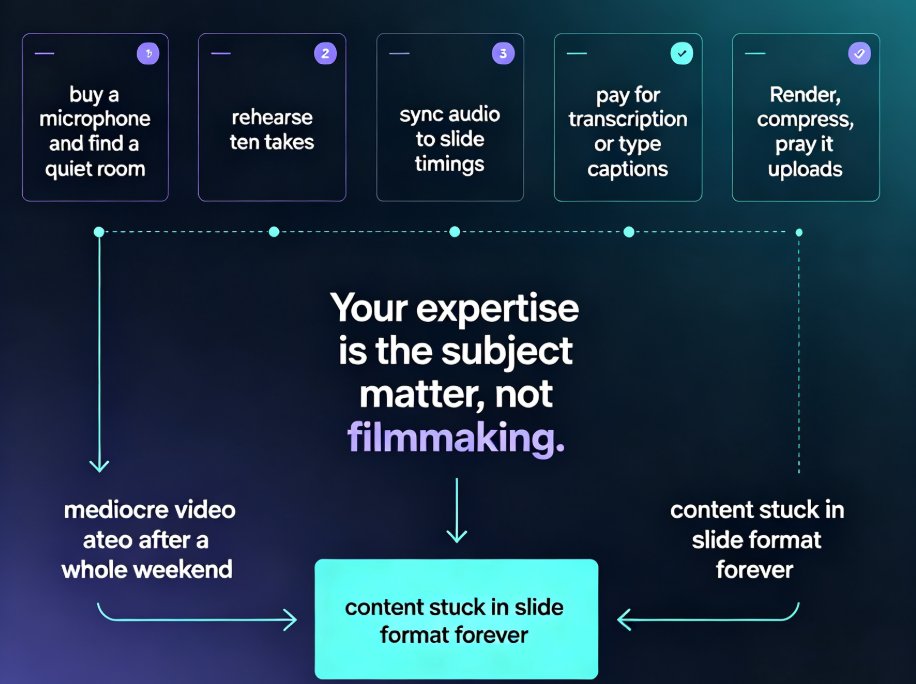
Think about the last time you tried to narrate a 12-slide deck. You needed a quiet room (you found one, barely), a decent mic (maybe you borrowed one), and then you discovered the real problem: the microphone isn't the actual hurdle — the retakes are. One stumble at second 47 and the file's dead. Cough mid-sentence? Start over. New script tweak from your manager? Record everything again.
That loop is brutal. It's also invisible in a typical workflow breakdown, so let me put some numbers on it. In my experience helping teams ship narrated training decks, a clean 10-minute narration session often eats up 2–3 hours of calendar time once you count setup, retakes, and the emotional recovery, and that's before anyone touches the editor to sync audio with slides.
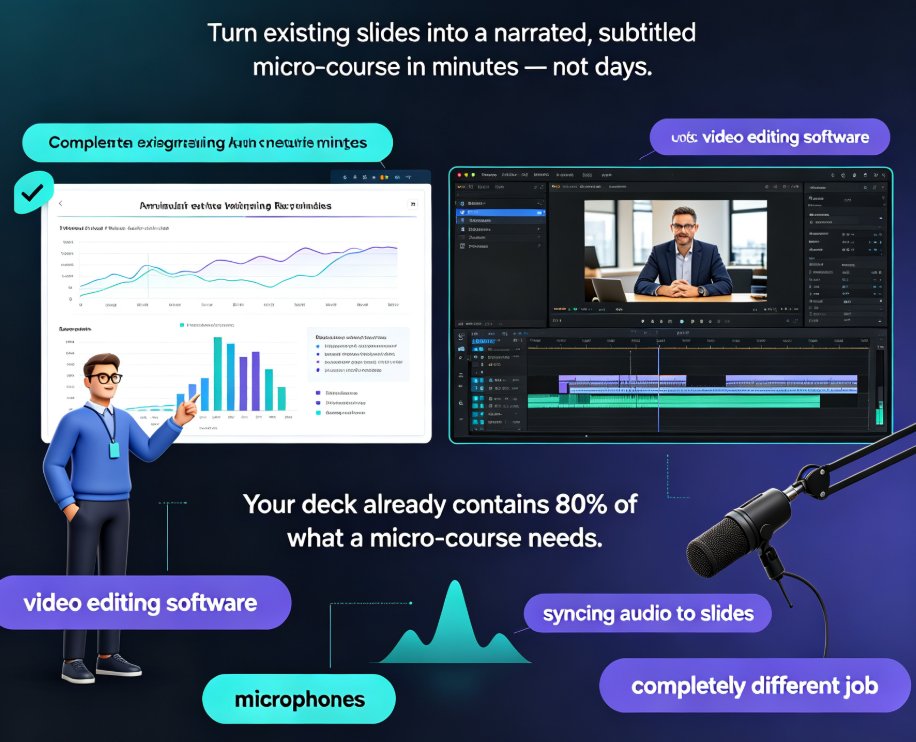
Then comes the sync work: trimming dead air, nudging audio clips to match slide transitions, re-exporting because the intro music overlaps a sentence. This is why so many perfectly good decks never become videos — not because the content is weak, but because the narration pipeline is demoralizing.
The fix isn't 'buy a better mic.' The fix is removing the capture step from the pipeline entirely. When you let AI generate the narration from your written script, the bottleneck disappears, and the outcome shifts from 'maybe I'll record it this weekend' to 'the video exists now.'
II. What AI Voice Synthesis Actually Does (and Its Honest Limits)
Modern text-to-speech doesn't just read your words out loud. It generates natural prosody, applies breath pauses, and can match different delivery styles — warm and conversational for a micro-lesson, upbeat and snappy for a product explainer. Real-world data backs up how far this has come: HeyGen, a popular AI video platform, advertises narration support across 175+ languages and dialects, and its public counters show more than 161.9 million videos generated on its platform. That's a big tell — the demand for AI-narrated multimedia is not niche, and the technology behind it is maturing fast.
But let's keep it honest about the limits. AI narration won't fix a weak script — it will only deliver it with better posture than you could. If your sentences run on for three lines, an AI voice makes them sound breathless. If you need deep emotional nuance — say, a heartfelt customer story or a dramatic brand moment — a human voice still wins. And if you have a genuinely distinctive brand voice that a long-time audience recognizes, you should weigh that equity against the convenience.
For micro-courses, internal training, onboarding explainers, and sales enablement? The trade-off clearly favors AI. The voice is consistent, accent-neutral, infinitely patient, and — the part I love — revision becomes a text edit, not a studio retake.
III. How to Add AI Narration to Slides with Zendeck's PPT-to-Video
Here's the step-by-step. In Zendeck, the flow is designed so that if you can write a script, you can ship a narrated video.
Step 1: Open your deck and head to the PPT-to-video view. Your finished slides — or an outline you've structured — land in the same workspace, so you're not exporting files and losing formatting along the way.
Step 2: Paste your script or speaker notes for each slide. You can write fresh copy or pull from your existing notes. Longer paragraphs work better than one-line bullets here, because narration needs full sentences.
Step 3: Choose an AI voice. Pick from the available voice styles — conversational, professional, upbeat — and set your preferred language and dialect. This is also where you'd steady the pacing if you know your content is dense.
Step 4: Generate the narration. Zendeck lays each slide's audio automatically, matching the script length to the slide's visual content. You'll be able to preview and tweak before exporting.
Step 5: Export as video. You get an MP4 that's ready for your LMS, your YouTube channel, or a Slack drop. If you want a public deliverable, add subtitles (auto-generated) so viewing without sound still makes sense.
A quick tip from someone who's watched people overthink this: don't try to perfect every word before generating. Generate a draft narration first, listen once, then edit the text for the one slide that feels off. It's dramatically faster than looping a recording session, and it keeps you in the flow.
For a deeper walkthrough, check out how to add narration to your slides with Zendeck's PPT-to-video, and if you're building for a global audience, adding voiceover and subtitles with Zendeck's AI is the follow-up you'll want.
IV. Script Pacing and Slide Timing: The Craft Nobody Skips
Here's the honest truth: AI voiceover will make your narration sound fine no matter what, but the difference between a forgettable narrated deck and a genuinely watchable micro-course lives in pacing and timing.
Aim for 130–160 words per minute. That's the conversational sweet spot for training content. Write your script, then read it at a comfortable talking pace and count how many seconds it takes. If a slide's script runs past 20 seconds, cut it down; if it's under 10 seconds, consider merging it with the next slide.
Keep every slide's narration to 15–20 seconds. For a micro-course, learners' attention is measured in minutes, not hours. Short slides keep the rhythm snappy and give people a natural mental bookmark. If a slide overflows, that's a signal the idea is too big for one screen — split it.
Write pause points into your script. Commas and periods are obvious, but AI voices respond to ellipses ('...') and new sentences better than you'd think. A deliberate 'so here's the thing' opener on a teaching slide adds warmth that listeners read as personality.
Hook in the first three seconds. Whether or not you believe in retention curves, everyone knows the feeling of zoning out. Open with the payoff: 'By the end of this module, you'll be able to...' works better than 'Welcome to module three.'
And one more pro move: if you're producing a batch of micro-courses, AI-generated speaker notes and rehearsal tools can help you standardize the script structure across all of them — consistent pacing makes a series feel professionally produced.
V. Recording vs AI Voiceover: A Side-by-Side Look
Here's how the two approaches stack up in practice:
| Factor | Manual Recording | AI Voiceover (Zendeck) |
|---|---|---|
| Equipment needed | Mic, quiet room, recorder | None — just text |
| Setup time | 15–40 min per session | 0 min |
| Retakes | Stumble = start over | Edit text and regenerate |
| Script changes after export | Re-record affected slides | Update text, re-render in minutes |
| Voice consistency | Varies with fatigue & mood | Identical every time |
| Emotional nuance | High | Moderate |
| Multi-language delivery | Requires native speaker | Instant voice in many languages |
| Best for | Brand stories, testimonials | Training, explainers, internal comms |
To give you a sense of the time delta, here's a typical comparison for producing a 10-minute narrated deck — your exact numbers will vary, but the shape of the gap is consistent across every team I've worked with.
This is why teams drowning in deck-to-video backlogs usually switch to AI narration first: the ROI isn't subtle. The time you save isn't just an hour here and there — it's the difference between shipping one video a week and shipping one a day.
If you're wondering how this scales beyond a single deck, the short answer is very well. For deeper context on the shift across learning teams, see why AI PPT-to-video is becoming the 2026 corporate training standard.
VI. When AI Narration Is the Right Call (and When It Isn't)
AI voiceover is a tool, not a panacea. Here's how I'd draw the line.
Use AI narration when: you're producing onboarding modules, compliance refreshers, sales enablement decks, or any content that lives or dies by frequency and iteration. Internal training often needs updating every quarter, and the ability to change three sentences and re-export in minutes is a superpower. Same for explainer videos that need to be delivered in several languages — AI narration makes that a selection, not a production project.
Skip AI narration when: the content is a high-emotion brand story, a founder's personal statement, or a customer testimonial where authenticity is the entire point. There, a real human voice (even a slightly imperfect one) carries weight that no synthetic voice can match. You'll also want a human if you need to improvise or react in the moment — but that's live presenting, not slide narration.
And if you're building accessible micro-courses, pair AI narration with auto-generated subtitles. A narrated deck that's also readable on mute reaches far more learners; here's how Zendeck auto-generates subtitles from PPT for exactly that workflow.
The bottom line: for the vast majority of micro-course and training use cases, AI voiceover gets you 90% of the value at 10% of the production pain. The remaining 10% is the human good stuff — your judgment about what to teach, how to sequence it, and where to cut. The deck-to-video workflow worth breaking, because the alternative is a stack of beautifully designed slides that never actually reach your learners.
FAQ
Do I need any recording equipment to add voiceover with Zendeck?
No. Zendeck's PPT-to-video feature uses built-in AI text-to-speech, so you only need a script or your speaker notes. There is no microphone, audio interface, or soundproof room involved — you paste the text, pick a voice, and Zendeck generates the narration for each slide.
Will the AI narration sound robotic?
Modern neural text-to-speech voices are far more natural than older systems. The quality depends heavily on your script: short sentences, natural punctuation, and intentionally written pause points produce much better results. For most micro-course and training content, listeners won't detect that a human never spoke.
Can I change the voice style or fix a mistake after generation?
Yes. Instead of re-recording a whole take like you would with a mic, you edit the text and regenerate just the affected slide's narration. That's the workflow advantage of AI voiceover — revisions are text edits, not studio retakes.
How do I sync the AI narration timing with each slide?
Keep your script to about 130–160 words per minute and aim for 15–20 seconds of narration per slide. Zendeck's PPT-to-video tool lays the audio against each slide automatically; if a slide feels rushed or too slow, trim or expand the script text rather than fighting with a manual timeline.
Is AI-narrated video good enough for corporate training?
For most internal training, explainer, and sales-enablement content, yes. AI narration gives you consistent, accent-neutral delivery and makes updates trivial. It's not ideal for highly emotional or brand-defining pieces, where a human voice still carries more nuance — but for scale and speed, the trade-off favors AI.