Robotic Narration? Zendeck's PPT-to-Video AI Voiceover & Subtitles
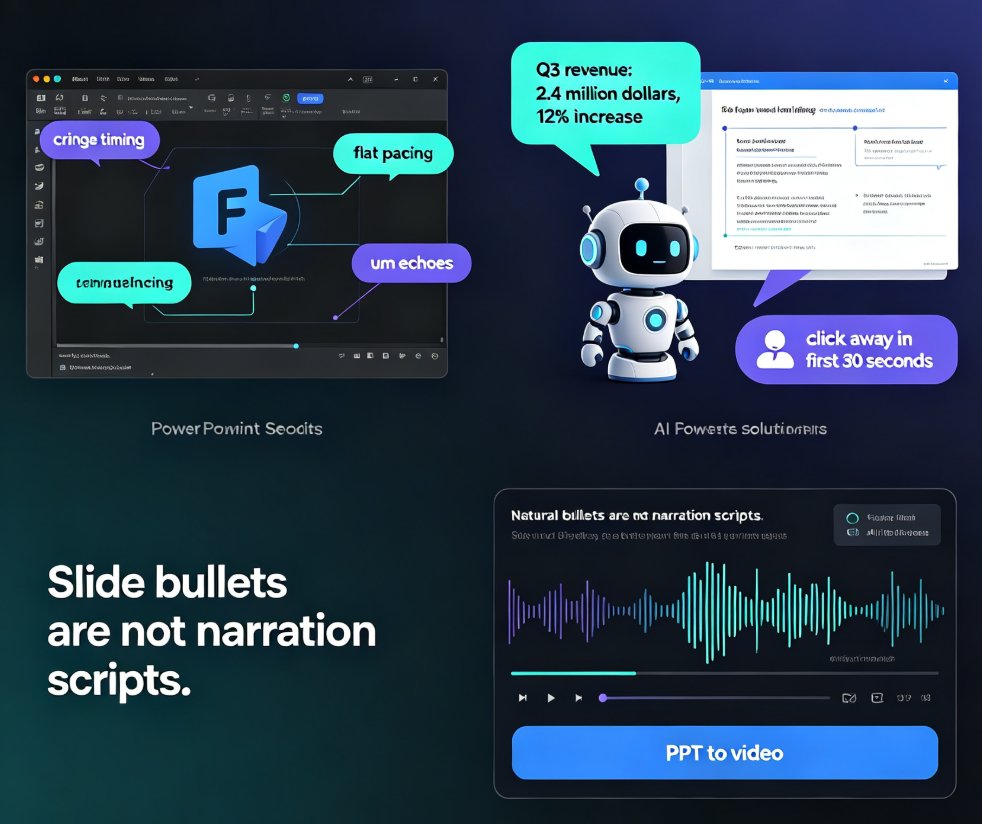
You've recorded your slides in PowerPoint, listened back, and cringed. The timing feels off, the pacing is dead flat, and somehow every "um" you cut still echoes in your head. So you go the other route — let an AI voice read your deck. Problem solved? Not exactly. Now it sounds like a customer-service robot reciting a quarterly report at gunpoint.
If that's your reality, you're not alone. Robotic narration is the number-one reason viewers click away from micro-courses within the first 30 seconds.
The good news: the problem was never "AI narration is bad." The problem is that most tools just paste your slide text into a text-to-speech engine and call it a day. Zendeck's PPT-to-video takes a different path — it rewrites your slides as natural narration, picks a voice that fits, and auto-generates synced subtitles so your lessons land with clarity and accessibility from the first frame.
In this guide, we'll look at what actually makes narration sound robotic, how Zendeck fixes each layer — script, voice, and subtitles — and give you a practical comparison so you can decide which workflow deserves your time.
01 Why robotic narration kills your micro-courses
Let's be real: no one watches a training video because they love the sound of synthetic speech droning on. When an AI voice reads slide bullets word-for-word — "Q3 revenue: 2.4 million dollars, which is a 12 percent increase over last year" — it sounds less like a teacher and more like an automated phone menu. This is exactly the trap we described in our earlier guide on converting PowerPoint to video with AI narration: slide bullets are not narration scripts.
There are three specific ways robotic narration sabotages learning:
1. It flattens meaning. Human speech rises and falls with intent. Sarcasm, emphasis, caution, excitement — all of that lives in pitch and pacing. When narration is monotone, learners lose the emotional cues that help them remember what matters. The slide about a performance dip and the slide about a record launch end up sounding identical.
2. It exposes low effort. Viewers can smell a rushed TTS render from the first sentence. If your voiceover is clearly reading bullet points verbatim, students and employees assume the content is just as lazy. Their attention — and trust — drops immediately.
3. It irritates at scale. A short product demo can survive average audio. A 30-minute course cannot. Listening fatigue hits harder and earlier when pronunciation stresses land in the wrong places or pauses land mid-phrase. Viewers don't stick around.
The solution isn't to abandon AI voices. It's to fix the pipeline — and that starts with how the script is written.
02 What "natural" actually means in AI narration
Before you judge any TTS engine, understand this: the voice is only one part of the equation. Natural-sounding narration is made of three layers working together.
The script. Slide bullets are built for scanning, not speaking. "Q3 revenue: $2.4M (+12% YoY)" is a fine slide. Spoken, it becomes "Q3 revenue: two point four million dollars, plus twelve percent year over year" — robotic not because the voice is bad, but because the words were never meant to be heard. A good narration script turns that into: "Revenue hit 2.4 million dollars in Q3, which is a 12 percent increase over last year." Same fact, human rhythm. Write for speaking, not reading — that's the core principle behind any good voiceover workflow.
The voice. Delivery matters — natural pauses, consistent pacing, and correct emphasis on key phrases. Modern AI voices are close, but not identical, to human speech; voice choice and pacing settings make a real difference.
The sync. Audio, subtitles, and slide transitions must line up. If the subtitle lags half a beat behind the audio, or the slide changes two seconds after the narration moves on, the whole video feels broken.
Most tools only give you the middle layer. That's why your result still sounds robotic.
03 The default TTS trap: writing for reading, not speaking
Here's the trap so many content teams fall into. They record slides in PowerPoint, listen back, and hate it. So they type speaker notes, dump them into a free TTS site, download the MP3, then hand it to a video editor who has to manually line up audio with every slide — then type subtitles from scratch. It's a weekend project for a five-minute course.
The single biggest factor in robotic-sounding output is that the narration script was written for the eye, not the ear. Slide bullets are compressed information. They're designed for a silent audience at a conference — not for someone listening on headphones at 1.5x speed.
Turn numbers into words, expand abbreviations, break long sentences in half, and add natural connectors. If you're using a tool that just reads your bullets back to you, no voice in the world will save it.
This is where a tool like Zendeck changes the game. When you upload a Word outline or Markdown, Zendeck writes a speaking script for each slide as part of the PPT-to-video flow — it doesn't dump your bullets into a TTS box. Then it generates the voiceover from the script, which means the output sounds like a person explaining a concept, not a machine reading a spec sheet. See how the step-by-step flow works in our walkthrough on adding narration to slides with Zendeck's PPT-to-video.
04 How Zendeck turns slides into natural narration
Here's the practical flow, the way you'd actually use it on a Tuesday afternoon.
Step 1: Start with an outline. You don't need a finished deck. A Word document, Markdown, or even a rough text outline works. Zendeck structures it into slides with a consistent layout. Objection: "But my deck is already built." Fine — upload the PPTX and skip the structuring.
Step 2: Let AI write the script. For each slide, Zendeck generates a concise, conversational narration script. This is the layer that kills the robotic feel. If you don't like the tone, regenerate or edit any line by hand.
Step 3: Pick a voice and generate. Choose from natural-sounding AI voices, adjust pacing if needed, and let Zendeck render the voiceover with the audio synced to slide timing. You can preview, swap voices, and regenerate individual slides without restarting the whole project. Leading tools describe the same pattern — AI reads each slide, writes a clear script, generates a natural voice, and exports a synced video. The difference is how well the script layer is handled, and that's where Zendeck spends its effort.
Step 4: Add subtitles, export. This is where Zendeck shines. Subtitles are auto-generated and synced. You don't type a single line of caption text. Then export the finished narrated video — MP4-ready to drop into your course platform.
Want the full feature-level breakdown? Our guide on adding voiceover and subtitles to slides with Zendeck's AI walks through every option.
05 Auto-subtitles: the time-saver nobody talks about
Everyone obsesses over the voice. Hardly anyone talks about subtitles — until they're missing. But here's what subtitle work actually costs when you do it manually: you're either typing every line (a 10-minute video can take 40-60 minutes of captioning), or you're exporting a transcript and fighting with sync in a video editor. It's the most underrated time sink in micro-course production.
Auto-generated subtitles fix three things at once:
Accuracy and sync. Zendeck aligns subtitle text with the audio timeline automatically. No more subtitles that appear a beat late or disappear early.
Viewer engagement. A huge share of people watch videos with sound off — in open offices, on commutes, on silent phones. Captions aren't a nice-to-have; for many viewers, they are the content.
Learning outcomes. Learners retain more when they can read and hear the content simultaneously. This is doubly true for new terminology or complex process names — subtitles give the brain a second channel to confirm what it just heard.
That last point connects directly to accessibility, which we'll dig into next.
06 Subtitles aren't just nice-to-have — they're becoming a requirement
Here's a trend worth taking seriously: accessibility standards like WCAG are becoming a baseline expectation for courseware and corporate training content. If your institution or company serves users covered by accessibility regulations, auto-generated captions and synced subtitles are effectively the default requirement, not a bonus.
The practical angle for you as a course creator: producing accessible content doesn't have to mean hiring a transcription service. When subtitles are auto-generated from the same script used for the voiceover, you get aligned captions without extra work. Zendeck's accessibility approach is covered in our guide on accessible micro-courses with auto-subtitles from PPT.
And the good news is that building accessibility in from day one is cheaper than retrofitting. Re-recording audio, re-uploading videos, or hiring a captioner costs real money. Generating captions as part of the PPT-to-video pass keeps the marginal cost near zero.
07 The workflow comparison: which narration route should you pick?
Let's put the three options side by side.
| Workflow | Audio quality | Subtitle effort | Total time per 5-min video | Your involvement | Best for |
|---|---|---|---|---|---|
| Record your own voice | Very natural (if you're steady) | Manual — import transcript, fix sync | 60+ min | High — record, edit, re-record | Confident speakers, brand-critical demos |
| Default TTS (PowerPoint/free tools) | Robotic — reads bullets verbatim | Manual — type or import, fix sync | 40 min | High — rewrite script, fix timing | One-off drafts, internal rough cuts |
| Zendeck PPT-to-video | Natural — scripted, AI voice, synced | Auto-generated and synced | ~15 min | Low — edit script lines if needed | Micro-courses, training, batch production |
The numbers above are illustrative estimates from typical workflows — your actual time depends on deck length and how picky you are about the script. But the pattern holds: script quality drives how natural the voice sounds, and subtitle automation is where the hours quietly disappear.
08 When Zendeck makes sense — and when it doesn't
Let's be honest about the tool-fit question.
Zendeck's PPT-to-video is a great fit when: - You're producing micro-courses or training content on a recurring cadence — one course a week adds up fast. - You need narration but don't want to record yourself (mic, room tone, retakes — no thanks). - You have dense slides and want the AI to write natural speaker scripts from bullet points. - You need videos in multiple languages without hiring a narrator for each one. - Accessibility matters, so auto-synced subtitles should be part of the brief.
This is the same sweet spot industry guides identify for AI narration tools in general: skip recording, let AI handle the speaker script, and batch-produce content without a human narrator for every language.
When you should keep the manual route: - You're recording a live keynote or internal talk with real audience interaction — that's a different format entirely. - Your brand absolutely requires a specific human voice with a loyal following. (Voice cloning is getting close, but we won't pretend it's identical to the real person.) - The video is an informal screen recording where narration is secondary.
For most corporate training and education workflows though, the manual path is pure overhead. The 2026 trend is clear: AI-generated video decks are becoming the default for training content because they're faster, cheaper, and consistent. We break down the numbers in our article on why AI PPT-to-video is the 2026 corporate training standard.
09 The bottom line
Robotic narration isn't a TTS problem. It's a pipeline problem — script, voice, sync, and subtitles have to work together.
Default tools read your bullets and give you a robot. Zendeck writes a speaking script, generates a natural voice, and syncs subtitles automatically — so the same deck produces a video that sounds intentional instead of assembled.
The math is simple: if you ship one micro-course a month, Zendeck's one-pass workflow is the difference between a day of production and fifteen minutes. If recording your own voice is what's been holding back your training content, this removes that excuse entirely.
Your slides already contain the content. What you need is a narration workflow that sounds as good on the ears as the content is on screen — Zendeck's PPT-to-video is that workflow. If you're still weighing your options, browse the PPT-to-video category for more hands-on guidance.
FAQ
Q: Why does my AI narration sound robotic?
Most tools read slide bullet points verbatim, which were written for silent scanning, not speaking. Robotic output is usually a script problem: compressed bullet text, unexplained abbreviations, and no natural rhythm. Tools like Zendeck fix this by generating a conversational narration script from your slides before applying the voice, so the AI reads real sentences, not fragments.
Q: Can Zendeck generate subtitles automatically from my slides?
Yes. Zendeck's PPT-to-video workflow auto-generates subtitles and syncs them to the narration timeline, so you don't need to type captions or fight with sync in a video editor. This also keeps the output aligned with accessibility best practices like WCAG.
Q: Do I need to write a script before using Zendeck's PPT-to-video?
No. You can upload a Word outline, Markdown, or an existing PPTX and Zendeck will write a speaking script for each slide as part of the generation flow. You can edit any line afterward if you want to adjust the tone.
Q: Is Zendeck's AI voice as good as a human voice-over?
Modern AI voices are close to human speech, but they're not identical. What makes Zendeck's output sound better than default TTS is the script layer: natural phrasing, proper pacing, and synced subtitles. For most micro-courses and training content, the result is more than good enough — and a lot more consistent than a volunteer co-worker recording in a noisy room.
Q: Can I edit the AI narration and subtitles after they're generated?
Yes. You can regenerate a voice for any slide, swap between available voices, and edit script lines before or after generation. Subtitles follow the script and stay in sync, so your edits don't break the timing.