PPT to Video with Zendeck: Automated Narration and Subtitles
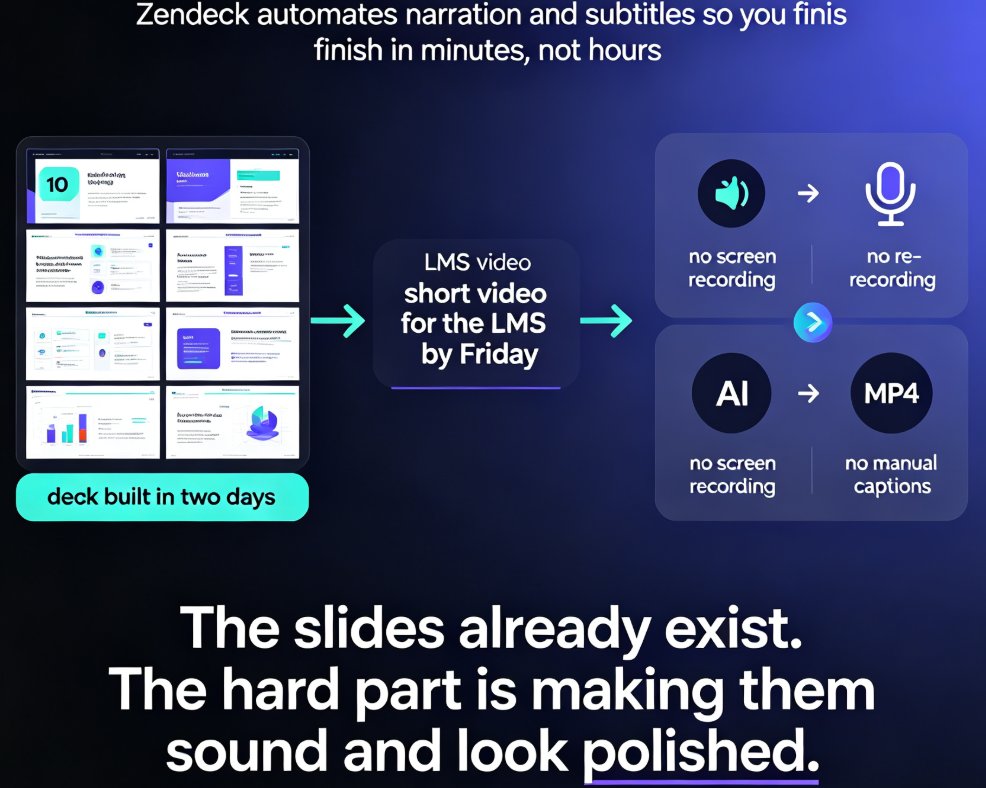
You have a deck that took two days to build. The training manager wants it as a short video for the LMS by Friday. Recording your screen, narrating every slide, then editing out the mistakes? That is an entire afternoon gone. And if the data changes next week, you start over.
Let's be honest: the content is already written. The slides already exist. The hard part is turning them into a video that sounds and looks polished. That is where automation enters the room.
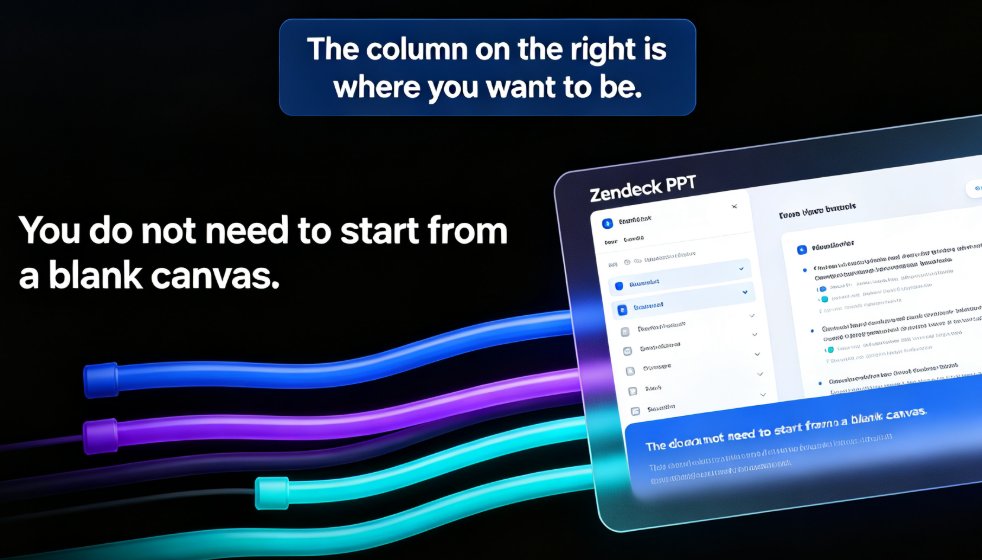
Zendeck's PPT-to-video feature automates the two most tedious steps—narration and subtitles—so you go from static deck to finished micro-lesson in minutes, not hours. You upload your PPT, let the AI read the content, pick a voice, export, and the video is done.
01 | Why the manual workflow is killing your content pipeline
Most teams follow a painful pattern when they need a video version of a slide deck:
- Screen-record yourself clicking through slides.
- Record a separate audio track (or use the mic and pray).
- Re-record entire sections because you flubbed one word.
- Edit the timeline in a video editor.
- Add captions manually—or skip them.
- Export, compress, upload, pray the LMS accepts the format.
A single 10-slide deck can easily consume 3-4 hours of manual recording, editing, and captioning. And the result is often a video that looks like a recording of a meeting, not a learning asset.
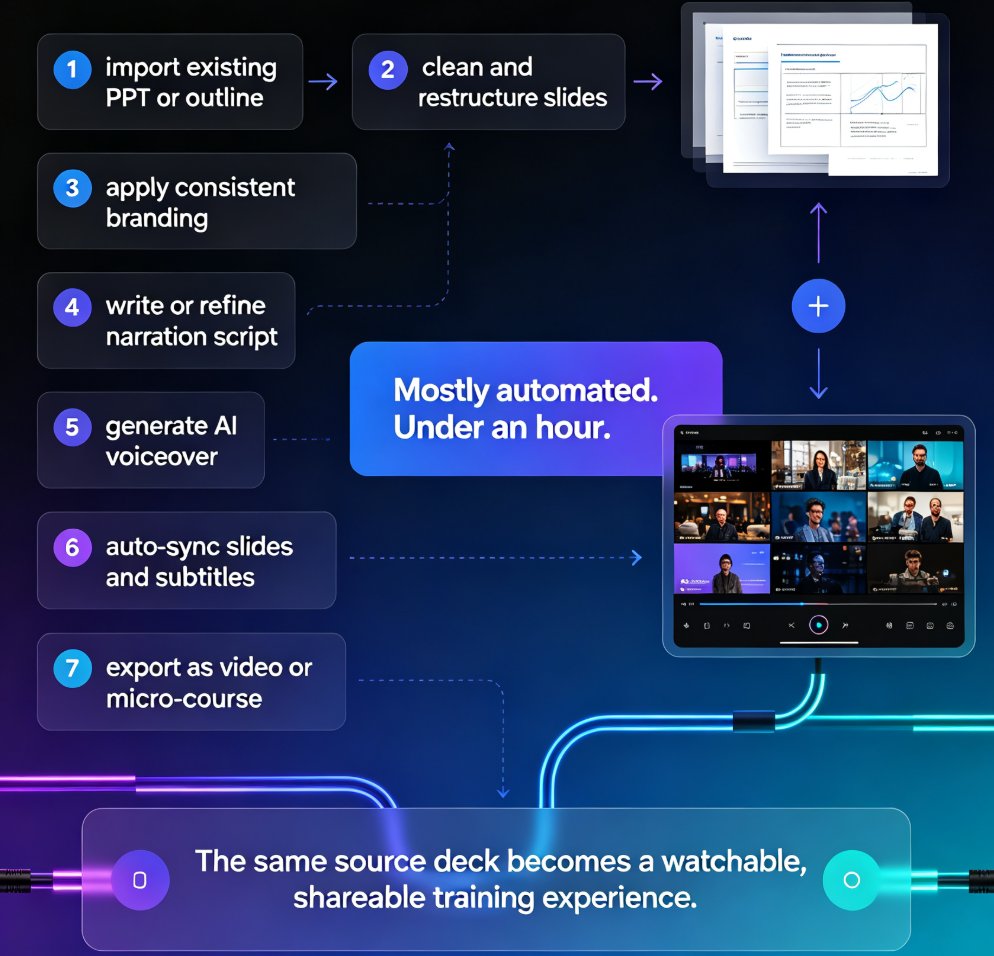
When you use an AI-powered pipeline, the process collapses into three steps: upload, review, export. Zendeck does the rest:
- Reads your slide text, bullet points, and speaker notes to understand the message.
- Generates a natural-sounding voiceover that follows the slide flow.
- Auto-syncs subtitles with the narration.
- Applies consistent visual styling across slides.
- Exports as MP4 ready for any platform.
The outcome is not just faster—it's better. The narration is consistent, the timing is predictable, and subtitles are always in sync, which makes your content accessible to learners who watch without sound.
02 | What Zendeck actually does under the hood
Zendeck doesn't just screen-record your slides. It builds a video from the content itself. Here's the pipeline:
02.1 Content parsing
When you upload your PPT, Zendeck parses the text layer of every slide, including speaker notes. It identifies:
- Headings and main points
- Bullet lists and short phrases
- Speaker notes that explain the visuals
- Chart titles and data labels if present
This parsing step is important because it determines what the narrator says. If your slide is thin on text, the speaker notes become the script for the voiceover. If both are thin, you can add a short script during the review step.
02.2 Voiceover generation
Once the content is parsed, Zendeck generates the narration. You get to choose:
- Voice style (neutral, friendly, professional, etc.)
- Gender and tone
- Speaking pace
- Language (multi-language support for global teams)
The AI adds small pauses between slides and natural intonation at sentence boundaries, so the voiceover doesn't sound like a robot reading a list. That matters more than people think — a monotone narration will lose viewers within 30 seconds.
02.3 Subtitle generation and sync
Subtitles are generated from the narration text automatically. Here's how it works:
| Step | Action | Output |
|---|---|---|
| 1 | Zendeck transcribes the generated narration | Timed subtitle segments |
| 2 | Syncs subtitles to the audio timeline | Subtitles match the voiceover word-by-word |
| 3 | Exports the subtitles along with the video | MP4 with burned-in captions |
This subtitle capability is a major accessibility feature. Learners can watch the video with sound off in a noisy office, or they can read along when the content is dense. It also helps non-native speakers follow along.
02.4 Visual consistency
While generating the narration, Zendeck also re-applies your chosen template or brand kit to the slides, ensuring that fonts, colors, and spacing stay consistent across the video. This is a set-and-forget step — no manual fix-up after the fact.
03 | Step-by-step: Turn your PPT into a narrated MP4
Here's the exact flow in Zendeck:
Step 1: Upload your deck
Go to "PPT to Video" and upload your .pptx file. Zendeck reads the slide content and structure immediately.
Step 2: Customize voiceover and subtitles
Select your voice style, language, and speaking pace. If you have speaker notes, decide whether the narrator should read them verbatim or convert them to a more conversational script.
Step 3: Review and tweak
The AI generates a preview video. This is where you check:
- Is the timing right on each slide?
- Do the subtitles line up with the audio?
- Is any text cut off or overlapping?
If something looks off, you can edit the script for a specific slide and regenerate only that portion. This is a major advantage over re-recording a full take.
Step 4: Export or share
Choose your output format. Zendeck exports the video as MP4 for use in training portals, LMS, or social channels. You can also create a shared link to send directly to your team.
04 | Use cases that actually benefit from automation
04.1 Corporate training
If your company runs onboarding or compliance training, you're probably updating content every quarter. With narrated videos, you can regenerate the voiceover whenever policy changes — no need to re-record a human presenter.
04.2 Micro-learning for educators
Teachers creating short revision lessons can turn a slide recap into a shareable video. The subtitles help students study with sound off, and the MP4 format works on any device.
04.3 Sales and product demos
A sales team can turn a pitch deck into a self-running video that clients can watch after a call, or before one. It's the same content but repurposed for a different consumption context.
In each case, the workload shifts from "recording and editing" to "reviewing and approving." That changes who can produce video content—it's no longer a specialized skill.
05 | Comparing Zendeck to PowerPoint's built-in export
PowerPoint can export to video natively, but it has a key limitation: it records your slides and can only include audio you've recorded or embedded. There's no automatic narration from text. Here's the comparison:
| Capability | PowerPoint (built-in) | Zendeck |
|---|---|---|
| Auto-generate voiceover from slide text | No | Yes |
| Auto-generate subtitles | Manual captions | Yes |
| AI voice selection | No | Yes |
| Multi-language narration | No (single audio track) | Yes |
| Visual consistency enforcement | Manual | Yes |
| Preview and fix single slide | No | Yes |
The biggest difference is editing speed: changing a single slide's narration takes seconds in Zendeck, but in PowerPoint you'd need to re-record the entire slide's audio track.
06 | Accessibility and micro-course readiness
We already touched on subtitles, but they're worth calling out again because they directly tie to WCAG and accessibility standards. Videos used in training or education often need captions for compliance. With Zendeck, captions are a byproduct of the narration process, not a separate manual task.
That means:
- Your content is usable by learners with hearing impairments.
- Your videos work in sound-off environments.
- Language learners can read along while listening.
For course production, auto-subtitles also make the resulting videos easier to index. You can use the subtitle text as source material for quizzes or searchable transcripts.
07 | Beyond the basics: Extended capabilities you didn't know
Because Zendeck handles the video pipeline, you can also:
- Repurpose the same deck for multiple formats: a narrated video for the LMS, an outline for a handout, a link-only preview for social channels.
- Switch between voice styles for different audiences — a neutral tone for corporate training, a more energetic one for student-facing content.
- Localize your video by adjusting the narration language without re-recording everything from scratch.
There's also a growing trend toward using AI to handle other parts of the course production workflow. Our guide on [AI-generated speaker notes and rehearsal tools] covers how AI can also prepare you for live presentations, not just recorded ones.
08 | What you should do next
If you're still recording your screen and editing captions by hand, you're spending time on work that an AI pipeline can do for you. The path is simple:
- Pick a deck you've already built.
- Upload it to Zendeck's PPT-to-Video tool.
- Choose a voice and export.
Try it once on an internal training deck, and you'll never go back to screen-recording your slides. The same effort gets you a more polished result, with less time spent on the boring parts.
For deeper reading on how AI is reshaping course and video creation, check out these related guides:
- [Why AI PPT-to-Video Is the 2026 Corporate Training Standard]
- [How to Add Narration to Your Slides with Zendeck's PPT-to-Video]
- [AI Agents in Course Creation: From Outline to Published Micro-Course]
- [Accessible Micro-Courses: How Zendeck Auto-Generates Subtitles from PPT]
- [How AI Presentation Tools Integrate with Word and Google Docs]
FAQ
How does Zendeck generate narration for my PPT?
Zendeck parses your slide text, bullet points, and speaker notes to understand the content, then generates a natural-sounding voiceover that reads along with each slide. You can choose from different voices and tones to match your audience, and the narration is synced automatically to the slide timing.
Can Zendeck add subtitles to the presentation video automatically?
Yes. Zendeck auto-generates subtitles from the narration and displays them in sync with the voiceover. You can also edit the subtitle text or export the final video with subtitles burned in, which helps with accessibility and reaching non-native speakers.
What export options are available for PPT-to-video in Zendeck?
Zendeck exports your final narrated video as an MP4 file, ready for use in training portals, social channels, or micro-course platforms. You can also create a link to share the video privately with colleagues or students, making it simple to distribute without uploading files manually.
Do I need design skills to create a presentation video with Zendeck?
No. Zendeck handles both the layout and the narration pipeline, so you can start from a simple Word outline or an existing PPT and generate a consistent, polished video. Your slide deck gets a unified visual style and professional voiceover without manual editing.
How is this different from recording myself presenting the slides?
Recording yourself takes multiple takes, requires audio equipment, and needs post-editing to fix mistakes. With Zendeck, you type or import the content once, then regenerate the voiceover whenever you want to update a slide or change the pacing. It is near real-time and far more efficient for versioning.