One-Click Reskin Fixes Inconsistent PPT Styles Across Your Team
Why Your Team's Decks Look Like a Patchwork — and How One-Click Reskin Fixes It
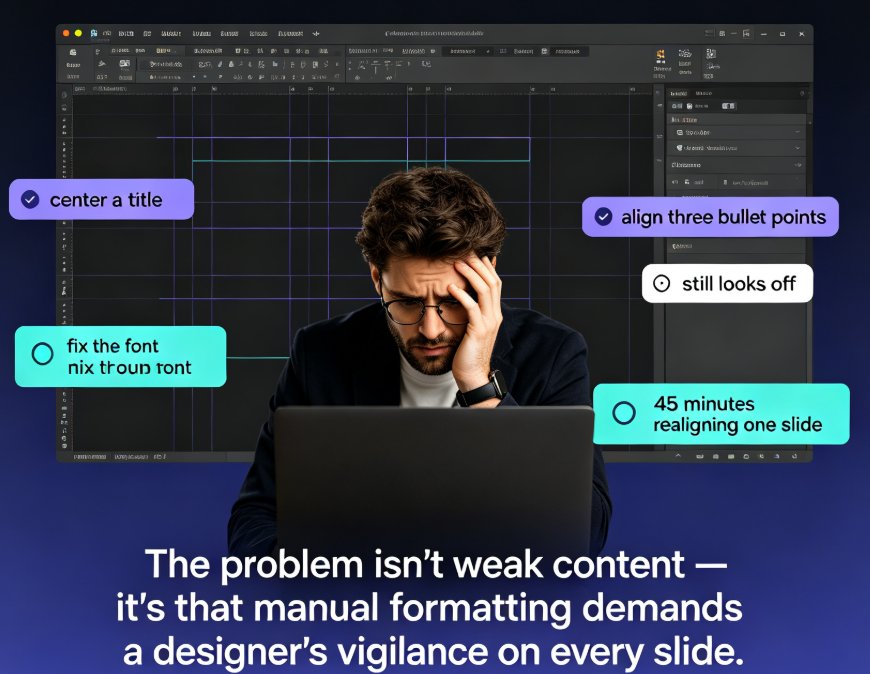
Your company rolled out a single PowerPoint template six months ago. Everyone downloaded it. Everyone promised to use it. And yet, when the monthly all-hands deck comes together — three departments, each shipping four slides — the result still looks like a garage sale of fonts.
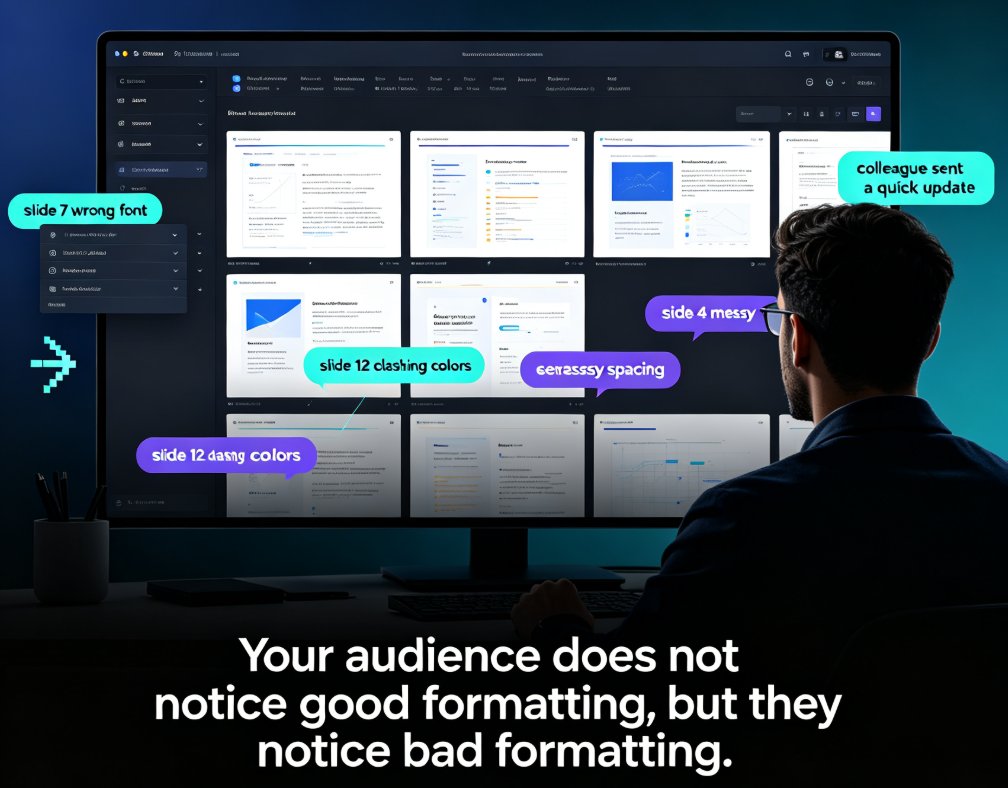
Someone's section uses Arial. Someone else dropped in a chart in Calibri. The divider slide a coworker added last quarter uses a different shade of blue than your logo. Margins don't match. Headers are 20 points in one place and 18 in another.
If this sounds familiar, you're not alone. Style drift — the slow, creeping divergence from a design standard — is one of the most common problems in collaborative presentation work. And it's not a discipline problem. It's not even a talent problem. It's a system problem.
The fix isn't stricter template policing or another "please follow the brand guide" email. The fix is applying a single design system to any deck in one click. That's exactly what Zendeck's one-click reskin does. In this article, I'll walk you through why style drift happens, what it really costs your team, and a practical workflow you can use today to bring any messy deck back on brand.
01 Why Style Drift Happens — Even With a "Mandatory" Template
Here's the uncomfortable truth: templates don't enforce themselves.
When you hand a PowerPoint template to a team of twenty, here's what actually happens. A few people use it correctly. Most people open it, copy slide one, and then start overriding things — changing the font size to make text fit, pulling in a chart from an old deck, tweaking a color to "match the new branding." Each of these edits feels harmless in isolation. Individually, they're invisible. Collectively, they produce a deck that looks like it was mashed together by five different agencies.
The second culprit is copy-paste inheritance. Somebody finds a great slide from last year's investor deck, copies it into the new proposal, and now you've got two different title treatments competing on the same screen. This is how the same logo ends up in three shades of blue.
And the third cause is simply the pace of work. When people are under deadline pressure, grabbing a color from the eyedropper, eyeballing spacing, or "just making it work" beats opening the brand guide every single time.
The root cause isn't laziness — it's that ensuring visual consistency is a manual, judgment-based task that human beings are bad at sustaining.
A presentation template system helps — if it's enforced. But enforcement usually means someone auditing every deck, and that person is rarely available. A well-designed template system removes the dependency on designers while keeping every slide on-brand. The catch is it requires the template itself to handle the visual work, not the people.
That's where automation changes the equation. If a tool can re-apply font weights, color palettes, spacing grids, and layout rules across an entire deck mechanically, consistency stops depending on who's doing the editing.
02 The Real Cost of a Messy Deck (Backed by Numbers)
Let's be real about what style drift costs. It's not just aesthetic annoyance. It's hours, it's rework, and it's brand dilution.
When multiple people contribute slides to one deck, someone has to reconcile the styles at the end. That person typically spends several hours going slide by slide: fixing fonts, re-aligning boxes, matching colors, adjusting spacing. It's tedious, it's error-prone, and it's completely invisible work — nobody sees the effort, they only see the result.
Here's what that cleanup realistically looks like:
| Task (40-slide deck, 4 contributors) | Manual cleanup | Zendeck one-click reskin |
|---|---|---|
| Unifying fonts and sizes | 1.5–2 hours | ~1 minute |
| Matching colors to brand palette | 1–2 hours | Automatic |
| Fixing alignment, margins, spacing | 2–3 hours | Automatic |
| Rebuilding tables and charts to match | 1–1.5 hours | Automatic |
| Final QA pass | 30–60 minutes | 10 minutes |
| Total | 5–8 hours | ~30 minutes total |
Those numbers aren't theoretical. Training teams that switched to Zendeck's intelligent extraction and one-click reskin report cutting slide creation time by as much as 70% — most of which was previously spent on this exact reconciliation work.
To make it visual, here's how the hours scale as decks get larger. A 20-slide deck might only need three hours of manual fixing. A 40-slider needs six. An 80-slide board deck can eat an entire workday — twelve hours — just to look consistent. One-click reskin scales almost linearly in reverse: a couple of minutes at every size.
Here's the takeaway: the bigger the deck, the bigger the savings. A one-time manual polish of an eighty-slide deck is a full day of work for someone. One-click reskin is a coffee break.
03 How One-Click Reskin Actually Works
So what happens technically when you hit that button? Let's demystify it.
Zendeck's reskin reads every slide's existing structure — text boxes, shapes, charts, tables — and then re-applies a design system to them. That means:
- Fonts: Every heading and body text block gets mapped to a consistent typeface, scale, and weight. No more Arial vs Calibri collisions.
- Colors: The deck gets re-paletted to your brand kit. Text colors, shape fills, chart accents, even highlight boxes all shift to match.
- Layout: Smart layout rules re-align elements using a consistent grid, so margins, spacing, and positioning become uniform across the deck.
- Charts and tables: Data presentation gets standardized — axis labels, series colors, and number formatting all follow one template rule.
The crucial detail is that it works on existing decks, including old PowerPoint files that were never built on a template. You don't need to start over. You don't need to re-create slides. You take the messy version, click once, and the whole thing snaps into alignment.
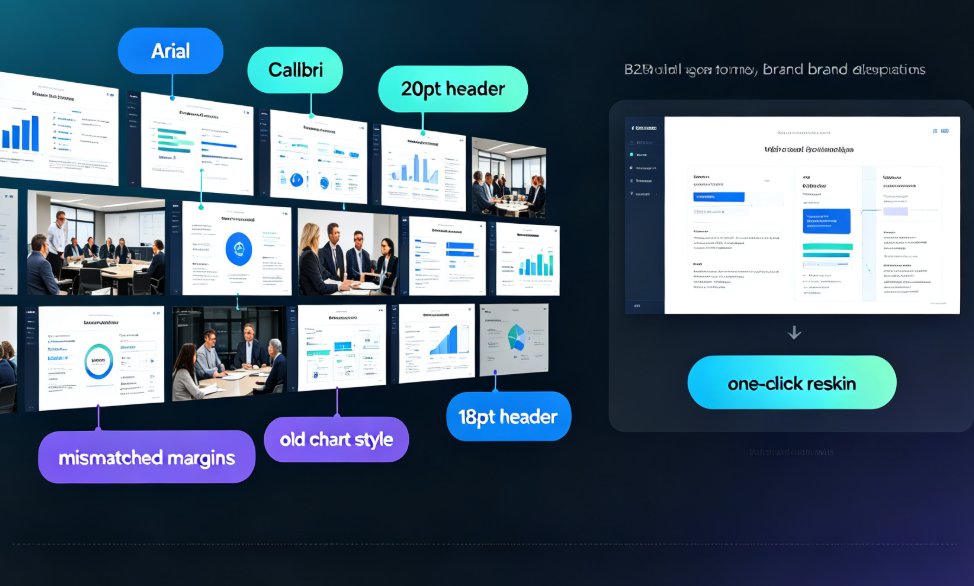
This is a fundamentally different approach from "here's a new template, please rebuild your slides." Rebuilding requires people to redo work. Reskinning requires the tool to do the work for them.
If you've ever watched an AI-powered design suggestion tool nudge you toward better spacing, this is the same idea applied at deck scale — but instead of suggestions, it's a full, deterministic re-application of brand rules. The result is the kind of consistency that a design system guarantees, without requiring a designer to implement it. If you want to dig deeper into how AI-driven design automation works under the hood, our breakdown of smart layouts covers the shift from manual tweaking to automated design systems.
04 A Practical Workflow: From Messy Deck to On-Brand in Minutes
Here's a workflow you can run today, whether you're fixing a single messy deck or rolling out a standard for the whole team.
Step 1: Collect everything in one file. Ask your contributors to drop their slides into one deck, or import from Word outlines and shared docs directly. Don't worry about the styling — you're about to fix it anyway.
Step 2: Run the reskin. In Zendeck, select the deck and hit reskin. The system reads your content and applies the unified font, color, and layout system. If you've set up a brand kit, it pulls from that; otherwise, pick a visually consistent theme from the template library.
Step 3: Review the outliers. No auto-reskin is perfect on the first pass. Check the slides that had odd layouts or overlapping elements. The smart layout will catch most of these, but it's worth a five-minute scan, especially for slides with heavy charts or diagrams.
Step 4: Lock in the brand kit. Once the deck looks right, save that design as a reusable brand kit or template so the next project starts consistent instead of ending up there after cleanup. This is where the long-term win lives — when templates handle the visual and structural consistency, your team can focus purely on the content.
Step 5: Ship and share. Export the polished deck, share the link, or convert it to a narrated micro-course if you're building training material. The point is the deck is on-brand, and you didn't spend your evening clicking through alignment arrows.
The whole loop — from messy collaborative file to polished, on-brand deck — takes about thirty minutes for a standard 40-slide deck. And much of that time is the review pass, not the cleanup.
05 Make It Stick: Governance Beyond the Reskin
One-click reskin is a powerful hammer, but even the best hammer doesn't build the house by itself. If your team keeps producing wildly divergent slides, the deeper fix is governance — making consistency a default property of the system, not an afterthought.
Here are three habits that work in practice:
1. Publish a reusable brand kit, not just a template file. A brand kit encodes colors, fonts, and layout rules as machine-readable values. When reskin pulls from the kit, there's no room for "I thought this navy was close enough." The more teams standardize on this, the less cleanup future decks need. Our walkthrough on creating a custom brand kit in Zendeck covers the setup in detail — including how to apply it across decks automatically with consistent results.
2. Run a quick consistency audit before finalizing. Before a deck goes out, do a two-minute check: open the slide sorter, look for fonts that feel off, colors that clash, or spacing that seems uneven. If anything breaks the pattern, reskin again rather than hand-fixing — it's faster and more thorough.
3. Catch the common mistakes before they compound. Most style problems come from a small set of repeated errors: copying slides between decks, overriding template fonts, and using unapproved color hex codes. Flag these in your team's workflow docs, and check our guide on common AI presentation mistakes for the full list of pitfalls to avoid.
For teams that need full design-system enforcement, the shift to AI-governed brand consistency explains how smart templates turn "please follow the guide" into "the guide follows the content" — zero-design governance that scales across departments.
06 The Bottom Line
Style drift is not a people problem. It's a tools-and-process problem. When a team relies on twenty humans to consistently apply fonts, colors, spacing, and layout rules by hand, some drift is mathematically inevitable.
The organizations that win are the ones that stop asking people to be consistent and start making consistency automatic.
That's what one-click reskin delivers: a single design language applied to any deck — old or new, tidy or chaotic — in one action. It saves the five-to-eight hours that teams burn on reconciliation, it keeps brand compliance from depending on whoever is editing, and it lets your people focus on the content that actually matters, instead of the point size of a footer.
If you've ever stayed late fixing someone else's slide margins, you know exactly what I'm talking about. The good news is you never have to do it again — the system can do it for you, in one click.
FAQ
Why does our team keep producing inconsistent slides even with one shared template?
Because templates don't enforce themselves. People override fonts, copy slides from old decks, use unapproved colors, and adjust spacing by eye. Over time, these small deviations accumulate into visible style drift. The fix is applying a design system programmatically — which is exactly what one-click reskin does — rather than relying on people to follow rules manually.
Does Zendeck's one-click reskin work on existing, messy decks or just new ones?
It works on existing decks, including old PowerPoint files that were never built on a template. The feature reads the slides' existing structure and re-applies unified fonts, colors, and layouts — so you don't need to start over or rebuild anything. Upload the messy version, click reskin, and the deck snaps into alignment.
Can reskin handle data-heavy slides with charts and tables without breaking them?
Yes. The reskin standardizes axis labels, series colors, number formatting, and chart positioning so every data slide follows the same visual rules. If a slide has an unusual layout or overlapping elements, you can review it after reskinning and make targeted adjustments — but the heavy lifting is done for you.
How much time can we actually save with one-click reskin?
For a typical 40-slide deck with multiple contributors, manual style reconciliation takes about 5–8 hours. One-click reskin brings that down to roughly 30 minutes including review. Teams using Zendeck's extraction and reskin features report cutting total slide-creation time by as much as 70%.
Will reskin mess with our official brand guidelines?
No — it does the opposite. If you set up a brand kit with your approved fonts, colors, and layout rules, reskin pulls from that kit and applies it consistently. That means brand compliance becomes automatic instead of depending on whoever happens to be editing. You can also use a theme from the template library if you haven't set up a kit yet.