Why Your AI-Generated Slides Still Look Messy and How Zendeck Fixes It
The Reality of AI-Generated Slides: A Polished Shell, But a Messy Core
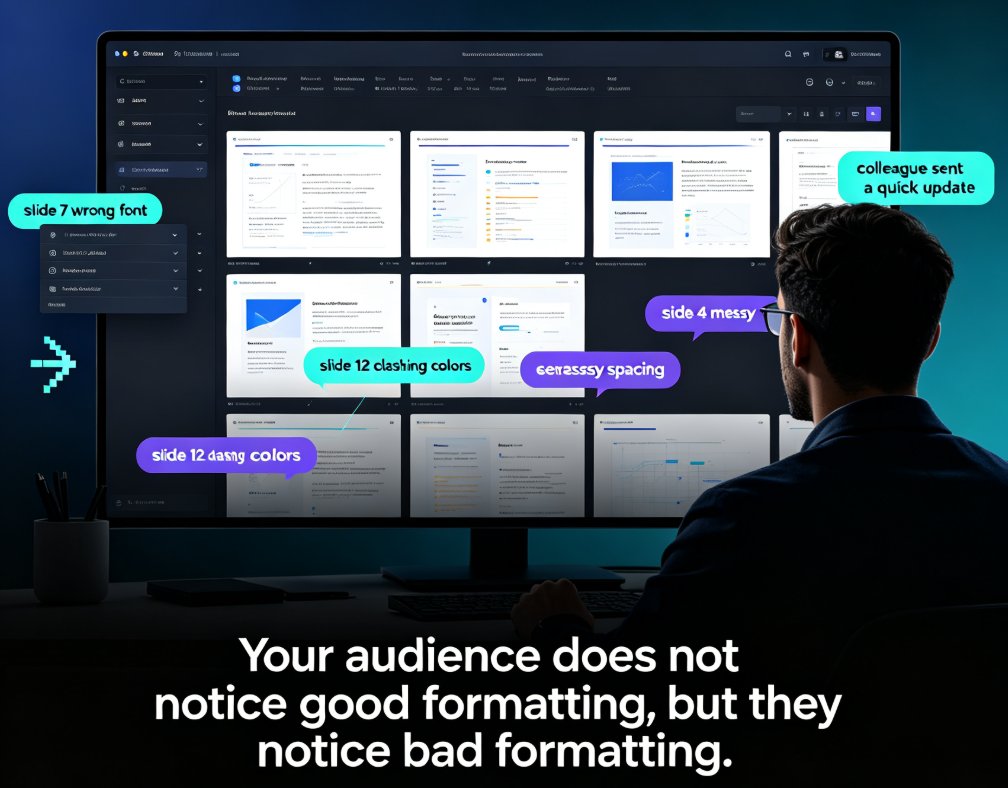
Let’s be real: you’ve probably tried an AI presentation tool. You typed a prompt, and within seconds, out came a deck with clean layouts, matching icons, and a confident tone. It looked finished. But when you started scrolling through the slides, you noticed the cracks. One slide had a huge block of text that overflowed the text box. Another used a different shade of blue than the rest. The logo appeared on slide 1 and then vanished. By slide 10, the deck felt like it came from three different people.
This is the dirty secret of AI-generated presentations: they look finished, but they are not. The AI generates a rough draft that still needs a human edit pass. According to a study by Presentation.ai, “text overload is the most visible sign of an unedited AI presentation,” and “AI can hallucinate statistics and make confident claims that do not hold up.” [Source: Presentations.ai, "7 Common AI Presentation Mistakes"]
Insert screenshot here: A slide with overflowing text, two different font families, and a logo that appears only on the first slide.
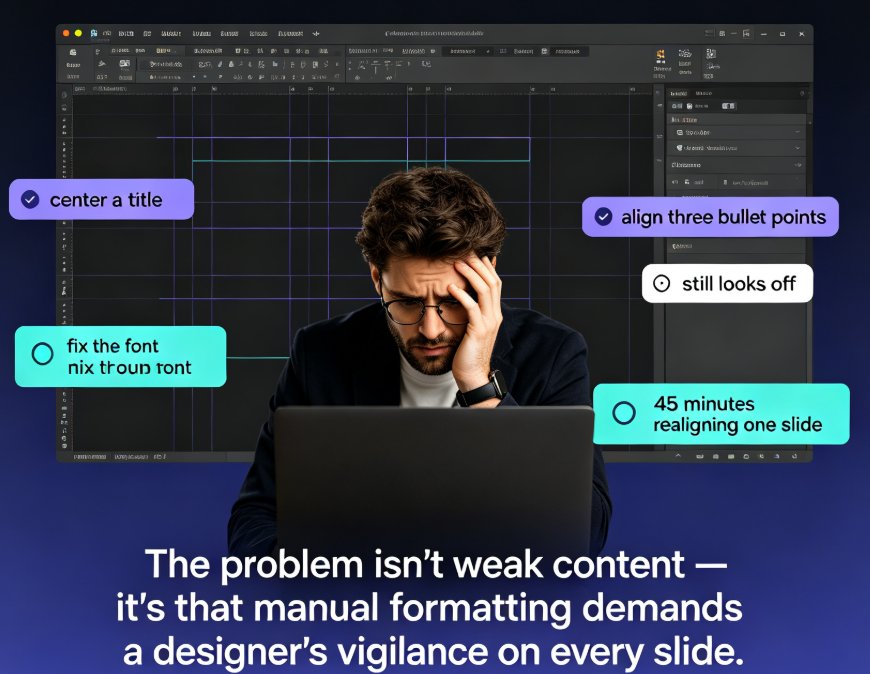
If you’ve ever spent an hour manually resizing text boxes, hunting for the right hex color, or re-aligning bullet points, you know the pain. But here’s the good news: you don’t have to do that work anymore. Zendeck’s smart layout and one-click reskin tools are designed specifically to take the messy output of AI generators and turn it into a polished, consistent, on-brand presentation in seconds.
I. The Three Biggest Messy-Slide Problems (and Why They Happen)
Before we talk about solutions, let’s name the enemies. These are the three most common issues that make AI-generated slides look unprofessional:
1. Text Overflow and Inconsistent Spacing
AI tools often generate slides with too much text. They don’t know how to prioritize; they just dump content. The result: bullet points that spill off the slide, tiny fonts that no one can read, and awkward gaps between elements. One clear idea per slide is the rule, but AI rarely follows it.
2. Visual Identity Amnesia
A deck that starts with your brand colors and ends with a random template’s color palette is a deck that screams “AI-generated.” Most AI presentation tools pull from libraries of pre-designed templates optimized for visual appeal, not brand alignment. As Llemental notes, “The problem compounds when you need to create multiple presentations. Each generation might pull different template variations, creating inconsistency across your decks.” [Source: Llemental, "Why AI Presentations Look AI-Generated"]
3. Layout Chaos
AI can’t see the big picture. It treats each slide as an independent unit, so the spacing, alignment, and visual hierarchy vary wildly from slide to slide. One slide might have a left-aligned image; the next has a centered image. Some slides have margins that are too wide, others too narrow. Design consistency is the foundation of trust, and AI is notoriously bad at it.
II. How Zendeck’s Smart Layout Automatically Cleans Up the Mess
Zendeck’s smart layout engine is your cleanup crew. It analyzes every slide in your deck and applies intelligent rules to fix the most common layout issues. Here’s what it does in practice:
- Detects and resizes overflowing text boxes so your content fits without cutting off.
- Adjusts font sizes and line spacing to maintain readability across all slides.
- Re-aligns images, icons, and charts to a consistent grid, eliminating visual drift.
- Balances visual weight so no slide feels lopsided.
Imagine you have a 20-slide deck. You import it into Zendeck, click “Smart Layout,” and within seconds, every slide is rebalanced. Text that was cut off now fits. Bullet points are evenly spaced. Images are aligned to the same grid. You don’t touch a single slide — the AI does the work for you.
Pro tip: If you’re importing a deck from another tool (like ChatGPT or Gamma), Zendeck’s smart layout works on any PPTX or PDF file. Just upload and let the engine do its magic.
III. One-Click Reskin: The End of Brand Inconsistency
Consistency is more than just aesthetics. It’s a signal of professionalism. A decision-maker who sees a deck with mismatched colors and fonts will subconsciously doubt the quality of your work. One-click reskin eliminates that doubt entirely.
Here’s how it works: You set up a brand kit in Zendeck — your logo, primary and secondary colors, font choices, and even slide master templates. Then, with a single click, Zendeck applies those brand settings to every slide in your deck. No more hunting for the right blue. No more inconsistent logo placement. The entire deck is unified in seconds.
| Feature | Typical AI Tool Output | After Zendeck One-Click Reskin |
|---|---|---|
| Color palette | Multiple, inconsistent | Single brand-approved palette |
| Font usage | Two or three different fonts | One to two brand fonts |
| Logo placement | Only on slide 1 | Consistent on every slide |
| Slide background | Varies by template | Uniform brand background |
| Visual hierarchy | Inconsistent per slide | Unified grid and spacing |
This is where Zendeck differentiates itself. Other tools might offer a “reskin” feature, but they often require you to manually select each slide or apply changes one by one. Zendeck’s one-click reskin is truly global — it changes every slide in the deck, including imported slides, in a single action.
For more on setting up brand kits, check out How to Set Up and Use Brand Kits in Zendeck for Consistent Presentations.
IV. Real Workflow: From Messy AI Deck to Polished Presentation in 15 Minutes
Let’s walk through a real scenario. You’ve just generated a 15-slide pitch deck using an AI tool. The content is solid, but the slides are a mess. Here’s how you fix it with Zendeck:
- Export your AI deck as PPTX or PDF. Most AI tools allow this.
- Upload the file to Zendeck. Zendeck accepts both formats and preserves text, images, and basic layout.
- Run Smart Layout. Click the button, wait 5 seconds. Zendeck fixes text overflow, spacing, and alignment.
- Apply One-Click Reskin. If you haven’t set up a brand kit yet, do it now (or use a pre-made template from Zendeck’s library of 500+ designs).
- Review and export. The deck is now polished. You can export to PPTX, PDF, or even turn it into a video with narration.
Total time: 15 minutes from messy slide to client-ready presentation. Without Zendeck, that same cleanup would take 2–3 hours of manual work.
Pro tip: If you often work with raw outlines, try Zendeck’s Word Import feature. You can paste a Markdown or Word outline and get a clean, structured deck in seconds — skipping the messy AI generation step entirely.
V. The Bottom Line: Stop Editing, Start Presenting
The real value of AI presentation tools is speed — but only if you don’t waste that speed on cleanup. Zendeck’s smart layout and one-click reskin are the missing pieces in the AI presentation workflow. They take the rough draft that AI gives you and turn it into a finished product that looks like it was crafted by a professional designer.
If you’re tired of spending more time fixing slides than creating them, give Zendeck a try. Import your next messy AI deck, run smart layout, apply one-click reskin, and see the difference. Your audience will never know it was AI-generated — and you’ll get your evenings back.
FAQ
Q: Why do AI-generated slides often look messy or inconsistent?
A: Most AI presentation tools generate slides from generic templates without considering your brand identity or layout harmony. They apply default fonts, colors, and spacing that may clash across slides, resulting in a disconnected look. Additionally, AI can produce text overload and misaligned elements, requiring manual editing to fix.
Q: How does Zendeck's smart layout feature fix text overflow and alignment issues?
A: Zendeck's smart layout engine automatically adjusts font sizes, spacing, and element positions to fit your content neatly. It detects text overflow, resizes headings, and rebalances visual weight so every slide is clean and readable without manual tweaking.
Q: What is 'one-click reskin' and how does it ensure brand consistency?
A: One-click reskin is a Zendeck feature that instantly applies your brand kit (colors, fonts, logo) to every slide in your deck. It replaces inconsistent styles with your approved brand guidelines, ensuring your presentation looks like it came from your company, not a generic template library.
Q: Can Zendeck handle AI-generated slides from other tools?
A: Yes. You can import a PPTX or PDF file into Zendeck, and the platform will parse the content. Then you can apply smart layout and one-click reskin to unify the design. This works even if the original slides were created in ChatGPT, Gamma, or other AI tools.
Q: How much time can Zendeck save compared to manual slide cleanup?
A: Users typically report saving 60–80% of the time they would spend manually adjusting layouts, fonts, and colors. For a 20-slide deck, that can mean cutting cleanup from 2–3 hours to under 30 minutes.