How to Set Up and Use Brand Kits in Zendeck for Consistent Presentations
How to Set Up and Use Brand Kits in Zendeck for Consistent Presentations
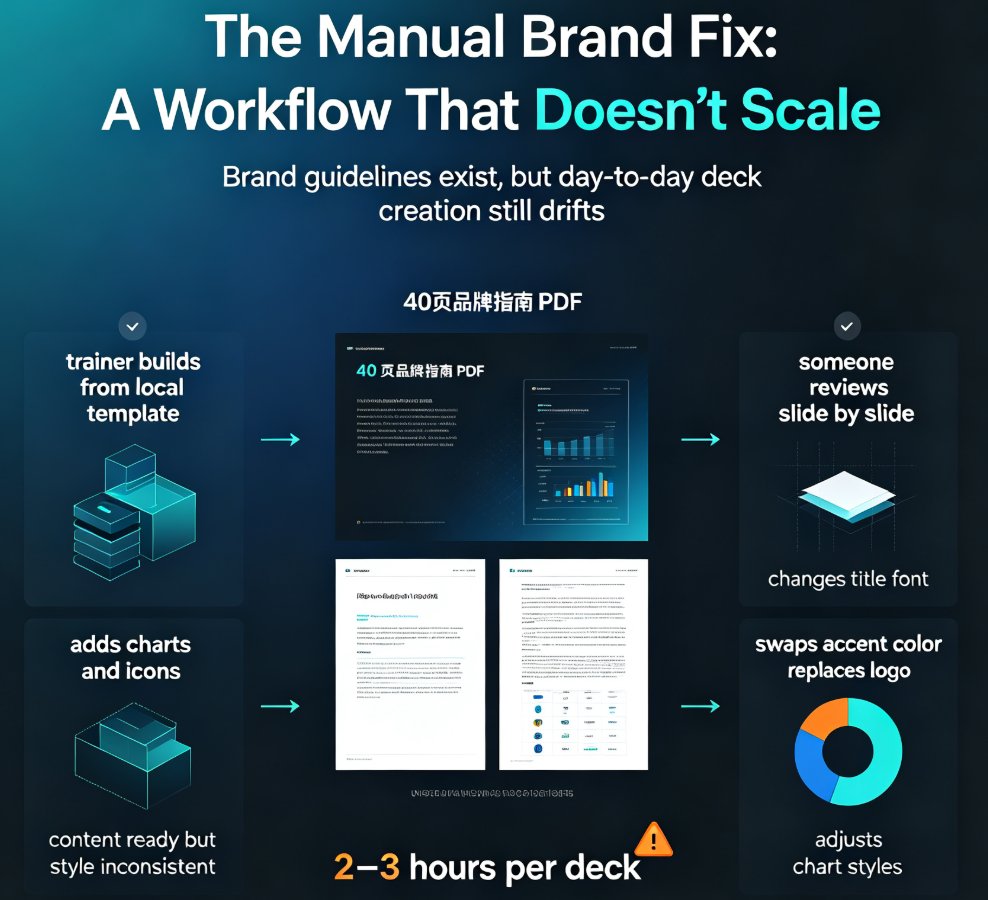
Let's be real: nothing kills the professionalism of a presentation faster than mismatched colors, random fonts, and a logo that looks like it was pasted on as an afterthought. You've seen it—a deck that starts with a beautiful cover slide, then halfway through, the heading font swaps to something else, the accent color changes, and the logo is missing from the final slide. It screams “I rushed this.”
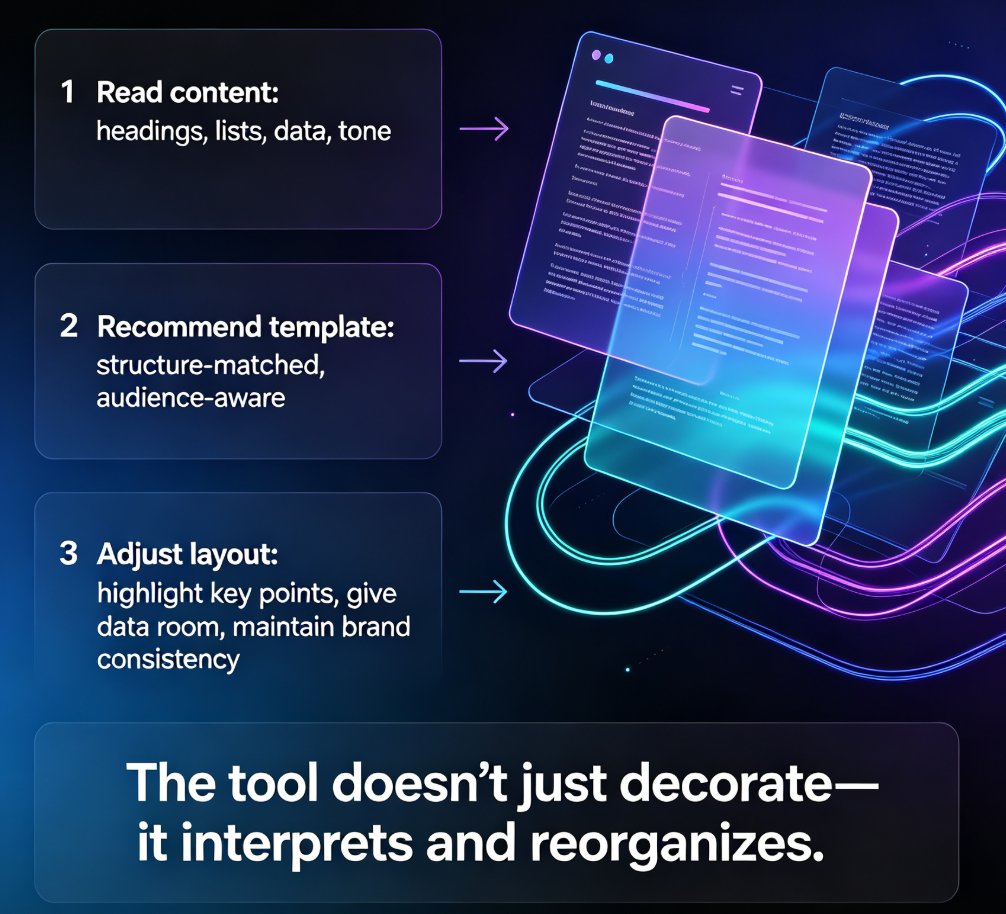
And if you're using an AI presentation tool to speed up your workflow, you might worry that you'll lose control over your brand identity. You don't want the AI to guess your brand. You want it to know your brand.
That's exactly why Zendeck built its brand kit feature. It lets you define your visual identity once and automatically apply it to every AI-generated slide. No more manual formatting, no more checking every slide for consistency. Just a deck that looks like it belongs to your company from start to finish.
I. What Is a Brand Kit — and Why Does It Matter for AI Presentations?
A brand kit is more than just a logo file. It's your entire visual identity system: primary and secondary colors, approved fonts, logo variations (horizontal, stacked, icon-only), and often a set of layout rules or visual cues. Think of it as the DNA of your brand's look.
In the world of AI-generated presentations, a brand kit is your insurance policy. Without one, the AI might pick a color scheme that clashes with your website, or default to a generic font that makes your deck feel like a template. With a brand kit, you're telling the AI: “Here are my rules. Follow them.”
A brand kit removes the friction between speed and consistency. You can generate a 30-slide deck in minutes, and every single slide will use your exact brand colors, your chosen typeface, and your logo in the right position. That's the kind of leverage that marketing and HR teams dream about.
II. Step-by-Step: Setting Up Your Brand Kit in Zendeck
Setting up a brand kit in Zendeck is straightforward. You don't need to be a designer—just have your brand assets ready. Here's how it works:
- Navigate to the Brand Kit section in your Zendeck account. You'll find it under your profile settings or the workspace dashboard.
- Upload your logo. Zendeck supports common formats like PNG and SVG. You can upload multiple variations (e.g., full logo for light backgrounds, monochrome for dark).
- Define your brand colors. Use the color picker or enter hex codes for your primary, secondary, and accent colors. Pro tip: Include your most-used neutral colors (like background and text colors) for maximum consistency.
- Select your typography. Choose from Zendeck's library of web-safe fonts, or upload your own brand fonts (if supported). Pick a heading font and a body font.
- Set layout preferences. Decide where your logo appears (top-left, top-right, bottom-center) and whether you want a consistent footer or slide number style.
- Save the kit with a name. Something like “Acme Corp Brand Kit” or “Department A Formal.”
And that's it. Your brand kit is ready to use.
III. Applying Your Brand Kit to AI-Generated Presentations
Once your brand kit is saved, applying it is a single-click operation. Here's the real magic:
- When you create a new presentation from a Word outline or Markdown file, Zendeck automatically applies the selected brand kit to the generated slides. The logo appears on every slide, the colors match your palette, and the fonts are your brand fonts.
- You can also reskin an existing deck. If you have a presentation that was created without a brand kit, just open the “Reskin” option and choose your brand kit. Zendeck will recolor, refont, and reposition everything in seconds.
- The brand kit carries over to the PPT-to-video feature. So when you turn slides into a narrated micro-course, the same consistent branding appears in the video output. No extra work.
This is where the time savings become dramatic. A marketing team that used to spend 30 minutes per deck fixing colors and fonts can now generate a fully branded deck in under 2 minutes. The brand kit does the heavy lifting, and you get back to what matters—the content.
IV. Pro Tips: Getting the Most Out of Multiple Brand Kits
If you work across multiple brands, departments, or client accounts, you'll want to manage several brand kits. Zendeck lets you create and store as many as you need. Here are a few tips from someone who's been there:
- Name your kits clearly. Use a naming convention like
[Client Name] - Formalor[Department] - 2026. This saves you from guessing which kit is which when you're in a hurry. - Set a default kit for your main workspace. That way, any new presentation you create automatically uses it unless you choose otherwise.
- Update your kits regularly. Brands evolve—maybe your logo got a refresh or you've adopted a new accent color. Keep your brand kits in sync to avoid outdated decks.
- Share kits with your team. If you're collaborating on a presentation, everyone can use the same brand kit, ensuring consistency across all contributors.
V. Zendeck Brand Kit vs. Manual Formatting: A Quick Comparison
Let's put the numbers on the table. Here's how Zendeck's brand kit approach stacks up against the old way of doing things:
| Aspect | Manual Formatting | Zendeck Brand Kit |
|---|---|---|
| Setup time | 30–60 minutes per deck | 5 minutes once, then 0 per deck |
| Consistency | Error-prone, easy to miss a slide | 100% automatic across all slides |
| Font changes | Manually select for each text box | One-click font swap |
| Logo placement | Copy-paste, resize, reposition per slide | Auto-placed from saved kit |
| Color updates | Change hex codes one by one | Reskin entire deck in seconds |
| Team collaboration | Each person may use different versions | Shared brand kit, everyone uses same |
| Multi-brand management | Separate files, confusing | Multiple kits, easy switching |
The conclusion is clear: a brand kit is not a luxury—it's a productivity multiplier. Especially for teams that produce regular presentations, the ROI on setting up a brand kit is immediate.
VI. Real-World Scenario: Marketing Team Saves 10 Hours a Week
Take a typical marketing team that produces 5 presentations per week. Before Zendeck, they'd spend about 45 minutes per deck on formatting—checking colors, fixing fonts, aligning logos. That's almost 4 hours a week per person, or 20 hours for a team of five.
After switching to Zendeck with brand kits, they cut that to 5 minutes per deck. They now spend 25 minutes a week on formatting instead of 20 hours. That's a 92% reduction in formatting time. The team can now focus on strategy, messaging, and design refinement—not on manual busywork.
This isn't a hypothetical. I've seen it happen. And the best part? The decks look better because they're perfectly consistent. No more embarrassing misalignments in client meetings.
VII. Getting Started: Your First Brand Kit in 5 Minutes
If you're ready to stop fighting with slide masters and start building consistent presentations at scale, here's your action plan:
- Open Zendeck and go to the Brand Kit settings.
- Gather your brand assets—logo files, hex codes, and font names.
- Follow the setup steps outlined in Section II.
- Create a test presentation from a Word outline and see the brand kit in action.
- Share the kit with your team so everyone benefits.
For more details on how to import outlines and build decks, check out our guide on How to Quickly Create On-Brand Presentations with Zendeck's Template Library. And if you're interested in turning those decks into videos, see Turn AI Slides into Videos with Zendeck's PPT-to-Video Tool.
The bottom line: brand consistency doesn't have to be a headache. With Zendeck's brand kit feature, you can have your AI cake and eat it too—speedy, automated slide generation that respects your brand's identity. Set it up once, and let the tool do the rest.
FAQ
Q: What is a brand kit in Zendeck? A: A brand kit in Zendeck is a saved set of visual identity guidelines—including your logo, primary and secondary colors, typography, and layout preferences—that you can apply to any AI-generated presentation. It ensures every slide automatically uses your brand's look and feel, eliminating manual tweaks.
Q: Can I have multiple brand kits for different teams or clients? A: Yes. Zendeck allows you to store and switch between multiple brand kits. This is especially useful for agencies, consultants, or internal teams that need to maintain separate identities for different departments or external stakeholders.
Q: Do I need design skills to set up a brand kit? A: Not at all. Zendeck's brand kit setup is guided and intuitive. You just upload your logo, pick your brand colors from a palette or hex codes, and select your preferred fonts. The tool handles the rest, applying the kit to every slide layout automatically.
Q: How does the brand kit apply to AI-generated presentations? A: Once you've created a brand kit, you can select it as the default style for any new presentation. When Zendeck generates slides from your outline or Word document, it instantly applies the kit's colors, fonts, and logo placement to all slides. You can also reskin existing decks with one click.
Q: Can I use brand kits with the PPT-to-video feature? A: Absolutely. Brand kits carry over to the video export as well. The same colors, fonts, and logo appear in the narrated micro-course, ensuring a consistent brand experience across slide decks and video outputs.