How to Maintain Brand Consistency Across Hundreds of Slides with AI Brand Kits
How to Maintain Brand Consistency Across Hundreds of Slides with AI Brand Kits
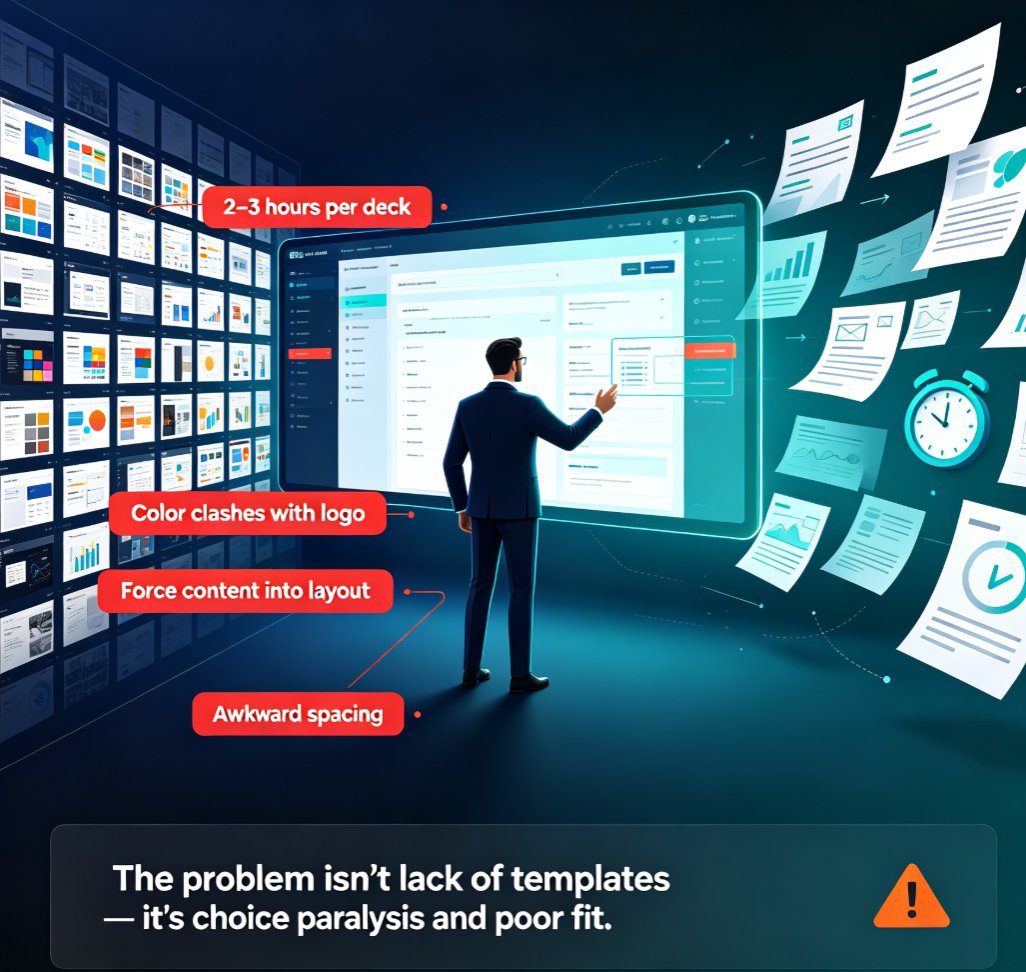
Let’s be real: maintaining brand consistency across every presentation your team produces is a nightmare. You define the colors, fonts, and logos. You share the template. Then someone uses a slightly off-blue on a chart, and suddenly your deck looks like it belongs to a different company. Multiply that by hundreds of slides across dozens of team members, and you’ve got a full-blown brand identity crisis.
The good news: AI brand kits can enforce your visual identity automatically, so you don’t have to police every slide.
In this guide, we’ll walk through how to set up and use Zendeck’s brand kit feature to lock in your colors, fonts, and logos—and then get your whole team aligned without the manual headache.
I. The Real Cost of Brand Inconsistency in Presentations
Every time a sales deck, investor pitch, or internal training slides stray from your brand guidelines, you’re subtly eroding trust. Buyers form impressions from the first slide. If that slide feels rushed, off-brand, or cluttered, it sends the wrong signal. In fact, studies show that consistent brand presentation can increase revenue by up to 33%. But when you’re juggling dozens of presentations, consistency is the first thing to slip.
The pain point: your team spends hours manually checking colors, fonts, and logo placement—or worse, they don’t check at all.
Traditional methods rely on static templates and hope. Someone updates a font on one slide, the template drifts, and soon each deck has its own personality. You end up with a fragmented brand that confuses both internal stakeholders and external audiences.
II. Why AI Brand Kits Are a Game-Changer
Manual brand enforcement is like trying to hold back the tide with a spoon. It’s exhausting and doomed to fail. AI brand kits, on the other hand, embed your brand rules directly into the tool your team uses to create slides. Every time someone starts a new deck, the colors, fonts, logos, and layouts are already correct.
The solution: set your brand guidelines once in a brand kit, and let AI enforce them on every slide automatically.
Here’s a quick comparison of the three common approaches to brand consistency:
| Approach | How It Works | Consistency Level | Effort Required | Best For |
|---|---|---|---|---|
| Manual Templates | Pre-built PowerPoint/Google Slides file with fixed layout | Low (easily overridden or modified) | High (constant manual checks, training) | Small teams, single user |
| Semi-Automated Brand Kits | Saved brand assets (logos, colors) that users must manually apply to each deck | Medium (users can forget to apply) | Medium (less manual but still error-prone) | Mid-sized teams, some brand oversight |
| Automated Brand Enforcement | Brand kit rules are automatically applied to all new slides; unauthorized changes are blocked or overridden | High (100% consistent if set as default) | Low (one-time setup, zero ongoing maintenance) | Large teams, agencies, enterprises |
Zendeck falls into the third category. With its brand kit feature, you define your visual identity once, and every presentation is built on those rules. No more policing slide masters.
III. Setting Up Your Brand Kit in Zendeck
Let’s walk through the practical steps. You’ll need your brand’s official assets: logo files, hex color codes, font names, and any icon style preferences.
Step 1: Define Your Core Colors
Open Zendeck’s brand kit settings. Add your primary and secondary brand colors using hex codes (e.g., #1A73E8 for blue). You can also set accent colors for charts and backgrounds. Pro tip: limit your palette to 3-5 colors max. Too many options lead to visual chaos.
Step 2: Set Your Fonts
Choose heading and body fonts from Zendeck’s library, or upload custom fonts. Control size, weight, and alignment. This is the single biggest consistency win: one font change across 100 slides takes seconds.
Step 3: Upload Logos and Icons
Add your primary logo, secondary logo, and any icon sets you use regularly. Zendeck will automatically place them in consistent positions—footer, header, or title slide as you define.
Step 4: Configure Layout Grids and Spacing
Set default margins, padding, and alignment. This ensures that every slide has the same breathing room, whether it’s a data-heavy chart or a simple quote slide.
Step 5: Save and Apply as Default
Once saved, set the brand kit as the default theme for your team. Every new presentation will inherit these settings. You can also create multiple brand kits for different sub-brands or clients.
IV. Enforcing Brand Rules Across Your Team
Having a brand kit is only half the battle. The real magic happens when your entire team uses it without thinking. Here’s how to make enforcement painless:
- Set default permissions: In Zendeck, you can lock the brand kit as the only theme available. This prevents users from accidentally switching to a different style.
- Train once, then forget: Walk your team through the setup once. Emphasize that they don’t need to worry about fonts or colors—just focus on content. The brand kit handles the rest.
- Use version control for collaboration: If multiple people edit a deck, Zendeck’s version history ensures you can roll back any unintended brand violations. For more on collaboration, check out Our guide to real-time team collaboration.
The outcome: your team ships decks that are 100% on-brand, every time, without breaking a sweat.
V. Integrating Brand Kits with Your Existing Workflow
Zendeck’s brand kit isn’t a standalone feature—it works with the rest of the platform to supercharge your presentation creation.
- Import outlines and convert to slides: If you have a Word document or raw text, Zendeck can turn it into a deck while automatically applying the brand kit. See how to import outlines for details.
- One-click reskinning: Need to adapt an existing deck to a different brand? Change the brand kit and the entire presentation updates instantly. Colors, fonts, logos—everything shifts.
- Export with confidence: When you export to PPTX or PDF, the brand kit locks in the final styling. No quirks from different software. Check export options for more.
Pro tip: If you’re an agency managing multiple clients, create a separate brand kit for each client. Then you can generate presentations for different accounts in minutes, not hours.
VI. Common Pitfalls and How to Avoid Them
Even with AI brand kits, mistakes happen. Here are the most common ones—and how to sidestep them:
| Pitfall | Why It Happens | How to Avoid |
|---|---|---|
| Incomplete brand guidelines | Vague rules (e.g., “use our blue”) leave room for interpretation | Document exact hex codes, font weights, and logo placement |
| Too many brand kits | Creating a kit for every micro-campaign dilutes consistency | Limit to 3-5 kits (main brand, sub-brands, one client template) |
| Not updating kits after a rebrand | Old assets stay in circulation | Schedule a quarterly brand kit audit |
| Allowing individual overrides | Permissions set too loose | Lock brand kit as default in Zendeck settings |
Remember: an AI brand kit is only as good as the rules you feed it. Invest an hour upfront to define your guidelines, and you’ll save dozens of hours later.
VII. The Future of Brand Consistency: From Enforcement to Intelligence
AI brand kits are already powerful, but the next generation will go further. Imagine a brand kit that automatically suggests the best color combination for a specific chart type, or that adjusts logo placement for different slide sizes. Zendeck is already moving in this direction with AI-powered design suggestions. For a deeper look, read how AI-powered design suggestions make presentation software smarter.
The bottom line: brand consistency is no longer a manual chore. With Zendeck’s brand kit, you set the rules, and AI enforces them. Your team focuses on content, while the brand stays intact automatically.
FAQ
How do I set up a brand kit in Zendeck?
Start by defining your brand guidelines: exact hex color codes, approved fonts, logo files, and layout rules. In Zendeck, go to the Brand Kit section, upload your assets, and configure color palettes, font families, and default icon styles. Once saved, the brand kit is automatically applied to every new presentation you create.
Can I apply different brand kits to different teams or clients?
Yes. Zendeck allows you to create multiple brand kits and switch between them. This is ideal for agencies managing multiple client brands or enterprise teams with distinct sub-brands. Each presentation can be linked to a specific kit, ensuring the right identity is enforced.
What happens if a team member uses a color outside the brand kit?
Zendeck's brand kit enforcement works at the theme level. If a user manually picks a color outside the palette, the tool will override it when applying the kit. For best results, set the brand kit as the default theme and restrict editing permissions to approved users only.
Does Zendeck support importing existing brand guidelines from other tools?
While there is no direct import, you can manually input your brand assets into Zendeck's brand kit settings. If you have a style guide document, you can copy the hex codes and font names directly. For logos, upload the standard file formats (PNG, SVG, or JPG).
How does Zendeck's brand kit compare to manual branding in PowerPoint?
Manual branding in PowerPoint relies on template files and individual discipline. If a user accidentally changes a font or color, the inconsistency spreads. Zendeck's brand kit is a live, enforceable rule set that applies automatically to every slide, saving hours of manual review and ensuring 100% adherence.