Real-Time Collaboration on AI Presentations: How Zendeck Keeps Teams in Sync
I. The Collaboration Nightmare You Know Too Well
Let's be real: if you've ever worked on a team presentation the old way, you've felt the pain. You email a .pptx file to your colleague, they make edits, rename it "Q3_Report_v3_FINAL_ACTUAL.pptx," and send it back. By the time you merge everyone's changes, you're scrolling through a graveyard of attachments, wondering if the final version even exists. Studies show that distributed teams lose up to 2 hours per week just tracking down the correct version of a presentation — and that's before you account for the stress of accidentally overwriting someone's work.
That's the problem that Zendeck's real-time collaboration and version control solve. Instead of a game of telephone, your team gets a single source of truth that updates instantly. No more "who has the latest file?" No more duplicated effort.
II. How Real-Time AI Collaboration Changes the Game
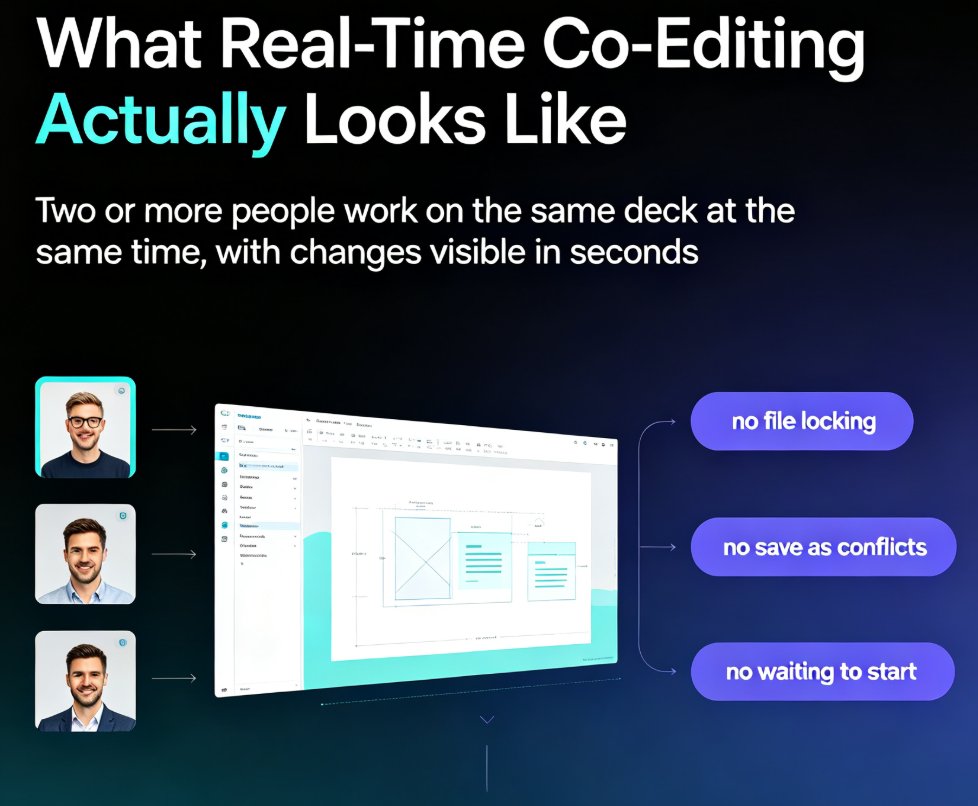
When I say "real-time collaboration," I mean the kind where you and your teammate can edit the same slide at the same moment — and see each other's changes as they happen. Zendeck's real-time co-editing works like a shared document, but with presentation-specific smarts.
◉ What Happens When You Co-Edit a Deck?
- Live cursors — You see exactly where your colleague is editing, so you never work on top of each other.
- Instant sync — Content, layout, and design updates appear across all collaborators' screens in real time.
- Comments and mentions — Drop a note on a specific slide or element, tag a teammate, and resolve the thread when done.
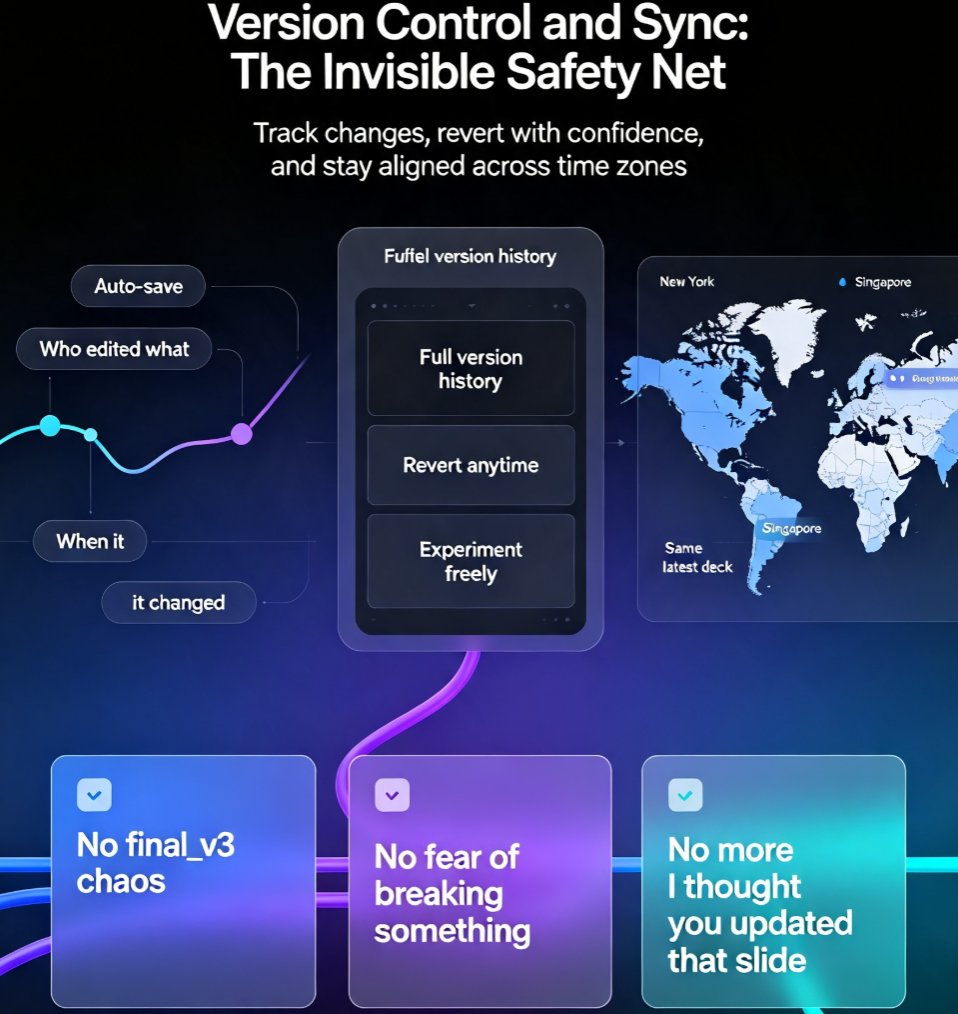
For remote teams — especially those straddling time zones — this is a lifesaver. Async collaboration (where you edit and comment at your own pace) is often a better fit for distributed teams, and Zendeck supports both. You can review a deck at 2 a.m. and leave inline comments that your morning-shift colleague picks up hours later. Version history ensures no one overwrites those comments.
Pro-tip: If you're presenting to a client next week, set up a shared Zendeck deck early. Tag each team member on the slides they own. You'll cut the approval cycle in half.
III. Version Control: The Unsung Hero of Team Presentations
Here's a stat that hits hard: a survey by Project Management Institute found that 55% of project failures are linked to poor communication and version mismanagement. In presentation workflows, that translates to hours of rework and avoidable friction.
Zendeck's version history is built for real-world team dynamics. Every time someone makes a change — whether it's editing text, replacing an image, or applying a new brand kit — the system automatically saves a snapshot. You can:
- View the full history of a deck, sorted by time and author.
- Restore any previous version with one click.
- Compare versions side-by-side to see exactly what changed.
This isn't just a safety net — it's a workflow accelerator. No more asking "who changed the font?" because you can scroll back and see the exact moment it happened, and by whom.
A Quick Look at Collaboration Features Across Tools
| Tool | Real-Time Co-Editing | Version History | Async Comments | Starting Price (per user/month) |
|---|---|---|---|---|
| Zendeck | ✅ Yes | ✅ Auto-save | ✅ Inline | Free / paid plans |
| Google Slides | ✅ Yes | ✅ Limited | ✅ Native | Free (Google Workspace) |
| PowerPoint (M365) | ✅ Yes (cloud) | ✅ Limited | ✅ Comments | From $12.50 |
| Gamma | ✅ Yes | ❌ No | ✅ Comments | Free / from $8 |
| Pitch | ✅ Yes | ✅ Yes | ✅ Comments | Free / from $8 |
| Canva | ✅ Yes | ✅ Yes | ✅ Comments | Free / from $10 |
Notice that many AI-native tools (like Gamma) lack version history entirely, which is a dealbreaker for teams that need to roll back changes. Zendeck fills that gap with a robust version system — and it's built into the collaboration workflow, not an afterthought.
IV. Real Scenarios: How Teams Actually Use Zendeck's Sync
Let me paint you a picture. Your HR team is preparing an onboarding presentation for 50 new hires. Four people need to contribute: the recruiter (slides on company culture), the IT lead (tool access), the benefits manager (insurance details), and the designer (look and feel).
Old way: Email attachments, multiple versions, a final scramble to combine everything. Someone inevitably misses a slide.
Zendeck way: 1. The recruiter creates a deck from an outline using Zendeck's Word import. Takes 3 minutes. 2. She shares the link with the team. Each person edits their assigned slides in real time. 3. The designer applies the brand kit with one click — consistent fonts, colors, and logo placement across all 40 slides. 4. The IT lead drops a comment on slide 12: "Need to update the VPN link." The recruiter sees it, fixes it, and marks the comment resolved. 5. Everyone reviews the final version history to confirm no changes were lost.
Outcome: A polished, on-brand deck delivered in under 2 hours, with zero email threads. The team saves 4+ hours of coordination time.
V. Why Zendeck's Approach Beats Traditional Workflows
If you've relied on PowerPoint's "Track Changes" or emailed attachments, you know the pain. Zendeck's secret sauce is combining AI-powered design automation with real-time collaboration and version control — all in one platform. You don't need to switch between a design tool, a file server, and a chat app.
Here's what makes it different:
- AI-generated slides from outlines — Import a Word doc or Markdown, and Zendeck structures it into a deck. Your team can start editing immediately, not from a blank template.
- One-click brand kits — Ensure every slide follows your company's visual identity. No more inconsistent fonts or off-brand colors.
- PPT-to-video — After collaboration, turn the deck into a narrated micro-course for async training.
For remote teams, this is the difference between a chaotic workflow and a streamlined one. You can read more about how teams co-edit with version control in our detailed guide: How Teams Can Co-Edit AI Presentations in Zendeck with Version Control.
VI. Getting Started: Your First Real-Time Collaboration Session
Ready to try it? Here's a quick walkthrough:
- Create a new deck in Zendeck — either from scratch, from a template, or by importing an outline.
- Click the "Share" button in the top-right corner.
- Copy the link and send it to your team. Set permissions (view or edit).
- Start editing — everyone can work simultaneously. Watch for live cursors and comments.
- Use version history (found in the menu) to track changes or restore a previous version.
That's it. No email attachments, no file conflicts, no version confusion.
Tip: For your first team deck, assign one person to be the "version reviewer" — they can check the history before final export to ensure nothing got lost. After a few sessions, you'll trust the system enough to skip that step.
VII. Beyond Real-Time: The Bigger Picture of AI Collaboration
Real-time editing is just one piece of the puzzle. The real win is when your team adopts a collaborative AI workflow that covers the entire presentation lifecycle — from outline to final video.
Consider this: Zendeck's asset library and brand kits ensure that even when multiple people edit the same deck, the visual output stays consistent. No more fighting over which font weight to use. And when the deck is done, you can export it to PPTX, PDF, or Google Slides, or turn it into a video with AI narration.
For a deeper dive into how brand kits keep your team on the same page, check out: How to Maintain Brand Consistency Across Hundreds of Slides with AI Brand Kits.
FAQ
How does Zendeck handle version history for presentations?
Zendeck automatically saves every change and provides a version history panel. You can view, restore, or compare any previous version, so no one accidentally loses work or overwrites someone else's edits.
Can multiple team members edit the same slide deck at the same time in Zendeck?
Yes. Zendeck supports real-time co-editing, where multiple users can work on the same deck simultaneously. Changes appear instantly, and each collaborator's cursor is visible to avoid conflicts.
What if my team works across different time zones? Is async collaboration possible?
Absolutely. Zendeck's async-friendly workflow means you can leave comments, tag teammates, and make edits at your own pace. Version history ensures no one steps on each other's toes, even when no one is online at the same time.
Does Zendeck integrate with tools like Slack or Teams for notifications?
Zendeck offers sharing and link-based collaboration. You can share a deck link via Slack, email, or Teams. While there's no native Slack bot, the real-time sync and comment system keep everyone updated without extra apps.
How does Zendeck compare to Google Slides or PowerPoint for team collaboration?
Zendeck combines the AI-powered design automation of modern tools with the real-time co-editing of Google Slides. Unlike PowerPoint (which relies on email attachments) and beyond Google Slides (which lacks AI structuring), Zendeck gives you smart layouts, brand kits, and version control in one place.