How to Co-Edit a Presentation in Real Time with Your Remote Team
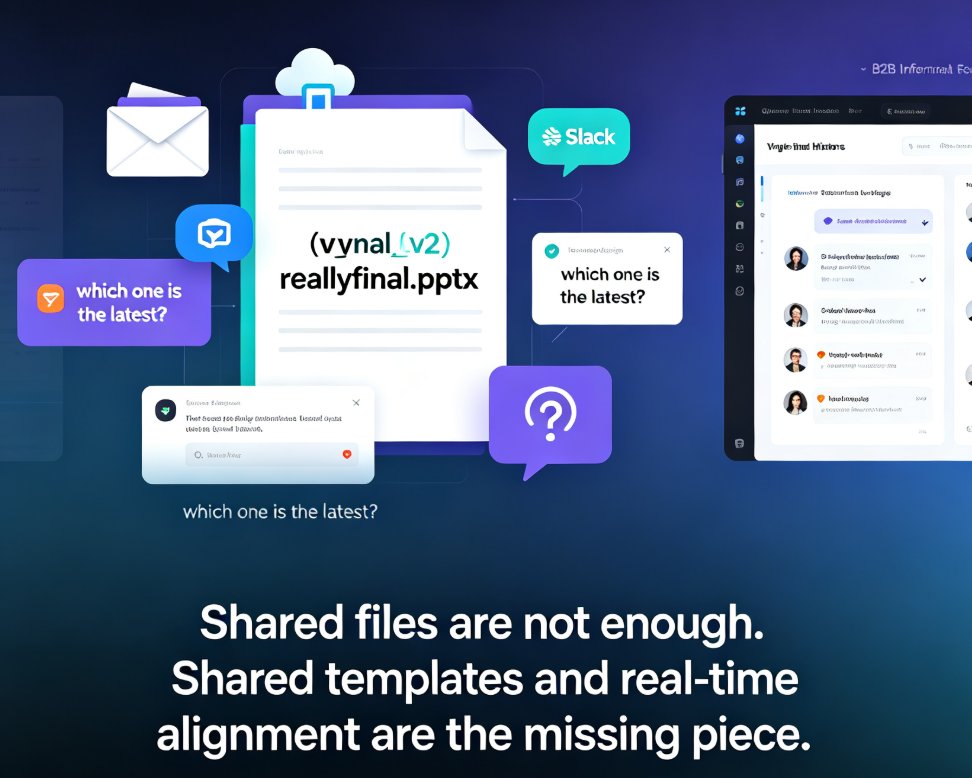
Let's be honest: "can you send me the latest version?" is the unofficial anthem of every remote team. If you've ever opened a file named Q3_report_FINAL_v7_actuallyfinal.pptx and found three different versions of the same slide, you already know the pain this article is about.
01 Why the "Email the PPT" Workflow Is Killing Your Team's Momentum
Here's the scene. You're the content lead on a quarterly business review. Six people across three time zones need to contribute to one deck. The old way: someone builds the master file, emails it around, and waits. Days pass. Edits come back in scattered comments, half of them conflicting. Someone overwrites the good version. Someone else forgets to attach the file at all.
The root problem isn't your team — it's that traditional presentation files were never built for more than one brain at a time.
When you're co-located, you can huddle around a screen and fix things live. Remote work removes that luxury. The file becomes a bottleneck, and every round of feedback multiplies the friction. Add time zones to the mix and you get the classic "I thought you were handling that slide" moment, followed by a frantic 11 p.m. edit from someone who just realized the numbers are stale.
The outcome is predictable: missed deadlines, duplicated work, and a deck that feels like a compromise nobody fully owns. The fix isn't "better discipline" or another team meeting about communication. It's a different way of working — one where the deck lives online, everyone edits the same file, and there's never a "latest version" to chase.
02 What Real-Time Co-Editing Actually Looks Like
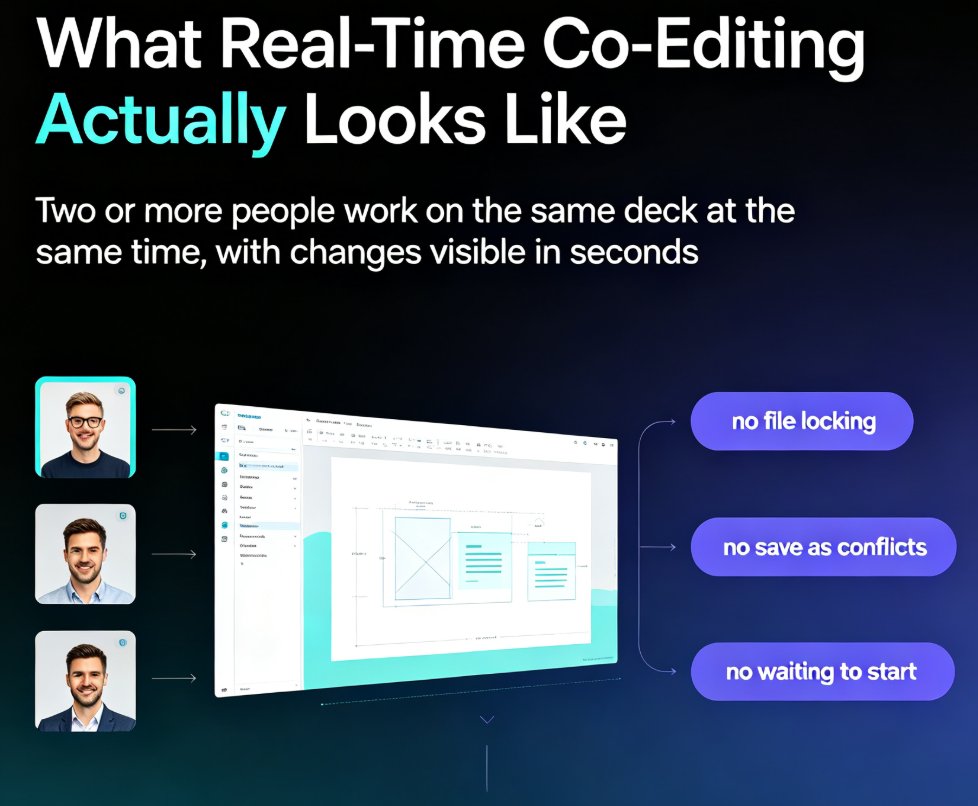
Real-time co-editing means two or more people work on the same deck simultaneously, and every change appears on everyone's screen within seconds. No locking files. No "save as" conflicts. No waiting for someone to finish before you start.
When your team can see each other's cursors and edits live, the review cycle stops being a serial handoff and becomes a parallel conversation.
For a distributed team, this changes the rhythm of work. You can split a deck by section — you take the strategy slides, a teammate takes the metrics, another handles the appendix — and merge everything without a single file transfer. If you're in a live session, you can even watch a teammate adjust a chart while you rewrite the headline above it. Nothing blocks, nothing overwrites.
Real-time editing also changes how feedback works. Instead of collecting comments in a separate document or an email thread, your reviewers can drop inline notes directly on the slide they're looking at. The context is right there — no more "see slide 14" followed by a hunt through the deck.
The outcome is a deck that comes together in hours, not days, and a team that actually feels like it's building something together instead of passing a baton through email.
03 Link Sharing: The End of Attachments
The attachment is the enemy of collaboration. Every time you email a file, you create a fork in the timeline. The version you sent is now different from the version on your machine, which is different from the version your colleague edited last night.
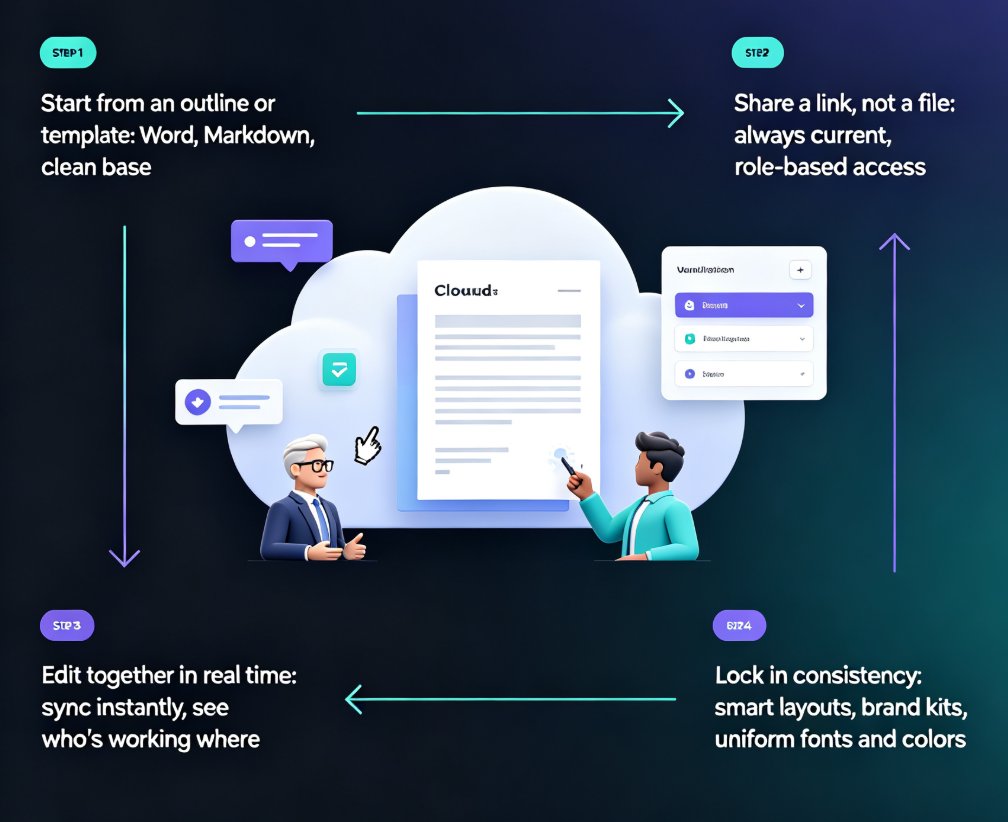
Link sharing kills this problem at the source. Instead of sending a file, you share a link to the live deck. Everyone who opens the link sees the current state — not a snapshot from Tuesday.
With link-based sharing, "the latest version" stops being a question and becomes a fact.
You also get control you never had with attachments: decide who can view, who can comment, and who can edit. Share the link with a stakeholder who only needs to review, and keep edit access for the core team. The outcome is a single source of truth that's always current, always accessible, and never duplicated across six inboxes.
04 Version Management Without the "final_v7" Nightmare
Even with real-time editing, you'll still want to look back. Maybe a stakeholder preferred last week's color scheme. Maybe an edit went sideways and you need to roll back.
This is where version history earns its keep. Every meaningful change is recorded, so you can compare, restore, or branch from an earlier state without losing anyone's work.
Automatic version history means you can experiment freely — the worst case is a one-click rollback, not a lost afternoon.
For remote teams, this is a quiet superpower. It removes the fear that someone will break the deck, which means people actually contribute instead of tiptoeing around the file. Version history also helps with accountability: when you can see who changed what and when, it's easier to have honest conversations about the work — and easier to give credit where it's due. The outcome: bolder edits, faster iteration, and zero panic when someone's "quick fix" turns out to be a mistake.
05 A Repeatable Workflow for Distributed Teams
Real-time tools only help if you have a process around them. Here's a workflow that works, whether your team is three people or thirty.
| Traditional File-Based Workflow | Real-Time Co-Editing (Zendeck) | |
|---|---|---|
| Sharing | Email attachments, download, re-upload | One shared link, always current |
| Editing | One person at a time, serial handoffs | Multiple editors, live cursors |
| Version control | Manual "v7_final" file naming | Automatic version history |
| Feedback | Scattered comments across emails | Inline comments on the live deck |
| Time zone fit | Blocks on whoever has the file | Async-friendly, edits merge instantly |
| Risk of data loss | High — overwrites and lost files | Low — auto-saved, recoverable |
The practical rhythm: kick off with a shared outline so everyone agrees on the story. Assign sections, then co-edit in a live session for the parts that need discussion. Use comments for async feedback across time zones, and let the version history catch anything that goes sideways. For bigger teams, assign a "deck owner" who owns the final pass — not because the tool needs it, but because someone should be accountable for the last mile.
The teams that win at remote presentations aren't the ones with the best designers — they're the ones with the least friction between idea and slide.
One more tip: set a "freeze" time before any big presentation. Real-time editing is great, but you don't want someone tweaking a headline while you're on stage. Agree on when the deck locks, and let everyone know that after that point, changes go through the deck owner.
If you're already importing from Word or Google Docs, the same collaboration logic applies — the outline becomes the deck, and the deck stays editable by everyone. (If you want the full rundown on that, our guide on AI presentation tools and Word/Google Docs integration covers it.)
06 Making the Switch Without Disrupting Your Team
Switching tools feels risky, especially mid-project. The good news: moving to online co-editing doesn't require retraining anyone. The deck still looks like a deck. The difference is invisible until the moment someone asks "which version is this?" and the answer is simply "the one on the link."
Zendeck was built with exactly this in mind — real-time co-editing, link sharing, and version management are core to the platform, not afterthoughts. So when your team imports an outline and starts building, the collaboration layer is already there. You can also check out our piece on hidden features that boost team productivity for more ways to squeeze value out of the tooling you already have.
The shift is smaller than you think. Start with one deck, one shared link, and one live co-editing session. By the time that deck ships, the old email-the-file workflow will feel like a relic.
FAQ
Can multiple people edit the same slide deck at the same time in Zendeck? Yes. Zendeck supports real-time co-editing, so multiple team members can work on the same deck simultaneously. Changes appear on everyone's screen within seconds, with live cursors showing where each person is working.
How does link sharing work — do I still need to send files? No. Instead of emailing attachments, you share a link to the live deck. Everyone who opens the link sees the current version, and you control whether each person can view, comment, or edit.
What happens to previous versions when we co-edit? Zendeck keeps automatic version history, so every meaningful change is recorded. You can compare versions, restore an earlier state, or roll back a bad edit at any time without losing anyone's work.
Can I control who can edit versus who can only view? Yes. When you share a link, you set permissions per person — view-only for stakeholders, comment access for reviewers, and full edit access for the core team.
Does real-time collaboration work with imported Word or Google Docs outlines? Yes. You can import a Word or Google Docs outline to generate the deck, and the resulting presentation stays fully collaborative — your team can co-edit it just like any other Zendeck deck.