Zendeck Team Collaboration: How to Co-Create Slides in Real Time
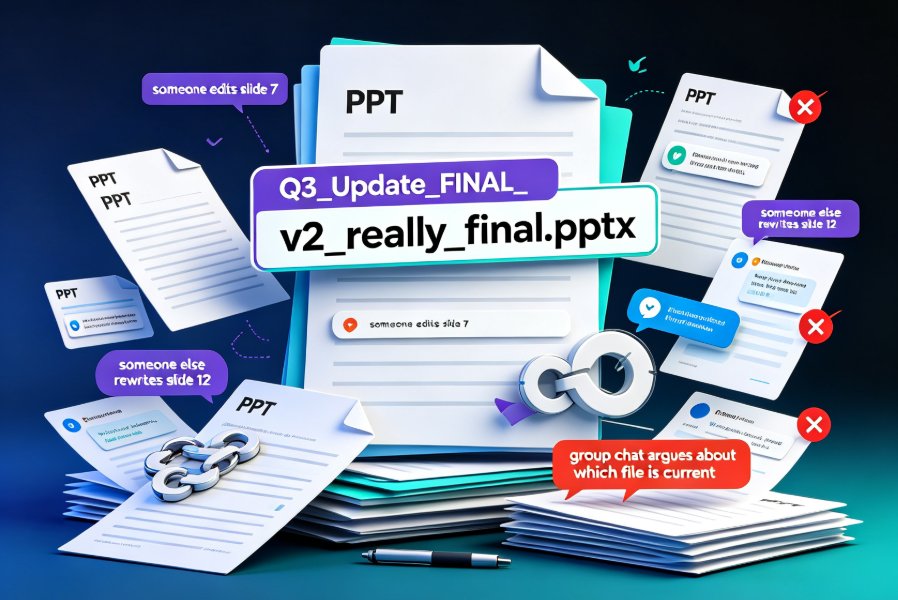
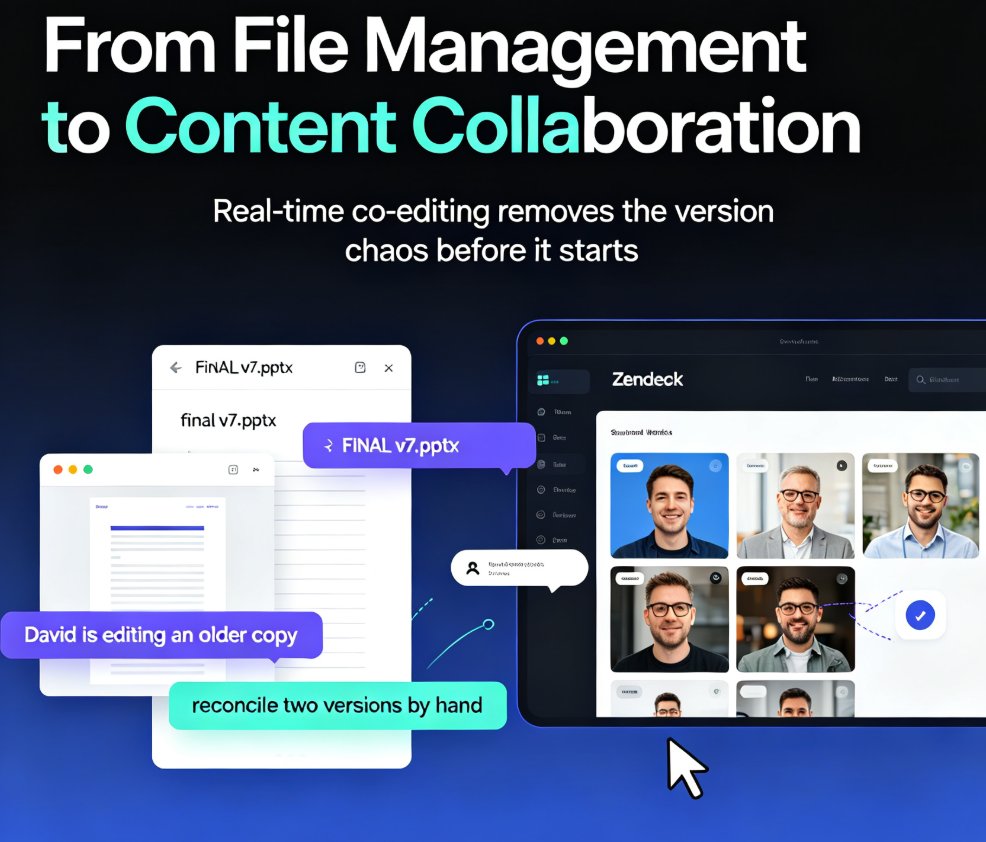
Picture this: it's Tuesday night, your team's deck is due Friday, and Sarah just sent "FINAL_v7.pptx" to the group chat. Ten minutes later, David is editing an older copy, and you're about to spend an hour reconciling two versions by hand. Sound familiar? If you've ever built a presentation with more than one person, you know the drill. Real-time collaboration is the fix, and it's exactly what Zendeck brings to the table.
01 The Email Ping-Pong That Kills Productivity
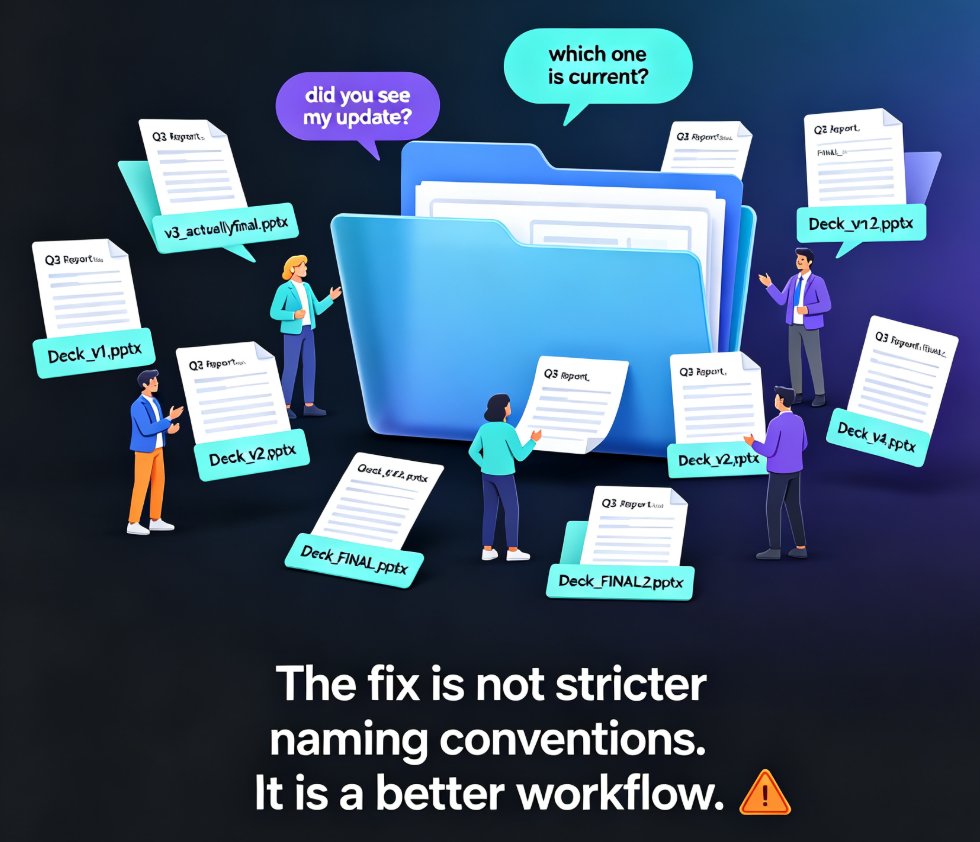
We've all been there. You email a .pptx to a colleague, they make changes, email it back, and somehow you end up with a folder full of "Final_final_really_FINAL.pptx." It's not just annoying—it's a productivity killer. Most people I've worked with have lost a whole afternoon to version confusion at least once. The exact hours vary, but the pain is universal.
The root cause is that traditional presentation tools treat editing as a single-player activity. You open the file, you own it. When you close it, you hand it off. That's fine for a solo deck, but group projects need something different.
That's where real-time co-editing changes the game. When your team works in a shared workspace, everyone can open the same presentation at once and edit it live. You see changes as they happen—no saving, no emailing, no "send me the latest version." And because you're editing a single source of truth, the concept of "two people working on different copies" disappears.
The moment two people type on the same slide without stepping on each other's work, the whole workflow shifts from file management to actual content creation.
02 Real-Time Co-Editing: What It Actually Does
Let's be specific about what "real-time collaboration" means in a presentation tool. It's not just Google Docs for slides. Here's what you should expect:
- Everyone on the team can open the same deck simultaneously.
- Each person's edits appear instantly for everyone else.
- Comments and feedback live right on the slide, not in a separate Slack thread or email chain.
- A shared asset library means everyone pulls from the same icons, charts, and brand colors.
This is a meaningfully different workflow from the old pattern. Instead of emailing a .pptx around and hoping nobody's quietly editing an older copy, you get a shared space where parallel work is the norm. Two teammates can work on different sections at the same time, and there's no need to reconcile anything afterward.
Here's a quick comparison:
| Workflow Aspect | Old Way (email traditional PPT) | Zendeck Real-Time Collaboration |
|---|---|---|
| File sharing | Email attachments back and forth | Shared workspace with instant access |
| Editing | One person at a time, offline | Multiple people edit simultaneously |
| Feedback | Scattered across emails/chats | In-slide comments with context |
| Version control | Manual "save as" and renaming | Automatic version history, one-click rollback |
| Asset consistency | Everyone uses their own icons/fonts | Shared library enforces brand consistency |
The shift is from "file management" to "content collaboration." You stop worrying about which version is current and start focusing on making the deck better.
◉ What happens if two people edit the same text block at once?
In most modern collaborative tools, the system handles conflicts gracefully. You see each other's changes in real time, and if you're both typing in the same field, you'll notice it immediately—no silent overwrite. That's a huge improvement over the old "I saved my version over yours" panic.
03 Version History: Your Deck's Time Machine
Even with real-time editing, mistakes happen. Someone deletes a slide by accident, or a whole section gets restructured in a way that doesn't work. That's where version history becomes your best friend.
Version history automatically records every change made to a presentation as you work. You can see who changed what, when, and even roll back to any earlier point. It's like having an undo button that spans the entire project, not just your last keystroke.
A version history isn't a nice-to-have feature; it's the difference between a bad morning and a lost deck.
For teams, this removes a huge source of anxiety. You can experiment freely with designs, try a bold new structure, and know you can always revert if it's not working. No more manual "Save As" backups or nagging teammates to "keep the original."
The most common failure mode in team decks is two people making conflicting changes without knowing it. Version history catches that. When someone edits a slide you'd just finished, you'll see it in the history, and you can discuss it before it becomes a problem. It's a safety net that makes bold collaboration safe.
04 Collaboration That Scales: Remote Teams and Classrooms
Real-time collaboration isn't just for corporate marketing teams. It's equally powerful for educators and trainers.
Picture a group of students working on a group presentation. In the old world, they'd meet after class, pass a USB stick around, or send ten versions via email. With a shared workspace, they can all work on the deck from their dorm rooms, comment on each other's sections, and have a polished presentation ready before the deadline. The teacher can even drop in to leave feedback directly on slides, which is far more effective than a separate email.
The same goes for remote work. If your team is spread across time zones, real-time collaboration means you don't have to wait for someone to "finish their part" before you can see it. You can work in parallel, comment on anything that's off, and keep the project moving 24/7.
And because you can control permissions—who can view, comment, or edit—you don't have to worry about someone accidentally deleting a whole section. Set edit access for the people who need it and view-only for stakeholders who just need to review.
For more on how small design elements affect team output, you might enjoy our piece on hidden features of AI presentation tools that boost team productivity. It covers a few other tricks to get more out of your workflow.
05 A Simple Workflow to Get Started
You don't need a complicated rollout to start using real-time collaboration. Here's a five-step workflow that works for most teams:
- Create a shared workspace in Zendeck. This becomes the single home for all your team's presentations, organized into folders.
- Invite your team and set permissions. Decide who can edit, who can comment, and who can only view.
- Start with an outline. Paste a Word outline or Markdown into Zendeck and let AI generate the initial deck. This gives everyone a structure to build on.
- Assign sections in parallel. Each teammate edits their part simultaneously. Use comments to flag questions or ideas.
- Review version history before the final deadline. Check what changed, roll back anything that didn't work, and lock down a final version.
This isn't rocket science—it's just a better way to work together. The key is to break the habit of emailing files and build a single source of truth for every presentation.
If your team still lives in "FINAL_v7" land, it's time to make the switch. Real-time collaboration isn't a luxury feature anymore; it's the standard way modern teams build decks together. And with Zendeck, you don't need to be a designer or a tech wizard to use it.
For more workflows and practical tips, browse our office efficiency category or dive into other guides on building consistent, on-brand decks.
FAQ
Q: How does real-time collaboration work in Zendeck? A: Multiple people can open the same deck simultaneously and edit it live. Changes appear instantly for everyone, and comments stay in the slide instead of scattered across emails or chat apps.
Q: Can I control who can edit or view my deck? A: Yes. You can set individual permissions or use shareable links with different access levels—view, comment, or edit. That way, stakeholders can review without being able to break anything.
Q: What happens if someone makes a mistake or deletes something important? A: Version history records every change, so you can roll back to any earlier state in one click. Nothing is permanently lost as long as you're working in a versioned workspace.
Q: Is this useful for teachers and students? A: Absolutely. Students can co-create group projects from anywhere, and teachers can provide direct feedback on slides. It also works well for courseware creation and micro-course production.
Q: Does Zendeck require any special software or setup? A: No. It runs in your browser, so there's nothing to install. Just create a workspace, invite your team, and start collaborating right away.