Team Deck Collaboration: How Zendeck Keeps Everyone in Sync
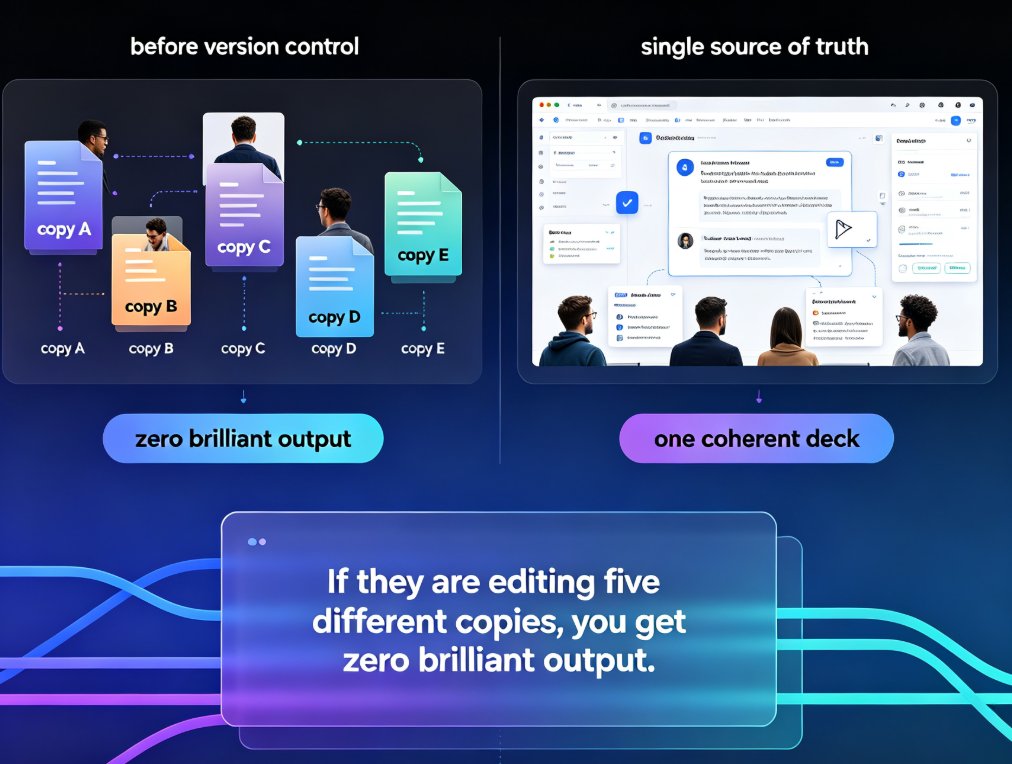
Let's be real — you've lived this. The email thread with fourteen attachments, all named something like Q3_Deck_FINAL_v2_reallyfinal_3.pptx. Someone's always working from the wrong copy. Someone else overwrites your slide 12 edits without noticing. And the "final" deck somehow has two different versions of the revenue chart floating around, depending on who you ask.
It's not a workflow problem. It's a version-control nightmare — and it's costing your team more than just patience.
The fix is simple: stop moving files around and start collaborating on one live deck. That's exactly what Zendeck's team collaboration features are built for — online editing, link sharing, and real-time sync that keep every stakeholder looking at the same, current version.
In this guide, I'll walk through how Zendeck kills the version-control chaos, what real-time co-editing actually changes for your team, and how to set up a collaboration workflow that survives contact with real deadlines.
01 Why team decks turn into chaos
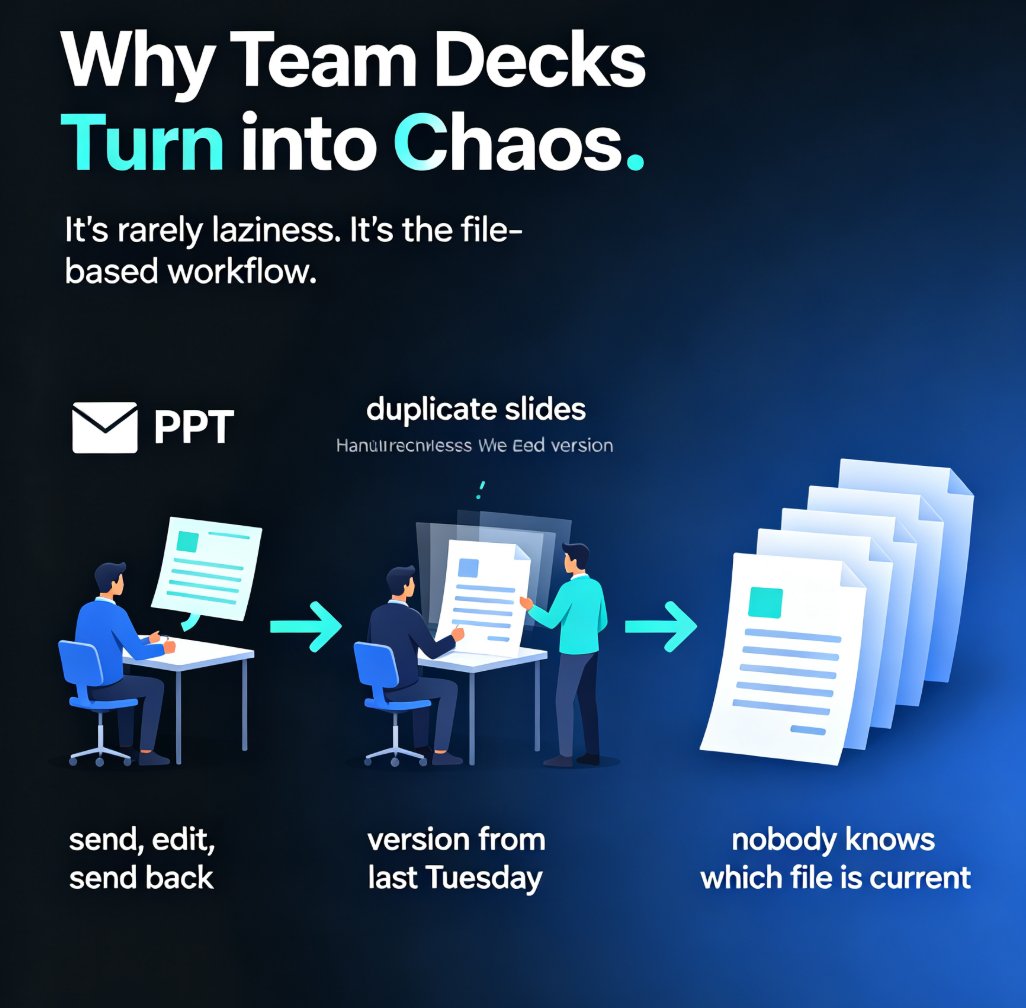
The root cause is rarely laziness or incompetence. It's the tool. When your presentation lives in a downloadable file, collaboration has to happen through a chain of "send, edit, send back" — and that chain breaks the moment more than two people are involved.
Here's the typical failure sequence:
- You build the deck and email it to the team.
- Three people download it and edit their own copies.
- Someone merges two copies by hand, introducing duplicate slides.
- A stakeholder comments on the version from last Tuesday.
- Nobody can say with confidence which file is current.
Every extra person in the review loop multiplies the chance of version drift. By the time a five-person team has gone through three rounds of feedback, you're managing more file versions than actual slides.
The pain point isn't editing — it's coordination. And coordination is exactly what a real-time collaboration tool solves.
02 Real-time co-editing is the baseline
Here's the thing: real-time co-editing isn't a luxury feature anymore — it's the baseline your team should expect from any modern presentation tool. If your team is still emailing PPT files in 2026, you're not behind on design; you're behind on process.
Zendeck lets multiple people work on the same deck at the same time. You see edits as they happen, no refresh needed, no "who's got the file open?" guessing game. When a colleague updates the Q3 numbers on slide 8, you see it the moment they save — and you're both looking at the same live document.
This matters more than it sounds. In a traditional workflow, the cost of a single edit is the entire distribution cycle: save, email, wait, confirm receipt, hope nobody's working from the old copy. In a real-time workflow, the cost of an edit is... an edit.
The shift also changes how teams behave. When everyone's in the same live file, people stop hoarding their work until it's "ready." They edit as they go, because there's no risk of stepping on each other. Small, frequent updates replace big, risky merges — and that's a much healthier way to build a deck.
For a deeper look at why co-editing has become a non-negotiable feature, check out our breakdown of collaborative AI decks and why real-time co-editing is now a baseline.
03 Link sharing that doesn't spiral out of control
Sharing a deck used to mean attaching a file. Then it meant uploading to a drive folder and praying the permissions were right. Zendeck's approach is simpler: share a link, set the access level, done.
The key is granular permissions. You don't give everyone the same keys to the castle:
- View-only — for stakeholders who just need to see the final deck
- Comment-only — for reviewers who should give feedback but not touch content
- Edit access — for the core team actually building the deck
This matters especially when external people are involved. Clients, contractors, and subject-matter experts don't need to rummage through your working files — they need a controlled window into the deck. Zendeck's permission model lets you open that window without losing control.
And because access is managed through links, you can revoke it just as easily. The contractor who finished their section? Revoke the link. The stakeholder who left the project? Revoke the link. No more "please delete that file I sent you" emails.
If you regularly work with outside stakeholders, you'll want to read our guide on real-time collaboration with external clients using Zendeck permissions.
04 Comments and feedback that stay in context
Let's talk about feedback — the part of collaboration that usually generates the most chaos. In the email workflow, feedback arrives as a wall of text: "Slide 3 looks off, can we make the chart bigger? Also slide 9 has a typo, and I think the conclusion needs work."
Now you have to map vague comments to specific slides, guess which version the reviewer was looking at, and hope you didn't miss anything.
Zendeck solves this with in-context comments. Feedback lives on the slide it's about. A comment on slide 9 stays attached to slide 9, visible to everyone, with a thread that captures the decision. No more "which slide did you mean?" — the context is built in.
When feedback is anchored to the exact slide, review cycles shrink from days to hours. That's not a marketing claim; it's just what happens when people stop re-explaining what they're referring to.
The comment threads also create a decision log. Three weeks later, when someone asks "why did we change the pricing slide?", the answer is right there in the thread — not buried in a deleted email chain.
05 Version history — your safety net
Even with real-time collaboration, mistakes happen. Someone deletes a slide they shouldn't have. A design change goes sideways. A stakeholder asks, "can we go back to the version from last week?"
In the email workflow, that question triggers a frantic search through old attachments. In Zendeck, it's a click. Version history keeps a record of your deck's evolution, so you can roll back to any earlier state without losing the work that came after.
This is the safety net that makes bold editing possible. When you know you can revert, you're more willing to experiment — and that's when the deck actually gets better. For more on keeping control of your content, see how to manually edit AI-generated slides in Zendeck.
06 Email workflow vs. Zendeck: a side-by-side
Let's put the two workflows next to each other. This is based on a typical five-person team producing a quarterly business review deck:
| Aspect | Email + PPT workflow | Zendeck collaboration |
|---|---|---|
| File versions in circulation | 10–15 copies | 1 live file |
| Time to know which version is current | Minutes to hours | Instant |
| Feedback location | Scattered across email/chat | Anchored to slides |
| Risk of overwriting someone's work | High | None (real-time sync) |
| External client access | File attachments, permission chaos | Link with granular permissions |
| Rolling back a bad edit | Manual file archaeology | One-click version history |
| Meeting time spent on "status updates" | High | Minimal |
The pattern is obvious. The email workflow spends most of its energy on coordination overhead; the Zendeck workflow spends it on actual content.
Here's what that difference looks like in practice — the number of file versions a typical team juggles over the life of one deck:
07 A practical team workflow that works
Enough theory — here's a concrete workflow you can steal for your next team deck.
Step 1: Start from one source of truth. Create the deck in Zendeck and share the edit link with your core team. From this point, nobody works on a local copy.
Step 2: Assign owners per section. One person owns the numbers, another owns the narrative, a third owns design. Clear ownership prevents the "I thought you were handling that" problem.
Step 3: Use comment threads for decisions. When a reviewer raises an issue, resolve it in the thread on the slide. The decision becomes part of the deck's history, not a buried email.
Step 4: Set the right permission levels. Core team gets edit access. Stakeholders get comment access. External reviewers get view access. Adjust as the project moves from draft to final.
Step 5: Review against version history. Before you call it final, scan the version history to confirm nothing important got lost in the edits.
This workflow works because it removes the coordination tax. Your team spends its energy on the deck, not on managing the deck. And if you're building decks from scratch, Zendeck's AI generation feeds straight into this collaborative loop — generate a draft, share it, refine it together. For more on how AI is reshaping presentation workflows, see why AI slide generation is shifting from design to strategy.
If you want to apply this to your broader daily operations, our office efficiency guides cover more ways to streamline team workflows.
FAQ
Can multiple people edit the same Zendeck deck at the same time? Yes. Zendeck supports real-time co-editing, so several team members can work on the same presentation simultaneously without creating conflicting copies. Edits appear live, and everyone stays in sync.
How do I share a deck with external clients without giving away editing rights? Use link sharing with granular permissions. You can set a link to view-only, comment-only, or full edit access, and you can revoke access at any time. External collaborators only see what you choose to share.
What happens if someone makes a mistake or deletes a slide? Zendeck keeps version history, so you can roll back to any earlier version of the deck. The safety net means a bad edit is a minor inconvenience, not a crisis.
Can I still manually edit AI-generated slides in Zendeck? Absolutely. AI-generated slides are fully editable — you can tweak text, images, and layouts after generation. The AI handles the heavy lifting; you keep final control.
Is real-time collaboration available for external clients too? Yes. You can invite external collaborators with controlled permissions, so clients and contractors can review and comment without disrupting your core team's workflow.