Word to PowerPoint in Minutes: How Zendeck AI Turns Outlines into Slides
Word to PowerPoint in Minutes: How Zendeck AI Turns Outlines into Slides
You've got a 40-page Word document. A training session starts in three hours. And somehow, you're supposed to turn that wall of text into a deck that doesn't make your audience's eyes glaze over.
Sound familiar?
If you're an educator, trainer, or content lead, this is the Tuesday you know too well. The content is done — it's sitting in Word, perfectly organized with headings and bullet points. The problem was never the material. It was the hours of copying, pasting, resizing, and reformatting that stood between you and a presentable deck.
The good news: that gap just closed. AI presentation tools like Zendeck now read your Word outline — the actual structure, not just the text — and generate a professionally designed deck in minutes. No template hunting. No font wars. No 2 a.m. slide-building marathons.
Let's walk through exactly how this works, what makes it different from the old "Slides from Outline" trick in PowerPoint, and how to get the best results from your own documents.
I. The Real Problem: Your Content Is Ready, Your Design Isn't
Here's the thing nobody talks about in "AI presentation" articles: most people don't start from a blank page. They start from a document. A training manual. Lecture notes. A compliance guide. A pitch document that's been through six rounds of edits.
The content is already structured — headings, subheadings, bullet levels. But converting that structure into slides has always meant one of two things:
- The copy-paste grind: Manually moving text block by block into PowerPoint, then spending another hour fixing alignment, choosing fonts, and hunting for icons.
- The "Slides from Outline" shortcut: PowerPoint's built-in feature that technically imports your Word outline but dumps it into default templates with zero design intelligence. You get slides that look like 2003 called and wants its layout back.
The real cost isn't the time — it's the quality gap. When you're rushing to convert content, design becomes an afterthought. And audiences notice. A 2024 study by Prezi found that 55% of professionals say a presentation's visual design directly impacts how much they trust the content. Rushed slides don't just look bad; they make your material look less credible.
That's the pain point. Now here's the shift.
II. What Zendeck Actually Does With Your Word Outline
Zendeck's Word import isn't a "paste and pray" feature. It reads your document the way a good instructional designer would — by understanding hierarchy, intent, and the relationships between points.
Here's what happens under the hood:
- Structure detection: The AI identifies your heading levels (H1, H2, H3) and maps them to slide titles, section headers, and bullet content. A 40-page training manual becomes a 25-30 slide deck with a logical narrative arc — not just a slide-per-paragraph dump.
- Content condensation: Long paragraphs get distilled into scannable bullets. Key terms stay bolded. The AI knows the difference between a supporting detail and a main point.
- Design automation: Layouts, typography, color schemes, and imagery are applied automatically based on your content type and audience. You don't pick a template — the AI picks the right look for your material.
- Consistency by default: Every slide follows the same design system. No font drift, no mismatched colors, no orphaned bullet points.
The key difference: Zendeck treats your outline as a narrative, not a checklist. That's why the output feels like a presentation someone actually designed — because the structure was understood, not just parsed.
And if you're wondering whether this works for messy, unstructured content too — it does. Zendeck handles brain dumps, meeting notes, and stream-of-consciousness writing just as well as clean outlines. Check out how brain dumps become structured presentations for a deeper dive.
III. The Workflow: From Word Doc to Presentation-Ready Deck
Let's be concrete. Here's the exact workflow, step by step.
Step 1: Prepare your outline (optional, but helpful)
Zendeck handles messy formatting, but a little structure goes a long way. If your Word doc uses proper heading styles (Heading 1, Heading 2, etc.), the AI will map those directly to slide hierarchy. No heading styles? No problem — the AI infers structure from your content's flow.
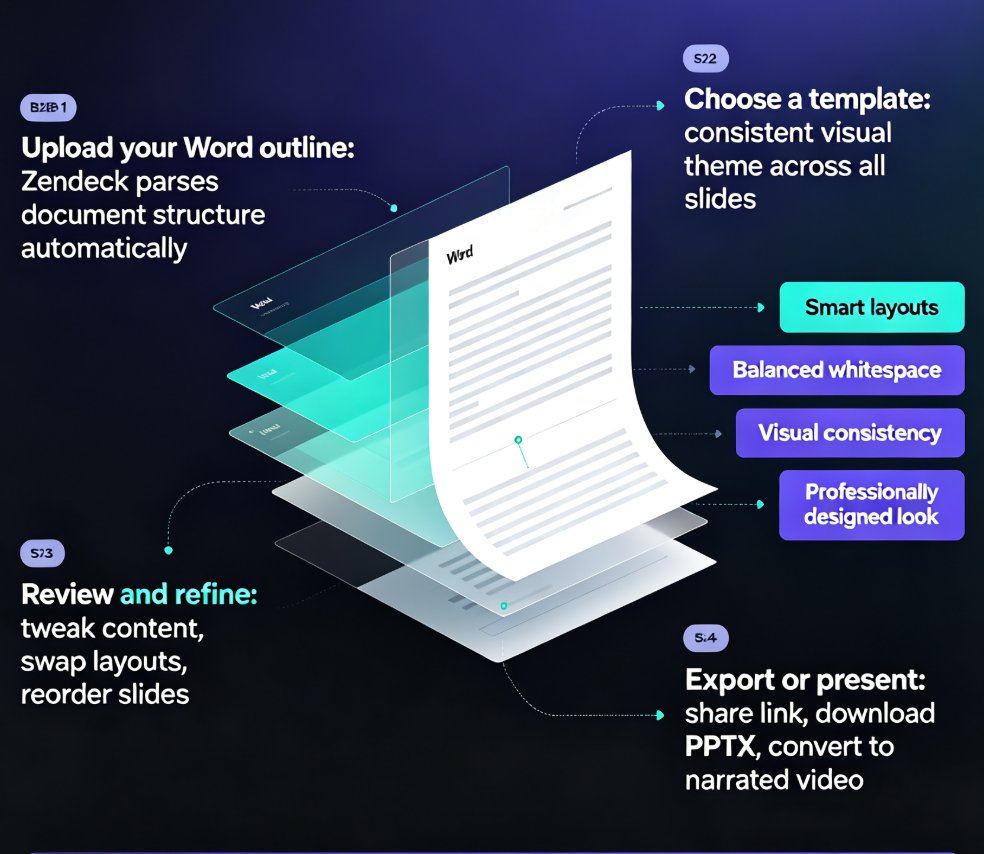
Step 2: Import your document
Paste your outline directly into Zendeck, or upload your Word file. The platform accepts Word documents, Markdown, and plain text. You can also paste a brain dump — meeting notes, stream-of-consciousness writing, even a rough email — and the AI will structure it for you. The same engine that turns blog posts into slide decks handles Word documents just as naturally.
Step 3: Set your parameters (optional)
Want to control the output? Set your slide count (5 to 50+), choose your language (40+ supported), define the tone (technical, casual, boardroom-ready), and specify your audience. Or skip all of it and let the AI decide.
Step 4: Generate and review
Click generate. In under a minute, you'll have a complete deck — not a template with placeholder text, but your actual content, professionally designed. Preview it as a slideshow to check the flow.
Step 5: Refine with AI or edit manually
Here's where Zendeck really shines. You can: - Edit any slide directly — text, images, layout — just like you would in PowerPoint - Use natural language prompts to expand, simplify, or rewrite sections - Swap the entire template with one click if the first design isn't right
If you're curious about the editing side, here's how manual editing works on AI-generated slides.
Step 6: Export or share
Download as PowerPoint, share via link, or collaborate with your team in real time. If you want to go further, Zendeck can even turn your deck into a narrated video course — but that's a story for another article.
IV. Why "Understanding Structure" Matters More Than You Think
Here's what separates Zendeck from the old-school approach: PowerPoint's built-in "Slides from Outline" feature has existed for years. It imports your Word headings into slides. So why does it still feel broken?
Because it doesn't understand anything. It maps Heading 1 to a slide title, Heading 2 to a bullet, and calls it a day. No design logic. No narrative flow. No awareness of what your content is actually trying to communicate.
Zendeck reads intent, not just text. When your outline says "Key Challenges" followed by five sub-points, the AI knows that's a section slide with supporting bullets — not five separate slides with one bullet each. When a paragraph runs long, it gets condensed into scannable takeaways. When your content is data-heavy, the AI suggests charts and visualizations.
This matters because your audience doesn't read slides. They scan them. A deck that respects hierarchy and visual rhythm keeps attention where it matters — on your message, not on your formatting.
V. Real Scenario: A Trainer's Tuesday, Transformed
Let's make this concrete. Meet Sarah — a corporate trainer who runs onboarding sessions for a mid-sized tech company. Every month, she updates a 35-page Word training manual with new product features, policy changes, and process updates.
Before Zendeck: Sarah's Tuesday looked like this — 9 a.m. to 11 a.m. copying content into PowerPoint, 11 a.m. to noon fighting with alignment and font sizes, and 1 p.m. to 2 p.m. hunting for icons and images. By the time she finished, she had a deck that worked but looked... fine. Not great. Fine.
After Zendeck: Sarah pastes her updated Word manual into Zendeck, sets the tone to "professional" and the audience to "new hires," and clicks generate. Six minutes later, she has a 28-slide deck with consistent branding, clean layouts, and her actual content — no placeholder text, no manual formatting.
She spends the saved time doing what actually matters: reviewing the flow, adding a personal anecdote, and rehearsing her delivery.
The outcome isn't just faster — it's better. Sarah's decks now look like they were designed by a professional, because the design system does the heavy lifting. Her trainees engage more, her manager notices, and she gets her Tuesday back.
VI. Manual vs. AI: The Numbers Don't Lie
Let's put some numbers on this. Here's a typical comparison for a 30-page Word document:
| Task | Manual (PowerPoint) | Zendeck AI |
|---|---|---|
| Content transfer | 45-60 min | 1 min (auto) |
| Layout & design | 60-90 min | Auto (included) |
| Template/branding | 30-45 min | Auto (brand kit) |
| Review & refine | 30-45 min | 15-20 min |
| Total time | 2.5 - 4 hours | 15 - 25 minutes |
| Design consistency | Inconsistent | Uniform |
| Error rate | High (copy-paste) | Low |
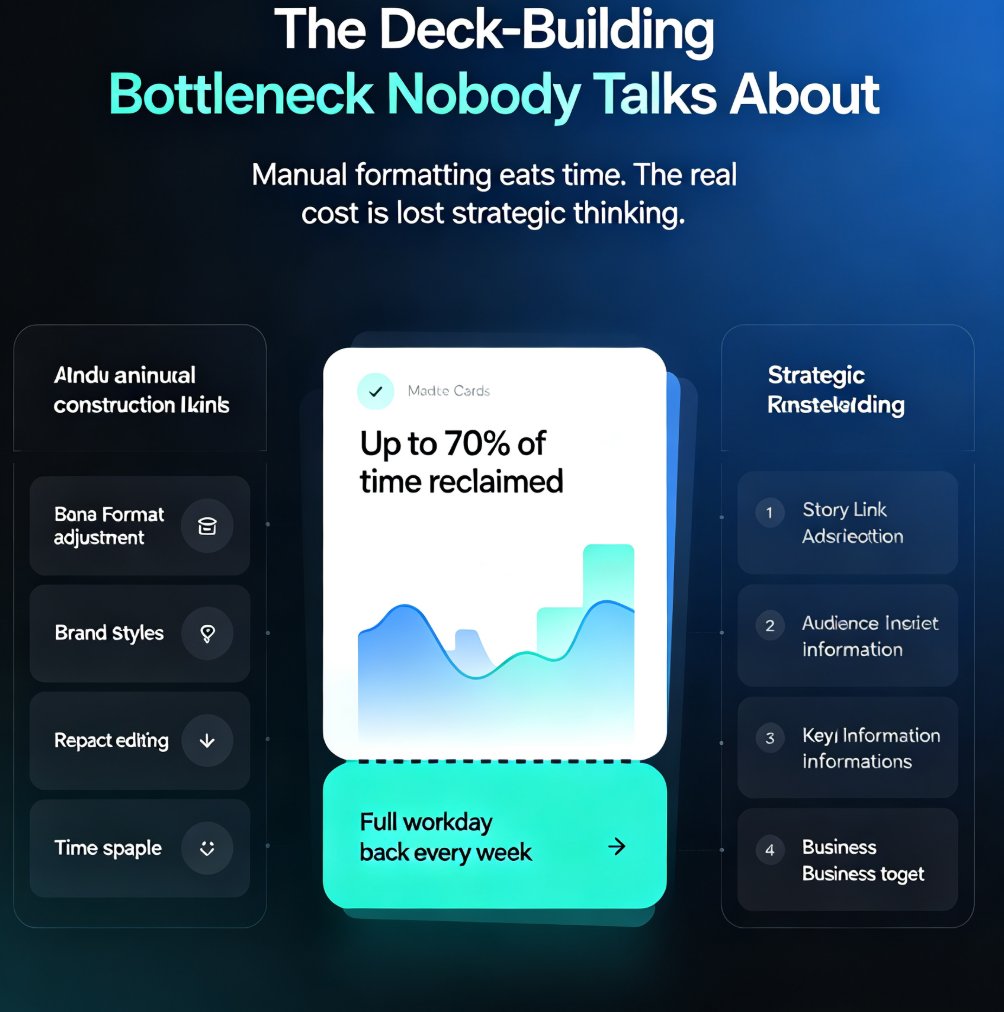
The time savings aren't the only win — the quality ceiling rises too. When you're not spending hours on formatting, you have energy left for the parts that actually move your audience: the story, the examples, the delivery.
VII. Getting the Best Results: What I've Learned
After watching dozens of educators and trainers use Zendeck's Word import, a few patterns stand out. Here's what separates a great import from a mediocre one:
1. Use heading styles in Word. If your document uses proper Heading 1 / Heading 2 / Heading 3 styles, Zendeck maps them directly to slide hierarchy. It's the single biggest quality lever you control.
2. Keep paragraphs tight. The AI condenses long paragraphs, but it works better when you give it scannable content to start with. Break long blocks into shorter ones before importing.
3. Don't over-specify. You don't need to set every parameter. Let the AI choose the template and layout — that's what it's good at. You'll spend more time reviewing than configuring.
4. Review the narrative flow, not the pixels. After generation, read through your deck as a slideshow. Check that the story arc works — that each section builds on the last. Fix content issues first, then tweak design if needed.
5. Use a brand kit if you have one. If your organization has brand colors and fonts, setting up a brand kit in Zendeck ensures every generated deck automatically follows your brand guidelines — no manual adjustments needed.
One more thing: don't be afraid to edit. Zendeck's output is a starting point, not a final product. The best decks I've seen from users are the ones where they took the AI's structure and made it their own — added a personal story, swapped a chart, tightened a headline.
VIII. The Bottom Line
If you have content in Word, you already have 80% of your presentation done. The missing piece was never the material — it was the translation from document to deck. Zendeck closes that gap by reading your structure, respecting your content, and handling the design so you don't have to.
The workflow is simple: paste your outline, click generate, review, refine, present. Total time from Word doc to presentation-ready deck: under 30 minutes, most of it spent on review rather than formatting.
And if you're curious about how far this can go — Zendeck can also turn your finished deck into a narrated video course, auto-generate speaker notes, or help you build a custom brand kit. But start with the Word import. It's the fastest win you'll get all week.
For more on AI-powered presentation workflows, check out the AI courseware category for related guides and tutorials.
FAQ
Q: Can Zendeck import Word documents directly? A: Yes. Zendeck accepts Word outlines, Markdown, and plain text. Paste your content or upload the file, and the AI reads the heading hierarchy to build a structured deck.
Q: Does Zendeck preserve my original formatting? A: Zendeck focuses on structure, not formatting. It reads headings, subheadings, and bullet levels to rebuild your content as clean, professionally designed slides — so you don't have to fight with inconsistent fonts or broken layouts.
Q: How long does it take to convert a Word outline to slides? A: Most decks generate in under a minute. A 40-page Word document typically becomes a 20-30 slide deck in about 5-10 minutes including review and tweaks.
Q: Can I edit the slides after Zendeck generates them? A: Absolutely. Every slide is fully editable. You can change text, swap templates, adjust layouts, or regenerate specific slides with natural language prompts.
Q: What types of Word content work best? A: Structured outlines with clear heading levels work best — training manuals, lecture notes, compliance documents, and course outlines. But Zendeck also handles messy formatting and stream-of-consciousness notes.