Word-to-PPT Automation: The End of Manual Copy-Paste for Educators and Trainers
Word-to-PPT Automation: The End of Manual Copy-Paste for Educators and Trainers
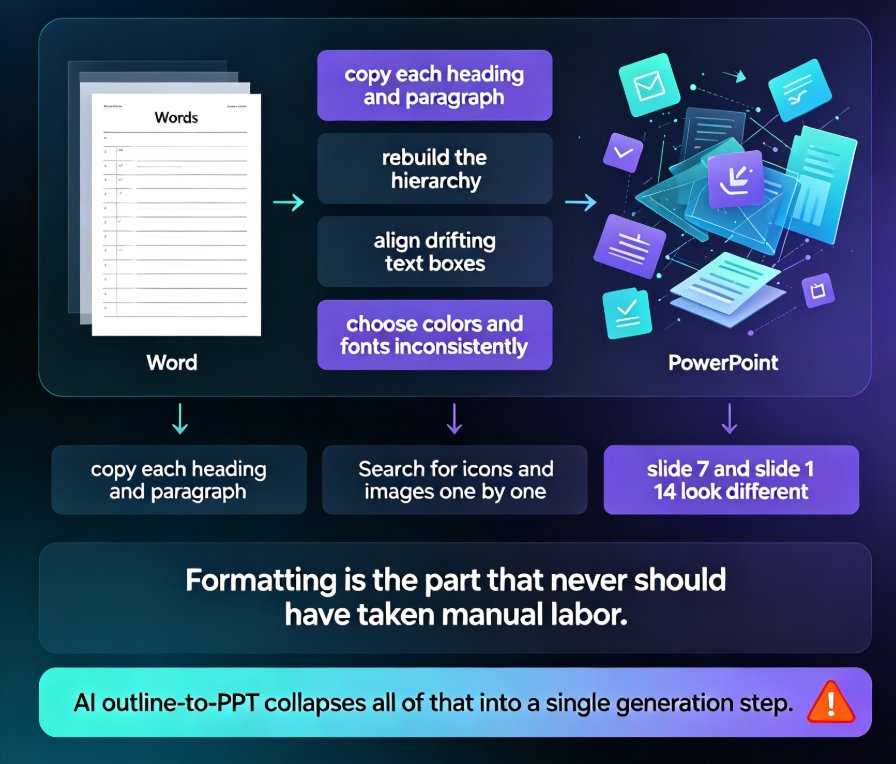
You know the drill. It's Sunday evening. You've got a 40-page Word document of lecture notes — the outline you spent weeks refining. And now you need to turn it into a 60-slide deck for Monday morning. So you start the ritual: open PowerPoint, create a new slide, copy a heading, paste it, copy a bullet, paste it, resize the text box because it doesn't fit...
Four hours later, you've got a deck that looks like it was designed by a committee of text boxes. The fonts are inconsistent, the spacing is off, and you're pretty sure slide 23 has a bullet point still bleeding off the edge.
If you're an educator or trainer, you've probably lost more hours to copy-pasting Word content into slides than you'd like to admit. It's not just tedious — it's a genuine productivity killer that eats into the time you could be spending on actual teaching.
The pain is real: manual conversion is slow, error-prone, and produces inconsistent results. And here's the kicker — the content is already written. You did the hard thinking. The slides are just a formatting exercise. So why does it take hours?
01 — What Word-to-PPT Automation Actually Does
Here's the shift that's quietly changing how educators build decks: modern AI presentation tools can read your Word outline directly and turn it into a structured, visually consistent slide deck. No copy-paste. No manual formatting. No fighting with text boxes.
The workflow is simple. You upload a Word document — or paste Markdown or plain text — and the tool parses the structure. It detects your heading hierarchy, recognizes bullet points as slide content, and generates slides that match your outline's logic. The result is a deck that mirrors your document's structure, but with proper design applied.
This isn't just a "nice to have" feature. For educators who already have detailed lecture notes, training manuals, or course outlines in Word, it's the difference between a four-hour chore and a fifteen-minute task. And it's becoming a standard expectation in AI presentation tools — you can read more about how AI presentation tools integrate with Word and Google Docs to understand the broader trend.
02 — The Time Math: Manual vs Automated
Let's put some numbers on this. A typical 60-slide deck built from a Word outline involves roughly 240 minutes of manual work — copying text, pasting, adjusting layouts, fixing fonts, and re-aligning elements. With Word-to-PPT automation, that same deck can be generated in 15 minutes or less, with most of the remaining time spent on fine-tuning.
The takeaway: educators who switch to Word-to-PPT automation typically cut deck-building time by 90% or more. That's not a marketing claim — it's simple arithmetic. When the tool handles layout, typography, and structure, you're left with only the creative decisions that actually matter.
Here's a quick breakdown of where the time goes:
| Task | Manual (minutes) | Automated (minutes) |
|---|---|---|
| Copying text from Word | 60 | 0 |
| Creating slide layouts | 45 | 0 |
| Formatting fonts and colors | 40 | 2 |
| Adjusting spacing and alignment | 50 | 3 |
| Reviewing and refining content | 45 | 10 |
| Total | 240 | 15 |
03 — How to Structure Your Word Outline for Clean Slides
Here's the thing: Word-to-PPT automation works best when your document is well-structured. The tool can only be as smart as the outline you feed it. So let's talk about how to prepare your Word document for a smooth conversion.
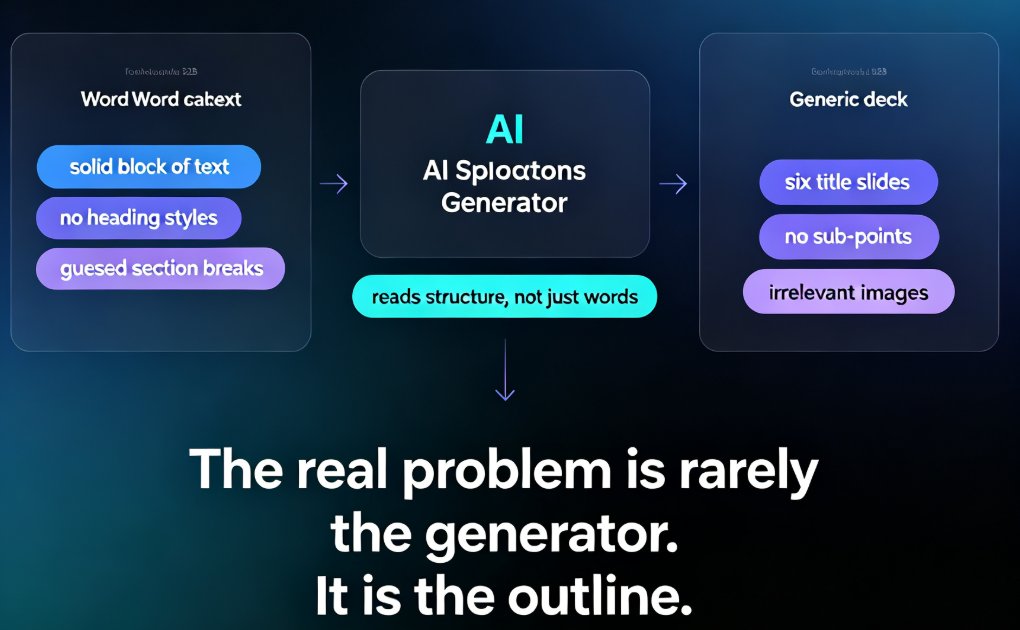
Use heading styles consistently. If your document uses Heading 1 for main sections, Heading 2 for sub-sections, and Heading 3 for details, the AI will map those to slide levels. Inconsistent heading styles — or worse, manually bolded text instead of real styles — confuse the parser and produce messy slides.
Keep bullets short and parallel. Each bullet point on a slide should be a concise phrase, not a full paragraph. If your Word document has long paragraphs, the AI will either cram them onto slides (bad) or truncate them (worse). Aim for 6-8 words per bullet.
Let the AI handle the design, not the content. Your job is to provide the logical structure. The tool's job is to make it look good. This is where tools like Zendeck shine — they apply consistent typography, color schemes, and layouts automatically, so you don't have to think about design at all.
If you're starting from a messier source — say, a brain dump of notes rather than a clean outline — check out this guide on turning a brain dump into a structured presentation with AI. And if you're working from a blog post instead of a Word doc, this walkthrough on converting blog posts to slide decks covers a similar workflow.
04 — What Zendeck Does Differently
So where does Zendeck fit in? The platform was built with educators and trainers in mind, and its Word-to-PPT workflow is one of the most seamless implementations we've seen.
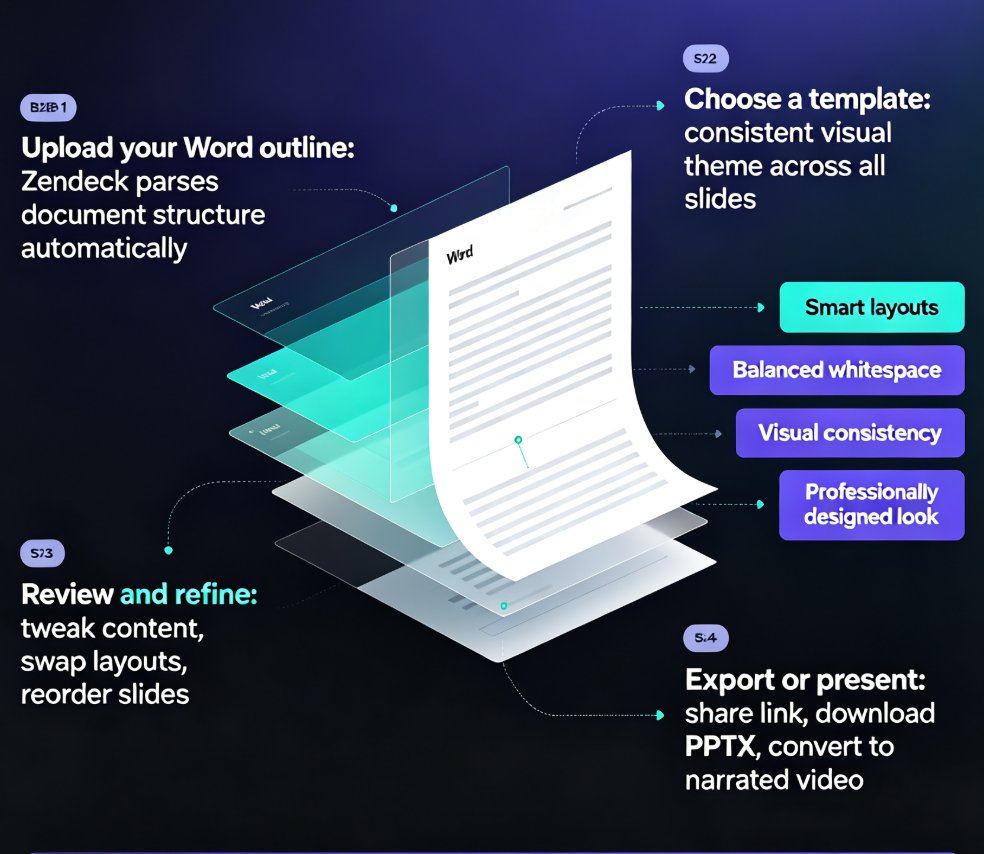
Here's what the process looks like in practice:
- Upload your Word outline — Zendeck parses the document structure automatically.
- Choose a template — the platform's template library applies a consistent visual theme across all slides.
- Review and refine — the generated deck is editable, so you can tweak content, swap layouts, or reorder slides.
- Export or present — share via link, download as PPTX, or even convert to a narrated video.
The key difference is in the design layer. Zendeck doesn't just dump your text onto slides — it applies smart layouts, balances whitespace, and maintains visual consistency across the entire deck. That's the difference between a deck that looks "AI-generated" and one that looks professionally designed. If you want to see how the prompt-to-deck flow works, this article on AI prompt to deck generation walks through the full process.
05 — Common Mistakes to Avoid
Even with automation, there are a few traps that can undermine your results. Here are the ones I see most often:
Mistake #1: Overloading slides with text. Just because your Word document has a 200-word paragraph doesn't mean your slide should. The AI will respect your content, but you should trim it to key points. Think of slides as signposts, not transcripts.
Mistake #2: Ignoring the outline hierarchy. If your Word document is flat — no heading levels, just paragraphs — the AI has nothing to work with. Spend five minutes applying heading styles before you import.
Mistake #3: Skipping the review pass. Automation gets you 90% of the way there, but you still need to review. Check for awkward breaks, verify data accuracy, and make sure the flow matches your teaching narrative.
Mistake #4: Forgetting about your audience. A training deck for new hires shouldn't look like a boardroom pitch. Choose a template that matches the context. Zendeck's template library includes options for courseware, training, and professional presentations — and if you want to dig deeper, this guide to AI presentation templates for trainers covers the selection process.
06 — The Bottom Line
Word-to-PPT automation isn't a gimmick — it's a fundamental workflow improvement for anyone who builds decks from existing documents. For educators and trainers, it means reclaiming hours of your week and producing decks that actually look professional.
The next time you're staring at a Word document and dreading the slide-building process, remember: the content is already done. The formatting should be too.
If you're ready to try it, Zendeck's Word import feature is the fastest way to see the difference. Upload an outline, pick a template, and watch your lecture notes become a polished deck in minutes. You might never copy-paste again.
FAQ
Q: Can Zendeck import Word documents directly? A: Yes. Zendeck supports uploading Word outlines, Markdown, and plain text files. The platform parses the document structure — heading levels, bullet points, and paragraph breaks — and converts them into a structured slide deck automatically.
Q: What's the best way to format a Word document for conversion to slides? A: Use consistent heading styles (Heading 1, 2, 3) and keep bullet points short and parallel. Avoid long paragraphs and manual formatting like bolded text instead of real heading styles. The cleaner your outline structure, the better the AI can map it to slides.
Q: How long does it take to convert a Word outline to slides with Zendeck? A: For a typical 40-60 page outline, the conversion takes under a minute. The total workflow — including template selection and review — usually takes 10-15 minutes, compared to 2-4 hours for manual conversion.
Q: Can I edit the slides after Zendeck generates them? A: Yes. The generated deck is fully editable. You can change text, swap layouts, reorder slides, apply a different template, or add assets from the library. Zendeck is designed to be a starting point, not a final product.
Q: Does Zendeck support converting slides to video? A: Yes. Once your deck is ready, you can use Zendeck's PPT-to-video feature to add narration and turn your slides into a micro-course or training video. This is especially useful for educators creating asynchronous learning content.