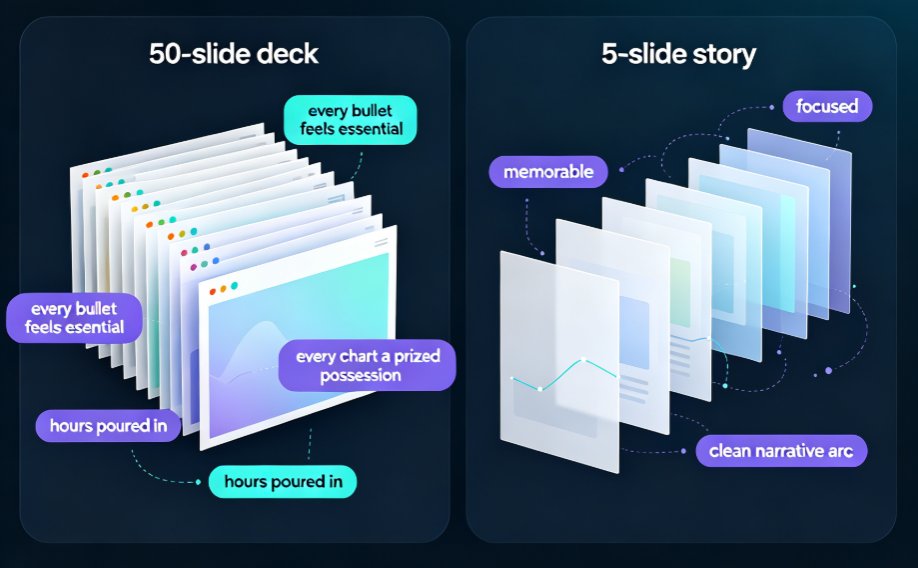
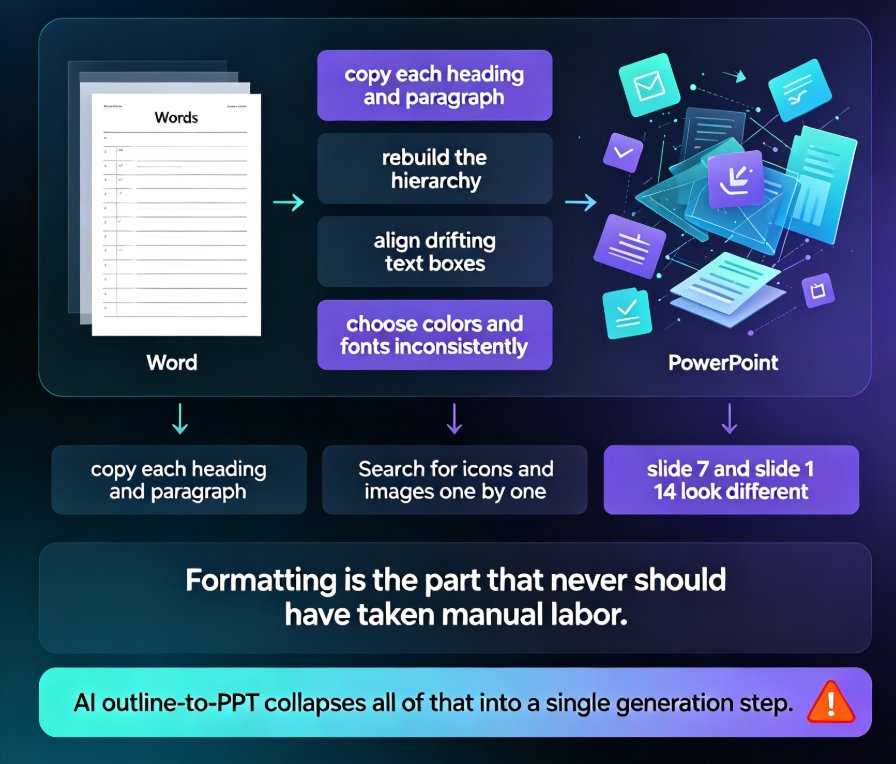
How to Write an AI-Ready Outline for Better AI Slide Generation
Have you ever spent ten minutes typing out a perfect outline... only to watch the AI spit out ten slides that look nothing like what you imagined? Let's be real: most people blame the generator. But more often than not, the problem is upstream — the outline itself.
A well-structured outline is the secret control panel of AI slide generation. When you feed organized notes into an outline-to-PPT tool like Zendeck, the AI isn't just reading words; it's reading structure. It interprets headings, sub-headings, bullet depth, and section labels to make decisions about slide count, layout, and visual hierarchy. Get that structure wrong, and no amount of prompt tweaking will fix the output.
A muddy outline will produce a muddy deck, no matter how smart the generator is.
In this guide, you'll learn the exact rules for writing an outline that any modern AI slide engine — including Zendeck — can turn into a clean, logical deck. We'll cover hierarchy, chunking, section labels, and the three mistakes that quietly break output. No fluff, just patterns you can copy into your next Word or Markdown file.
I. The Real Reason Your AI Slides Look Generic
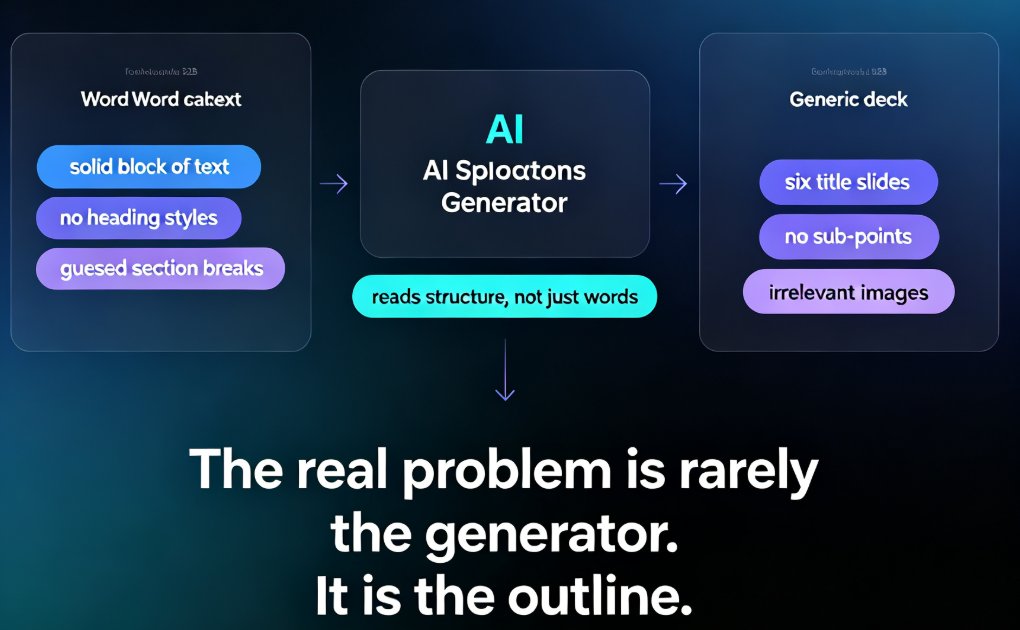
You've seen it happen: you import a solid-looking Word doc, and the generated deck comes back with six title slides, no sub-points, and images that have nothing to do with your content. The generator looks like it has no idea what you're talking about.
Here's what's actually going on. Modern AI presentation tools don't parse your document like a human skimming a page. They chunk your text into semantic units, detect heading levels, and infer relationships between nodes. If your document is a solid block of text with no heading styling, the AI has to guess where sections start and end. Guessing means inconsistency.
The output quality is capped not by the AI's intelligence, but by the structure you supply.
Let's look at the difference visually. Below is a rough measure of how many revision passes users typically need depending on how their source outline is structured — lower is better.
Notice the pattern: the more explicit your structure, the fewer rounds of "clean it up" you'll need. That's not magic; that's information transfer. You gave the AI a map instead of a blob of text.
II. The Hierarchy Rule: Think Like an Outline, Not a Paragraph
The #1 habit that improves AI slide output is using a strict heading hierarchy. If you're writing in Word, that means using styles like Heading 1, Heading 2, and Heading 3 — not just bolding text and hoping the AI figures it out. In Markdown, that means #, ##, and ###.
Why hierarchy matters: The AI maps your heading levels directly onto the slide structure. Typically:
#or Heading 1 → section divide (new part of the deck)##or Heading 2 → a new slide's title###or Heading 3 → sub-points or content blocks within a slide- Plain bullets → the actual bullet list on a slide
Here's a concrete example. A flat outline like this will confuse the engine:
| Flat outline (bad) | Hierarchical outline (good) |
|---|---|
| Introduction | # Introduction ## Why GenAI matters ### Market size ### Use cases |
| Our product | # Our product ## Core features ### Automation ### Collaboration |
| Roadmap | # Roadmap ## 2026 H1 ## 2026 H2 |
In the flat version, the AI has no idea which bullets are slide titles and which are contents. In the hierarchical version, it's obvious — every ## becomes a slide title, every ### becomes a content block, and the bullets under it become the bullet list.
Tip: If you're importing a Word document, make sure your heading styles are actually applied, not just visually bolded. Most AI tools strip text formatting when parsing; they rely on structural tags like h1, h2, li. Learn more about how tools handle Word and Google Docs in our guide on AI presentation tools and Word/Google Docs integration.
III. Chunking: How Many Bullets Does a Slide Really Need?
Another common source of janky AI output is over-long bullet lists. You might write twelve points under a single heading because it feels thorough. The AI will dutifully try to fit all twelve onto one slide — resulting in tiny text, awkward spacing, and a wall of words.
Rule of thumb: if you have more than 6 to 7 bullets under a single heading, split them into sub-headings. The AI interprets each heading as a new slide or a new content block. More sub-headings = more slides = cleaner layout.
Here's a before/after of chunking:
Before (one giant section):
## Product Overview
- Seamless onboarding
- Automated workflow builder
- Drag-and-drop design canvas
- Built-in asset library
- AI-generated icons
- One-click brand kit
- PPT-to-video narration
- Team collaboration
- Version history
- Export to multiple formats
- Real-time analytics
- Keyboard shortcuts
After (grouped into sub-sections):
# Product Overview
## Create faster
### AI-assisted workflows
- Seamless onboarding
- Automated workflow builder
- Drag-and-drop design canvas
### Design without effort
- Built-in asset library
- AI-generated icons
- One-click brand kit
## Scale with your team
### Collaboration
- Team collaboration
- Version history
### Beyond slides
- PPT-to-video narration
- Export to multiple formats
- Real-time analytics
Now the AI can see that "Create faster" has two sub-topics, and will likely generate two clean slides with three bullets each — instead of one monstrous slide with twelve cramped bullets. If you want to see how this affects template selection, we've covered it in how AI chooses the right template for you.
IV. Label Your Sections: The AI Reads Names, Not Just Text
Another overlooked factor: the quality of your section headings. If your heading says "Miscellaneous" or "Stuff", the AI will struggle to understand the semantic meaning — and it will pick a design, icon, or layout based on that weak signal.
Effective heading labels are descriptive, action-oriented, and consistent. Instead of:
- "Overview" → use "Why Remote Teams Need Async Docs"
- "Features" → use "Top 5 Collaboration Features"
- "Details" → use "Pricing, Contracts & Data Security"
These specific headings help the engine infer the slide's purpose. A heading like "Why Remote Teams Need Async Docs" tells the AI: this is a problem/solution slide, use a contrast layout, pull in an icon about workflow or communication. "Overview" tells the AI almost nothing.
If you're building a pitch deck, this specificity matters even more. A strong outline with clear problem-solution sections can be turned into a winning narrative in minutes — we cover the exact patterns in our AI pitch deck generator guide.
V. Three Outline Mistakes That Quietly Break AI Generation
Mistake 1: Inconsistent indentation. In Markdown, you need to be careful that nested bullets are consistently indented. If you mix spaces and tabs, or miss an indentation, the parser will break the hierarchy mid-document.
Mistake 2: Too many levels. Going 4-5 levels deep (#### and lower) usually confuses the slide structure. The AI will either ignore the depth or create a confusingly nested slide. Keep it to 3 levels maximum for deck purposes.
Mistake 3: Content that doesn't match the heading. This is a silent killer. If your heading promises "2026 Market Trends" but the bullets talk about office snacks, the AI will struggle to reconcile the narrative. It might auto-truncate the bullets or generate a slide that feels wrong.
Fix: Do a 3-minute "review pass" before importing. Check the heading-to-content match, fix indentation, and prune any section that goes beyond 3 levels. It's the single highest-ROI editing action you can take.
We've written a broader list of pitfalls in 5 AI presentation mistakes to avoid in 2026 — most of them trace back to this exact upstream issue.
VI. How Zendeck Turns Your Outline into a Real Deck
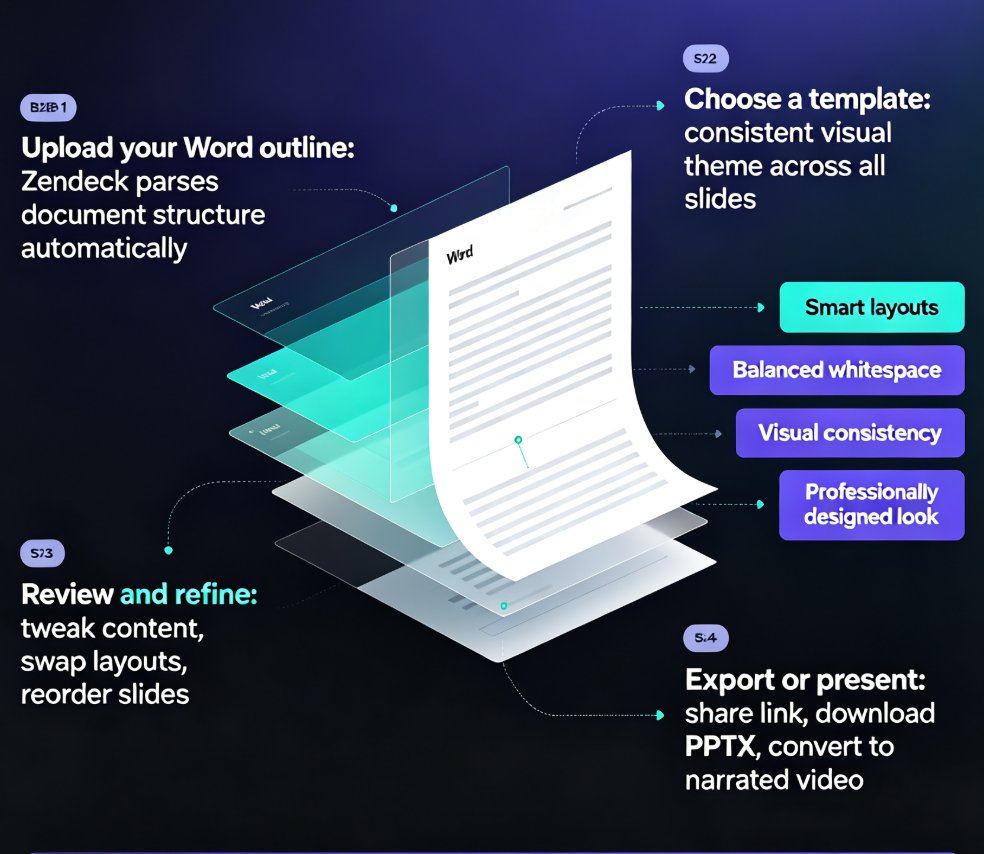
So what happens when you feed a cleaned-up outline into Zendeck? The engine parses your headings, maps them to slides, and then applies design logic from its template library. Because Zendeck was built on outline-to-PPT principles, it treats your structure as the source of truth — not a suggestion.
- Your
##headings become the slide titles, which means your deck automatically reads as a sequence of arguments. - Your
###headings control the slide's internal layout, suggesting whether to use a two-column split, an emphasis block, or a list layout. - Your bullet length informs font sizing; short bullets allow larger, bolder text.
- Your heading wording influences icon and template selection, because the engine matches semantic context to its recommended layouts.
The result is a deck that feels designed on purpose, not randomly assembled. And if you want to lock in a consistent look, you can combine your outline with a custom brand kit to keep headlines, colors, and fonts uniform across every slide. That workflow is detailed in our guide on creating a custom brand kit in Zendeck.
VII. A Before-and-After: Inside a Clean AI-Ready Outline
Let's look at a real-world example: training material for "New Hire Onboarding".
The messy version (what you might naturally write):
New Hire Onboarding
- welcome
- about us
- team structure - talk about exec team, our culture
- tools we use - slack, zoom, notion
- security and it setup
- benefits overview
- first week schedule
- check in questions
The AI-ready version (structured for the engine):
# New Hire Onboarding

## Welcome & About Us
### Our mission
- One-liner mission
- Why we exist

## Team Structure
### Executive leadership
- Names + roles
### Culture & values
- 3 core values
- How we live them daily

## Tools & IT Setup
### Communication tools
- Slack channels
- Zoom links
### Project management
- Notion workspaces
- Trello boards

## Benefits & First Week
### Benefits overview
- Health insurance
- PTO policy
### 7-day schedule
- Day 1: logistics
- Day 2: team intros
- Day 3: product training
Notice how the AI-ready version uses consistent ## and ### headings, groups related content, and keeps bullets short. Feeding this into Zendeck would produce roughly 8-10 clean slides with a logical flow — versus the messy version, which would likely output 4-5 dense, confusing slides.
VIII. The Bottom Line
The quality of your next AI-generated deck is decided long before you click "Generate". It's decided in the outline — in the heading styles, the chunking, and the labels you choose.
The five minutes you spend structuring an outline before you hit generate will save you thirty minutes of rearranging slides afterward. Treat your outline as the first draft of your presentation, not just a note-taking artifact. Your future self — and your audience — will thank you.
If you want to put this into practice, start with a short piece of content you know well: write it as a clean outline, import it into Zendeck, and see how much closer the first draft is to your vision. For a basic walkthrough of the tool's import flow, check out our AI prompt-to-deck tutorial and the broader PPT tutorial category.
FAQ
Q1: How long should an AI-ready outline be? As long as it needs to be, but keep each slide's content to 3–7 bullets and each section to 3–5 slides. Aim for 3 heading levels maximum.
Q2: Can I import a Word document directly, or do I need to convert it to Markdown?
Most modern tools, including Zendeck, handle both Word and Markdown imports. The key is using proper heading styles in Word (Heading 1/2/3) and proper # syntax in Markdown — the parser reads structure, not raw text formatting.
Q3: What if I have a legacy outline that's a mess? Should I restructure it fully? You don't need perfection. Just fix the top-level headings, group long bullet lists, and trim to 3 levels. That 10-minute cleanup will improve output massively.
Q4: Does the heading text really affect the design of the slides? Yes. The AI uses the semantic meaning of your headings to suggest layouts, icons, and even color accents. Descriptive, specific headings give the engine better signals.
Q5: What's the biggest mistake people make when writing outlines for AI? Treating the outline like a final document — writing full paragraphs and dense lists. AI works best with concise, hierarchical, chunked content. The more scannable your outline, the smarter the output.