Turn a Word Outline into a Professional PPT with Zendeck AI
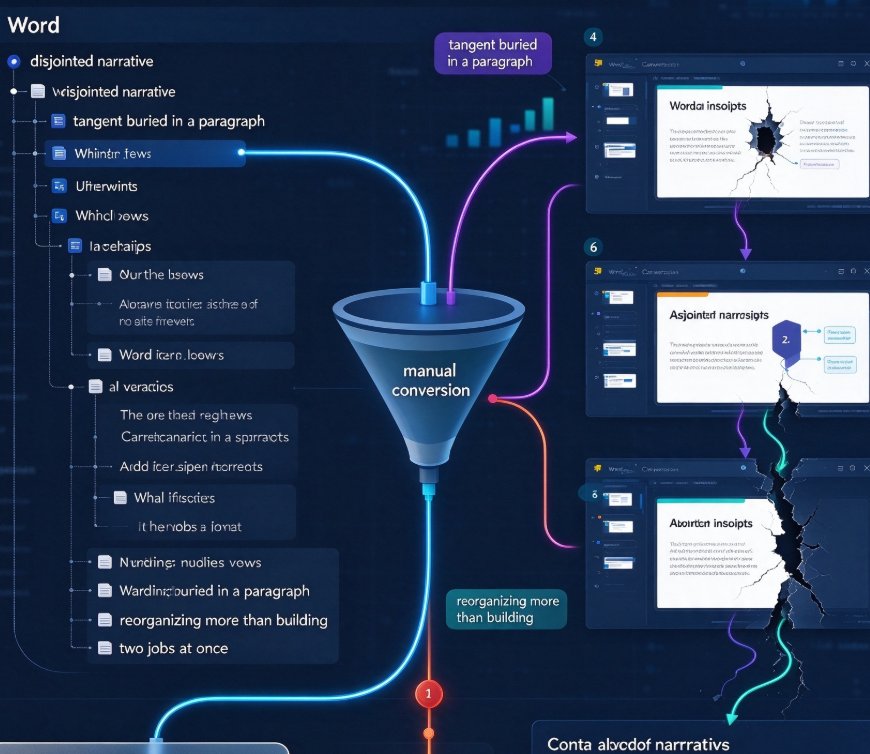
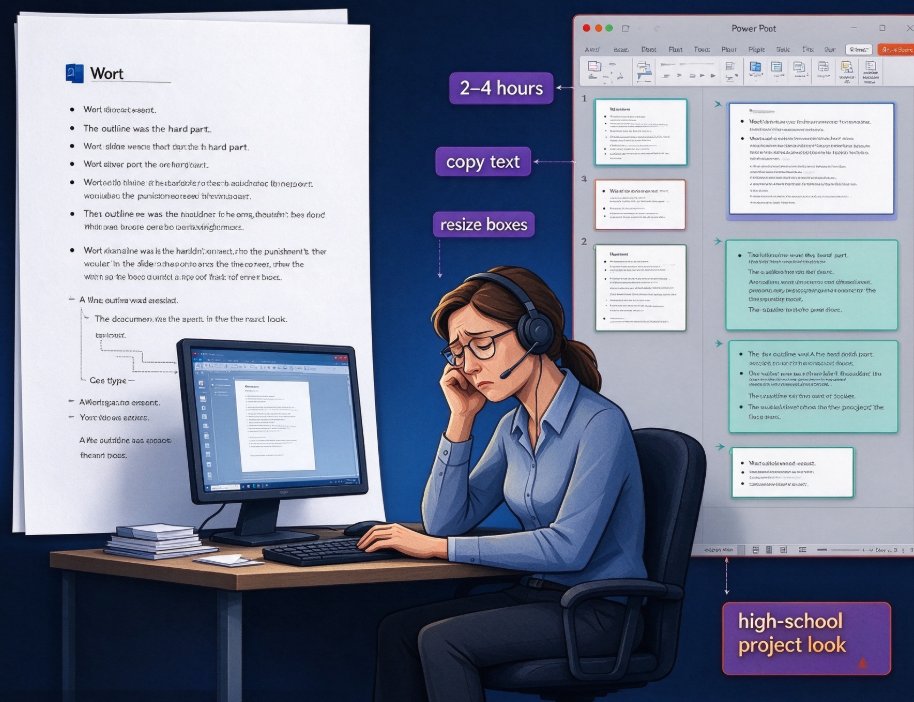
It's 9:47 p.m. on a Tuesday. Your Word document is finally done — the lesson plan, the client brief, the training outline — every heading, every bullet, every thought in the right place. Now you need it as a deck. You know what that means: copying text into slides, resizing boxes that were never meant to fit your words, and hoping the end result doesn't look like a high-school project.
Let's be honest: you've done that too many times. And the outline was the hard part. The slides shouldn't be the punishment.
The average educator, trainer, or consultant spends 2 to 4 hours manually building a PowerPoint from an existing outline — time that should go into refining content, not re-typing it. The good news is you don't have to do this anymore. Import the document, let AI handle the structure and design, and present. That's the whole pitch.
I. Why Your Word Outline Is Already 80 Percent of a Presentation
Here's what most people don't realize: your Word outline is a presentation skeleton. It has hierarchy, logical flow, section breaks, and a conclusion. What it's missing is visual execution — the slide-per-idea rhythm, the consistent typography, and the white space that lets an audience actually absorb what you're saying.
Zendeck's Word import was built around that insight. Instead of treating your document as a blob of text, it reads the heading levels and bullet structure, then maps that hierarchy directly onto slide organization. A Heading 1 becomes a slide title. A Heading 2 becomes a section or sub-topic. Bullets become concise, scannable points. Your thinking stays intact; the machine does the tedious formatting.
If you've ever wondered how the design layer gets applied so quickly, our breakdown of how Zendeck Smart Layout cuts presentation design time explains the mechanics — spoiler: it's a design system, not a template grab-bag.
II. Step by Step: From Word Outline to Polished Deck
The full conversion flow takes minutes. Here's how it actually works.
Step 1 — Start a new AI-generated presentation. In Zendeck, choose "AI-generated presentation" as your starting point. You'll see import options: upload a Word document, paste Markdown, or paste plain text. Every route leads to the same structured pipeline, so pick whatever feels natural for the moment.
Step 2 — Upload your Word outline. Drop in your .doc or .docx file. Zendeck parses the document, detects the heading hierarchy and bullet lists, and builds a proposed slide structure. The preview shows exactly how your outline maps onto slides — you'll spot problems before they reach the design stage.
Step 3 — Review and adjust the structure. This is your control point. The AI proposes a sequence: each major section becomes a slide or a small cluster of slides. Merge, split, or reorder as you see fit. For educators working from detailed lesson plans, this is where the relief actually lands — no copy-paste between apps, no fighting with text boxes.
Step 4 — Let Smart Layout do the design. Once the structure is locked, Zendeck's smart layout engine applies a coherent visual system across every slide: consistent fonts, balanced spacing, appropriate color contrast, and template styling that matches the content's purpose. The result looks designed, because it was — by a design system, not by your tired hands.
Step 5 — Tweak and export. Nothing about the output is locked. Refine wording in the editor, switch template styles in one click, then export to PPTX, PDF, or even turn the deck into a narrated video for self-paced learning. Your file remains fully editable.
The entire pipeline — import, structure, design, export — replaces what used to be an evening of work. If you build training modules or courses from outlines, the same flow scales into micro-courses: AI Agents in Course Creation: From Outline to Published Micro-Course shows where this workflow is heading.
III. What Educators and Trainers Actually Gain
This isn't abstract efficiency talk. Let's put it in concrete terms — three outcomes that change how your week runs.
1. Your lesson plan becomes a course, not a slide dump. A Word outline with clear sections turns into a deck with narrative flow: context, key concepts, examples, practice, summary. The structure you already wrote starts functioning as a teaching scaffold, not a wall of text on a slide. Learners can actually follow the thread.
2. Visual consistency without thinking about it. When every slide follows the same design system, your content looks intentional and prepared. Students and trainees pick up on that signal within the first two slides — it sets the tone for the whole session.
3. Updates stop being a nightmare. Curricula change. Clients add sections. A stakeholder sends new requirements at 4 p.m. Re-import the revised outline, regenerate, present. The deck you show always reflects your current thinking. No orphaned slides, no mismatched templates.
Let's be real: the traditional alternative is a pile of slides assembled from four different templates over the last two years. Nobody is better off for that — not you, and not the audience.
IV. Manual vs AI: A Quick Reality Check
Numbers help. This table reflects the lived experience of anyone who has built decks from documents by hand — no lab, just real workflow time:
| Task | Manual approach | Zendeck AI |
|---|---|---|
| Copying outline text into slides | 40–60 minutes | Automated in seconds |
| Structuring content per slide | 30–45 minutes | AI proposes structure, you approve it |
| Choosing and applying a template | 20–40 minutes | Smart Layout applies design automatically |
| Adjusting fonts, colors, spacing | 30–60 minutes | One-click reskin, consistent system-wide |
| Editing and refining content | 30–60 minutes | Same, but re-importing changes is far faster |
| Total for a typical 20-slide deck | 2.5–4 hours | 10–20 minutes |
That's a roughly 10x difference on the mechanical parts of deck building — and the parts that matter, your content judgment and message, stay entirely yours.
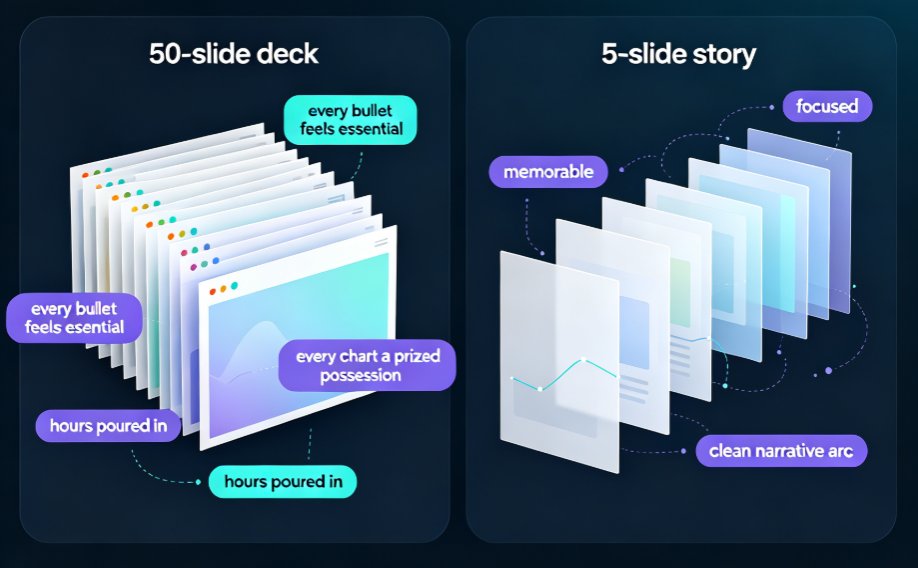
For the visual contrast, here it is graphically:
V. Quick Tips: Making Your Outline AI-Ready
You don't need to restructure your life to get great results. A few small habits make the import dramatically better.
Use real heading hierarchy. In Word, use the actual Heading 1 / Heading 2 / Heading 3 styles — not bold text that looks like a heading. The AI reads these levels to decide what becomes a slide title versus a supporting bullet. Consistency here pays off immediately.
Keep bullets short. One or two lines per bullet, ideally with a single idea. The AI can trim, but it can't conjure clarity that isn't there. Short, scannable bullets transfer best from outline to slide.
Put the takeaway in the heading. "Chapter 4: Photosynthesis" works. "Photosynthesis: How Plants Convert Light to Energy" tells the AI — and your audience — exactly what the slide is about. Headings that carry meaning produce better structure automatically.
Don't obsess over formatting. Spacing, alignment, and typography are Zendeck's job. Your job is the ideas. If your outline is messy, that's fine — paste it in anyway. The parser handles rough formatting and stream-of-consciousness notes a lot better than you'd expect.
VI. The Bottom Line
If you already have a Word outline, you're 80 percent done. The missing 20 percent is the visual layer, and that no longer requires you to be a design expert.
Import the document, let Zendeck structure it, and you'll have a professional deck ready in about the time it takes to brew your evening coffee. That's the workflow educators, trainers, and content teams are moving toward in 2026 — not because AI is glamorous, but because it's finally doing the part of the job that was never the real work anyway.
For a peek at where this is heading, read about Agentic AI in Course Creation, or browse the AI Courseware category for more practical walkthroughs.
FAQ
Q: What Word file formats does Zendeck support for outline import? A: Zendeck accepts .doc and .docx files, and you can also paste Markdown or plain text if you prefer to work directly in the editor. All routes converge on the same structured, editable deck.
Q: Will my original Word formatting be preserved in the slides? A: Zendeck reads the structural hierarchy — heading levels, bullets, and paragraph blocks — rather than matching your document's visual formatting. That's deliberate: the AI applies a consistent, professional design system to your structure instead of inheriting inconsistent styles.
Q: Can I edit the slides after the AI generates the deck? A: Yes, every slide remains fully editable. You can adjust wording, reorder content, swap templates with one click, and refine the visual style anytime. The output is a real, editable PowerPoint, not a static image.
Q: Is this practical for educators who teach with slides weekly? A: That's the core use case. Teachers and trainers who maintain lesson plans or course outlines in Word can turn them into polished courseware quickly, and re-importing updated outlines keeps the deck current with zero rework.
Q: How is this different from pasting text into a generic AI tool? A: Zendeck combines structured parsing with smart layout: it reads your outline's hierarchy to build logically organized slides, then applies a cohesive design system automatically. A generic tool might dump text onto slides; this produces a designed, teaching-ready sequence.