Smart Layout Automation: How AI Design Kills Manual Formatting
It's 9:47 PM. Your deck is due tomorrow morning, and you're on slide 23 of 41 — nudging a text box six pixels to the left because the title on slide 22 is centered and this one isn't. Sound familiar? That's not design work. That's formatting labor, and it's quietly eating hours out of every week for educators, trainers, and content teams who just want their slides to look professional.
Here's the good news: that entire workflow is becoming obsolete. Smart layout automation — powered by AI design systems — now unifies fonts, colors, and spacing across a full deck in a single click. And it's not just a convenience; it's a fundamental shift in how presentations get built.
I. The 40-Minute Formatting Trap
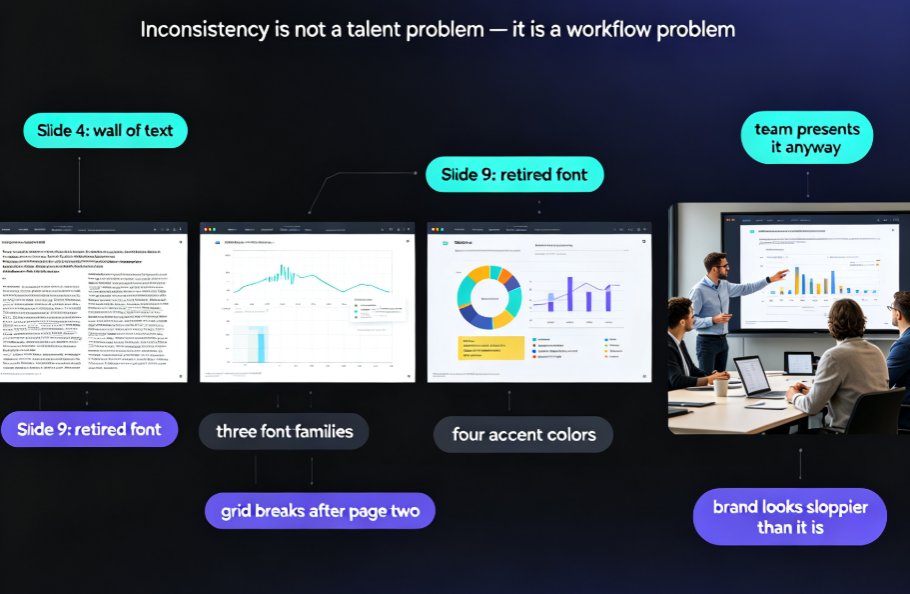
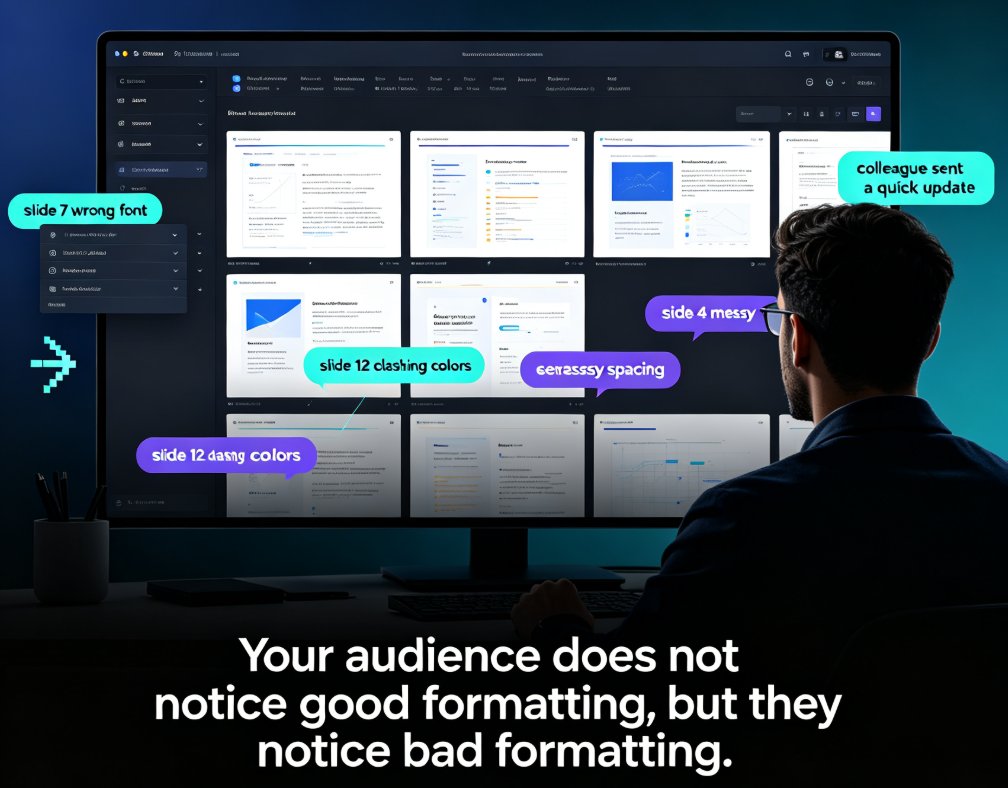
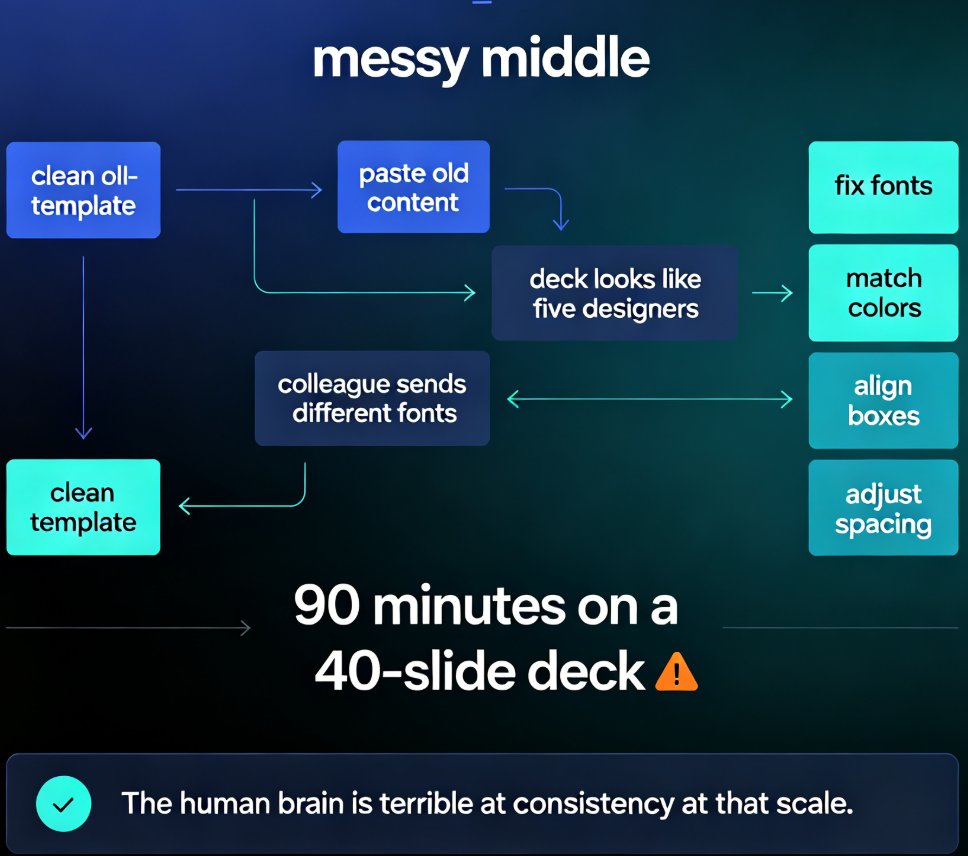
Every deck has a "messy middle." You start with a clean template, then paste in content from an old presentation, a colleague sends you three slides with different fonts, and suddenly your deck looks like five different people designed it. So you open the formatting toolbar and start the grind: fix the fonts, match the colors, align the boxes, adjust the spacing.
On a typical 40-slide deck, that's easily 90 minutes of pure mechanical work — work that adds zero insight to your content. The real problem isn't that you lack design skills. It's that you're doing design-system work by hand, slide by slide, and the human brain is terrible at consistency at that scale.
You might think the fix is a better template. But templates only solve the problem if everyone starts from the same one and never imports outside content — which never happens in real teams. That's why the industry is moving past templates entirely, toward context-aware design systems that adapt to whatever content you throw at them.
II. What Smart Layout Actually Is
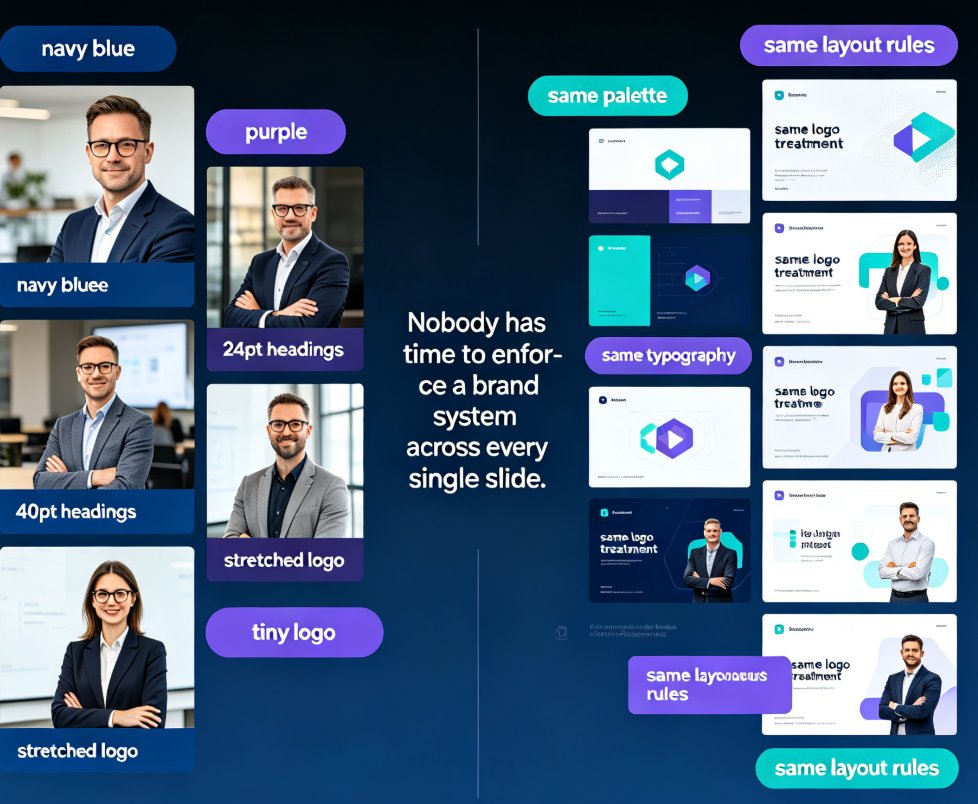
Let's clear up a misconception: smart layout isn't a magic button that "makes things pretty." Smart layout is a design system that runs in the background of your presentation tool. When you paste in content, the AI reads the structure — headings, body text, lists, images — and applies a consistent set of rules: type scale, color palette, spacing rhythm, alignment grid.
This is the same logic that design teams spend months building into brand guidelines, except now it's automated. Zendeck's smart layout engine does exactly this: it unifies fonts, colors, and spacing across your entire deck in one click. You don't need to know what a 4-point spacing grid is or which shade of blue matches your logo. The system just applies it.
The shift here is bigger than it sounds. For years, presentation tools gave you more manual controls — more fonts, more animations, more ways to make things inconsistent. Smart layout reverses that trend by taking decisions away from you, not adding more options. It's the difference between giving someone a bigger toolbox and giving them a system that builds the thing correctly the first time.
III. How AI Design Rules Make the Decisions You Used to Make
Let's get concrete about what the AI is actually deciding, because "smart layout" can sound like vague marketing speak. When you drop a heading onto a slide, the engine checks: what level is this heading? What's the established type scale in this deck? What color should it be? What margin should it sit at? It's not guessing — it's reading your content hierarchy and matching it to a design rule.
The same logic applies to colors. You pick a primary color (or the system detects it from your logo), and the engine generates the full palette — shades, accents, backgrounds, text colors — then enforces it everywhere. No more slide 14 with a slightly different blue that you only notice when the deck is projected on a big screen.
This is what design-system thinking looks like when it's automated. And it's why AI-driven design automation is the 2026 shift in smart layouts — not because AI is trendy, but because it solves a real, measurable problem: humans are bad at consistency, and consistency is what makes decks look professional.
IV. One-Click Reskin: The Workflow That Kills Manual Formatting
This is where the time savings get real. One-click reskin means you can take an entire deck — even one that started as a messy Word outline or a collection of slides from five different sources — and reapply a unified visual system instantly. Fonts, colors, layouts, spacing: all rebuilt to match a single design language.
Here's a typical scenario. A trainer at a corporate company has a 60-slide courseware deck that's been edited by three different people over two years. Slide 12 uses one font, slide 34 uses another. Some slides have the old logo colors, some have the new ones. Fixing this manually would take an afternoon. With one-click reskin, it takes about a minute.
The outcome: decks that look professionally designed, even when nobody on the team has design training. This is the core promise of tools like Zendeck — and it's why zero-design brand governance is becoming a real strategy for organizations that want consistency without hiring a design team.
V. Who Wins Most: Educators, Trainers, and Content Teams
Let's be honest about who benefits most from this shift. It's not professional designers — they already have their systems. It's the people who make decks as a side effect of their real job:
- Educators building courseware for a semester, who need consistency across 30+ lectures
- Trainers updating corporate training materials that have to match brand guidelines
- HR teams creating onboarding decks that should look like they came from one source
- Content operators who turn outlines into presentations weekly
For these people, smart layout isn't a nice-to-have. It's the difference between spending Sunday evening formatting and spending Sunday evening with their family. A deck that used to take 90 minutes of formatting now takes about 6 minutes of AI processing — and the result is more consistent than what most people could produce manually.
| Task (40-slide deck) | Manual Formatting | AI Smart Layout | Time Saved |
|---|---|---|---|
| Font unification | 25 min | ~2 min | 23 min |
| Color alignment | 20 min | ~1 min | 19 min |
| Spacing & alignment | 30 min | ~2 min | 28 min |
| Template consistency | 35 min | ~1 min | 34 min |
| Total | ~110 min | ~6 min | ~104 min |
Illustrative figures based on typical user workflows; your results will vary.
If you're still skeptical about whether AI can handle the messy reality of real decks, it's worth reading why AI-generated slides still look messy and how Zendeck fixes it — because the fix is exactly this smart layout engine, not more manual tweaking.
VI. Getting Started: From Messy Deck to Unified System
The fastest way to feel the difference is to stop reading and try it. Here's the workflow that takes most people from "this deck is a disaster" to "this looks like a design team made it" in under ten minutes:
- Import your mess. Paste a Word outline or upload an existing deck — the messier, the better for testing.
- Let the AI read the structure. Zendeck identifies headings, body text, lists, and images, then proposes a layout system.
- Click reskin. One click applies unified fonts, colors, and spacing across every slide.
- Tweak, don't rebuild. If you want to adjust anything, you're editing a consistent system — not fixing 40 individual slides.
If you want the deck to match your organization's brand exactly, set up a custom brand kit once, and every future deck inherits it automatically. That's the real long-term win: you're not just fixing today's deck, you're building a system that makes every future deck consistent by default.
VII. The Bigger Picture: Design Is Becoming a System, Not a Skill
Here's the honest takeaway. For the past 20 years, presentation software has assumed that design is a skill you need to learn — hence the endless tutorials about alignment, color theory, and typography. Smart layout automation flips that assumption. Design is becoming a system that runs for you, not a skill you have to acquire.
That doesn't mean design skills are worthless. It means the mechanical parts — the parts that eat your evenings — are being automated. The human parts — deciding what to say, structuring the argument, choosing the story — matter more than ever.
So the next time you're tempted to spend 90 minutes aligning text boxes, ask yourself: is this the best use of my time? With smart layout, the answer is increasingly no. And that's a good thing.
FAQ
What is smart layout in AI presentation tools? Smart layout is a design system that runs automatically inside a presentation tool. It reads your content structure — headings, body text, lists, images — and applies consistent rules for fonts, colors, spacing, and alignment across every slide, so you don't have to format manually.
How does one-click reskin work in Zendeck? One-click reskin takes your entire deck and reapplies a unified visual system in a single action. Zendeck's engine unifies fonts, colors, and spacing across all slides, so even a deck assembled from multiple sources looks professionally consistent in about a minute.
Will smart layout make all my slides look the same? No. Smart layout enforces consistency in the design system — fonts, colors, spacing — but it respects the content structure. Different slide types (title slides, content slides, data slides) still look distinct because the layout adapts to what's on each slide.
Can smart layout handle my company's brand colors? Yes. You can set up a custom brand kit in Zendeck with your logo colors and fonts, and the smart layout engine will generate a full palette from it and enforce it across every deck. This is the core of zero-design brand governance.
How much time does AI formatting actually save? For a typical 40-slide deck, manual formatting of fonts, colors, spacing, and template consistency takes around 90–110 minutes. With AI smart layout, the same work takes roughly 5–10 minutes, including review time. The exact savings depend on the deck's starting condition.