One PPT, Many Formats: How to Turn Slides into Micro-Courses
01. The one-and-done trap: why your best PPT deserves a second life
You spent three days on that deck. The research, the slide design, the speaker notes that read like a mini-script. You presented it once, maybe twice, and then it sat in a folder collecting digital dust.
Sound familiar? For knowledge creators, educators, and trainers, this is the norm. We treat a presentation as a single-use asset. But here's the thing: that deck you already built is a content factory waiting to be switched on.
The pain is real. You need a video version for remote learners, a micro-course for your LMS, a short training module for new hires. And every time, you start from scratch — rebuilding slides, recording new audio, re-editing. That's not just time wasted; it's your best thinking being recycled into repetitive work.
Think about the last training you delivered. How many hours went into the slides? How many into the delivery? And how many people actually saw it? If you're like most teams, the answer is "not enough." The content was good — it just didn't travel.
The solution isn't to create more content. It's to repurpose what you already have. And with AI-assisted tools like Zendeck, the gap between "one deck" and "a full content library" is closing fast. If you've ever wondered how AI agents are automating the path from outline to published micro-course, this is exactly the workflow we're talking about.
02. Content ROI math: what one deck can actually become
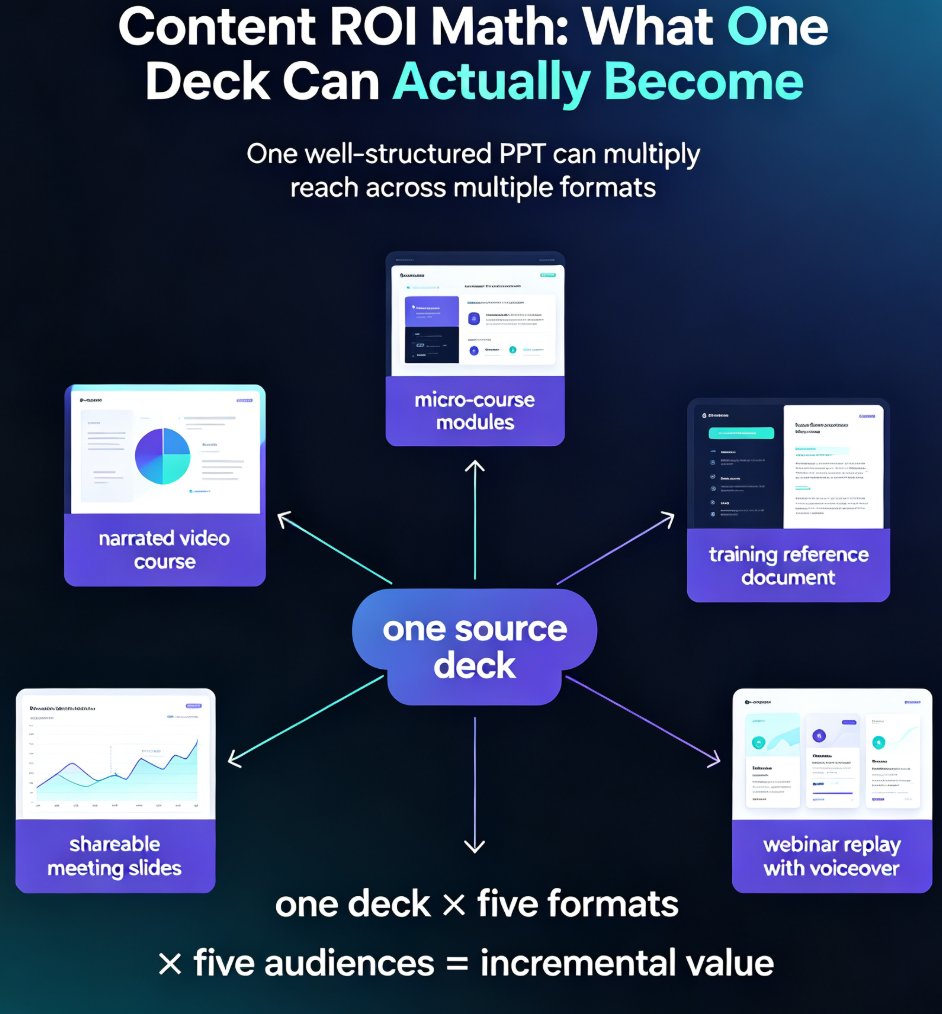
Let's do some quick math on content ROI. A single well-structured PPT can become:
- A narrated video course for asynchronous learners
- A micro-course broken into 5–10 short modules
- A training reference document
- A set of shareable slides for team meetings
- A webinar replay with voiceover
Each format reaches a different audience. Some people learn best from video, others from reading, others from short, focused modules. When you repurpose one deck into multiple formats, you multiply the reach of every hour you put into the original.
The outcome? Your content budget goes further. Your team stops rebuilding the same material. And your learners get the format they actually prefer. For teams already using AI PPT-to-video as a corporate training standard, this isn't a nice-to-have — it's how modern learning content gets produced.
The math is simple. One deck, five formats, five audiences. The cost of producing the original deck is sunk — you've already paid for it. Every additional format you generate from that source is incremental value at near-zero marginal cost. That's the definition of high ROI content.
03. The repurposing workflow: from PPT to micro-course in four steps
Here's where it gets practical. Turning a PPT into a micro-course doesn't require a production team or a video editor. With Zendeck, the workflow looks like this:
Step 1: Start with your existing outline or deck. If you have a Word outline or a Markdown file, Zendeck can generate a structured deck from it. If you already have a PPT, import it directly. No reformatting, no manual rebuilding.
Step 2: Let AI structure the content. Zendeck's AI analyzes your content and breaks it into logical segments — each segment becomes a candidate for a micro-lesson. This is where the "one deck, many modules" magic happens. The AI looks for natural break points: topic shifts, section headers, conceptual boundaries.
Step 3: Add narration. Using the PPT-to-video feature, you can add voiceover to your slides. Zendeck handles the timing, so your narration syncs with slide transitions automatically. No manual syncing, no audio editing.
Step 4: Export as video or micro-course. The result is a narrated video that can be published as-is, or further segmented into micro-course modules for your LMS. Each module is self-contained, with its own intro, body, and summary.
The whole process takes minutes, not days. And because the design system is consistent, every output looks like it came from the same brand — because it did. That consistency matters more than most people realize. It's what separates professional-looking content from "a bunch of slides with different fonts."
04. PPT to video: adding narration without a production studio
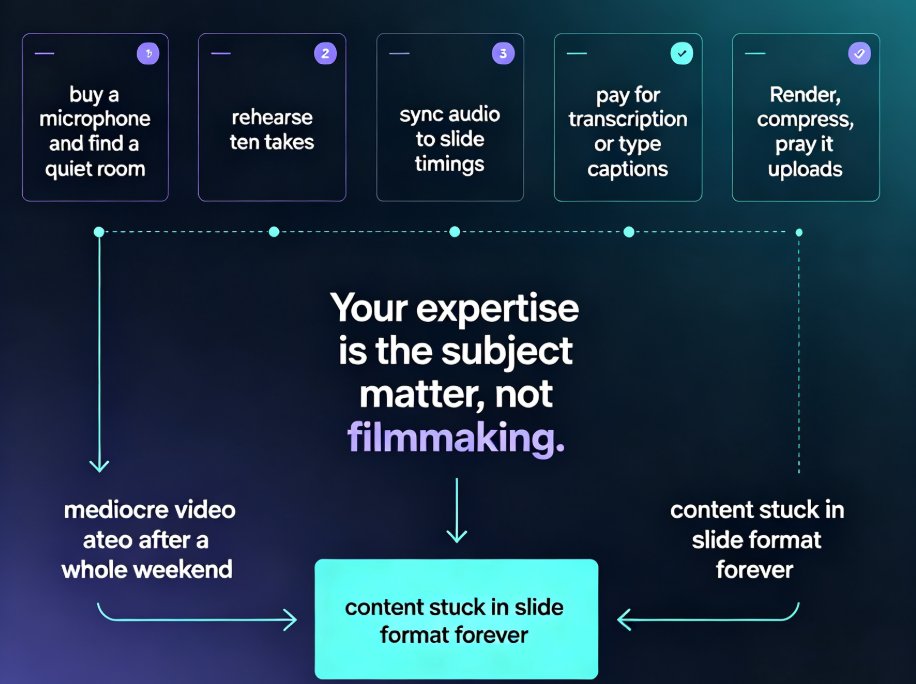
The biggest barrier to video content is usually audio. Recording clean voiceover, syncing it to slides, editing out mistakes — it's a production workflow, and most educators aren't production engineers.
The tool's approach removes that barrier. You write your script (or use the AI-generated speaker notes), and the tool handles the narration and timing. If you want subtitles, those can be added too — which is a huge win for accessibility and for learners who watch without sound.
Adding narration to slides is the single highest-leverage repurposing move you can make. It turns a passive document into an active learning experience. A deck you present is ephemeral — a narrated video is a durable asset that can be watched, rewatched, and shared.
For teams that need to move fast, this is the difference between "we'll get to the video next quarter" and "the video is ready by Friday." And for learners, it's the difference between "I skimmed the slides" and "I actually understood the material."
05. Manual vs. AI-assisted repurposing: a side-by-side comparison
| Task | Manual approach | Zendeck-assisted |
|---|---|---|
| Rebuilding slides for video | Recreate every slide in a video tool | Import existing deck, AI keeps layout |
| Adding narration | Record audio, edit, sync manually | AI-assisted narration with auto-timing |
| Breaking content into modules | Manually decide cut points | AI segments content into logical lessons |
| Maintaining brand consistency | Re-apply fonts/colors by hand | One-click reskin, consistent templates |
| Time per 20-slide deck | 4–8 hours | 30–60 minutes |
| Output formats | Usually one (video or slides) | Video, micro-course, shareable deck |
The table doesn't tell the whole story, though. The real difference is in the workflow. Manual repurposing is a series of disconnected tasks — you're constantly switching tools, re-exporting files, and fixing inconsistencies. Zendeck treats it as one continuous pipeline: deck in, multiple formats out. That's the same shift we're seeing across the industry, where AI deck generation is replacing traditional PPT workflows.
06. Best practices for multi-format content from a single source
A few lessons from years of creating and repurposing educational content:
Design for modularity from the start. When you build a deck, think about where the natural break points are. Each section should be able to stand alone as a micro-lesson. This makes repurposing trivial instead of painful. If you're not sure where the breaks are, look at your section headers — those are usually your module boundaries.
Write speaker notes as scripts, not reminders. If your notes read like "talk about Q3 results," they're useless for narration. Write them as complete sentences. You'll thank yourself when you convert to video. This is the single most common mistake I see in teams that try to repurpose content.
Keep visuals self-explanatory. A slide that works in a live presentation (where you're talking) may not work in a video (where the viewer is alone). Add context to titles and labels. If a slide relies on your spoken explanation to make sense, it needs a rewrite before it goes into a video.
Repurpose in batches, not one-offs. Set aside a half-day each month to convert your best decks into videos and micro-courses. The compounding effect on your content library is real. After six months, you'll have dozens of learning assets — all from decks you already built.
And here's a practical tip: don't try to make every deck into every format. Pick your top 20% of content — the material that gets the most requests, the most engagement, the most reuse — and repurpose that first. That's where the ROI is. If you're building a knowledge video library, start with your most-requested topics and work down.
FAQ
Q: Can Zendeck convert an existing PPT file into a video? A: Yes. Zendeck's PPT-to-video feature lets you import an existing deck, add narration (AI-generated or your own voiceover), and export a narrated video with synced timing and optional subtitles.
Q: How does Zendeck break a long PPT into micro-course modules? A: Zendeck's AI analyzes the content structure and identifies logical segment boundaries. Each segment can become a standalone micro-lesson, which you can then export as a micro-course for your LMS or learning platform.
Q: Do I need design skills to repurpose content with Zendeck? A: No. Zendeck handles layout, fonts, colors, and visual consistency automatically. You focus on the content; the tool handles the design system across all output formats.
Q: What formats can I output from a single deck? A: A single deck can become a narrated video, a micro-course with multiple modules, a shareable slide deck, and a training reference — all from the same source content.
Q: How much time does repurposing save compared to manual production? A: For a typical 20-slide deck, manual repurposing into video can take 4–8 hours. With Zendeck, the same conversion typically takes 30–60 minutes, including narration and formatting.