AI-Generated Speaker Notes and Rehearsal Tools: The 2026 Shift
Let's be honest: most of us don't rehearse. We build the deck, skim the slides at 11pm, and walk into the meeting hoping adrenaline carries us. Then the first question lands and we fumble for words we never actually practiced saying out loud.
That's changing in 2026. AI-generated speaker notes and rehearsal tools have quietly become the standard way confident presenters prepare — not because AI is trendy, but because it solves a very specific problem: the gap between what your slides say and what you actually say.
01 Why speaker notes are the hidden half of every great deck
Here's a truth that rarely gets said out loud: your slides are not your presentation. They're the visual skeleton. The presentation is the 15 minutes of talking that brings that skeleton to life — and most people spend 90% of their prep time on the skeleton and almost none on the talking.
The result is a familiar scene. You're three slides in, you glance at a bullet point, and you realize you don't remember what you meant by "synergize the quarterly roadmap." You improvise. It's fine, mostly. But "mostly fine" isn't the bar for a pitch that decides your quarter.
The deck is what the audience sees; the speaker notes are what they remember. That's why the shift to AI-generated speaker notes matters. It's not about automating away your voice — it's about giving you a spoken script that matches your slides, so the gap between "what's on screen" and "what comes out of your mouth" shrinks to almost nothing.
The best part? You don't have to write that script yourself. You paste your outline, your deck gets generated, and the speaker notes come with it — written in a conversational tone, not bullet-point-speak. If you want to see exactly how that works, our guide on auto-generating speaker notes for AI decks walks through the process step by step.
02 What AI-generated speaker notes actually do (and don't do)
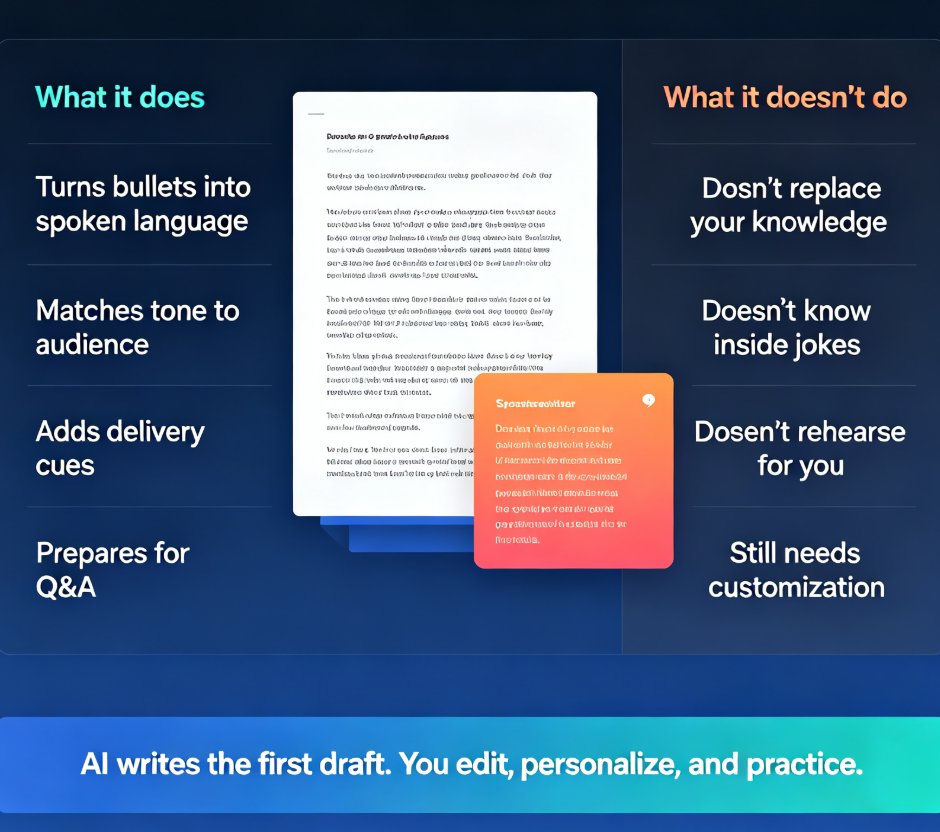
Let's be specific about what a good AI speaker-notes tool does, because there's a lot of hype out there.
What it does:
- Turns bullets into spoken language. A slide that says "Q3 revenue up 18% — driven by APAC expansion" becomes "Here's the number that matters: we grew 18% this quarter, and most of that came from the APAC team finally hitting their stride."
- Matches tone to audience. Notes for a board review sound different from notes for an all-hands. The AI adjusts for formality, jargon, and energy level.
- Adds delivery cues. Pauses, emphasis, "slow down here" markers — the kind of direction a good speech coach would give you.
- Prepares you for Q&A. Many tools now generate likely follow-up questions and suggested answers, so you're not caught flat-footed.
What it doesn't do:
- It doesn't replace your knowledge. If you don't understand your own material, no script will save you.
- It doesn't know your inside jokes, your team's history, or the specific context of this particular meeting. You still need to customize.
- It doesn't rehearse for you. That part is still on you — though the tools are getting closer.
The honest framing: AI speaker notes are a starting point, not a finished product. Think of them as a first draft written by someone who read your deck and knows how to talk to humans. Your job is to edit, personalize, and then — this is the key part — actually practice.
03 Rehearsal tools: from reading to performing
Here's where 2026 gets interesting. The old model was: write notes, read them a few times, hope for the best. The new model is: generate notes, then rehearse with tools that give you feedback like a coach would.
Rehearsal tools have evolved along three lines:
1. Timing and pacing. The tool listens to you practice and tells you if you're rushing, dragging, or spending too long on one slide. It flags the sections where you're likely to lose the room.
2. Filler-word detection. "Um," "uh," "like," "you know" — the tool counts them and shows you where they cluster. Most people are shocked the first time they see their own numbers.
3. Confidence scoring. Some tools analyze vocal variety and energy, giving you a rough sense of whether you sound engaged or like you're reading a terms-of-service agreement.
The outcome is simple: rehearsal stops being a vague "I'll read it once more" and becomes a measurable, repeatable practice loop. You rehearse, you get feedback, you adjust, you rehearse again. That loop is what separates a decent delivery from a confident one.
And here's the thing — you don't need a separate app for this. If your presentation tool has built-in rehearsal features, you stay in the same environment where you built the deck. No exporting, no switching contexts, no friction.
Here's a quick comparison of what the two approaches look like side by side:
| Aspect | Traditional rehearsal | AI-assisted rehearsal |
|---|---|---|
| Feedback | None until someone tells you | Real-time timing, pacing, filler-word data |
| Practice loop | Read notes, repeat | Rehearse → get feedback → adjust → repeat |
| Time investment | Vague, unstructured | Measured, targeted |
| Confidence | Hope-based | Data-based |
If you're curious about where this is heading, the broader trend of AI co-pilots in live presentations is worth a read — rehearsal tools are just the first layer of a much bigger shift.
04 A practical workflow: outline → deck → notes → rehearsal
Let's walk through what this looks like in practice, using Zendeck as the example — not because it's the only option, but because it's a good illustration of how the pieces fit together.
Step 1: Start with your outline. You don't need polished slides. You need a Word document or Markdown file with your structure — the points you want to make, in order. Zendeck takes that outline and generates a complete deck with consistent design, so you're not staring at a blank canvas.
Step 2: Let the AI write your speaker notes. Once the deck exists, the notes come next. Zendeck generates conversational scripts for each slide — the kind of thing you'd actually say, not a rehash of the bullet points. This is where the time savings really show up. Writing notes for a 20-slide deck by hand takes most people an hour or more. With AI, it's minutes.
Step 3: Edit for your voice. This is non-negotiable. Read every note out loud. Change the words that don't sound like you. Add the story about the client call. Remove anything that feels stiff. The AI gives you a great draft; you give it authenticity.
Step 4: Rehearse with feedback. Run through the deck using the rehearsal features. Watch your timing. Note where you stumble. Adjust the notes — maybe shorten a section, maybe add a cue to slow down. Then run it again.
Step 5: Convert to video if you need to. If you're preparing a micro-course or a training that people will watch on their own time, you can add narration and turn the whole thing into a video deck. The speaker notes become the voiceover script, which means you're not doing double work. Our guide on adding narration to slides with PPT-to-video covers this in detail.
That last point is worth emphasizing: the same notes you use to rehearse live can become the narration for a video version of your deck. One preparation effort, two deliverables.
05 What to watch out for
AI speaker notes are a tool, not a magic wand. Here are the mistakes I see people make:
Mistake 1: Using the notes as a crutch. If you read your notes word-for-word, you'll sound like a robot reading a script — which is exactly what the audience will assume. The notes are a map, not a teleprompter.
Mistake 2: Skipping the personalization step. AI doesn't know that your CFO hates the phrase "circle back" or that your team just went through a rough quarter. If you don't edit the notes, they'll feel generic. Audiences can smell generic.
Mistake 3: Rehearsing without feedback. Reading your notes silently in your head is not rehearsal. You need to say the words out loud and get data — timing, fillers, pacing. That's the whole point of the rehearsal tools.
Mistake 4: Ignoring the Q&A prep. The best speaker notes in the world don't help you when someone asks a question you didn't anticipate. Use the Q&A generation features to prepare for the tough ones.
The pattern here is consistent: AI handles the heavy lifting, but the polish comes from you. The tools get you to 80% faster than you'd get there alone; the last 20% is your judgment, your voice, and your practice.
FAQ
Q: Can AI-generated speaker notes really replace a professional speechwriter? A: For most everyday presentations — team updates, client pitches, training sessions — yes. AI-generated notes give you a strong conversational draft in minutes. But for high-stakes keynotes or presentations where every word matters, you'll still want a human editor to add nuance, humor, and strategic framing.
Q: How long does it take to generate speaker notes with Zendeck? A: Once your deck is generated, the speaker notes are created in minutes for a typical 20-30 slide presentation. The time you save is significant — writing notes by hand usually takes an hour or more, and that's before you start rehearsing.
Q: Do rehearsal tools actually improve delivery? A: Yes, but only if you use them consistently. The feedback on timing, filler words, and pacing gives you concrete data about where to improve. Most people see measurable improvement after two or three practice sessions with feedback.
Q: Can I use the same speaker notes for a video version of my deck? A: Absolutely. In Zendeck, the speaker notes can become the narration script for a video deck. You prepare once and get both a live presentation and a recorded micro-course or training video.
Q: Is this only for professional speakers? A: Not at all. The tools are designed for anyone who presents — teachers, trainers, HR teams, salespeople, founders. If you've ever felt nervous before a presentation, AI-generated notes and rehearsal feedback are worth trying.