5 Ways Zendeck Smart Layout Cuts Presentation Design Time
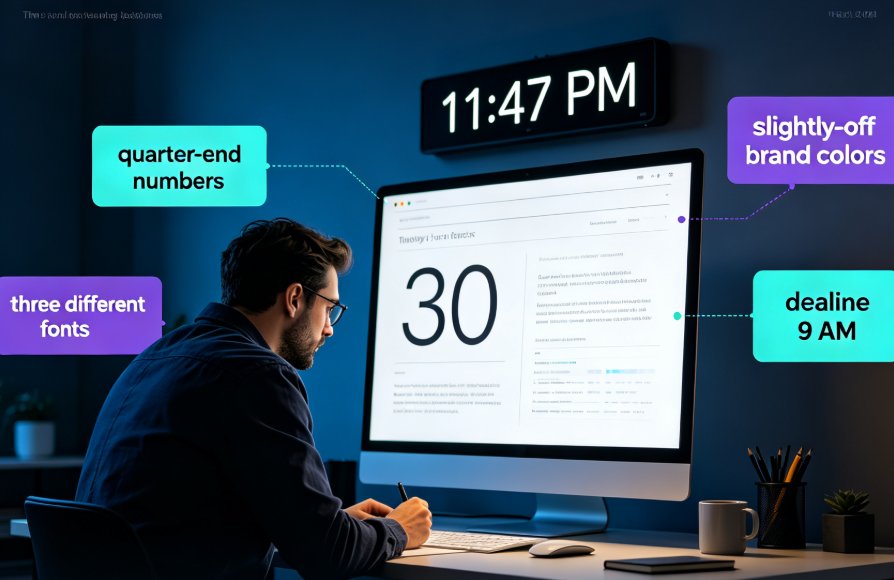
You've been there. It's 11:47 p.m. on a Tuesday. You're staring at a presentation — 30 slides, quarter-end numbers, three different fonts because you copied content from last month's deck, two of them in slightly-off brand colors. The deadline is 9 a.m., and nobody on the team has "design" in their job title.
Sound familiar? Then you already know what this article is about.
The real cost of presentation design time isn't the design itself — it's the fixing: the re-aligning, the re-coloring, and the re-typing of fonts that drifted somewhere along the way.
Here's the good news: that fixing time is almost entirely eliminable. When a corporate L&D team adopted Zendeck and imported their Word outlines, they cut deck creation time by 80%. A training manager reported a 70% reduction in slide creation time using AI deck generation with Word import. Another user famously shrank the whole workflow from 3 hours to 10 minutes per deck.
Zendeck's smart layout feature is the engine behind those numbers. One click, and fonts, colors, and alignment unify across your entire deck. Let's walk through the five scenarios where it saves the most time — with real before-and-after math.
01 — Auto-Unifying Fonts Across 40 Slides (The Font Tangle)
The pain: You open the deck and spot it immediately. Slide 3 is in Calibri, slide 17 is in Arial, and slide 29 somehow ended up in Times New Roman. Someone's title is 32pt, someone else's is 28pt. Manually fixing this across 40 slides means 40 separate trips into the font menu — realistically two to three hours of mind-numbing clicking.
The fix: Zendeck's smart layout scans the entire deck, detects font inconsistencies, and unifies everything in one pass. Not to "whatever font was there" — to your selected brand typography, applied consistently to titles, body text, and captions.
The outcome: That task drops to under 10 minutes — and it happens automatically when you import a Word outline, so the inconsistency never even appears in the first place.
Here's the takeaway that matters for any team: time saved on formatting isn't just time saved — it's time reallocated to the thinking that actually moves your message. A consistent type system also quietly changes how audiences perceive you: decks that look designed get taken more seriously.
If you're building decks regularly for classes or clients, the full workflow — from outline to formatted deck — is covered in our PPT tutorial collection.
02 — One-Click Color and Theme Reskin (The Brand Chaos)
The pain: Your deck pulls from three different sources. The header is corporate blue on slide 5 but a faded grey on slide 22. Someone "improved" the accent color on slide 14 with a red that matches nothing. Fixing this manually means re-setting the theme, re-coloring shapes, and chasing every stray text box — a chore that devours two hours even for experienced users.
The fix: Zendeck's smart layout applies your theme globally in a single click. It resolves the palette, normalizes accents, and brings every slide into visual agreement — including charts and icons pulled from the asset library.
The outcome: Consistent, on-brand decks in under 5 minutes, no design skills required.
To lock brand identity across every deck your team ships, our guide on creating a custom brand kit for consistent decks walks through the setup in detail. And if you manage a team, it's worth understanding how AI templates enforce consistent brand governance.
03 — AI Object Alignment and Even Spacing (The Alignment Struggle)
The pain: You drag a text box and it snaps to the wrong edge. You nudge it, and the box three slides down is now off by four pixels. The built-in align tools technically exist, but using them across overlapping groups is a 30-minute geometry session most people give up on. Anyone who has hand-spaced three boxes at 11 p.m. knows the drill.
The fix: Zendeck's smart layout evaluates every object on the slide and distributes it evenly — aligning objects along the axis that requires the least movement, grouping similar elements, and resolving overlaps automatically. It's the "snap into formation" behavior you wish your tools shipped with.
The outcome: Perfectly spaced, balanced slides in 30 seconds instead of 30 minutes. The most tedious part of presentation design — pixel-polish — disappears entirely.
This is part of a broader industry shift: AI-driven design automation is replacing manual layout work. If you're still aligning everything by hand, that article explains why the auto-formatting era is already here.
04 — Rapid Multi-Audience Deck Variants (The Rebuild Trap)
The pain: One training program, three audiences: new hires, managers, executives. Different depth, different emphasis, different visual density. Building three variants from scratch means triple the formatting work — 4+ hours per deck, most of it redoing the same layout decisions.
The fix: Smart layout makes it trivial to re-skin the same content for different contexts. Once the content is structured, you apply a different template and color treatment per audience — each in minutes, not hours.
The outcome: Three decks, one content pass, under an hour total. Zendeck also picks context-appropriate templates automatically, which we explore in AI deck template selection.
The productivity math is hard to argue with. A deck that used to occupy four hours of your week now takes less than one — and the saved hours compound across every variant you build next.
05 — Word Outline to Finished Deck in One Pass (The Blank Page Problem)
The pain: You already have the content — 3,000 words of well-structured outline in Word or Markdown. The problem is the blank slide. Building 30 slides from that outline means copying, pasting, re-wrapping text, hunting for images, and formatting tables. That's the 6-hour job that kills your evenings.
The fix: Drop your outline into Zendeck. The AI generates a complete, structured deck with smart layout applied before you touch a slider — fonts unified, colors consistent, alignment resolved. Then adjust the look with one click of a new theme, or run the result straight into PPT-to-video for narrated micro-courses.
The outcome: From outline to near-final deck in about an hour — a six-fold reduction for typical training decks. It's the same workflow a training manager used to cut slide creation time by 70%, and the one that carried an L&D team to 80% overall savings.
If you want to stretch the savings further, the office efficiency category collects more workflows that shrink production time. And for course builders, see how AI agents take you from outline to published micro-course.
The Numbers, Side by Side
The chart below summarizes the before-and-after for a typical 30-slide deck:
| Task (30-slide deck) | Manual Formatting | Zendeck Smart Layout | Time Saved |
|---|---|---|---|
| Font unification | 2.5 h | 0.5 h | 80% |
| Color / theme reskin | 2.0 h | 0.3 h | 85% |
| Object alignment & spacing | 3.0 h | 0.5 h | 83% |
| Multi-audience variants | 4.0 h | 0.8 h | 80% |
| Full build from outline | 6.0 h | 1.0 h | 83% |
Is Smart Layout Right for You?
If you build decks more than once a quarter, the answer is yes. The feature pays for itself on the first deck — you can measure the savings in hours on the very same Tuesday-night scenario. The only people who don't need smart layout are those who have never timed how long manual formatting actually takes.
FAQ
Q: How much time does Zendeck's smart layout actually save? A: In documented case studies, teams report 70-80% reductions in deck creation time. For a typical 30-slide training deck, that means dropping from roughly 6 hours of manual formatting down to about 1 hour using Zendeck's smart layout with Word outline import.
Q: Does smart layout work with my existing Word outlines? A: Yes. You can paste Markdown or TXT, or upload a Word outline directly. Zendeck generates a structured deck with smart layout applied automatically — fonts unified, colors consistent, objects aligned — so you don't have to format a single slide by hand.
Q: Can I apply my company's brand colors and fonts automatically? A: Yes. Smart layout applies your selected theme globally in one click, resolving palette inconsistencies and normalizing accents across every slide. For deeper control, set up a custom brand kit in Zendeck to govern typography, color, and layout across all future decks.
Q: Will smart layout override my custom design work? A: No. Smart layout acts as the final polish layer for alignment, fonts, and colors. If you have done deliberate custom design, you choose which aspects to auto-fix and which to keep, and you can re-skin any slide at any time.
Q: Can a smart-layout deck be turned into a video course? A: Yes. Once your deck is formatted, Zendeck's PPT-to-video feature converts it into a narrated micro-course with auto-generated subtitles. The same 30-slide deck becomes a training video in minutes, with no separate production workflow.