Word Outline to PPT: Convert Without Redoing Formatting
Word Outline to PPT: Convert Without Redoing Formatting
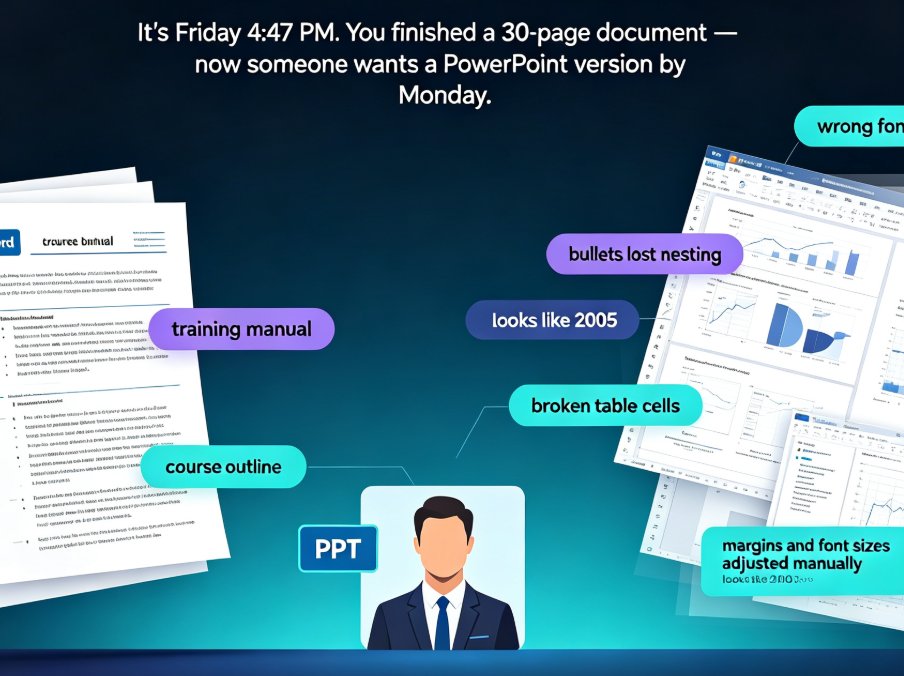
It's Friday, 4:47 PM. You've just finished a 30-page Word document — a training manual, a course outline, maybe a project brief. Now someone wants a PowerPoint version. By Monday.
So you do what everyone does: copy-paste the text into slides, watch the headings land in the wrong font, watch the bullets lose their nesting, watch the table become a wall of broken cells. Two hours later, you're adjusting margins and font sizes manually, and the deck still looks like it was built in 2005.
This is the most avoidable time-sink in office work. And it's 100% solvable. You don't need to redesign from scratch. You need a tool that reads the structure of your Word document and maps it to slides — headings become titles, bullets become content, tables stay intact.
That's exactly what Zendeck's outline-to-PPT conversion does. In this guide, I'll walk you through the exact workflow, show you what formatting actually survives the jump from Word to PowerPoint, and give you a few preparation tricks so your first conversion looks like a designer did it.
01. Why Word-to-PPT Conversions Always Go Sideways
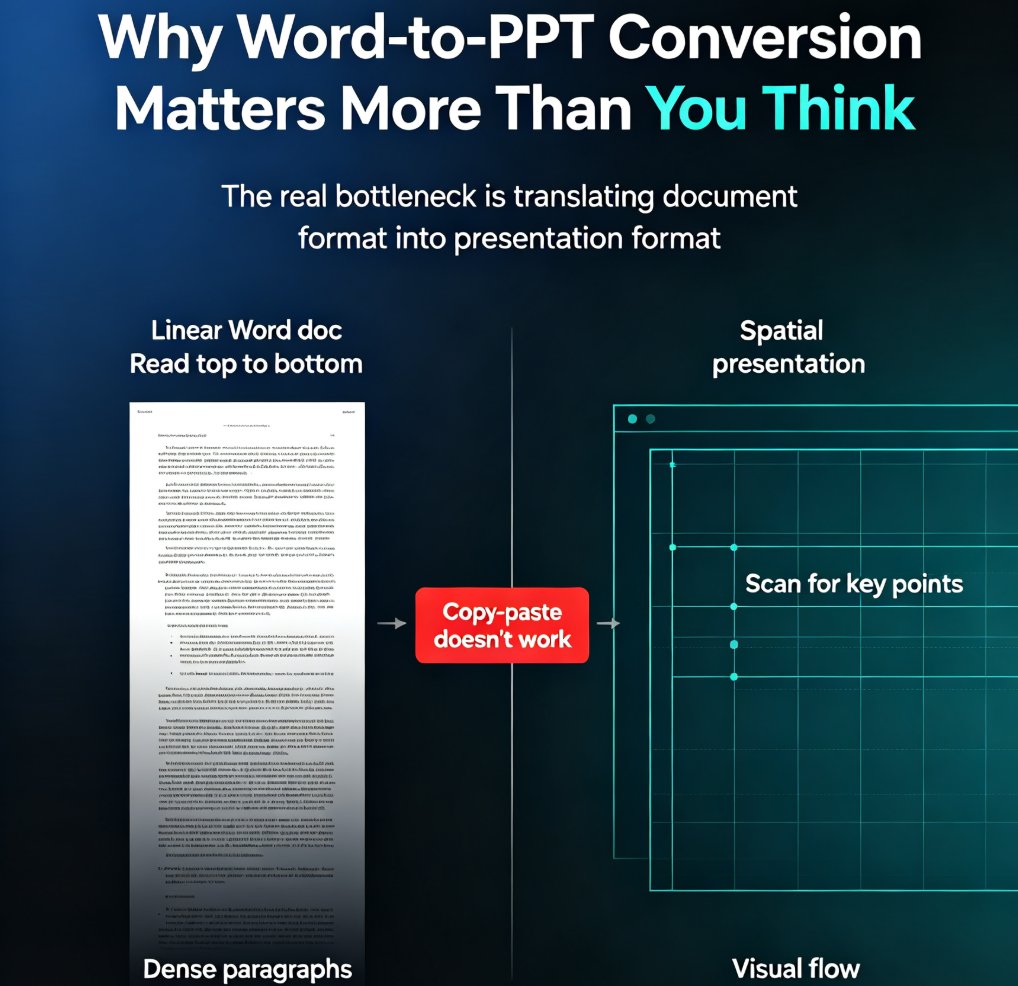
Let's be honest about the root problem. Word documents and PowerPoint decks speak different languages. Word is a linear document — headings flow down a page, paragraphs stack, content lives in a continuous stream. A presentation is modular — everything on one slide needs to stand alone, be skimmed in 30 seconds, and still make sense.
When you force Word content into PowerPoint, three things break:
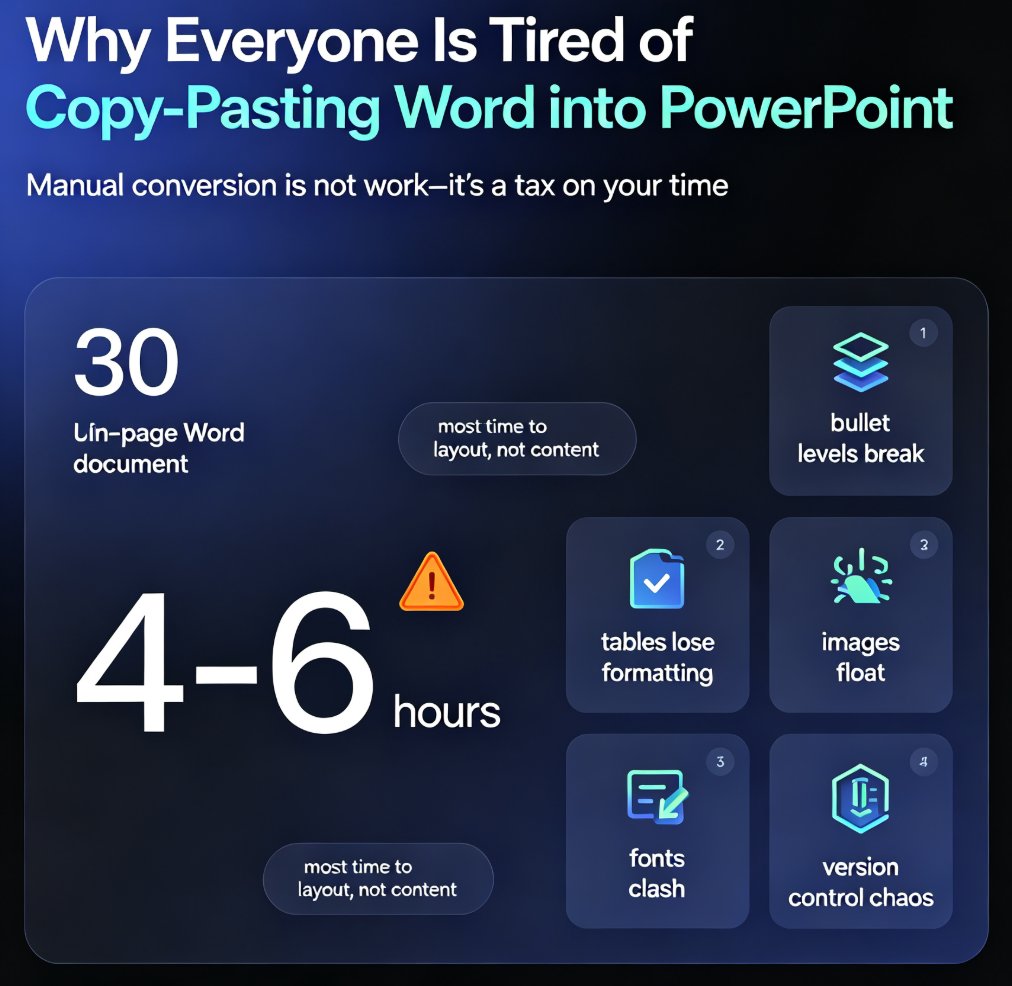
1. Heading hierarchy collapses. Your Heading 1s, Heading 2s, and Heading 3s become a single flat wall of text. Readers can't tell what's a section vs. a subsection.
2. Bullet nesting vanishes. In Word, your bullets have levels — level 1, level 2, level 3. Copy-paste into PowerPoint, and everything flattens to one level, or worse, gets imported as a giant paragraph.
3. Tables and images turn into chaos. A table with clean borders becomes misaligned cells. An embedded image resizes into a square the size of a postage stamp. You spend 20 minutes re-aligning things that were perfectly fine in Word.
The typical fix is "just use the Import Outline feature in PowerPoint." But that only reads actual outline files, not .docx documents with rich formatting. And when it does work, you inherit PowerPoint's default template — ugly colors, default fonts, no branding.
The result? Most people spend 3–4 hours rebuilding a deck from their Word outline, when the actual conversion should take 10 minutes.
02. What Zendeck Does Differently: It Reads Structure, Not Just Text
Here's the key insight that separates Zendeck from a basic converter: most tools copy your text; Zendeck maps your document's structure.
When you upload a Word file to Zendeck, it doesn't just extract the text. It analyzes the outline hierarchy:
- Heading 1 → becomes the main slide section
- Heading 2 → becomes slide titles within that section
- Heading 3 and below → becomes subheadings or grouped content within a slide
- Bullets and numbered lists → become slide content, preserving nesting and hierarchy
- Tables, images, and paragraphs → get pulled into slides as visual elements, not raw text blocks
Then Zendeck's Smart Layout engine takes over. It applies a consistent visual style — fonts, colors, spacing — across every slide, automatically. No manual "fix the title font" pass. No fighting with alignment. The deck comes out looking like a single designer built it.
This matters more than it sounds. A well-structured outline converted by Zendeck doesn't just save time — it produces a deck that's easier to read, because the visual hierarchy mirrors your document's logical hierarchy.
03. The 4-Step Workflow: From Word Outline to Polished Deck
Let's walk through the actual process. It takes about 10 minutes from start to finish, including the time to brew your coffee.
Step 1: Prepare your Word outline
Before you upload, make sure your document uses Word's built-in heading styles (Heading 1, Heading 2, etc.) rather than manual bold-and-italic formatting. This isn't strictly required — Zendeck can infer structure from paragraphs — but clean heading styles yield the best results.
Quick tip: if your document is full of manual formatting, do a quick pass with Word's "Find and Replace" or the Navigation Pane to check your heading levels. Five minutes now saves twenty later.
Step 2: Upload to Zendeck
Drag and drop your .docx file into Zendeck, or paste in Markdown if that's how you work. You'll see a preview where Zendeck shows you how it interpreted your structure — which headings became slide titles, which content became bullets, which tables carried over.
Step 3: Pick a template or let Zendeck choose
Here's where Zendeck's template engine kicks in. You can pick from the template library — or let the AI suggest one based on your content type. A training manual gets a different look than a pitch deck, and Zendeck knows that. You can learn more about how the AI picks templates in our guide to AI deck template selection.
Step 4: Review, adjust, export
Zendeck generates the complete deck. Scroll through, tweak anything that needs attention — maybe reorder a slide or two, adjust a bullet level — then export as .pptx, or keep it in the cloud for editing and sharing. If you're building a course or training deck, you can even add speaker notes or convert it into a narrated video later.
You're done. From upload to export: roughly 10 minutes, including the tweaking.
04. What Actually Carries Over From Word to PowerPoint
A fair question: "So if I upload my Word document, will my tables survive? My images? My colored headers?" Let's be specific.
Here's what Zendeck preserves and what it transforms:
| Word Element | What Zendeck Does | Result |
|---|---|---|
| Heading 1 / Heading 2 styles | Maps to slide titles and section dividers | Clean hierarchy, no manual restyle |
| Bulleted / numbered lists | Keeps nesting levels as slide bullets | Proper indent levels, no flattening |
| Tables | Pulls into slides as styled tables | Cells, borders, and data intact |
| Images | Extracts and places them smartly | No broken layouts or tiny thumbnails |
| Paragraph text | Condenses long paragraphs into bullet points | Skimmable slides, not walls of text |
| Page numbers / headers | Excluded (not needed on slides) | Clean, presentation-ready slides |
The last row matters. When you copy-paste Word content manually, you often drag along page numbering, header text, and margin artifacts that have no business being on a slide. Zendeck strips that noise automatically.
The trade-off is simple: Zendeck treats your Word outline as a source of ideas and structure — not as a pixel-perfect file to replicate. That's a feature, not a bug.
05. The Time Math: What You Actually Reclaim
Let's put numbers on this. I asked a few team leads and educators how long they spend converting Word documents into presentations manually. The answers cluster around the same numbers:
- Copying text into slides: ~60 minutes
- Mapping headings and re-styling titles: ~45 minutes
- Fixing bullets, lists, and indent levels: ~35 minutes
- Resizing images and fixing tables: ~40 minutes
That's roughly 3 hours per deck. Now compare that with Zendeck's outline-to-PPT flow:
Totals: 180 minutes of manual rework vs. about 18 minutes with Zendeck. That's a 90% reduction in time spent on a task nobody enjoys. Multiply that across the decks you build in a quarter, and you're reclaiming days, not hours.
And that number doesn't even include the hidden cost: the 15-minute "fixer-upper" passes you do the day before a presentation, when you notice a slide looks off and need to re-align three elements.
06. 6 Ways to Prepare Your Word Outline for a Better Conversion
A good conversion starts with a well-structured document. Here are the habits I've seen work best across teams:
1. Use real heading styles, not manual bold. Word's Heading 1/2/3 styles are the single biggest factor in how well your outline maps to slides. Manual bold text confuses any converter — including Zendeck.
2. Keep paragraphs tight. If a paragraph runs past 3–4 lines, it'll be condensed into bullets anyway. Save yourself the editing later: trim it in Word first.
3. Use bullet levels deliberately. In Word, set your sub-bullets with Tab / Shift-Tab to create the nesting. Zendeck maps those levels directly to slide hierarchy.
4. Name your tables and images. Word lets you add captions and alt text. Zendeck uses those default filenames and captions to place assets smartly on slides. If you're building accessible decks — which you should be — this also saves alt-text work later.
5. Split long sections into more subheadings. The more granular your Heading 2s, the more slides Zendeck can generate. A 6-section document becomes a 6-slide deck; a 6-section document with subheadings becomes a 15-slide deck that tells a better story.
6. Don't bother formatting in Word. This sounds counterintuitive, but it's true: if you're going to convert to PPT anyway, stop spending time on fonts, colors, and margins in Word. Zendeck's Smart Layout engine will apply a consistent look during conversion. Spend that time on your content instead. This is exactly the workflow we break down in our guide to how Smart Layout cuts design time.
07. Beyond the Conversion: What to Do Next With Your Outline
Once your outline becomes a deck, the workflow doesn't have to stop there. A few moves that make the conversion even more valuable:
Turn the outline into a micro-course. If this Word document is a training manual or course syllabus, you can take the generated slides and add narration to create a video version — no camera, no recording studio, no editing timeline. Your training material becomes a shareable video in about the same time it takes to make the deck.
Generate speaker notes from the outline. Your Word document has content that didn't fit on slides — explanations, context, examples. Zendeck can turn that overflow into speaker notes, so you're never reading verbatim off a slide. Pair that with Zendeck's speaker note tools and you've got a complete presentation package.
Set up templates that match your brand. If you're converting outlines regularly — weekly team updates, course modules, client briefs — save a template that reflects your brand. Zendeck remembers your preferences, so every future conversion looks consistent. There's a good guide on template library trends and contextual templates if you want to go deeper into when template choice actually matters.
The common thread: once the conversion is automatic, you spend your time on the parts that matter — content, story, delivery — instead of the parts that don't, like font sizes and bullet indents.
FAQ
Does Zendeck preserve bullet points and list hierarchy from my Word outline?
Yes. Zendeck reads the nesting levels in your Word document's bulleted and numbered lists and maps them to slide content with proper indent levels. Sub-bullets stay sub-bullets; level 1 bullets become the main points on the slide.
What Word heading styles does Zendeck recognize?
Zendeck recognizes Heading 1, Heading 2, Heading 3, and subheadings in .docx files. If your document doesn't use built-in heading styles, Zendeck's AI infers structure from paragraph breaks, bold text, and document flow — but using real heading styles produces the cleanest results.
Can I convert a Word document with tables and images into slides?
Yes. Tables are imported as styled slide tables, and images are extracted and placed on slides with intelligent sizing. The key is using proper Word structure (captions, table titles) so Zendeck knows how to place them.
How long does a Word-to-PPT conversion take in Zendeck?
Most documents convert in 2–5 minutes for the initial generation. With the optional design pass, you're looking at under 10 minutes total — versus the 3+ hours a manual conversion typically takes.
Do I need design skills to use Zendeck's outline-to-PPT feature?
No. Zendeck's Smart Layout engine applies consistent fonts, colors, and spacing automatically. You don't touch design settings unless you want to. If you do want more control, the template library and brand kit options are there, but they're optional.
Ready to stop fighting your Word documents? Upload your outline to Zendeck and watch it become a deck in minutes.