Word to PPT in One Click: Why Document-to-Deck Automation Is Trending
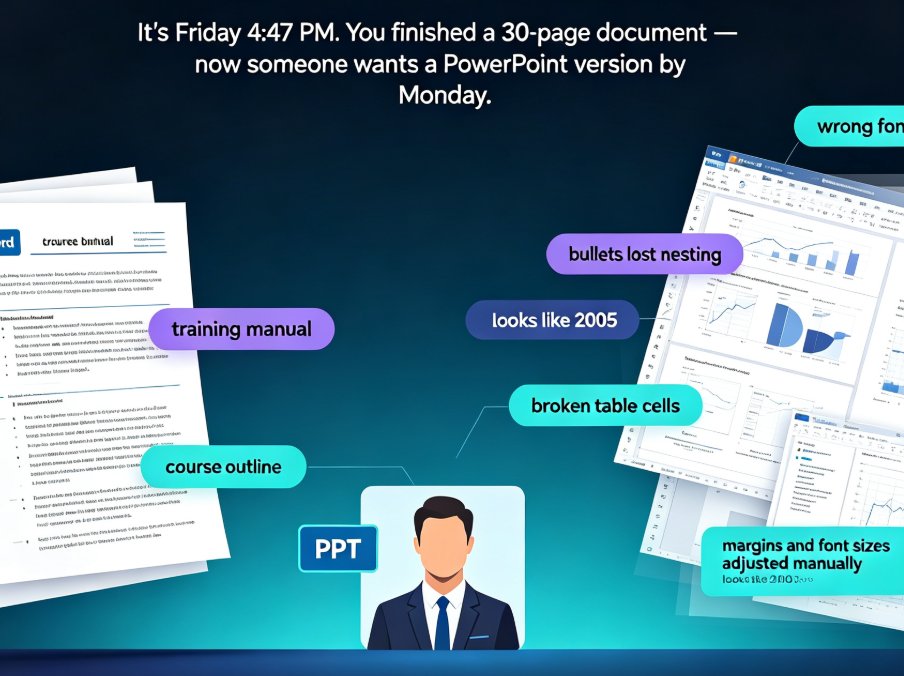
You've got a 40-page Word document sitting in your drive. A training manual, a project proposal, a course outline. Your boss — or your students — needs it as slides by tomorrow. So you start the ritual: copy, paste, resize, reflow, fight with bullet indents, and wonder why PowerPoint hates you.
That ritual is the exact pain point behind one of the quietest productivity trends of 2026: document-to-deck automation.
01 Why Everyone Is Tired of Copy-Pasting Word into PowerPoint
Let's be real. Manually converting a Word document into slides is not "work" — it's a tax on your time. You're not adding value; you're reformatting. And the numbers tell the story.
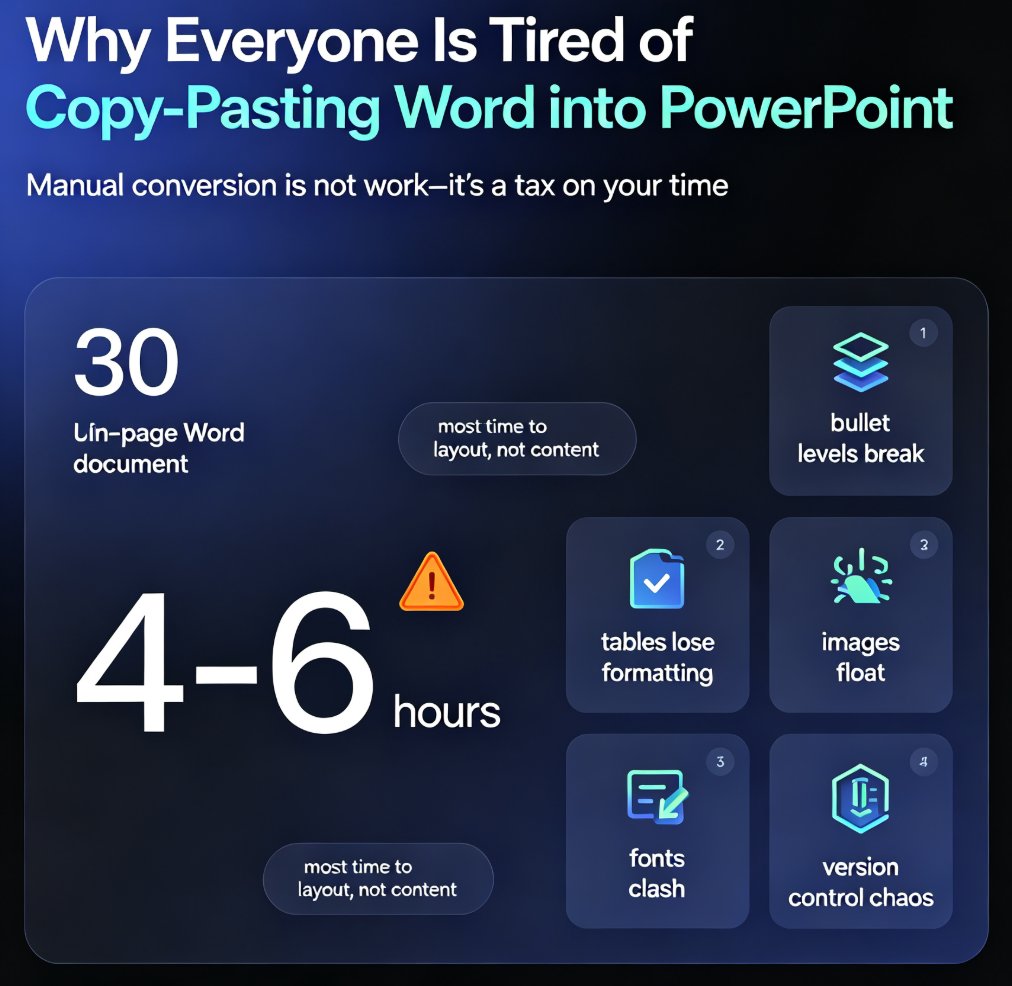
A typical 30-page Word document takes 4 to 6 hours to manually convert into a presentable deck — and most of that time goes to layout, not content.
That's the finding that keeps coming up in productivity circles. When content-heavy teams track their week, the pattern is consistent: the same outline gets re-keyed into slides, re-styled, re-aligned, and re-checked. Over and over.
The familiar pain points: - Bullet levels collapse or explode when pasted - Tables lose their formatting - Images float to random positions - Fonts and colors clash with your brand kit - Version control becomes a nightmare
The solution isn't "get faster at PowerPoint." It's to stop doing the conversion by hand entirely.
02 What Document-to-Deck Automation Actually Does
Document-to-deck automation takes a structured Word file — an outline, a report, a course syllabus — and turns it into a slide deck with consistent typography, layout, and visual hierarchy. No manual reformatting.
Here's what the workflow looks like in practice with a tool like Zendeck:
- You upload a Word outline or paste Markdown/TXT
- The tool parses the heading structure (Heading 1, Heading 2, etc.)
- It maps each section to a slide (or a section of slides)
- It applies a template and brand kit automatically
- You get a deck you can edit, reskin, or export
The key insight: the document's existing structure becomes the deck's skeleton. Headings become slide titles, paragraphs become bullet points, and tables become visual elements.
This isn't magic — it's parsing plus smart layout. But the effect is that a 40-page training manual becomes a 25-slide course deck in about 30 seconds.
03 The Hidden Costs of Manual Conversion (and What Automation Saves)
Let's put some numbers on this. Here's a comparison that most teams never actually calculate:
| Task | Manual Conversion | Automated (Zendeck) | Time Saved |
|---|---|---|---|
| 30-page report → 20 slides | 4-6 hours | 2-3 minutes | ~98% |
| Course outline → 15-slide lesson | 2-3 hours | 1-2 minutes | ~97% |
| Brand reskin of existing deck | 1-2 hours | 30 seconds | ~95% |
| Fixing messy bullet indents | 30-60 min | 0 | 100% |
| Version updates (content changes) | 1-2 hours | Re-import in minutes | ~90% |
Teams that adopt document-to-deck automation typically reclaim 10 to 15 hours per person per month on presentation prep.
That's not a rounding error. That's a full work week every month, per person, that goes back into actual thinking, teaching, or selling.
The outcome: content teams stop treating slides as a separate deliverable and start treating them as a byproduct of the documents they already write.
04 Who Benefits Most: Educators, Trainers, and Content Teams
Not everyone needs this equally. The people who feel it most are:
Educators and course creators. You write a syllabus, a lesson plan, or a textbook chapter — and then you have to build slides for every class. With document-to-deck automation, the outline you already wrote becomes the courseware. This pairs naturally with the shift toward AI agents in course creation, where an outline can go all the way to a published micro-course.
Corporate training and L&D teams. Training manuals are the worst offenders. They're long, structured, and constantly updated. Every update means rebuilding slides. Automation turns that into a re-import.
HR and internal comms. Policy documents, onboarding guides, town-hall briefings — all of these are Word-first, slides-second. Automation makes the slides version a free byproduct.
Consultants and analysts. Your 50-page findings report becomes a client-ready deck without the all-nighter.
The common thread: these teams already have the content. They just don't have the time to reformat it.
05 How to Get the Best Results from Word-to-Deck Conversion
Automation handles the layout, but you still control the input. Here's what separates a clean conversion from a messy one:
Use real heading styles. If your Word document uses Heading 1, Heading 2, and body text properly, the conversion will be dramatically better. If you've been manually bolding and enlarging text, the tool has to guess — and guesses are hit or miss.
Keep paragraphs short. A slide is not a page. Documents with long paragraphs produce dense, unreadable slides. Break them up before importing.
Let the tool pick the template — then override. Tools like Zendeck's AI deck template selection match your content type to a suitable layout. You can always reskin later.
Fix the structure, not the pixels. If a slide looks off, the problem is usually the source structure, not the layout. Adjust the outline, re-import, and you're done.
One more tip, friend to friend: don't obsess over the first pass. Import, look at the deck, fix the outline, re-import. That loop is faster than any manual editing you'll ever do.
06 Why This Trend Is Only Going to Grow
The reason document-to-deck automation is trending isn't just convenience. It's a shift in how teams think about content.
In 2026, the slide deck is no longer a separate deliverable — it's a derived format of the document.
This connects to the broader move toward AI deck generation replacing traditional PPT workflows. When your source of truth is a document, and your slides are generated from it, you get consistency across every output: the report, the deck, the video, the handout.
It also ties into the integration of AI presentation tools with Word and Google Docs. The document is the hub; the deck is a spoke.
For teams that haven't tried it yet, the barrier is low. You don't need to learn a new tool or change how you write. You just need to import the file and let the automation do the grunt work.
07 The Bottom Line
If you're still copy-pasting Word into PowerPoint, you're paying a tax you don't owe. The content is already written. The structure is already there. The only thing missing is the automation.
The fastest productivity win available to most teams in 2026 isn't a new skill — it's eliminating the manual conversion step entirely.
Try it with your next training manual, your next course outline, or your next client report. Upload the Word file, let the tool build the deck, and spend the hours you saved on the parts of your job that actually matter.
FAQ
Q: How does Zendeck convert a Word document into a presentation? A: Zendeck parses the heading structure of your Word outline (or pasted Markdown/TXT), maps each section to a slide, and applies a consistent template and brand kit automatically. You get a fully editable deck in seconds, without manual reformatting.
Q: What types of Word documents work best for conversion? A: Structured documents with proper heading styles — training manuals, course outlines, reports, proposals, and syllabi — convert cleanly. Documents with heavy manual formatting (hand-bolding, inconsistent styles) will still convert, but cleaning up the structure first gives better results.
Q: Do I need design skills to use document-to-deck automation? A: No. The tool handles layout, typography, and visual consistency. You can override the template or reskin later, but the default output is designed to be presentable out of the box.
Q: Can I edit the slides after conversion? A: Yes. The generated deck is fully editable — you can change text, swap templates, adjust layouts, add charts, or convert it to video. The automation is a starting point, not a locked output.
Q: How is this different from pasting Word content into PowerPoint manually? A: Manual pasting preserves formatting chaos — broken bullets, floating images, inconsistent fonts. Document-to-deck automation re-parses the content into a clean, structured slide layout, which is faster and produces a more consistent result.