How AI Presentation Tools Integrate with Word and Google Docs
You've been there: you finish a 40-page Word document, and then the real work begins. Copy. Paste. Reformat. Resize. Repeat. By the time the deck is done, you've spent more hours than the document itself took to write. It's the most tedious workflow in modern office life — and it's completely unnecessary.
AI presentation tools have quietly solved this problem. The best ones now integrate directly with Word and Google Docs, turning a structured document into a polished deck in minutes instead of hours. This article walks through how that integration works, what Zendeck does differently, and how to structure your documents so the AI does its best work.
01. The Copy-Paste Trap: Why Document-to-Deck Is Still Painful
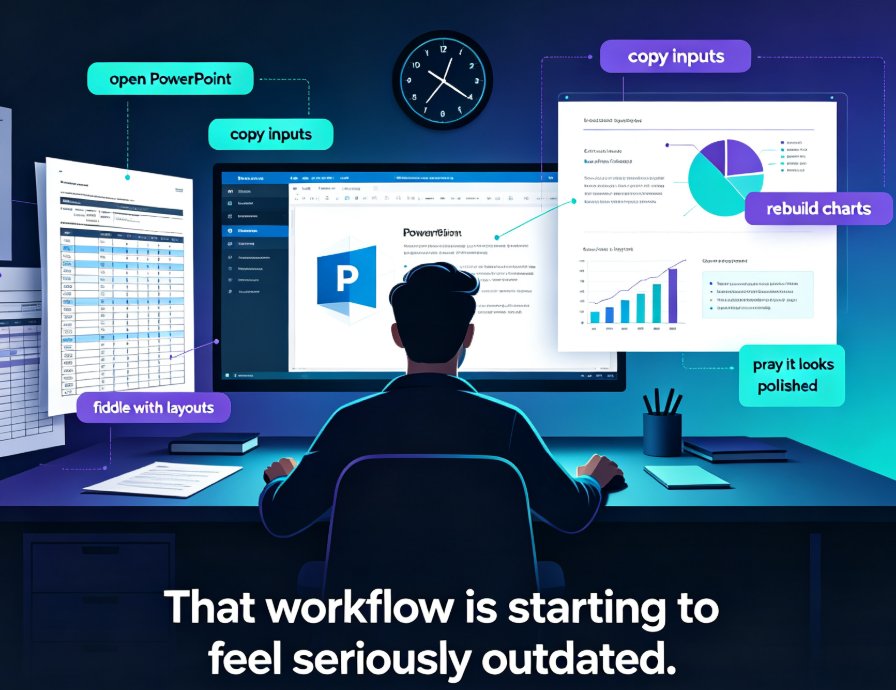
Let's be honest about what manual conversion looks like. You open Word on one screen, PowerPoint on the other, and start the grind:
- Copy a paragraph, paste it into a slide, then spend five minutes shrinking the font so it fits.
- Realize the bullet points lost their indentation, so you re-format them one by one.
- Try to grab a chart from the document, only to find it pastes as a blurry image.
- Repeat for 30 slides, then go back and fix the ones where the text overflowed.
The average professional spends 2 to 4 hours converting a 20-page document into slides. That's not an exaggeration — it's the reality of working with tools that weren't designed to talk to each other. Word thinks in pages. PowerPoint thinks in slides. And you're stuck in the middle, doing the translation work yourself.
The pain points are consistent across every team I've worked with:
- Formatting loss — Word's rich formatting rarely survives the copy-paste journey intact.
- Structural guesswork — You have to decide what becomes a slide title, what becomes a bullet, and what gets cut entirely.
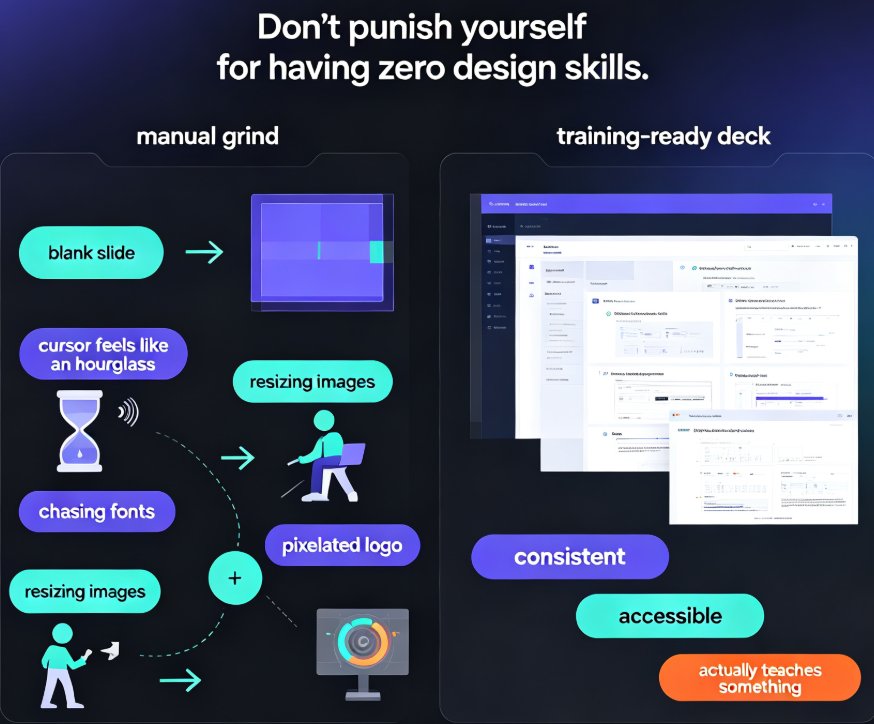
- Design debt — Even after the content lands, you still have to make it look professional.
- Version chaos — The document updates, but the deck doesn't, and now you have two versions of the truth.
This is the problem AI presentation tools were built to solve. But not all integrations are created equal.
02. What "Integration" Actually Means for AI Presentation Tools
When we talk about AI presentation tools integrating with Word and Google Docs, we're really talking about three distinct capabilities:
1. Document import. The tool reads your Word file or Google Doc and extracts the structure — headings, bullet points, paragraphs — and maps them onto slides. This is the core feature, and it's where most tools differentiate themselves.
2. Content transformation. The AI doesn't just copy text; it summarizes, rephrases, and restructures content to fit slide format. A dense paragraph becomes three concise bullets. A long section becomes a single key takeaway.
3. Round-trip export. Some tools let you export the finished deck back to Word for handouts, speaker notes, or documentation. This closes the loop between document and presentation.
The key insight is that the best integrations treat your document as a source of truth, not a pile of text to be copied. They understand that a Word outline contains implicit structure — headings, hierarchy, emphasis — and they preserve that structure through the conversion.
03. Zendeck's Word Import: From Document to Deck in Minutes
Zendeck's approach to Word integration is straightforward: you give it a structured document, and it gives you a deck. Here's the actual workflow:
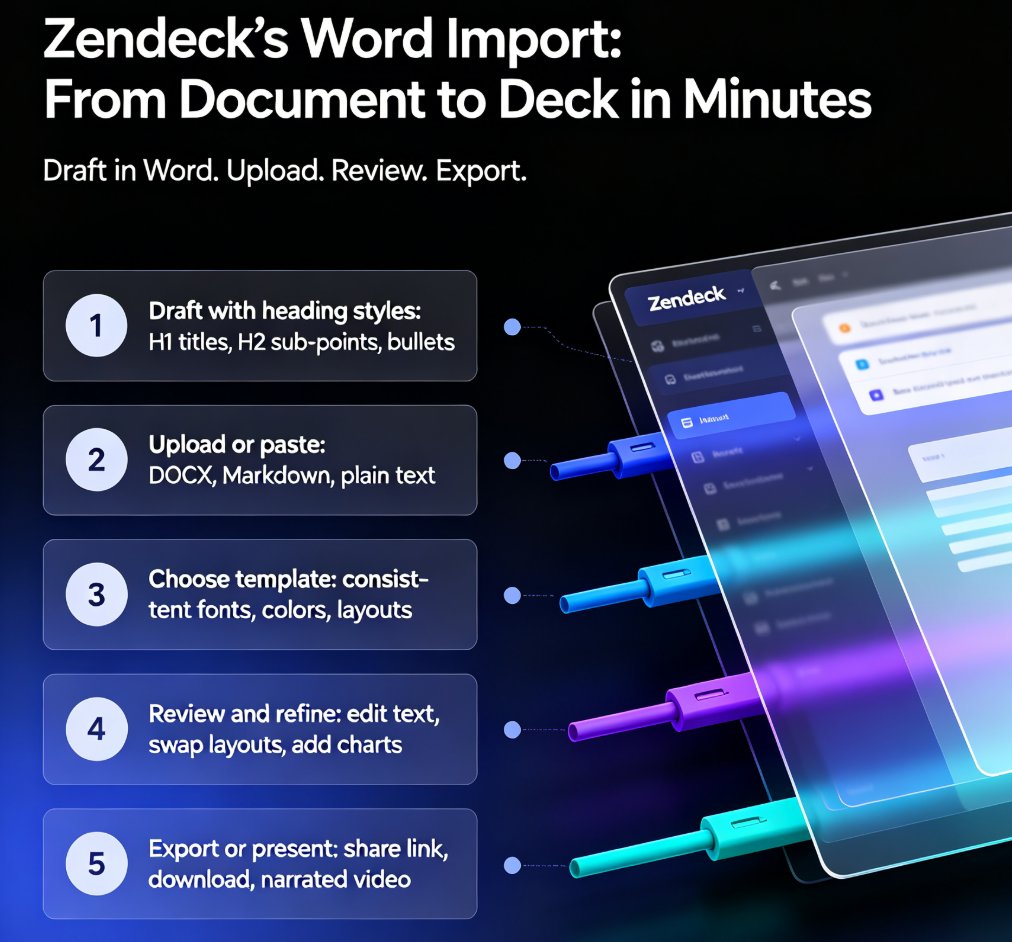
Step 1: Draft in Word with heading styles. This is the only "prep work" you need to do. Use Heading 1 for slide titles, Heading 2 for sub-points, and bullet lists for key details. If you've been writing with proper heading styles, you're already 90% done.
Step 2: Upload or paste. Zendeck accepts Word files (.docx), Markdown, and plain text. You can upload the file directly or paste the content into the editor. The AI parses the structure and builds a slide-by-slide outline.
Step 3: Choose a template. Zendeck's template library applies a consistent visual style — fonts, colors, layouts — across every slide. You can pick a template that matches your brand or audience, or let Zendeck suggest one based on your content. If you want more control, you can set up a custom brand kit so every generated deck follows your organization's visual identity automatically.
Step 4: Review and refine. The generated deck is a strong first draft, not a final product. You can edit text, swap layouts, add charts from the asset library, or adjust the visual hierarchy. This is where the human touch matters.
Step 5: Export or present. Share the deck via link, download it as a file, or turn it into a narrated video with Zendeck's PPT-to-video feature.
The whole process takes about 15 minutes for a typical 20-page document. That's a 90% reduction in time compared to manual conversion — and the output is more consistent, because every slide follows the same design system.
04. Manual vs. AI-Assisted Conversion: A Side-by-Side Look
Let's put the numbers on the table. Here's a typical comparison for a 20-page document with 15-20 slides of output:
| Task | Manual Copy-Paste | Template + Manual | Zendeck AI Import |
|---|---|---|---|
| Content transfer | 60-90 min | 30-45 min | 2-3 min |
| Formatting fixes | 45-60 min | 20-30 min | Auto-applied |
| Slide design | 30-60 min | 15-30 min | Auto-applied |
| Chart/image placement | 20-30 min | 10-20 min | 5 min (asset library) |
| Review and polish | 30-45 min | 20-30 min | 10-15 min |
| Total | 3-4.5 hours | 1.5-2.5 hours | ~15-20 minutes |
The time savings come from three places: the AI handles the structural mapping, the template system eliminates design decisions, and the asset library provides ready-made charts and icons. You're left with the one thing only you can do — reviewing the content and making it sound like you.
05. Structuring Your Word Document for Clean AI Conversion
Here's the part most guides skip: the quality of your AI-generated deck depends almost entirely on the structure of your source document. Garbage in, garbage out — but with a little discipline, you can get remarkably clean output.
Use heading styles, not manual formatting. Don't just bold a line and call it a title. Use Word's Heading 1, Heading 2, and Heading 3 styles. The AI reads these as structural signals — Heading 1 becomes a slide title, Heading 2 becomes a section header, and so on.
Keep paragraphs short. A slide isn't a page. If a paragraph runs longer than three lines, the AI will have to summarize it — and summaries can lose nuance. Write in short, punchy paragraphs and let the AI preserve your key points.
Use bullet lists for anything with three or more items. Bullets map naturally to slide content. The AI can convert a bullet list into slide bullets almost perfectly, preserving the hierarchy and emphasis.
Avoid floating images and text boxes. These confuse document parsers. If you need an image in the deck, note its placement in the document (e.g., "[Insert chart: Q3 revenue by region]") and add it during the review phase using Zendeck's asset library.
Write speaker notes in a separate section. If your document includes speaker notes or talking points, put them at the end of each section or in a dedicated notes section. Zendeck can auto-generate speaker notes from your content, but having your own notes in the document gives the AI more context.
If you're starting from a rough brain dump rather than a structured document, don't worry — Zendeck can help you turn a brain dump into a structured presentation too. The heading-style approach is ideal, but it's not a hard requirement.
06. Google Docs and the Broader Document Ecosystem
Word isn't the only game in town. Google Docs has become the default for collaborative drafting, and it's worth knowing how it fits into the AI presentation workflow.
The good news: you don't need a special Google Docs integration to use AI presentation tools. Google Docs exports to .docx format natively, and most tools — including Zendeck — accept that format. You can also copy content from Google Docs as Markdown, which many AI tools parse even more cleanly than Word files.
The workflow looks like this:
- Draft collaboratively in Google Docs with your team.
- Export as .docx or copy as Markdown.
- Import into Zendeck and generate the deck.
- Share the deck link for feedback, then iterate.
This is actually a strength of the document-first approach: your team collaborates in the tool they already use, and the AI handles the presentation layer. No one has to learn a new editor, and the deck stays in sync with the document's evolution.
07. The Bigger Picture: Document-to-Deck Is Becoming the Default Workflow
Here's the trend worth paying attention to: the document-to-deck pipeline is becoming a standard workflow, not a workaround. Teams are increasingly drafting in Word or Google Docs first, then using AI tools to generate presentations from that source of truth.
This shift makes sense for three reasons:
Documents are better for thinking. Writing forces clarity. A well-structured document is a well-structured argument, and that structure translates directly into a strong presentation.
AI handles the translation layer. The tedious work — mapping content to slides, applying design, maintaining consistency — is exactly what AI does well. It's mechanical, rule-based, and doesn't require judgment.
The deck becomes a derivative, not a duplicate. Instead of maintaining two versions of the same content, you maintain one document and generate decks as needed — for different audiences, different lengths, different formats. The same logic applies to other content types: you can turn a blog post into a slide deck or generate professional slides from a prompt using the same underlying engine.
This is where Zendeck fits. Its Word import isn't a bolt-on feature; it's the core of a workflow where your document is the source of truth and your deck is just one of its outputs. You can generate a full deck, a condensed executive summary, or a narrated video — all from the same source. If you're new to this workflow, the PPT tutorial section has more hands-on guides to get you started.
FAQ
Can Zendeck import Word documents directly?
Yes. Zendeck accepts Word files (.docx), Markdown, and plain text. You can upload the file directly or paste the content into the editor. The AI parses your heading structure and converts it into a slide-by-slide outline, then applies a template and generates a polished deck in minutes.
What's the best way to structure a Word document for AI conversion?
Use Word's built-in heading styles (Heading 1 for slide titles, Heading 2 for sub-points). Keep paragraphs short, use bullet lists for key points, and avoid heavy formatting like text boxes or floating images. The cleaner your structure, the better the AI can map content to slides.
Does Zendeck support Google Docs?
You can export any Google Doc as a .docx file or copy the content as Markdown, then import it into Zendeck. The workflow is identical to Word import — the AI doesn't care where the text came from, as long as the structure is clean.
How long does it take to convert a Word document into a deck?
For a typical 20-page document, Zendeck generates a first draft in about 15 minutes — including template selection, layout, and visual styling. Compare that to the 2-4 hours most people spend copy-pasting and reformatting manually.
Can I export my Zendeck deck back to Word?
Yes, Zendeck supports exporting your finished deck for handouts and documentation. This makes it easy to share speaker notes, distribute meeting materials, or archive your presentation alongside your original document.