Turn Word Outlines into Polished Decks with Zendeck's AI Import
Let's be honest: you didn't sign up to be a slide designer. You wrote a Word document — a training outline, a course module, a client proposal — and somewhere along the line, someone said, "Great, now make a presentation out of it."
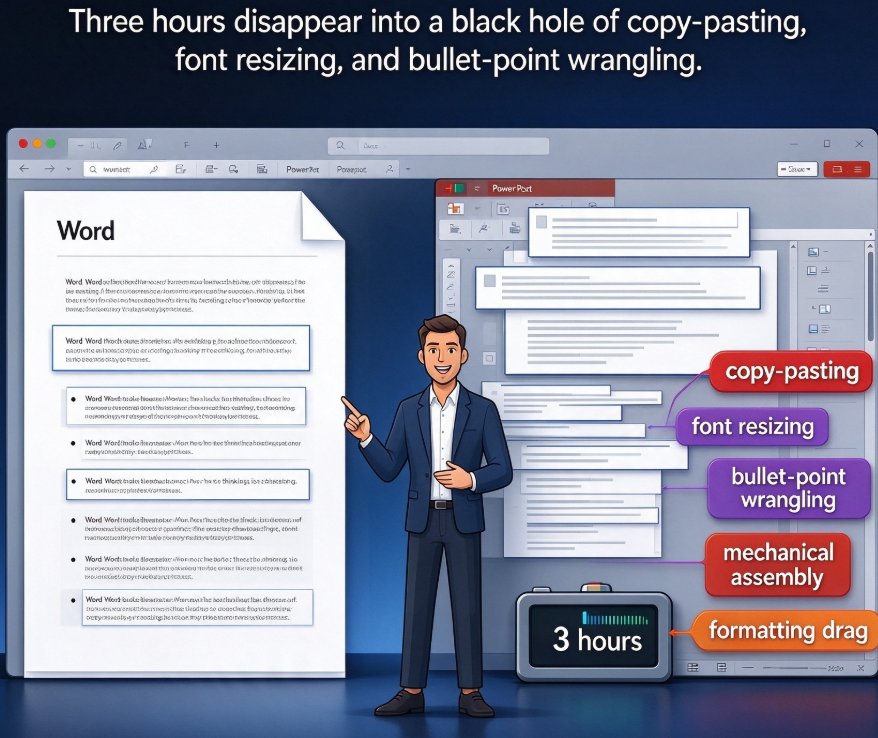
So you fire up PowerPoint, and the next three hours disappear into a black hole of copy-pasting, font resizing, and bullet-point wrangling. Sound familiar?
The content is already done. The thinking is done. What's left is pure mechanical assembly — the kind of work a computer should handle.
Here's a better way to think about it. Let's walk through how Zendeck's AI import turns a Word outline into a polished deck in about five minutes, so you can spend your energy on the message, not the formatting.
01 | The Problem: You Wrote the Content, Now You Have to Build the Slides
Copying text from Word into a slide template isn't content conversion. It's manual labor that eats into your teaching time, your billable hours, or your weekend. Every text-box drag and every font tweak is a task that software could — and should — handle for you.
If you're an educator, a corporate trainer, or a consultant, this pain is probably familiar on a weekly basis. Your Word document holds all the substance. But turning it into a deck means making design decisions you never signed up for: which font size, which color scheme, how many bullets per slide, where to place that chart you built in Excel.
That's not content creation. That's manual assembly — and it's exactly what AI presentation tools like Zendeck were built to eliminate.
The time cost is real. A typical 30-slide deck built manually from a Word document takes most people three to four hours of focused, tedious work. And the result still looks like a Word document stretched across slides: cramped text, inconsistent spacing, a visual style that doesn't actually help your audience follow your argument.
02 | The Solution: Import the Document, Let the AI Build the Deck
Zendeck's AI import flips this workflow on its head. Instead of starting from a blank slide canvas and manually moving every paragraph into place, you upload your Word outline — or a Markdown file, or even a TXT dump — and let the AI handle the assembly.
The platform reads your document's structure, segments it into logical slides, and applies a template that keeps everything visually consistent. Headings become slide titles. Subheadings become section breaks or bullet groups. Paragraphs get distilled into scannable bullets. The AI does the layout work in under a minute.
The outcome is immediate: your outline becomes a working deck with titles, bullet hierarchy, and balanced layouts — before you've touched a single design tool.
From there, you get to do the part that actually matters: refining, not rebuilding. You edit a draft instead of fighting a document.
03 | The Workflow: From Word Outline to Polished Deck in Five Steps
Let me walk you through the exact process. It takes about five minutes from upload to export, and anyone can do it — no design background required.
Step 1: Prepare Your Outline
A little prep goes a long way. Open your Word document and make sure it uses proper heading styles — not just bolded text. Zendeck's AI reads semantic structure, so heading levels matter.
- Use Heading 1 for main sections
- Use Heading 2 for subsections
- Keep paragraphs under each heading tight and focused
If your document is a bare wall of text with no structure, the AI will still do its best, but the output won't be as clean. Ten minutes of outline cleanup saves you twenty minutes of slide cleanup later.
Step 2: Import the Document
In Zendeck, navigate to the import feature and upload your Word file. The platform also accepts Markdown and TXT, so if you're a Markdown-first person, you're covered too.
Step 3: Choose a Template
Zendeck's AI will suggest templates based on your content type — courseware for educational material, pitch-style layouts for investor decks, clean corporate designs for training modules. If you've set up a brand kit, the template will automatically match your brand colors and fonts. For a deeper look at how this selection works, this guide on AI deck template selection is worth reading.
Step 4: Let the AI Generate the Deck
Hit generate. The AI processes your document, segments the content into slides, and applies the template. In under a minute, you have a complete draft deck with titles, a clear bullet hierarchy, and balanced layouts.
Step 5: Refine and Export
Now you're an editor, not a builder. Adjust wording, reorder slides, swap visuals, or add interactive elements. Since the structure is already solid, refinements are quick and surgical. When you're happy, export to PowerPoint, PDF, or turn the deck into a narrated video using Zendeck's PPT-to-video feature.
04 | What the AI Actually Does When It Reads Your Document
People often ask me: "How is this different from just importing a Word file into PowerPoint?"
The difference is intelligence. PowerPoint's import places text boxes exactly as they appear in the document — no restructuring, no hierarchy detection. Zendeck's AI reads the semantic structure of your content. It understands that "Chapter 1" is a major section, that a subheading beneath it introduces a new topic, and that a bullet list under that subheading is supporting detail.
The AI doesn't just move your words into slides — it organizes them into a hierarchy that's actually designed for screen reading.
It also applies design rules that experienced designers follow by instinct: short headlines, consistent bullet depth, whitespace for scanability, visual rhythm across slides. If you want to understand the design logic behind this, Zendeck's smart layout system breaks down how these decisions get automated.
05 | The Time Math: Manual vs. AI-Driven Workflow
Let's put some numbers to this. Here's a realistic comparison for a 25-slide deck built from a Word outline, based on common user workflows:
| Workflow | Time to build draft | Time to refine | Total time | Result quality |
|---|---|---|---|---|
| Manual copy-paste in PowerPoint | 2.5 - 3.5 hours | 1 - 2 hours | 3.5 - 5.5 hours | Text-heavy slides, inconsistent design |
| Word import + manual layout | 1.5 - 2.5 hours | 1.5 hours | 3 - 4 hours | Better than copy-paste, still lots of fiddling |
| Zendeck AI import | Under 1 minute | 20 - 40 minutes | About 30 minutes | Consistent design, clean hierarchy |
The pattern is consistent: the AI handles assembly, you handle the thinking. For people who build decks weekly — educators, consultants, learning-and-development teams — that time shift adds up fast. For a broader view of where this automation trend is heading, check out the 2026 presentation tools landscape.
06 | Common Mistakes to Avoid When Converting Word to PPT
Even with a good automation tool, you can still shoot yourself in the foot. Here are the mistakes I see most often:
1. Importing a Wall of Text
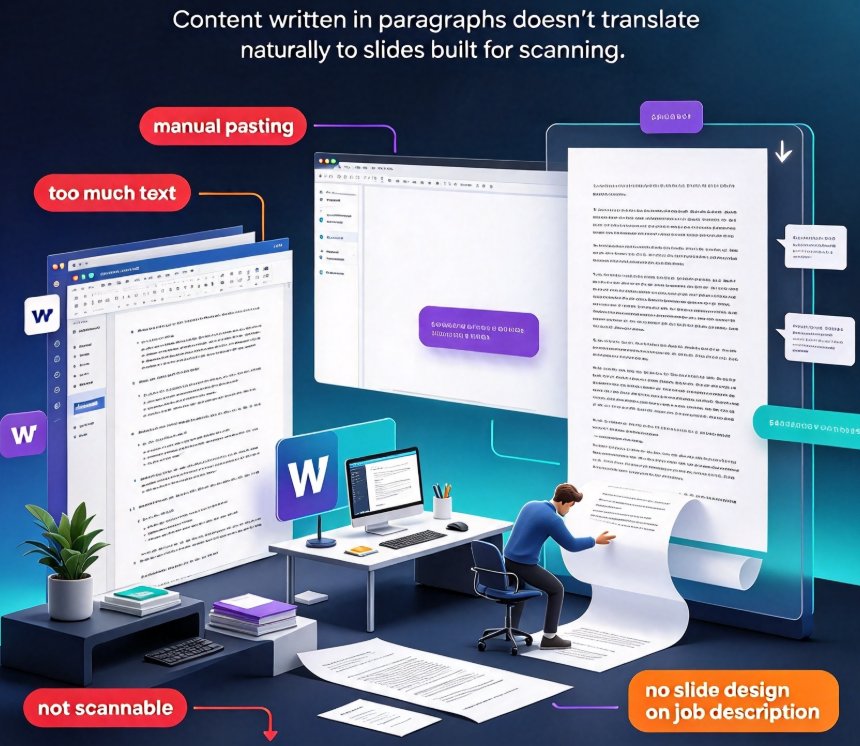
A document full of dense paragraphs doesn't convert well, no matter how smart the AI is. If your Word file is ten pages of continuous prose, spend 10 minutes adding heading breaks before importing. The AI will thank you — and so will your audience.
2. Ignoring the Template
Don't just hit generate with the first template Zendeck suggests. Spend 30 seconds thinking about who's watching. A training deck for new hires shouldn't use a flashy investor pitch template. Zendeck's AI suggests templates contextually, but you should still override it when your audience demands a different tone.
3. Treating the First Draft as the Final Version
The AI-generated deck is a strong draft, not a finished product. You still need to insert your real examples, adjust for audience-specific details, and add your voice. The whole point is that the structure is done — so spend your saved time on substance.
If you're building a client-facing pitch, the AI pitch deck generator guide has additional tips on structuring persuasive narratives.
FAQ
Q: Does Zendeck's AI import work with any Word document?
A: Yes, Zendeck accepts Word, Markdown, and TXT files. The AI reads the document's structure — headings, subheadings, and paragraphs — and segments it into slides. If your document uses proper heading styles, the output will be much cleaner and the slide hierarchy will map more accurately.
Q: Do I need design skills to use this workflow?
A: No. That's the whole point. Zendeck applies design rules and templates automatically, including consistent fonts, colors, and layouts, so you don't need to make any design decisions. You focus on the content, and the AI handles the visuals.
Q: How long does it take to convert a Word outline into a presentation?
A: The AI generation itself takes under a minute. Including outline prep and final refinements, most users go from a Word document to a presentation-ready deck in about 30 minutes — compared to the three or four hours manual conversion typically takes.
Q: Can I edit the slides after the AI generates them?
A: Absolutely. The AI generates a structured draft with titles, bullet hierarchy, and consistent design. From there, you can refine the wording, change the template, reorder slides, swap out visuals, or add interactive elements before exporting. You're editing a draft, not rebuilding from scratch.
Q: What file formats can I export to?
A: Zendeck lets you export to PowerPoint, PDF, and other common formats. You can also turn the deck into a narrated micro-course using the PPT-to-video feature, which auto-generates subtitles in the process.