Word to PPT: How Zendeck Automates Outline-to-Slides Conversion
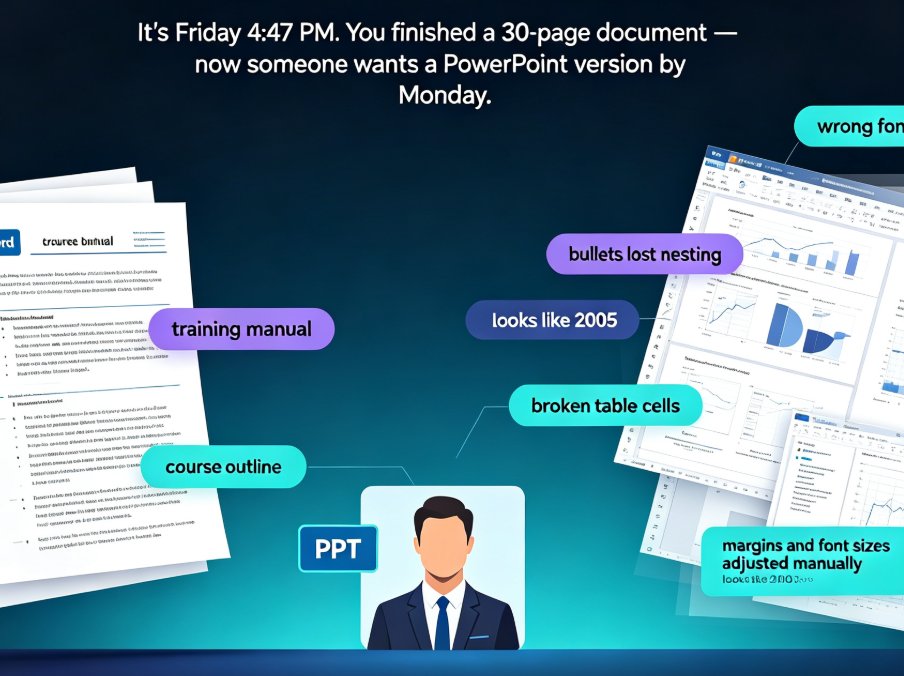
You have the Word document. The content is solid. The research is done. And then you look at the clock and realize you still need to turn 40 pages of dense text into a presentation that won't put your audience to sleep.
Sound familiar? If you're an educator, trainer, or professional who regularly works with reports, proposals, or course materials, you've probably spent more hours than you'd like to admit dragging text boxes around in PowerPoint. The good news? That workflow is now obsolete.
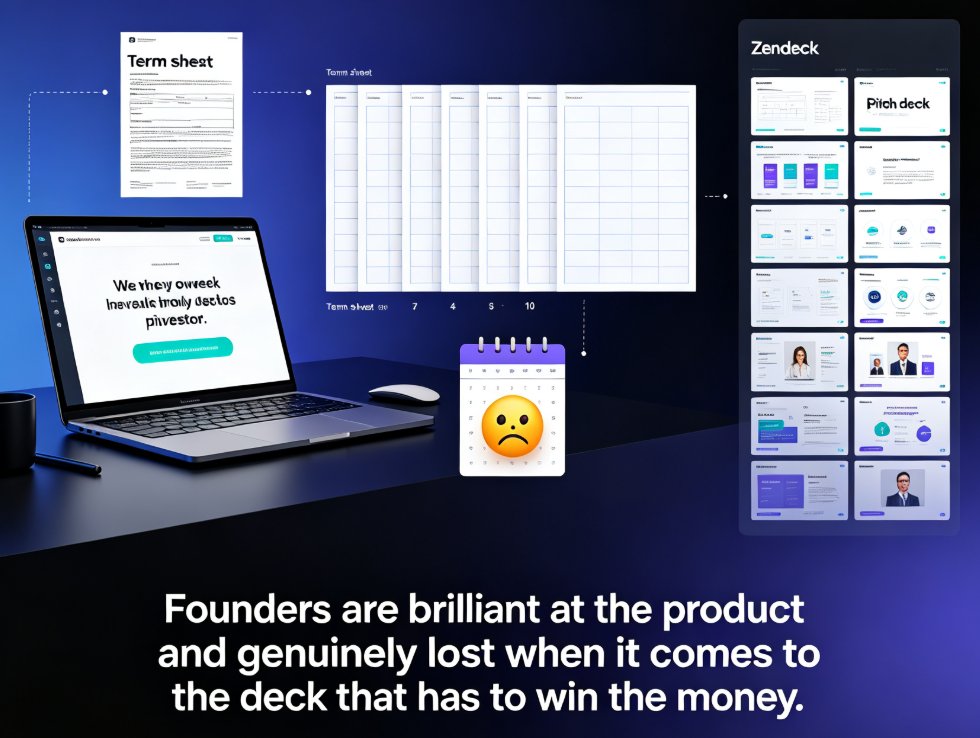
Zendeck's Word-to-PPT feature turns your existing document into a fully designed presentation in minutes — not hours. You keep your structure, your content, and your thinking. The AI handles the layout, the visual hierarchy, and the design consistency.
I. Why Word-to-PPT Conversion Matters More Than You Think
Let's be real: most of us don't start a presentation from a blank slide. We start from a document. A report we wrote last quarter. A training manual that's been sitting in a shared drive. A proposal that took three weeks to finalize.
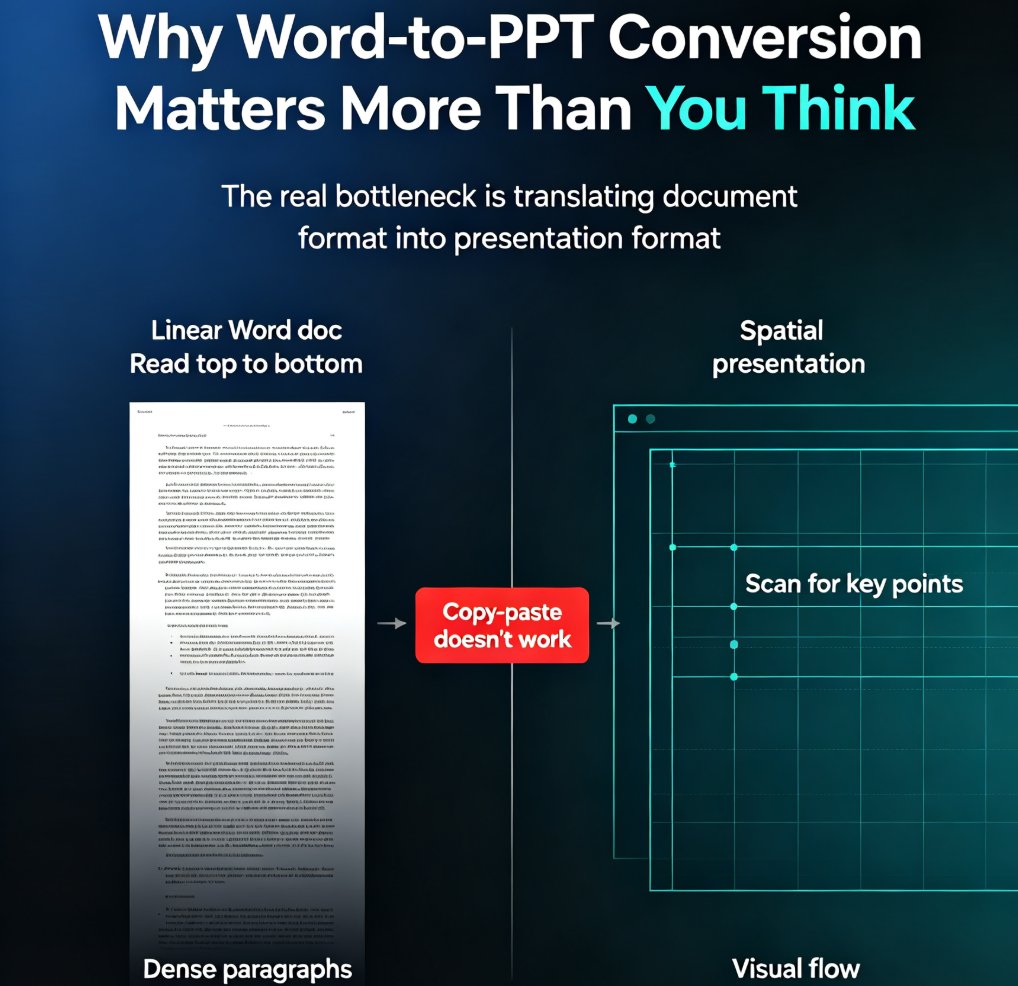
The problem is that documents and presentations are fundamentally different formats. A Word doc is linear — you read it top to bottom. A presentation is spatial — you scan it, you look for key points, you follow a visual flow. Simply copy-pasting text from one to the other doesn't work, and that's where most people get stuck.
The real bottleneck isn't content creation — it's the translation from document format to presentation format.
For educators, this is especially painful. You might have a 60-page course outline that took months to develop. Turning that into a slide deck for a lecture or a micro-course means rethinking every section, deciding what deserves a slide, and figuring out how to make it visually engaging. That's not just design work — that's strategy work. And it's exhausting.
For professionals, the stakes are similar. A business plan, an SOP, a market research report — these documents contain the substance of your presentation. But the deck needs to be scannable, persuasive, and on-brand. Doing that manually is a multi-hour task, and the result often looks... fine. Not great. Just fine.
II. How Zendeck's Word Import Works: From Outline to Slides
Here's the workflow that changes the game. Zendeck doesn't just paste your text into slides — it analyzes your document's structure, extracts the core messages, and rebuilds them as a presentation. If you've ever wondered how to turn a brain dump into something structured, this is the same principle applied to your existing documents.
Step 1: Upload Your Word Document
You start with a .doc or .docx file. Reports, proposals, SOPs, course outlines, training manuals — any structured document works. If your document is well-organized with headings and subheadings, the AI will pick up on that structure immediately.
Step 2: Set Your Preferences
Before generating, you tell Zendeck a few things: how many slides you want, who the audience is, and what tone you're going for. This shapes the content depth and visual style. A board meeting deck will look different from a student lecture, and Zendeck knows that.
Step 3: Generate the Deck
One click. The AI dissects your document structure, extracts core messages, surfaces supporting data, and maps everything into presentation logic. This isn't reformatting — it's a total transformation. Your dense paragraphs become bullet points. Your data becomes charts. Your sections become logical slide groupings.
Step 4: Review and Refine
The generated deck is fully editable. You can swap text, change images, adjust layouts, add slides, or fine-tune anything directly in the built-in editor. You're never locked into the AI's choices — you have full control over the finished product. This is a key difference from simple converters that just export your text into a template.
III. The Time Savings: What the Numbers Say
Let's talk about the actual time impact. Based on typical workflows, here's what manual conversion looks like versus using Zendeck:
| Task | Manual (PowerPoint) | Zendeck AI Conversion |
|---|---|---|
| Copy-paste content from Word | 30-60 min | 0 min (automatic) |
| Restructure content into slides | 60-120 min | 2-3 min (AI mapping) |
| Design layout and visual hierarchy | 60-180 min | 0 min (auto layout) |
| Apply brand colors and fonts | 30-60 min | 0 min (brand kit) |
| Create charts from data | 30-90 min | 5-10 min (auto charts) |
| Final review and polish | 30-60 min | 30-60 min |
| Total | 4-8 hours | 40-75 minutes |
The difference is dramatic. A task that typically eats an entire afternoon — or an evening — gets compressed into less than an hour.
Here's a visual breakdown of the time comparison:
The average professional saves roughly 5 hours per presentation by using an AI Word-to-PPT workflow. Over a month with just four presentations, that's 20 hours — half a work week — returned to actual thinking, teaching, or strategizing.
IV. Best Practices: Structuring Your Word Document for Better Slides
Here's the honest truth: the quality of your output depends heavily on the quality of your input. A messy Word document will produce a messy presentation. But a well-structured document? Zendeck will turn it into something genuinely impressive.
Use Heading Styles Consistently
If your document uses Heading 1, Heading 2, and Heading 3 properly, the AI can map those to slide sections, sub-sections, and bullet points. If everything is just plain text, the AI has to guess — and while it's good at guessing, you'll get better results with clear structure.
Keep Paragraphs Focused
Each paragraph should express one main idea. This makes it easier for the AI to extract the core message and turn it into a slide title or a bullet point. Think of it as pre-editing for your presentation.
Include Your Data Explicitly
If you have numbers, tables, or statistics in your document, make sure they're clearly presented. Zendeck can surface supporting data and turn it into charts, but it needs to find the data first. A table in your Word doc becomes a chart in your deck — that's a powerful transformation.
Don't Worry About Design
This is the part you can let go of. You don't need to think about fonts, colors, or layouts when writing your Word document. Zendeck's smart layout system handles the visual consistency automatically — you focus on substance, not style.
V. What Happens After Conversion: Beyond the Basic Deck
The Word-to-PPT conversion is just the beginning. Once your deck is generated, you can take it further:
Add Speaker Notes Automatically
Zendeck can auto-generate speaker notes for each slide, so you're never staring at a blank "notes" field before a presentation. This is especially valuable for educators who need to deliver consistent lectures across multiple sections.
Turn Your Deck into a Video
If you're creating training materials or micro-courses, you can convert your slides into a narrated video. This is a game-changer for educators who want to flip their classrooms or create on-demand learning content. The same workflow that turns a Word doc into slides can take those slides into a full video course.
Maintain Brand Consistency
If your organization has a brand kit, Zendeck applies it automatically. Colors, fonts, logos — everything stays consistent across every slide. No more hunting for the right hex code or the correct logo file. This is especially useful when you're converting multiple documents into a unified deck library.
VI. Common Mistakes to Avoid When Converting Word to PPT
Even with AI, there are a few pitfalls worth avoiding:
Mistake 1: Dumping everything. Don't try to fit every sentence from your document into the deck. The AI will help you condense, but you should also be willing to cut. A presentation is a summary, not a transcript.
Mistake 2: Ignoring the audience setting. When you set your audience during the import step, you're telling the AI how deep to go. A technical audience needs different depth than executives. Use this setting — it makes a real difference.
Mistake 3: Skipping the review pass. AI-generated decks are excellent starting points, but they're not final products. Always review the generated deck, adjust the flow, and make sure the narrative matches your intent. The editing tools make this quick, but it's a step you shouldn't skip.
VII. Why Zendeck Stands Out in the Word-to-PPT Space
There are other tools that claim to convert Word to PowerPoint. Some are built into Microsoft Office itself. But most of them do a simple export — they paste your text into slides and call it a day. The result is often a wall of text on each slide, which defeats the entire purpose of a presentation.
Zendeck takes a different approach. It treats your document as raw material, not as a finished product. The AI analyzes the structure, extracts the key messages, and rebuilds everything with proper presentation logic. The result is a deck that looks like it was designed by a professional — because the AI has absorbed thousands of design patterns to make it so.
For educators, this means course materials become lecture slides without the design drudgery. For professionals, it means reports and proposals become persuasive decks without the late nights. And for anyone who's ever stared at a blinking cursor in PowerPoint, it means the end of a very old pain.
FAQ
Can I convert any Word document to PPT with Zendeck?
Yes, Zendeck accepts .doc and .docx files. Reports, proposals, SOPs, course outlines, and training manuals all work well. The better structured your document is — with clear headings and focused paragraphs — the better the resulting presentation will be.
Will I lose my content during the conversion?
No. Zendeck condenses and restructures your content for presentation format, but it doesn't delete information. You can review the generated deck and add back any details you feel are missing. The goal is to make your content scannable, not to strip it down.
Can I edit the slides after Zendeck generates them?
Absolutely. The generated deck is fully editable. You can change text, swap images, adjust layouts, add or remove slides, and fine-tune anything in the built-in editor. You have complete control over the final product.
How long does the conversion take?
Most conversions complete in a few minutes. The AI needs to analyze your document structure, extract core messages, and generate the slide layout. A 40-page document typically converts in under five minutes.
Does Zendeck support brand colors and fonts?
Yes. If you have a brand kit set up, Zendeck applies your colors, fonts, and logo automatically to every slide. This ensures consistency across your entire presentation without any manual design work.