Zendeck Asset Library: Find Icons, Charts, and Illustrations Quickly
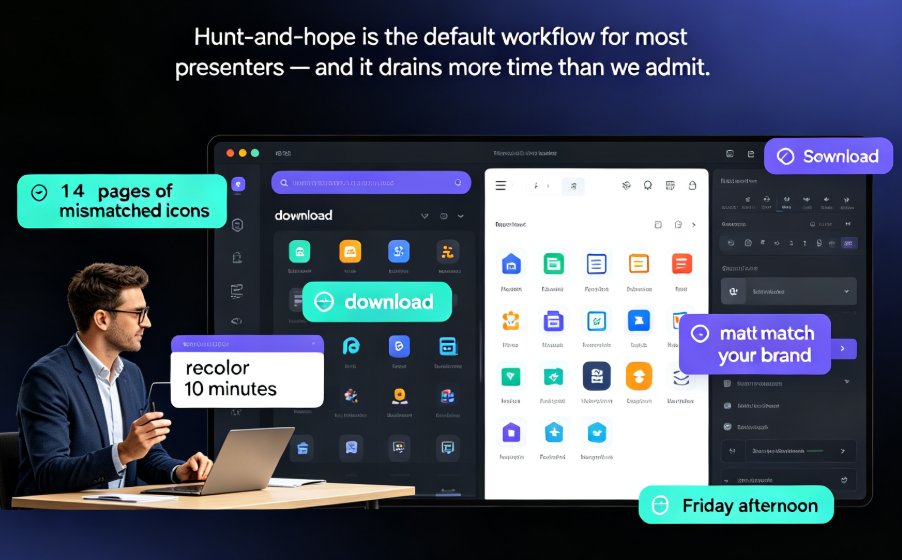
You know that feeling. You're building a deck, the content is solid, but the slides look like a wall of text. So you open a browser tab, search for "free presentation icons," download a mismatched set, spend ten minutes resizing, and end up with something that still doesn't fit your brand. Sound familiar?
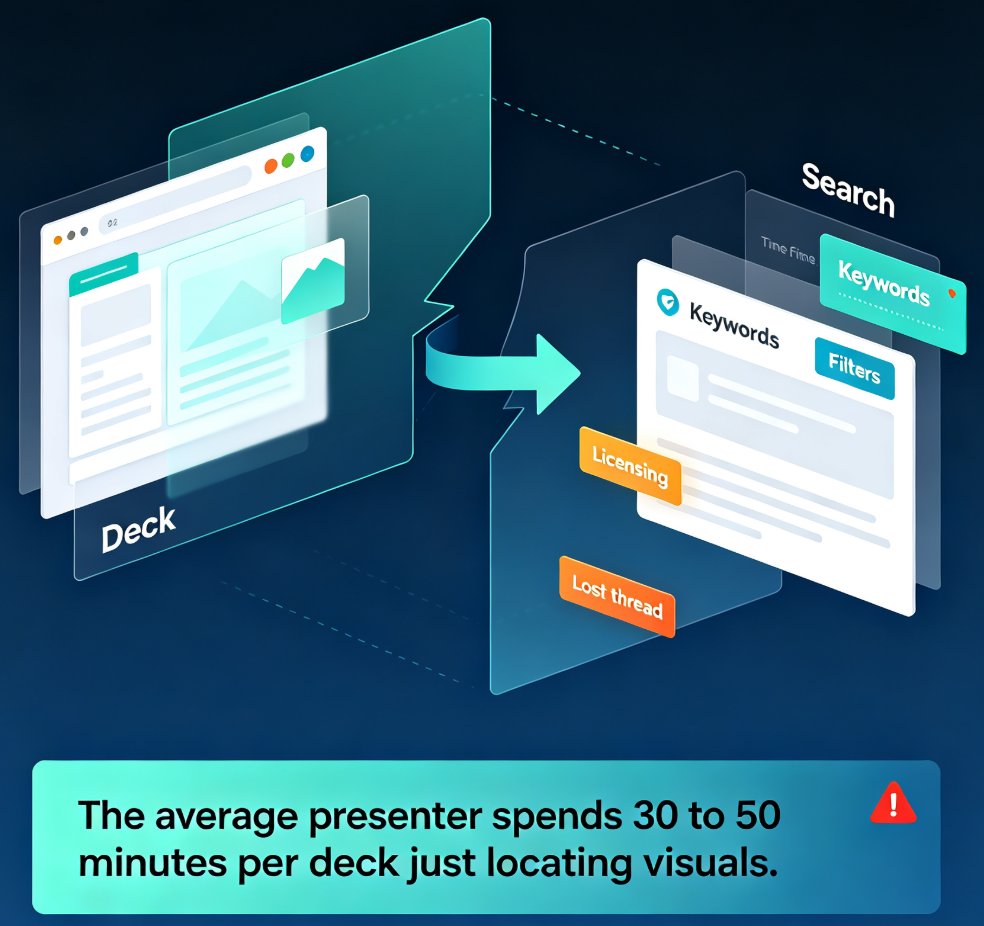
Let's be real: the visual hunt is where most presentation time disappears. Not the writing, not the structuring — the hunting. And for anyone without design training, that hunt is even slower because you're not sure what you're looking for in the first place.
The fix isn't more patience. It's a better system. Zendeck's built-in asset library gives you a searchable, filterable collection of icons, charts, and illustrations that lives right inside your workflow. No tab-hopping, no licensing worries, no format mismatches. Here's how to use it like someone who does this every day.
01 Why the Asset Library Beats Your Downloads Folder
Most people treat visuals as an afterthought. They finish the content, then scramble to decorate. That's backwards, and it's why so many decks end up with three different icon styles and a chart that doesn't match the color palette.
The asset library solves this by putting every approved visual in one place, searchable in seconds. Instead of remembering where you saved that "growth arrow" PNG, you type two words and it's there. Instead of guessing whether an illustration matches your brand, you filter by color and style.
Here's what changes when you work from a centralized library:
- No more version chaos. Every asset lives in one place, so you never insert an outdated logo or a low-res screenshot by accident.
- Faster insertion. Search, click, insert. The asset drops onto your slide at the right size, ready to position.
- Consistent style. When your team pulls from the same library, decks start to look like they belong to the same company.
If you've ever rebuilt a slide because the icon you grabbed from a random site clashed with everything else, you already know the cost. The library removes that risk at the source.
02 Search Like a Pro: Natural Language and Filters
Here's the shortcut most people miss: you don't need to know the exact filename to find an asset. Zendeck's search supports natural language, so you can describe what you're looking for the way you'd say it out loud.
Instead of typing "arrow_icon_v3_final.png," type "growing arrow" or "upward trend." Instead of "chart_blue," try "quarterly sales bar chart." The search engine matches meaning, not just tags, which means generic descriptions work.
Combine that with the filter panel and you're dangerous. You can narrow results by:
- Asset type — icon, chart, illustration, photo, video
- File format — JPG, PNG, SVG, PDF, and more
- Color — match your brand palette
- Tags and metadata — find assets by how they're categorized
The combination of a descriptive search plus one or two filters usually gets you to the right asset in under ten seconds. That's the difference between a five-minute hunt and a quick grab.
A practical example: you're building a slide about customer retention. Search "retention" and you'll get a mix of icons and charts. Add a filter for "chart" and you'll see data visualization options. Add a color filter for your brand blue, and you're looking at exactly what belongs on that slide.
03 Icons: The Quick Win for Any Deck
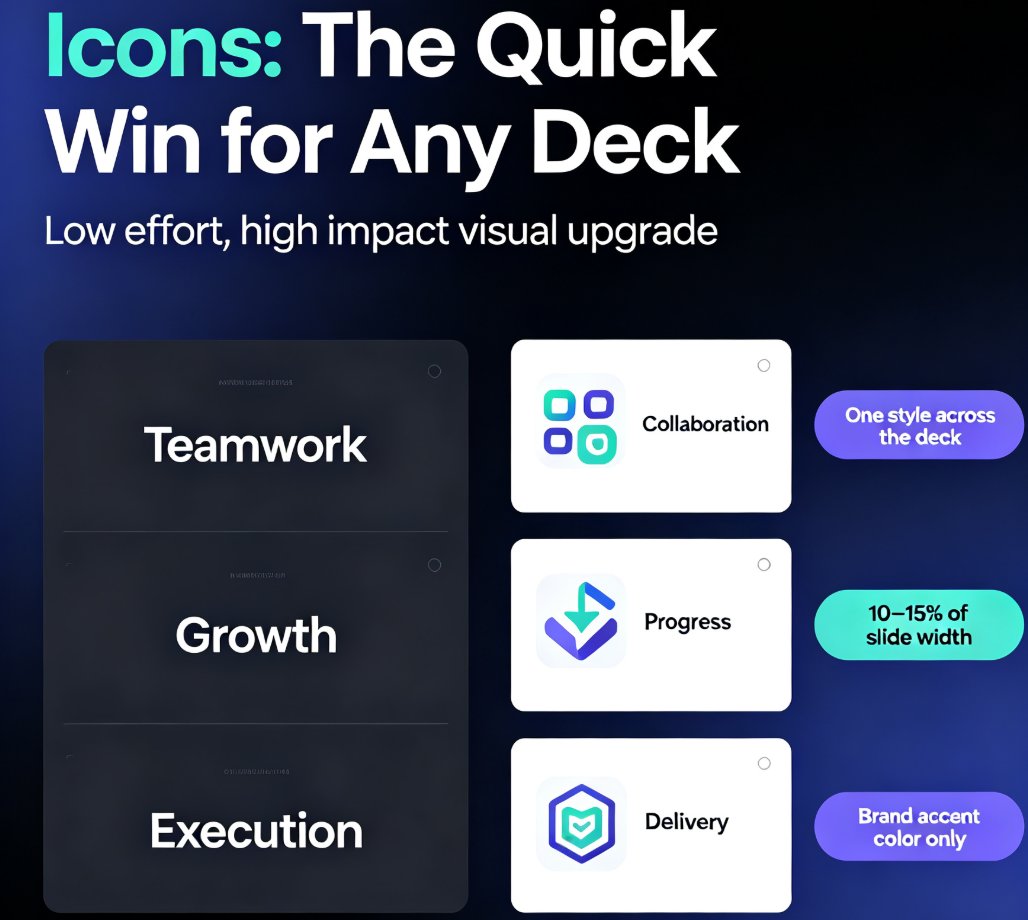
Icons are the lowest-effort, highest-impact visual upgrade you can make. A slide with three bullet points and a matching icon for each one reads faster and looks more polished than the same slide with text alone.
The trick is to search by action or concept, not by object. If you need an icon for "teamwork," search "collaboration" or "people together." If you need something for "growth," try "upward" or "progress." The natural-language search handles these conceptual queries well.
When you insert an icon, keep these habits in mind:
- Stay consistent. Pick one icon style (filled, outline, or duotone) and stick with it across the whole deck.
- Size matters. Icons should be large enough to read at a glance but not dominate the slide. Around 10-15% of slide width works for most layouts.
- Color with intent. Use your brand accent color for icons, not the full rainbow. One accent color keeps things cohesive.
For a deeper dive on keeping your visuals consistent across hundreds of slides, check out our guide on maintaining brand consistency with AI brand kits.
04 Charts: Making Data Actually Readable
A chart is only useful if the audience can read it in five seconds. The asset library helps here because you're not starting from a blank canvas — you're starting from a chart that's already designed to be legible.
Search for the chart type you need (bar, line, pie, donut) plus the metric you're showing ("monthly revenue," "market share"). The library returns options that fit the context, and you can drop them into your slide and update the data.
The real power comes from combining the asset library with Zendeck's interactive chart capabilities. You can insert a chart asset, then make it interactive so viewers can hover, click, and explore the data themselves. That turns a static slide into a conversation piece.
Here's a quick comparison of when to use each asset type:
| Asset Type | Best For | Search Tip | Time Saved vs. Building From Scratch |
|---|---|---|---|
| Icons | Concepts, lists, process steps | Search by action word ("growth," "collaboration") | ~10 min per deck |
| Charts | Data, trends, comparisons | Search by chart type + metric ("bar chart revenue") | ~15 min per chart |
| Illustrations | Hero slides, section dividers | Search by mood + subject ("modern office team") | ~20 min per illustration |
If you want to learn more about making charts interactive, read our walkthrough on adding interactive charts with Zendeck's asset library.
05 Illustrations: When Photos Feel Cold
Stock photos have a place, but they can feel generic — especially in training decks and internal presentations. Illustrations, on the other hand, can communicate tone and personality in a way photos rarely do.
The asset library's illustration collection works best for:
- Hero slides — the opening slide of a section that needs visual impact
- Section dividers — a visual break between major topics
- Abstract concepts — things that don't photograph well, like "innovation" or "strategy"
Search by mood plus subject. "Friendly team meeting," "modern abstract shapes," "growth mindset" — these descriptive searches surface illustrations that match the emotional tone you want, not just the literal subject.
One caveat: don't overuse illustrations. One strong illustration per section beats five scattered ones. The asset library makes it easy to find them, but restraint is still a design skill.
06 Keep It On-Brand Without Thinking About It
Here's where the asset library really pays off. When you pair it with a Zendeck Brand Kit, every asset you insert can be automatically adjusted to match your brand colors, fonts, and style.
You don't need to be a designer to make on-brand decks — you need a system that enforces the rules for you. Set your brand kit once, and the one-click reskin feature unifies colors and layout across your entire deck. Mix an icon from the library with an illustration and a chart, and they'll all end up looking like they belong together.
This is the workflow that separates teams who ship consistent decks from teams who ship whatever happens to look okay at 11 PM. If you're building for a team, this is worth setting up properly. Start with our guide on creating a custom brand kit for consistent decks.
07 Common Mistakes and How to Avoid Them
Even with a great library, people make the same mistakes. Here's what to watch for:
Mistake 1: Searching too specifically. If you type "blue arrow pointing up with a dollar sign," you'll get nothing. Search the core concept ("growth") and filter from there.
Mistake 2: Mixing styles. Three icon styles on one slide screams "amateur." Pick one style for the whole deck and resist the urge to grab something different because it's "close enough."
Mistake 3: Ignoring file format. If you're zooming in on a small icon, make sure you're using a vector format like SVG so it stays crisp. Raster formats like JPG will pixelate.
Mistake 4: Forgetting to check previews. The library lets you preview media files directly. Use that preview before inserting — it's faster than inserting, hating it, and deleting.
And one more thing: if your AI-generated slides still look messy even with good assets, the problem might be the layout, not the visuals. Our guide on fixing messy AI-generated slides covers that exact scenario.
08 Your New Visual Workflow
Let's put it all together. Here's the workflow that takes you from blank slide to polished deck without the hunting:
- Set up your brand kit so every asset matches your colors and fonts automatically.
- Search by concept, not filename. Use natural language and let the filters narrow things down.
- Insert, then reskin. Drop the asset in, then run the one-click reskin to unify everything.
- Preview before you commit. Use the in-library preview to catch problems early.
- Stay consistent. One icon style, one accent color, one illustration per section max.
The goal isn't to spend less time on visuals — it's to spend that time on the right things. Instead of hunting for assets, you're choosing between two good options. Instead of resizing and recoloring, you're positioning and refining.
That's the real win. The asset library doesn't just save you minutes; it changes how you think about slides. Visuals become a tool for communication, not decoration.
If you're new to Zendeck and want to see how the library fits into the bigger picture of AI-powered deck creation, start with the AI courseware category to explore what's possible.
FAQ
How do I search the Zendeck asset library efficiently?
Use natural-language queries instead of exact filenames. Type descriptive phrases like "growing arrow" or "team collaboration" and Zendeck's intelligent search matches meaning, not just tags. Combine that with the filter panel to narrow by asset type, format, or color, and you'll land on the right visual in seconds.
Can I upload my own assets to the Zendeck library?
Yes. You can upload files up to 30MB per item, with no limit on the total number of files. Supported formats include JPG, PNG, SVG, PDF, PPTX, DOCX, MP4, and more. Upload once, tag it, and it stays available for every future deck.
What file formats does the asset library support?
The library accepts a wide range: images (JPG, PNG, GIF, BMP, TIF, WEBP), vector files (SVG, EPS), documents (PDF, DOC, DOCX, PPTX, XLSX, CSV), fonts (TTF), and video (MP4, MOV). Only media files like JPG, GIF, PNG, PDF, and MP4 can be previewed directly inside the library.
How do I keep visuals on-brand when using the asset library?
Pair the asset library with a Zendeck Brand Kit. Set your brand colors, fonts, and logo once, then apply them to any asset you insert. The one-click reskin feature automatically unifies colors and layout, so even a mix of icons and illustrations looks like it was designed by one team.
Can I use asset library visuals in PPT-to-video projects?
Absolutely. Assets you insert into slides carry over when you convert a deck to video with Zendeck's PPT-to-video feature. Icons and charts stay crisp, and you can add narration or subtitles on top for a polished micro-course.