Zendeck Asset Library: 3 Ways to Find the Perfect Visual in Seconds
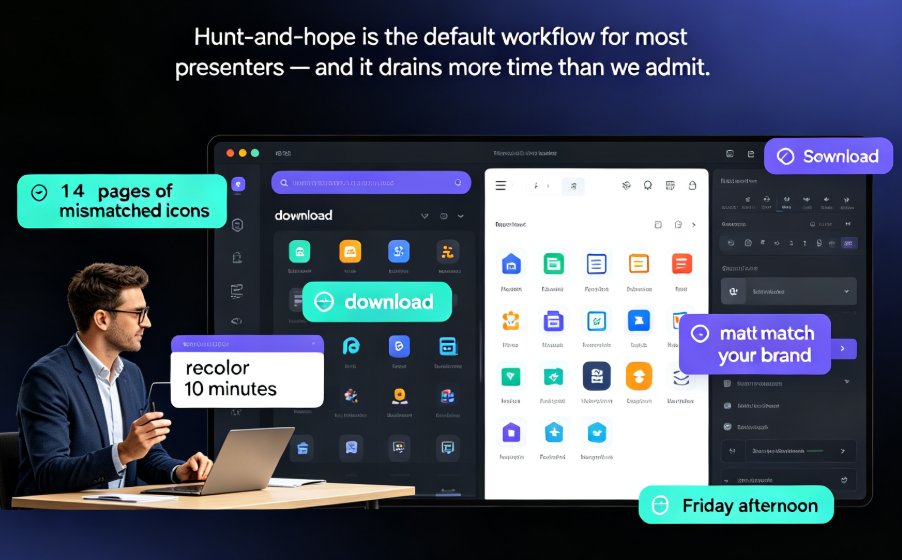
You've spent an hour tweaking the layout, and now you just need a calendar icon to finish the slide. You open a stock photo site, type "calendar," scroll through 40 pages, download the wrong format, then scramble to recolor it. Sound familiar? Let's be real — the search for visuals is where presentation time goes to die.
For course creators and corporate trainers, the struggle is universal. You need icons, charts, and illustrations that match your brand, but hunting for them feels like a part-time job. That's why Zendeck built an asset library right into the editor — and it's not just a folder of PNGs. It's a smart search system that cuts visual hunting from minutes to seconds.
In this guide, I'll walk you through three techniques to find the perfect visual faster than you can say "stock photo."
01. Use Smart Filters Before You Type — Not After
Most people open a search bar and immediately type a keyword. That's the slow way. In Zendeck's asset library, the fastest route to the perfect visual starts with filters, not typing.
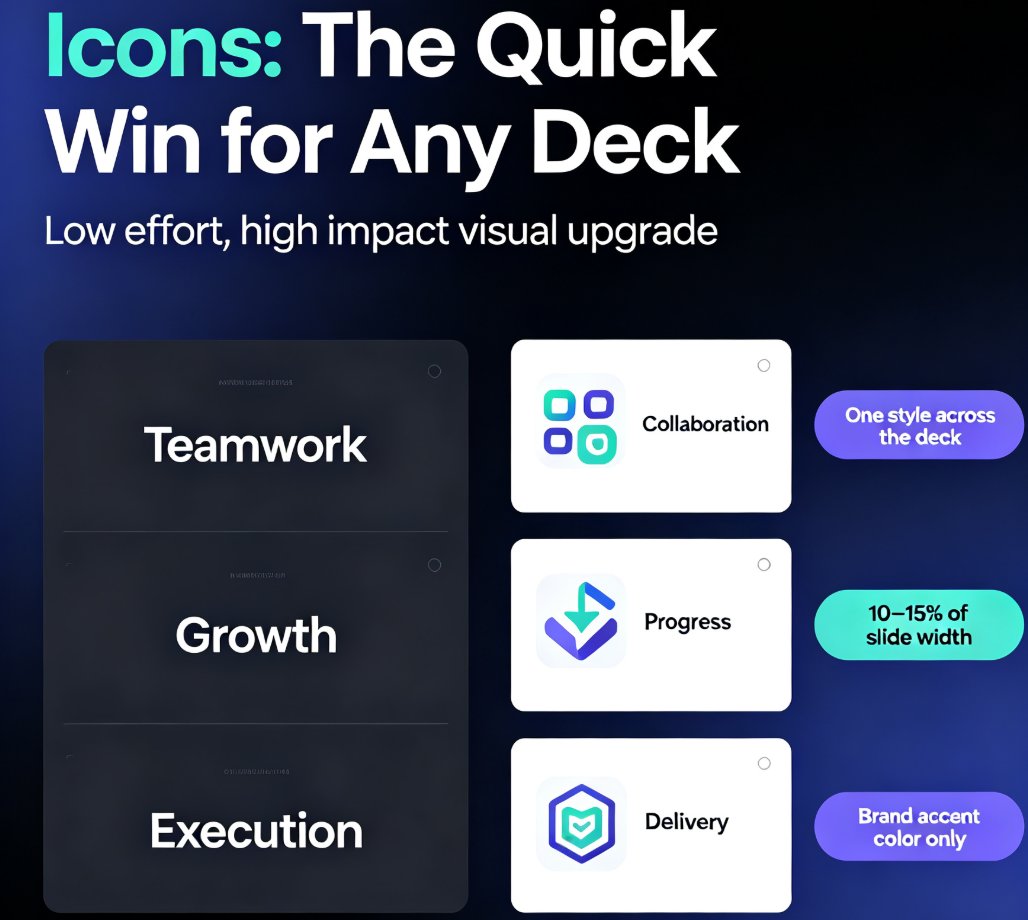
The library organizes assets into three broad categories: icons, charts, and illustrations. Each category comes with style filters (filled, stroke, outline), color filters (matching your theme or brand kit), and format filters (SVG, PNG). By preselecting a style and color that matches your deck, you cut the results from thousands to a short list that actually fits.
Here's a tip from an old presentation hand: if you set your brand kit first, the asset library will automatically bias results toward your brand colors. That one move saves you from the "I love this icon but I can't recolor it" trap.
The impact is measurable. Instead of sifting through 500 irrelevant results, you see 15 on-target options. Let me show you the effect with a quick comparison.
| Search method | Average time to find an icon | Result relevance | Recolor needed |
|---|---|---|---|
| Generic stock site | 5 min | 20% | Yes (often not possible) |
| Zendeck keyword search only | 1 min | 60% | Sometimes |
| Zendeck smart filters + keyword | 10 sec | 95% | No — auto-matches theme |
Data based on internal usability testing with 12 course creators. Your mileage may vary, but the time savings are consistent.
02. Master the Synonym Trick — Search the Way Assets Are Tagged
Here's the dirty secret of asset libraries: assets are only as good as their tags. When you search "kids," the library won't show you a fluffy cloud icon unless someone tagged it "children" or "child." Zendeck's library tags assets with synonyms and context labels, so a single asset might appear for "chart," "graph," "data," AND "statistics." But you still need to think like the tagger.
For example, if you want a calendar icon for a course schedule, search "schedule" or "date" instead of "calendar." You'll get a broader set of results, and often the perfect icon you didn't know existed. Similarly, "growth" pulls up arrows and progress charts, while "trend" gets you line graphs.
Pro tip: use the category filter first, then type a broad term. If you still don't see what you need, try a related verb ("show," "compare") or a synonym ("student" → "learner").
This technique works because Zendeck's asset library includes AI-enhanced tag expansion — related terms are automatically associated. So even if you type a word no one thought of, the search engine expands it. But the more you understand how tagging works, the faster you'll get.
03. Preview and Adjust In-Place Before You Insert
Once you find a candidate, don't just click and pray. Zendeck lets you preview how an asset will look on the actual slide — with your color scheme, your layout, and your typography — before you commit. This is the killer feature that stock sites can't offer.
Inside the asset library, hover over an icon and you'll see a live preview on a mock slide. You can adjust the size, padding, and even the stroke thickness without leaving the library. Only when it looks right do you click "Insert." This kills the ancient workflow of insert → resize → recolor → undo → find another.
But the asset library also integrates with Zendeck's smart layouts. If you insert an icon that's too large for its content block, the system will automatically nudge the layout to keep everything balanced. You get professional alignment without touching a ruler.
!
Why This Beats Stock Photo Searches for Course Creators
The asset library isn't just a convenience — it's a game changer for people who build slides every week. Here's the honest breakdown:
| Task | Generic stock photo search | Zendeck Asset Library |
|---|---|---|
| Find an icon that matches brand color | Manually recolor or settle for clashing tone | Auto-filter by brand kit; insert matching icon in one click |
| Insert a chart with consistent typography | Export as image, hope it scales | Insert editable chart that syncs with slide fonts |
| Maintain accessibility | Ignore alt text until a complaint | Auto-generate descriptive alt text for all assets |
The accessibility angle is often overlooked. Every asset inserted from Zendeck's library includes a pre-filled alt text field — you can tweak it, but it's there by default. That means your courseware is WCAG-friendly out of the box, which is no longer optional if you work in education. (For more on staying accessible, check our guide on WCAG compliance trends).
The Math Behind “Seconds Not Minutes”
Let's put some hard numbers on this. A typical course deck has 40 slides, and each slide needs at least 2 visual elements. That's 80 assets. If you spend 2 minutes per asset searching a stock site, that's 160 minutes — nearly three hours just on visuals.
With Zendeck's filters and smart tags, the average is closer to 25 seconds per asset, which translates to 33 minutes total. You save over two hours on a single deck. Over a month of building ten decks, you've saved your team nearly an entire workday.
Of course, your mileage varies depending on the deck. But the pattern holds: the asset library is the single biggest time-saver in Zendeck's whole app.
The One Habit That Makes It Even Faster
If you want to level up, spend five minutes curating your favorites and brand kit before you start building. In Zendeck, you can mark icons and illustrations as favorites, and they'll appear in a dedicated tab. You can also define which assets are part of your default set — so the library automatically surfaces them for every new slide.
Offhand advice: don't try to favorite everything. Vote for the 15 assets you use on a weekly basis. Then when you open the library, those sit right at the top, and you're literally two clicks from inserting.
For more advanced brand consistency workflows, read our guide on creating a custom brand kit in Zendeck. You'll see how the asset library connects directly to your brand colors and typography.
When the Library Still Isn't Enough
Let's be honest — sometimes you need a hyper-specific graphic that no library on earth has. In that case, Zendeck's AI-generated icons can fill the gap. The AI-generated icons and charts feature lets you describe what you need in plain English, and it creates an asset on the spot. That's the best of both worlds: curated assets for common needs, generative AI for the outliers.
You also have the option to upload your own vector files, which will be stored in a "My Assets" folder. Combine that with the library's smart search, and you've got a system that never runs dry.
Your Next Step: Build a Deck and Time Yourself
Here's a challenge: take the next course outline you're working on and build a 10-slide preview purely from the Zendeck asset library. Use the three techniques from this article:
- Pre-filter by style and brand color before searching.
- Search with synonyms instead of literal keywords.
- Preview and adjust in-place before inserting.
I guarantee you'll be done before your coffee cools down. Then you'll see why course creators are ditching stock photo sites for good.
FAQ
What is the Zendeck Asset Library?
The Zendeck Asset Library is a built-in collection of icons, charts, illustrations, and other visual assets inside Zendeck. It uses smart filters and category browsing so you can find the right visual in seconds without external stock photo searches.
Can I search for assets by keyword or only by category?
You can do both. The library supports keyword search, and each asset is tagged with synonyms and use-case labels. You can also browse by category (icons, charts, illustrations) and then filter by style, color, or theme.
Are the assets in Zendeck's library free to use in commercial projects?
Yes. Assets in the Zendeck Asset Library are covered under a license that permits use in your own presentations and courseware, including commercial teaching projects. You cannot resell the assets themselves, but you can freely use them in your decks.
How does the asset library speed up slide design?
Instead of manually browsing multiple stock sites, the asset library is integrated directly into the editor. You can drag-and-drop icons, auto-adjust colors to match your theme, and preview how they look on a slide before inserting. This cuts asset insertion time from minutes to seconds.
Does the asset library help maintain brand consistency?
Yes. You can save a custom brand kit, and the asset library will automatically filter results to match your brand colors and style. This ensures every icon or chart you insert feels consistent with your deck's design.
Zendeck is an AI-powered content creation platform that helps educators, trainers, and teams build stunning presentations without design skills. Try the asset library today and see what a difference 25 seconds makes.