How to Import a Research Report into Zendeck and Generate an Executive Summary Deck
The 4-Hour Report Crunch That Nobody Talks About
Let's be real: you've just finished reading a 50-page research report. Your brain is buzzing with insights, trends, and data points. Now your boss wants a 10-slide executive summary by tomorrow morning. The old way? You open PowerPoint, stare at a blank slide, and start copying bullet points from page 12, then page 24, then page 37. Three hours later, you have a messy slide deck that looks like a ransom note made of clip art.
There's a better way. Zendeck's document import feature lets you upload that same report and get a clean, branded executive summary deck in minutes. Not a rough draft — a polished presentation that's ready to share with stakeholders. Here's how it works and why it's changing the game for busy professionals.
I. The Real Cost of Manual Executive Summaries
Before we dive into the solution, let's quantify the problem. Creating an executive summary deck from a dense report typically takes 3–5 hours for an experienced analyst. That includes:
- 30 minutes scanning the report to identify key sections
- 1–2 hours manually extracting and rewriting key points
- 1 hour designing slides (fonts, colors, layouts)
- 30 minutes aligning with brand guidelines
The outcome? Inconsistent formatting, missed insights, and a frustrated team member who could have spent that time on actual analysis.
Pain point → solution → outcome: When you're buried in manual extraction, your brain is in copy-paste mode, not strategic thinking mode. Zendeck's AI handles the extraction so you can focus on the narrative. The result: a deck that's not just faster but also more coherent.
II. How Zendeck's Document Import Transforms Reports into Decks
Zendeck's import feature is deceptively simple. Here's the step-by-step process that turns a dense PDF into a crisp executive summary.
Step 1: Upload Your Report
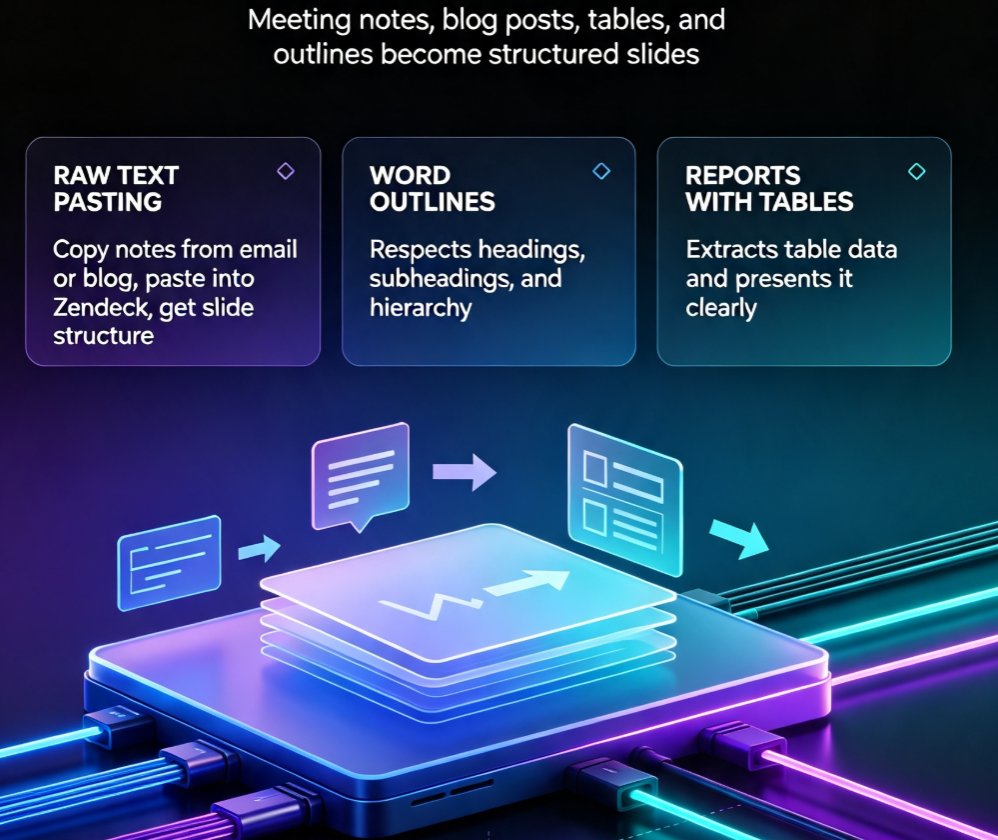
You can drag and drop a Word document, PDF, or plain text file directly into Zendeck. The AI reads the entire document structure — headings, subheadings, bullet lists, tables, and paragraphs. It doesn't just grab the first 500 words; it analyzes the hierarchy of information.
Pro tip: For best results, make sure your report has clear headings. Zendeck uses them to organize the deck's slide structure. If your PDF is a scanned image, consider using OCR first.
Step 2: Choose Your Output Style
Zendeck asks what kind of deck you want. For an executive summary, select "Executive Summary" or "Briefing Deck." The AI then prioritizes the introduction, key findings, data highlights, and conclusions — exactly what a stakeholder needs to grasp the report's essence in 10 minutes.
Step 3: Apply Branding and Templates
This is where Zendeck shines. You can apply a brand kit (colors, fonts, logo) in one click. Or choose from 500+ templates in the library. The deck instantly adopts a consistent look — no more mismatched fonts or random colors.
Step 4: Review and Customize
Zendeck generates a deck with structured slides: title, executive summary, key findings, data highlights, implications, and next steps. Each slide is editable. You can reorder slides, tweak bullet points, swap images from the asset library, or add charts.
Step 5: Export or Share
Export to PPTX, PDF, or Google Slides, or share a link for real-time collaboration. You can also turn the deck into a narrated video using Zendeck's PPT-to-video tool — perfect for remote stakeholders who prefer watching over reading.
III. Manual vs. Zendeck: The Real Difference
| Aspect | Manual Workflow | Zendeck Workflow |
|---|---|---|
| Time to first draft | 2–3 hours | 2–3 minutes |
| Formatting consistency | Inconsistent (human error) | Perfect (brand kit applied) |
| Insight extraction | Relies on memory and highlighters | AI scans full document, identifies key sections |
| Slide design | Manual layout, often clunky | Smart layout with auto-alignment |
| Collaboration | Email attachments, version chaos | Real-time share link, version control |
| Final polish time | 1–2 hours | 10–15 minutes |
The numbers speak for themselves. Teams using Zendeck report a 70% reduction in time spent on presentation prep — and that's not counting the sanity saved.
IV. Pro Tips for Getting the Best Executive Summary Deck
Zendeck does the heavy lifting, but a little human finesse goes a long way. Here are strategies that veteran users swear by.
1. Pre-clean Your Report's Structure
If your report has a messy outline (e.g., inconsistent heading levels), spend 5 minutes improving the heading hierarchy. Zendeck's AI follows the document's structure, so clear headings = better slide organization.
2. Use the Brand Kit from Day One
Don't wait until after generation to apply branding. Set up your brand kit in Zendeck before importing, and the deck will be on-brand from slide one. This is especially critical for client-facing executive summaries. Check out how to set up brand kits in Zendeck for a step-by-step guide.
3. Add a Data Highlights Slide
Zendeck automatically pulls data points from tables and charts in the report. But you can supplement with your own key metrics by adding a dedicated data slide. Use the asset library for icons and charts to make numbers pop.
4. Edit with Purpose
The generated deck is a starting point, not a final product. You are the expert — your job is to refine the narrative. Move slides around, add your analysis, and cut any fluff that the AI couldn't filter. The time saved means you can focus on the story, not the slides.
5. Export and Share Strategically
For internal stakeholders, share a Zendeck link with real-time collaboration. For external clients, export to PDF to lock the layout. Need to present at a conference? Export to PPTX and use PowerPoint's presenter mode. Zendeck's export options cover every scenario.
V. Why This Matters for Stakeholder Communication
The ultimate goal of an executive summary deck is to drive decision-making. When you spend hours on slide design, the quality of your insights suffers. Zendeck flips that equation: the AI handles the grunt work, so you can invest your energy in what matters — the story, the recommendations, and the strategic implications.
A real-world example: A consultant at a top firm had to present a 60-page market analysis to a CEO. Using Zendeck, she imported the report, applied her firm's brand kit, and had a 12-slide executive summary in 4 minutes. She spent the next 30 minutes fine-tuning the narrative and adding a custom data visualization. The CEO was impressed by the clarity and speed — and the consultant won a follow-up engagement.
Pain point → solution → outcome: The pain of manual report distillation is real. Zendeck's solution is a document import that respects your time and expertise. The outcome is a faster, better-looking deck that makes you look like a pro.
FAQ
Q: What file formats does Zendeck support for importing research reports? A: Zendeck supports Word (.docx), PDF, plain text (.txt), and Markdown files. You can also paste raw text directly. For PDFs, Zendeck extracts the text content and organizes it into slides.
Q: Can I customize the generated executive summary deck after import? A: Absolutely. After Zendeck generates the initial deck, you can edit any slide, change layouts, apply different templates, add your brand kit, and insert visuals from the asset library. The deck is fully editable.
Q: How does Zendeck ensure the executive summary focuses on the right insights? A: Zendeck uses AI to analyze the document structure, identify key sections, headings, and highly repeated terms. It prioritizes the introduction, conclusion, and data-heavy sections, creating a summary that mirrors the original report's logic.
Q: How long does it take to generate a deck from a 50-page report? A: Typically under 3 minutes. The AI processes the document, extracts key points, and builds a structured deck. You can then spend a few minutes polishing rather than hours starting from scratch.
Q: Can I export the final deck to PowerPoint or PDF? A: Yes. Zendeck allows you to export to PPTX, PDF, and Google Slides. You can also share the deck online via a link or turn it into a video with narration.