One-Click Design Consistency: How Zendeck's Smart Layout Unifies Decks
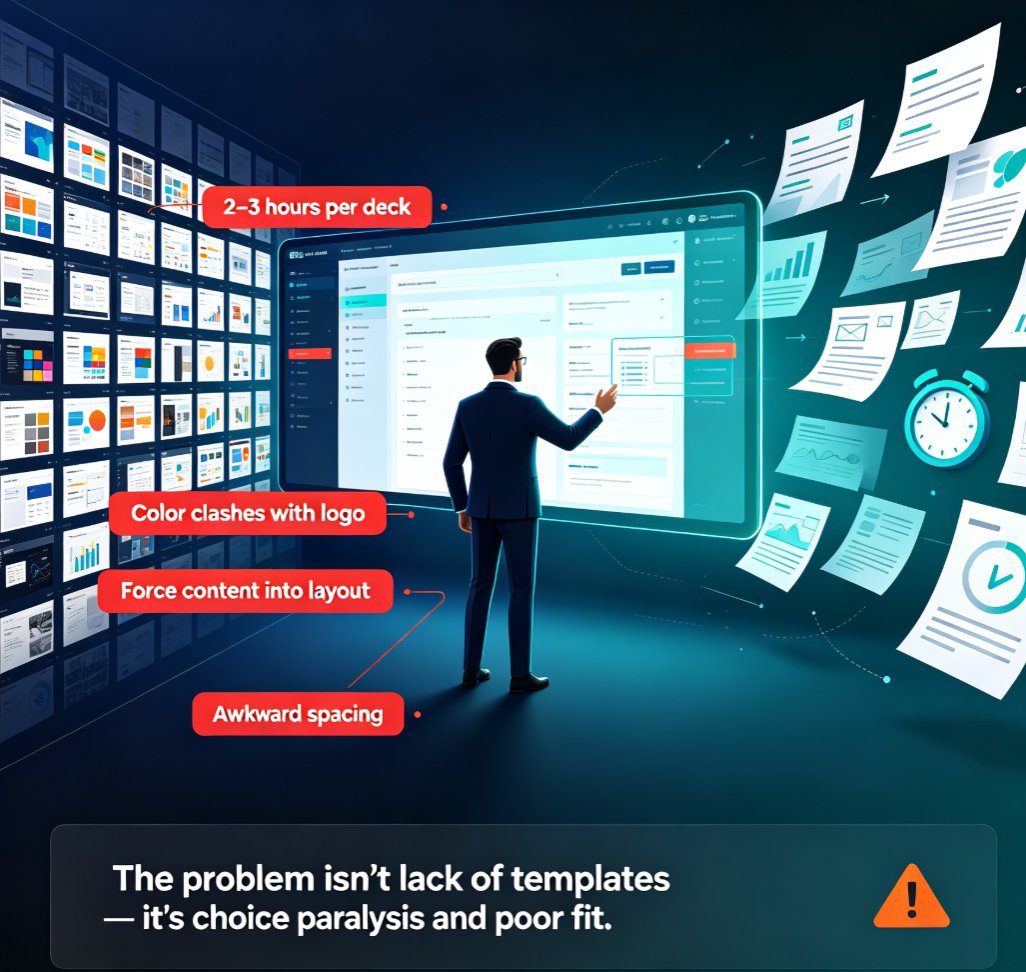
You've been there. You open a deck your teammate built last week, and the title slide looks like it belongs to a different company than the data slide on page 14. Fonts switch without warning. Colors clash. Nothing aligns. The content is solid — but the design screams "we threw this together."
Here's the uncomfortable truth: audiences judge your credibility in the first few seconds, and inconsistent design quietly erodes trust. You don't need to be a designer to fix this. You need a smarter way to unify decks.
That's exactly what Zendeck's smart layout was built for. One click, and your entire deck snaps into a consistent visual system — fonts, colors, spacing, alignment — without you touching a single slider.
01 Why inconsistent decks are costing you more than you think
Let's be real: nobody sets out to make an ugly deck. Inconsistency creeps in because real work happens in fragments. You copy slides from an old pitch. Your colleague adds a chart from a client report. Someone else drops in a template they found online. Before you know it, you're looking at a Frankenstein deck.
The cost isn't just aesthetic. Consider what happens when your deck looks inconsistent:
- Your audience spends mental energy on the design instead of your message. Every font change is a small distraction. Every misaligned element is a tiny trust leak.
- Your brand looks weaker than it is. A polished product with a messy deck reads as a messy company. Clients and stakeholders notice, even if they can't articulate why.
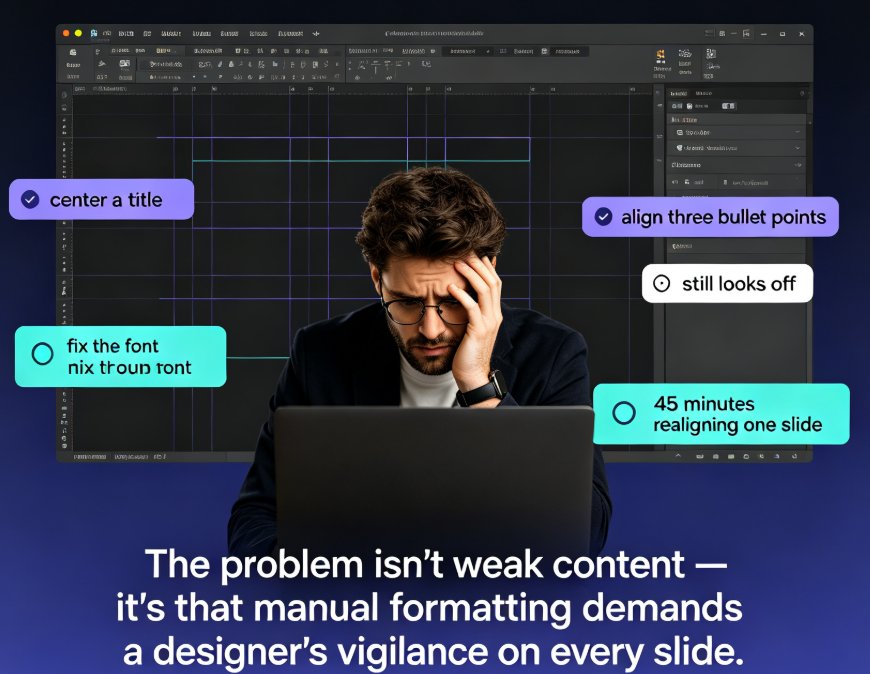
- You waste hours on manual fixes. Adjusting fonts slide by slide, nudging boxes into alignment, re-coloring charts — this is the work that eats your evenings and weekends.
I've watched teams burn an entire afternoon on this. One training manager I worked with spent three hours matching colors across a 45-slide compliance deck, only to realize she'd missed a section entirely. The deck went out with two different blues on adjacent slides. Nobody said anything out loud, but the client noticed.
The fix isn't more design skill. It's a system that enforces consistency for you. That's the core idea behind smart layout — and it's the difference between hoping your deck looks right and knowing it does.
02 What Zendeck's smart layout actually does
Smart layout is Zendeck's one-click reskin engine. You give it a deck — whether you generated it with AI, imported a Word outline, or pasted in Markdown — and it rebuilds the visual layer to match a single, unified design system.
Here's what happens under the hood:
- Fonts get unified. Every heading, body text, and caption snaps to a consistent type hierarchy. No more random font switches mid-deck.
- Colors get aligned. The palette is normalized to your chosen theme or brand kit. That one slide with the neon green accent? Gone.
- Layouts get standardized. Margins, spacing, and alignment are recalculated so every slide follows the same grid logic.
- Elements get reflowed. Text boxes resize, images reposition, and charts re-scale to fit the new layout without breaking.
The key word is automatic. You don't rebuild slides. You don't manually match colors. You click, and the deck re-skins itself.
03 How to use it: a practical walkthrough
Let's walk through a real scenario. Say you're an HR manager preparing a quarterly training deck. You've got slides from three different sources: an old onboarding deck, a compliance PDF you converted, and some slides your intern made last month. They're a mess.
Here's how you'd fix it with Zendeck:
- Import everything into one deck. Paste your content or upload your outline. Zendeck handles the structure, even if it's a brain dump. If you want to see how that works, this guide on turning a brain dump into a structured presentation walks through the full flow.
- Pick a base template or apply your brand kit. If you've set up a brand kit, your colors and fonts are already locked in. If you haven't, here's how to set up and use brand kits in Zendeck so this step takes seconds.
- Hit the smart layout button. Zendeck analyzes every slide and applies the unified design system.
- Review and tweak. You can still manually edit any slide afterward — smart layout doesn't lock you out. It just gives you a clean starting point. If you're curious about the limits of manual editing, this piece on manually editing AI-generated slides covers what's possible.
That's it. What used to take an afternoon of fiddling now takes about a minute.
The outcome: a deck that looks like one designer built it, even though five people touched it. That's the real magic of one-click consistency.
04 Smart layout vs. manual fixing: the honest comparison
You might be thinking, "I can just fix it manually. I know how to change fonts." Sure — you can. But let's compare what that actually costs.
| Task | Manual approach | Zendeck smart layout |
|---|---|---|
| Unify fonts across 40 slides | 40+ individual changes, checking each slide | One click |
| Match brand colors | Eyedropper tool, manual hex codes, trial and error | Automatic from brand kit |
| Fix alignment and spacing | Nudge boxes, adjust margins, pray it holds | Recalculated automatically |
| Reflow content after changes | Manual resize and reposition | Automatic reflow |
| Time for a 40-slide deck | 2–4 hours | Under 5 minutes |
| Consistency guarantee | Depends on your patience and eyes | Built into the system |
The math is pretty clear. Manual fixing is not just slower — it's less reliable. Humans miss things. We get tired. We think "good enough" is fine until the client zooms in on slide 22 and asks why the logo is the wrong shade.
And here's the thing about automation: it doesn't get tired at slide 30. It applies the same rules to slide 3 and slide 38 with identical precision. That consistency is exactly what your audience perceives as professionalism.
05 Making consistency stick across your whole team
Here's the thing about one-click consistency: it's most powerful when it's not just you using it. When your whole team works from the same smart layout system, every deck that leaves your organization looks like it came from the same place.
This is where brand kits and smart templates come in. Set up your brand kit once, and everyone on the team gets the same colors, fonts, and layout rules. No more "whose deck is this?" guessing games. No more redoing work because someone used the wrong template.
If you want to go deeper on this, check out how to maintain brand consistency across hundreds of slides with AI brand kits, or learn why AI templates now adapt to industry, audience, and tone.
And if you're dealing with decks that already look off-brand, here's how to fix off-brand AI slides fast — because let's be honest, we've all shipped a deck we weren't proud of.
The broader trend here is worth noting: design consistency is no longer a luxury reserved for companies with in-house designers. Tools like Zendeck are democratizing it. A solo consultant and a 200-person marketing team can now produce equally polished decks, because the system does the heavy lifting. That shift is exactly why AI-powered design suggestions are making presentation software smarter across the board.
06 Common mistakes to avoid (and how smart layout helps)
Even with a great tool, people still make a few classic mistakes. Let's flag them so you don't:
- Mistake 1: Ignoring the brand kit. Smart layout works best when it has a brand kit to reference. Skip this step and you're just picking random colors again. Set it up once — this guide on creating a custom brand kit in Zendeck makes it painless.
- Mistake 2: Overloading slides with content. Smart layout can unify design, but it can't save a slide with 500 words on it. Cut the text first, then let the layout do its job. If you're not sure where to start, this piece on why AI-generated slides still look messy covers the content-side fixes.
- Mistake 3: Never reviewing the result. One-click doesn't mean zero-oversight. Always scan the final deck. Smart layout gets you 95% there; your eyes close the last 5%.
A quick tip from someone who's been there: run smart layout early in your workflow, not at the end. If you apply it before you start adding final content, everything you add afterward inherits the consistent design. Doing it last means you might have to re-check everything anyway. It's a small sequencing change that saves you a surprising amount of rework.
FAQ
Q: Does smart layout work on decks I imported from Word or Markdown?
Yes. Zendeck's smart layout works on any deck in your workspace, whether you generated it with AI, imported a Word outline, or pasted Markdown content. The layout engine rebuilds the visual layer regardless of how the content got there, so you get consistent design no matter the source.
Q: Can I still manually edit slides after applying smart layout?
Absolutely. Smart layout gives you a clean, consistent starting point, but you retain full manual control. You can tweak individual slides, adjust elements, and override the unified design where you need to. The tool unifies your deck; it doesn't lock you out of it.
Q: Will smart layout work with my company's brand colors and fonts?
Yes, especially if you've set up a brand kit in Zendeck. The smart layout engine pulls from your brand kit to enforce your colors, fonts, and style rules across the entire deck. If you haven't set up a brand kit yet, it will use your chosen template's theme instead.
Q: How long does it take to unify a large deck?
For a typical 40-slide deck, smart layout takes under five minutes. Compare that to the 2–4 hours manual fixing usually takes, and the time savings are obvious. Larger decks scale the same way because the process is automated, not manual.
Q: Is smart layout the same as a template?
Not quite. A template gives you a starting structure. Smart layout actively re-skins your existing content to match a unified design system — fonts, colors, spacing, and alignment all get recalculated. It's more like a design enforcer than a starting point.