Turn Old Slides into Video Courses: Zendeck's PPT-to-Video in 3 Steps
Every training team has a graveyard of old slide decks. Those 200-slide onboarding decks, the quarterly product updates, the compliance training from three years ago — they sit in shared drives, outdated and unused. But here's the thing: the content in those decks is still valuable. The knowledge hasn't expired, only the format has.
Let's be real: nobody wants to sit through another static slide deck. But a narrated micro-course? That's a different story. Video content gets watched. It gets shared. It gets remembered. And the best part? You don't need to rebuild anything from scratch.
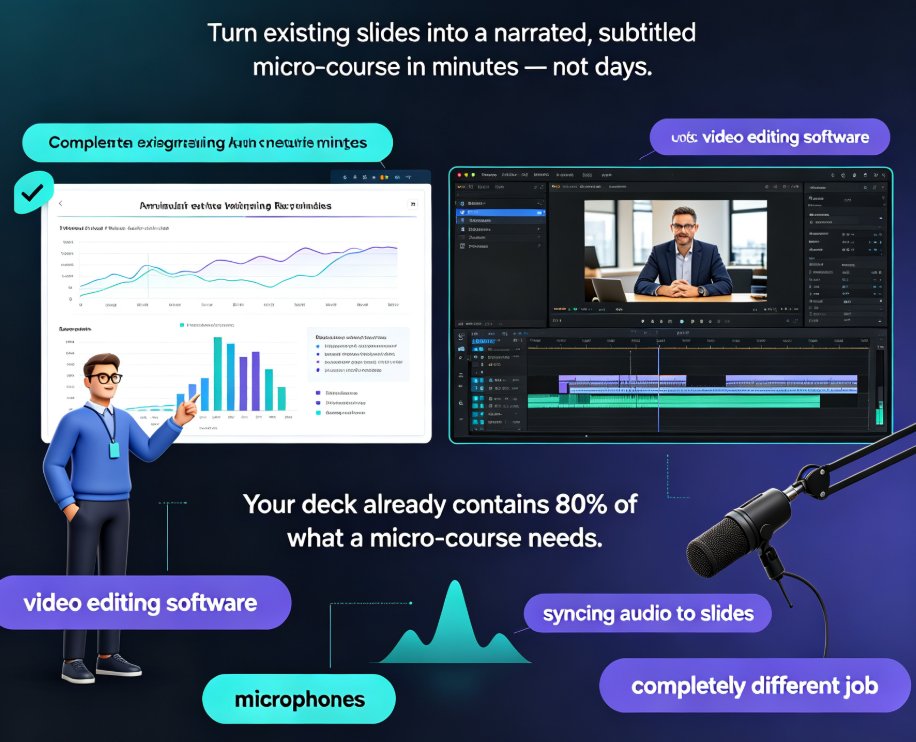
Repurposing legacy slide decks into video courses is one of the fastest efficiency wins available to training teams, and it takes three steps with Zendeck's PPT-to-video pipeline.
01 Why your old slides are a goldmine
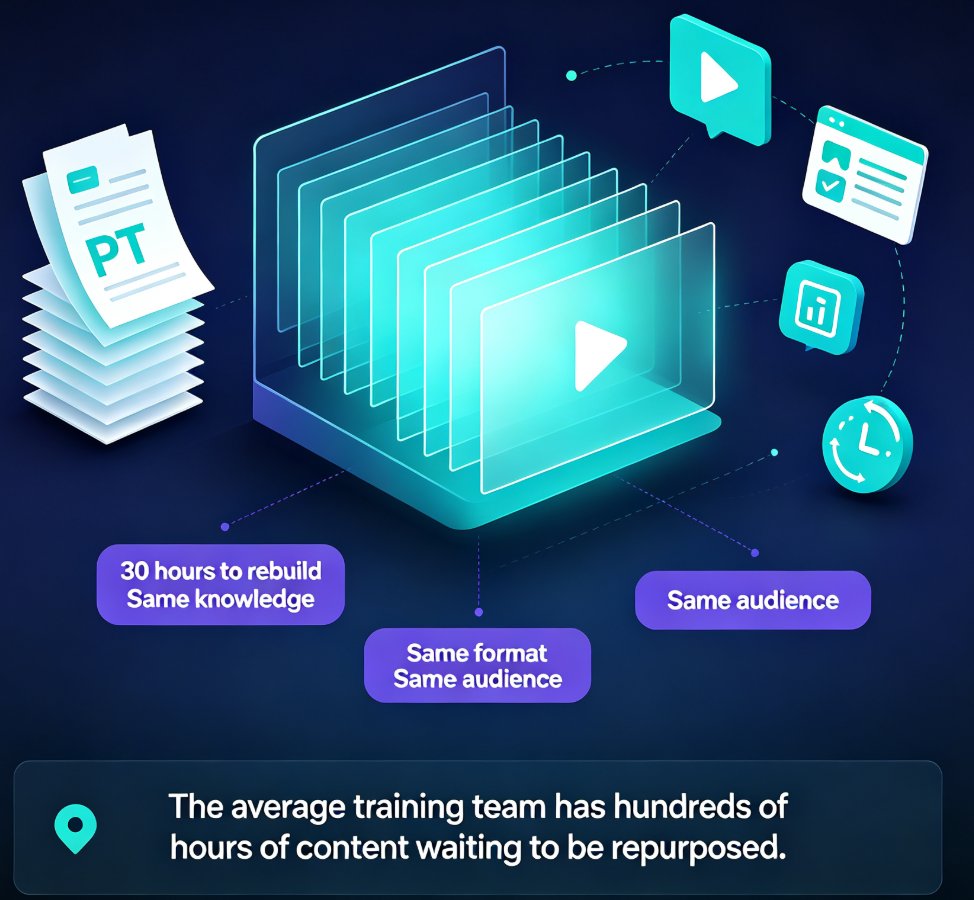
Here's a scenario I see all the time. A training manager spends 30 hours building a comprehensive onboarding deck. It covers company history, product basics, compliance rules, and team introductions. Six months later, the deck is outdated. A new version gets built from scratch — another 30 hours. The cycle repeats, and the old deck gets archived into the void.
The pain point is obvious: you're rebuilding the same knowledge over and over, in the same format, for the same audience. Every iteration eats hours that could go toward actual teaching, coaching, or content strategy.
The solution is to break the cycle. Instead of rebuilding static decks, convert them into video micro-courses. Video content is more engaging, more accessible, and more reusable than static slides. And you don't need to rebuild anything — the existing deck becomes the raw material.
The outcome: you unlock years of training material without starting over. A deck that took 20 hours to build can become a 10-minute video course in under an hour. That's a roughly 95% time savings on the conversion, and the resulting video has a longer shelf life than the original deck ever did.
The average training team has hundreds of hours of content locked in static slide decks that could be repurposed into video courses in minutes, not weeks.
02 Step 1: Import and clean up your old deck
The first step is simple: bring your old deck into the tool. You can upload a Word outline, paste Markdown or TXT, or import an existing PowerPoint file. The AI parses the content and rebuilds it with consistent, modern layouts.
Here's what to look for when cleaning up:
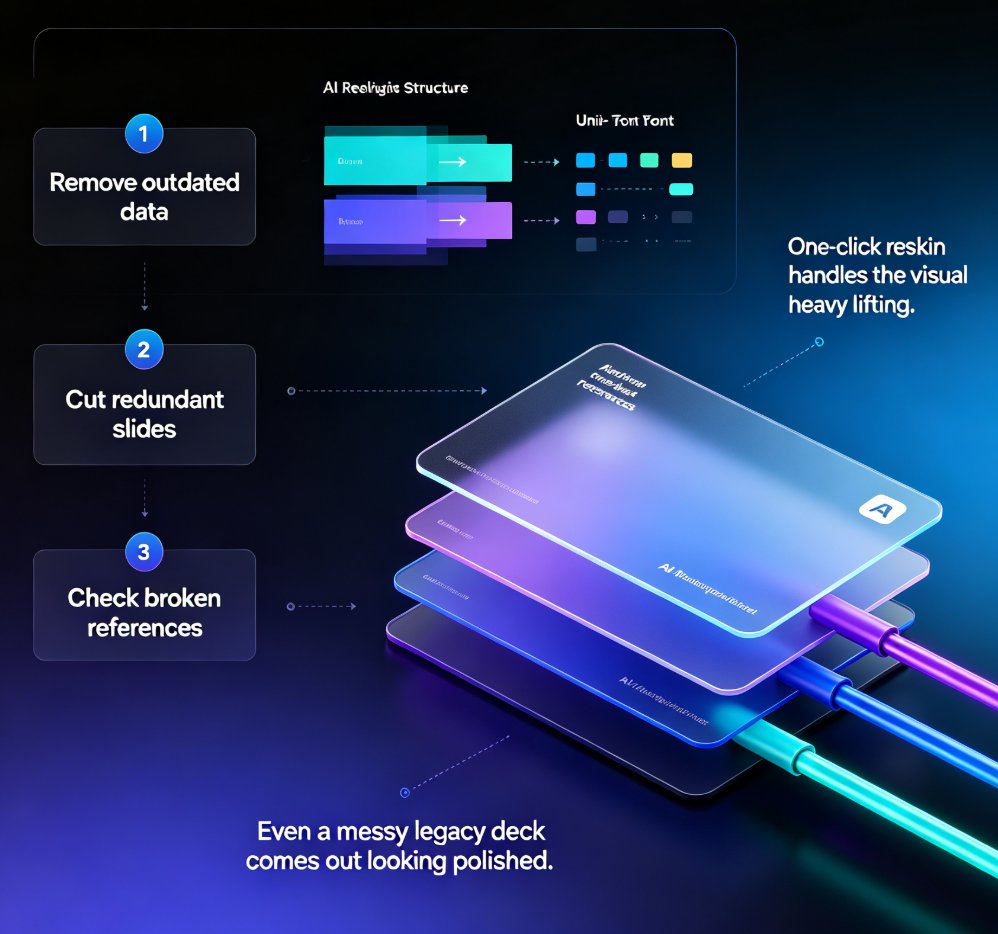
- Remove outdated data. If a slide references last year's numbers, update them before converting. Nothing kills credibility faster than a video course with stale statistics.
- Cut redundant slides. Three slides saying the same thing become one. Video viewers have less patience than slide readers — every slide needs to earn its place.
- Check for broken references. Old decks often point to resources that no longer exist. Update links, remove obsolete mentions, and make sure the content stands alone.
The smart layout engine automatically unifies fonts, colors, and spacing, so even a messy legacy deck comes out looking polished. You don't need design skills — the tool handles the visual consistency for you. If you've ever fought with inconsistent fonts across 40 slides, you know exactly how much time this saves.
The cleanup phase is where most people waste time, but Zendeck's one-click reskin handles the visual heavy lifting so you can focus on content accuracy.
03 Step 2: Add narration and voiceover
This is where the magic happens. A static deck becomes a video course when it has a voice. The PPT-to-video feature lets you add narration in two ways:
-
AI-generated voiceover. Type a script or let the AI draft one from your slide content, then pick a voice. The AI generates natural-sounding narration that matches the pacing of your slides. You can choose from different voice profiles to match the tone of your content — warm and conversational for onboarding, authoritative for compliance training.
-
Your own recording. If you prefer a human voice, record your narration and sync it to the slides. The tool handles the timing automatically, so you don't need to fiddle with audio editing software.
You can also add subtitles, which is a huge accessibility win. If you're building training content for a diverse team, subtitles make your courses usable by everyone — including non-native speakers and those with hearing impairments. Subtitles also help in situations where viewers can't turn on sound, like a crowded office or a noisy commute.
For a deeper dive into narration options, check out our guide on adding narration to slides with Zendeck's PPT-to-video and the voiceover and subtitles walkthrough.
04 Step 3: Export, share, and track
Once your narration is synced, you're ready to export. The tool renders your slides into a video file you can share anywhere — your LMS, YouTube, Slack, or a company wiki.
The workflow is simple:
- Review the video preview and make any timing adjustments.
- Export in your preferred format.
- Share the link or download the file.
The biggest advantage of video courses over static decks is that you can track engagement. You'll know who watched, how long they watched, and where they dropped off.
This data is gold for training teams. If 40% of viewers drop off at the same slide, you know that section needs rework. Static decks give you none of that feedback. You can't tell if anyone actually read slide 12, but you can tell exactly who watched the video and for how long.
05 Old workflow vs. Zendeck workflow
Let's put the efficiency gain in perspective with a side-by-side comparison:
| Task | Traditional workflow | Zendeck PPT-to-video |
|---|---|---|
| Rebuild slides for video | 4-8 hours of redesign | 10-15 minutes (auto-layout) |
| Write narration script | 2-3 hours | 5 minutes (AI draft) |
| Record voiceover | 1-2 hours + retakes | 5 minutes (AI voice) |
| Sync audio to slides | 1-2 hours of manual timing | Automatic |
| Export and format | 30-60 minutes | 2-5 minutes |
| Total time | 8-15 hours | Under 1 hour |
The numbers speak for themselves. What used to take a full workday now takes a lunch break.
Here's a visual breakdown of the time savings:
06 Best practices for repurposing legacy decks
Here are a few things I've learned from working with training teams that make the process smoother:
Start with your highest-value content. Don't convert everything at once. Pick the decks that get requested most often — onboarding, compliance refreshers, product training — and convert those first. You'll see the biggest return on your time investment, and you'll build momentum for the rest of the backlog.
Update, don't just convert. A video course is a chance to fix what was wrong with the original deck. Tighten the messaging, cut the fluff, and make the content more scannable. Your viewers will thank you, and your future self will appreciate not having to revisit the same deck twice.
Keep videos short. Micro-courses work best when they're 5-10 minutes. If your deck is 60 slides, split it into a series of short videos rather than one long one. This is where Zendeck's micro-course production capabilities shine — you can create a playlist of short, focused lessons instead of one overwhelming video.
Add a call to action. End every video with a clear next step — take a quiz, schedule a follow-up, or complete a task. This turns passive viewing into active learning and gives you measurable outcomes beyond just view counts.
07 Why this matters for your team
The shift from static slides to video courses isn't just a trend — it's a fundamental change in how training content gets consumed. AI-generated video decks are already replacing traditional corporate training, and teams that adapt early get a serious advantage.
Think about what you could do with the hours you'd save. More time for actual teaching. More time for content strategy. More time for the work that actually moves the needle. The ROI here isn't just about efficiency — it's about making your training content actually get consumed.
The teams that win in 2026 aren't the ones creating more content — they're the ones repurposing what they already have into formats people actually consume.
FAQ
How long does it take to convert a slide deck into a video with Zendeck?
Most conversions take under an hour, including cleanup, narration, and export. A simple 10-slide deck can be done in 15-20 minutes, while larger decks with heavy cleanup might take 45-60 minutes.
Can I use my own voice instead of AI narration?
Yes. The tool supports both AI-generated voiceover and your own recorded narration. You can also mix both — AI for some sections and your voice for others — depending on the tone you want for each part of the course.
Do I need design skills to make my old slides look good in video?
No. The smart layout engine automatically unifies fonts, colors, and spacing across your deck. The tool handles visual consistency so you can focus on content accuracy and messaging.
Can I add subtitles to my video courses?
Yes. The tool supports subtitle generation, which improves accessibility and makes your courses usable by non-native speakers and viewers with hearing impairments. Subtitles also help in noisy environments where audio isn't practical.
What formats can I export to?
The tool exports to standard video formats that work with most LMS platforms, YouTube, and other sharing tools. You can also share directly via link for quick distribution.