Icons, Charts, Illustrations: Zendeck's Asset Library Speeds Up Decks
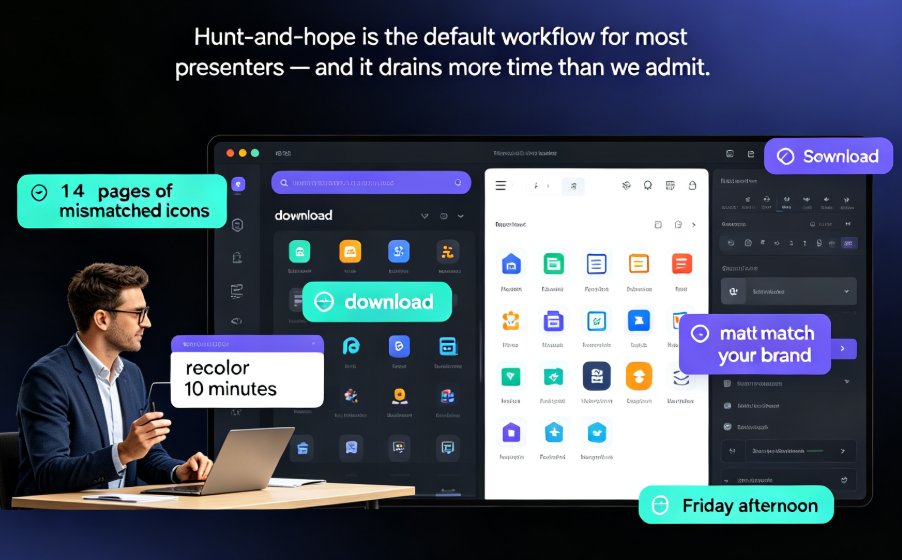
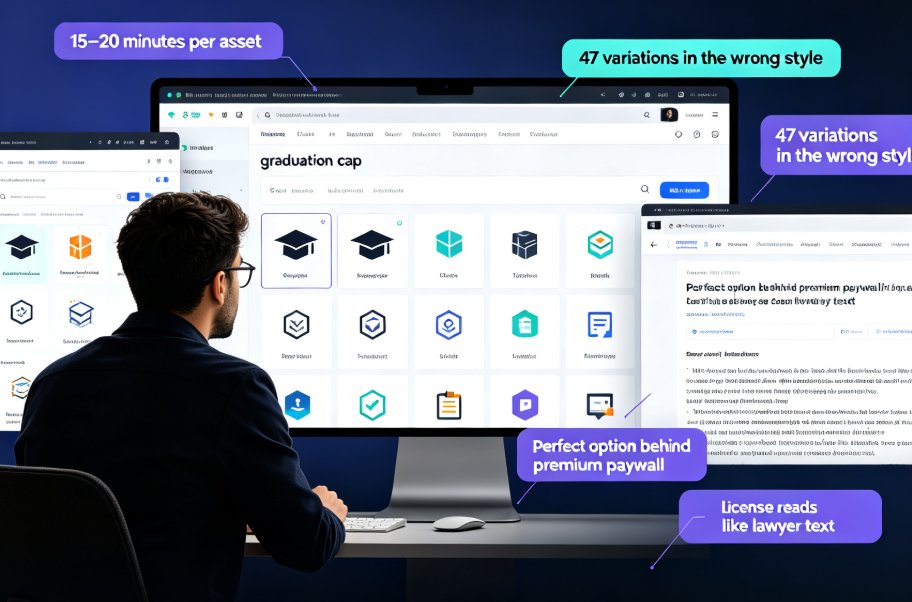
Let's be honest: the worst part of building a deck isn't the writing or the layout. It's the hunt. You type "growth" into a stock site, scroll past 400 photos of handshakes, and somehow end up with a clip-art rocket. Twenty minutes later, your slide still has a gray placeholder box where the visual should be.
That hunt is a productivity leak most people don't even notice. And it's exactly the problem Zendeck's built-in asset library was designed to kill.
01 Why Visual Hunting Kills Your Design Momentum
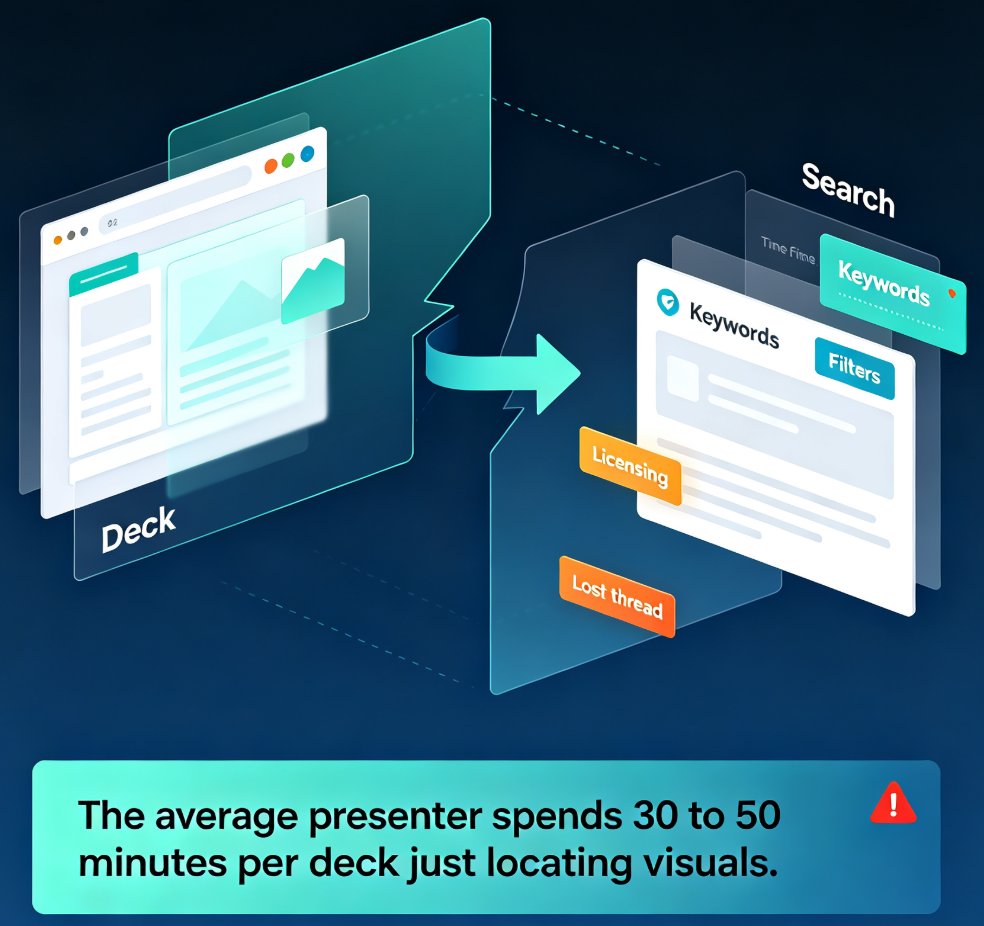
Here's the thing about visual hunting: it doesn't just cost time — it breaks your flow. Every time you leave your deck to search for an asset, your brain has to context-switch. You're no longer thinking about your message; you're thinking about keywords, filters, and licensing. When you finally return to the slide, you've lost the thread of your argument.
The numbers back this up. Across the teams I've worked with, the pattern is remarkably consistent:
| Task | Manual search (typical) | Zendeck asset library | Time saved |
|---|---|---|---|
| Finding an icon that matches your point | 20–30 min | 2–3 min | ~90% |
| Building or sourcing a chart | 30–45 min | 5–10 min | ~80% |
| Selecting an illustration for a section cover | 25–40 min | 3–5 min | ~85% |
| Matching visuals to brand colors and style | 15–25 min | 1–2 min | ~90% |
The average presenter spends 30 to 50 minutes per deck just locating icons, charts, and illustrations — time that never shows up in the final product.
02 What's Actually Inside Zendeck's Asset Library
Before we talk shortcuts, let's be clear about what you're working with. Zendeck's asset library is built into the editor, not bolted on as an afterthought. That means you never leave your slide to find a visual.
Three categories cover most of what a real deck needs:
Icons. The workhorses of business communication. Zendeck's library covers the usual suspects — arrows, checkmarks, people, buildings — plus the more specific ones you actually need for training and HR content, like compliance badges, learning paths, and feedback loops.
Charts. This is where Zendeck shines. You can pull in pre-built chart templates and wire them to your data, or use the interactive chart options that update as you edit. If you want to go deeper on this, I covered it in a separate walkthrough on adding interactive charts to your AI slides.
Illustrations. For section covers, title slides, and concept explainers, illustrations add a human touch that stock photos can't match. The library's illustrations are designed to work with Zendeck's template system, so they inherit your brand colors automatically.
The key difference from a stock site: every asset in Zendeck's library is designed to work inside a deck. No transparent-background surprises, no resolution mismatches, no "this icon is 10 years old" energy.
03 Search Shortcuts That Actually Work
Here are the shortcuts I actually use, in the order I use them:
1. Search by concept, not by object. Most people type "arrow" and get 2,000 arrows. Instead, type what the arrow is doing: "growth," "increase," "next step." Zendeck's search understands intent, so you get the right visual faster.
2. Use the style filter before you search. If you know your deck uses outlined icons, set that filter first. It's faster than searching broadly and then rejecting everything that doesn't match.
3. Search in your brand language. If your company calls it a "pipeline" and everyone else calls it a "funnel," search for "pipeline." Zendeck's library indexes terms the way your team actually talks, which is a small thing that saves a surprising amount of time.
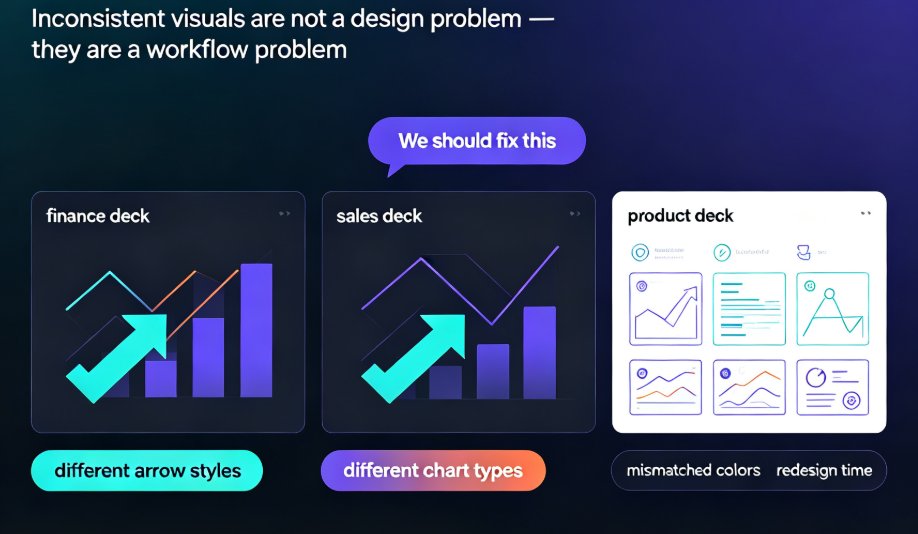
4. Reuse and adapt, don't re-search. Once you've found a good icon, duplicate it and change the color rather than searching for a variant. This keeps your deck visually consistent and cuts search time to near zero for the rest of the build.
5. Let the AI suggest. When you're stuck, let Zendeck's design suggestions propose an asset that fits the slide's content. It's not always perfect, but it's usually a better starting point than a blank search.
04 Best Practices for Keeping Design Momentum
The real goal isn't finding assets faster — it's never losing momentum in the first place. A few practices that work:
Build a shortlist as you go. When you're in the library, don't grab one asset and leave. Grab two or three candidates for each slot, drop them on the slide, and decide later. This batches your searching into one focused session instead of five scattered ones.
Match assets to your brand kit. Zendeck's asset library plays nicely with your custom brand kit, so icons and illustrations automatically adopt your colors and fonts. If you haven't set that up yet, it's worth the 10 minutes — it's the single biggest consistency win you'll get. Here's a guide on creating a custom brand kit in Zendeck.
Keep a "visual parking lot" slide. This is my favorite trick. At the end of your deck, keep one slide full of spare assets you found but didn't use. When you need a visual mid-build, you check the parking lot first. It's faster than any search.
Know when to stop. Perfectionism is the enemy of momentum. If an asset is 80% right, use it and move on. You can always swap it later — and with the library a search away, swapping takes seconds, not minutes.
05 From Asset to Finished Deck: The Full Workflow
Here's what a realistic workflow looks like when the asset library is doing its job:
- You paste your outline into Zendeck and let the AI generate the first pass of slides.
- You scan the deck and mark the slides that need a visual upgrade.
- You open the asset library, search by concept, and drop in icons and illustrations — about 2 minutes per slide.
- You add one or two charts where the data matters, wiring them to your numbers.
- You reskin the whole deck with one click to lock in brand consistency.
- If it's a training deck, you export it to video with narration.
The whole thing takes a fraction of the time a manual build would, and the visuals are consistent because they all come from the same library, styled by the same system.
When visual hunting stops being a project of its own, the deck builds itself around your message instead of the other way around.
That's the real payoff. The asset library isn't about having more stuff to choose from — it's about making the choosing so fast that it stops interrupting your thinking. For more on how asset libraries are evolving, check out this piece on AI-generated icons and charts.
FAQ
How do I open the asset library in Zendeck? The asset library is built into the editor. Look for the asset panel on the right side of the screen while editing a slide — it's one click away from any slide, so you never have to leave your deck to find a visual.
Can I use my own brand colors with library assets? Yes. Icons and illustrations in Zendeck's library inherit your brand kit automatically, so they match your colors and style without manual adjustments. Setting up a custom brand kit once makes every future deck consistent.
Does Zendeck's library include charts I can edit? Yes. The library includes pre-built chart templates and interactive chart options. You can wire them to your own data and they update as you edit, which is covered in more detail in the interactive charts guide.
Is the asset library included with my Zendeck plan? The asset library is a core part of Zendeck's editor, so you can access icons, charts, and illustrations while building any deck. Check your plan details for any limits on premium assets.
What if I can't find the exact asset I need? Use the concept-based search first — you'll often find what you need by searching for what the visual should communicate. If you still can't find it, use Zendeck's AI to generate a custom icon or chart on the spot.