Find the Right Icon or Chart in Seconds: Visual Asset Search Guide
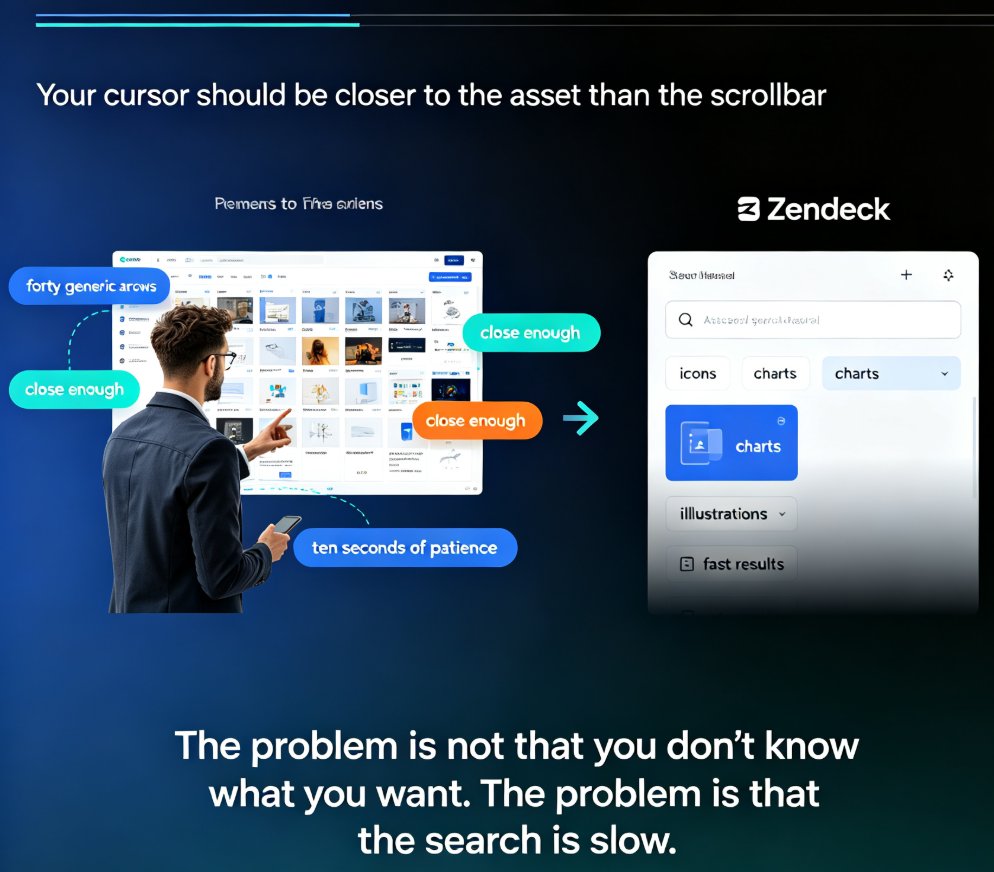
Let's be honest: how much of your presentation time actually goes to designing, and how much goes to hunting? If you're like most people I've coached, the answer stings. You open a slide, know exactly what you need — a clean bar chart, a handshake icon, a subtle arrow — and then you spend twenty minutes scrolling through folders, tabs, and downloads trying to find it.
That's the hidden tax on every deck you build. And it's the reason so many presentations end up with mismatched icons, inconsistent charts, and that "good enough" look that never quite feels right.
The good news? It doesn't have to be that way. With the right search strategies and a well-organized asset library, you can find the perfect icon or chart in seconds — not minutes. This guide walks you through exactly how to do that in Zendeck.
01. The Real Cost of Hunting for Visuals
Let's put some numbers on this. A typical business presentation runs anywhere from 15 to 40 slides. Each slide might need one or two visuals — an icon, a chart, an illustration. That's potentially 40 to 80 individual visual searches per deck.
The average knowledge worker spends close to an hour per deck just searching for the right visual assets. That's time you're not spending on your message, your data, or your story.
The pain points are familiar:
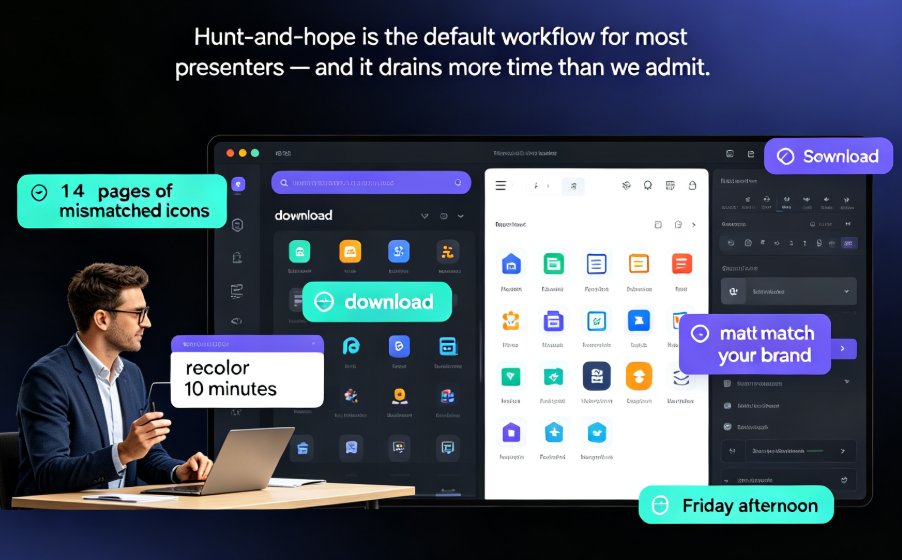
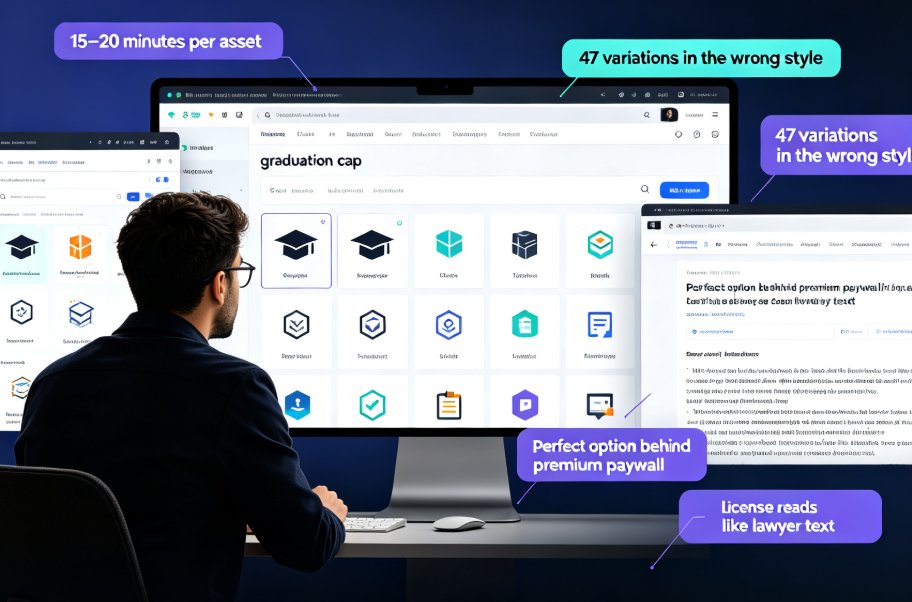
- You search "growth chart" and get thousands of results, none of which match your color scheme.
- You find the perfect icon, but it's in a different style than the one on the slide before.
- You download a chart template, only to realize it doesn't fit your layout.
The outcome? Frustration, inconsistency, and decks that look assembled rather than designed. And when you're building courseware or training materials, the stakes are even higher — learners notice visual inconsistency, and it undercuts your credibility.
02. How Zendeck's Asset Library Changes the Game
This is where Zendeck's asset library comes in. Instead of a scattered collection of downloads and bookmarks, Zendeck gives you a centralized, searchable library of icons, charts, and illustrations — all designed to work together.
Zendeck's asset library is built for speed: search once, drop in, and move on.
What makes it different:
| Feature | What it does | Why it matters |
|---|---|---|
| Unified style | All assets share a consistent design language | No more mismatched icons or clashing styles |
| Smart search | Find by keyword, category, or use case | Results in seconds, not minutes |
| One-click insert | Drop assets directly into your slide | No download, no resize, no reformat |
| Context-aware suggestions | Zendeck suggests relevant visuals as you build | Less searching, more creating |
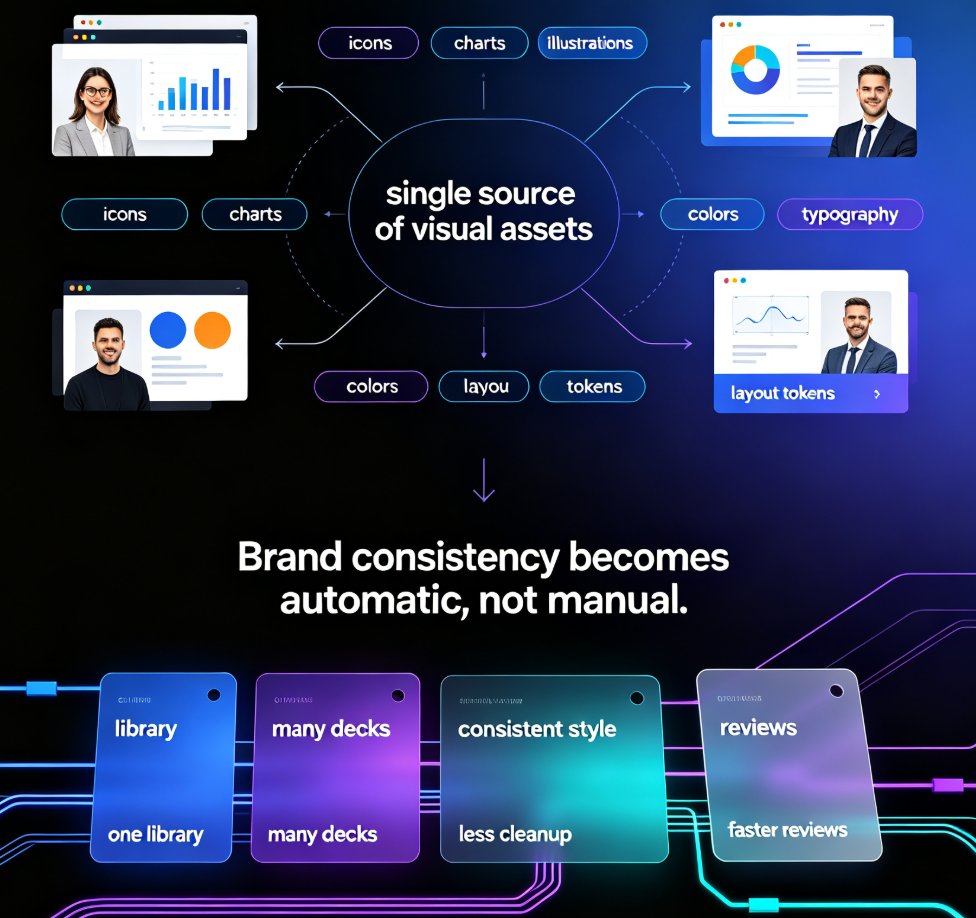
The result is a workflow where finding a visual is a two-second action, not a twenty-minute detour. For teams, this compounds — when everyone pulls from the same library, every deck stays on-brand without extra effort. If you're curious about how asset libraries support brand consistency at scale, check out our deep dive on AI asset libraries and brand consistency.
03. Search Strategies That Actually Work
Let's get practical. Here are the search strategies I've found most effective when working in Zendeck's asset library.
Start with the Concept, Not the Object
Most people search for what the visual should look like ("arrow pointing up"). Instead, search for what it should mean ("growth", "increase", "improvement"). Zendeck's search understands concepts, not just keywords.
Searching by concept instead of object returns more relevant results in half the time.
Use Category Filters First
Before you type anything, set your category filter. Icons, charts, and illustrations are different asset types with different use cases. Filtering first cuts your results down dramatically — and it's one of the most underused features in any asset library.
Combine Keywords with Context
If you're building a training deck on customer service, search "customer service" rather than just "phone" or "headset". The context-aware search in Zendeck surfaces assets that fit the theme, not just the literal keyword. This is especially useful for courseware, where visuals need to reinforce learning objectives, not just decorate slides.
Save Your Favorites
The fastest search is the one you don't have to do twice. When you find an asset you like, save it to a favorites or project collection. Over time, you build a personal library of go-to visuals that match your brand and style. This is the habit that separates fast deck builders from slow ones.
◉ What if I can't find the exact icon I need?
Don't force it. Zendeck's library is extensive, but sometimes you need something specific. In that case, pick the closest match and customize it — change the color, rotate it, or pair it with a label. A slightly adjusted icon beats a perfect one that took you twenty minutes to find.
04. Building a Repeatable Visual Workflow
Searching well is one thing. Building a workflow that makes searching almost unnecessary is another. Here's the system I recommend:
Step 1: Define Your Visual Palette Once
Before you start a deck, decide on your icon style, chart type, and color treatment. Zendeck's brand kit features make this easy — set it once, and every asset you pull in matches automatically. This is a game-changer for teams that produce lots of decks. If you want to go deeper, here's how to create a custom brand kit in Zendeck.
Step 2: Batch Your Asset Collection
Instead of searching for assets slide by slide, spend 10 minutes at the start of a project collecting all the visuals you'll need. Zendeck lets you save assets to collections, so you can pull everything together in one pass. This front-loads the work and keeps you in flow while building.
Step 3: Reuse and Repurpose
The best asset libraries are the ones you actually reuse. Don't start from scratch every time. Your previous decks are a goldmine of approved, on-brand visuals. Build a habit of reviewing old decks before starting new ones — you'll be surprised how much you can recycle.
Step 4: Let Zendeck Suggest
As you build, Zendeck's context-aware suggestions will surface relevant assets based on your slide content. This is the "searchless" workflow — the library comes to you. It's especially powerful when you're building courseware or training decks, where consistency across modules matters. For more on how AI-powered asset libraries are evolving, take a look at how AI-generated icons and charts are changing asset libraries.
05. The Time Savings, Visualized
Let's look at what this means in practice. Here's a comparison of a typical search workflow vs. Zendeck's approach:
| Task | Traditional approach | Zendeck asset library |
|---|---|---|
| Find an icon | 5-10 min (browse, download, resize) | 10-30 seconds (search, click, insert) |
| Find a chart type | 10-15 min (template hunting) | 20-40 seconds (filter, insert, edit) |
| Match brand style | 15+ min (manual color matching) | Automatic (brand kit applied) |
| Total per deck | 45-90 minutes | 5-15 minutes |
Here's what that looks like as a chart:
Switching to a smart asset library can cut your visual search time by roughly 80%. That's not just a productivity win — it's a quality win. When you spend less time hunting, you spend more time refining your message, your data, and your story.
For trainers and educators, this matters even more. When you're building multiple courseware modules, the time savings compound across every deck. And if you're using charts heavily, you'll want to know how to add interactive charts from Zendeck's asset library.
FAQ
How do I search for icons in Zendeck's asset library?
Use the search bar in the asset library panel and type a keyword or concept. For best results, search by meaning ("growth") rather than object ("arrow"), and use category filters to narrow results to icons, charts, or illustrations.
Can I filter charts by type in Zendeck?
Yes. The asset library lets you filter by asset category, so you can narrow results to bar charts, line charts, pie charts, and more. Combine filters with keyword search for the fastest results.
How do I save favorite assets for reuse?
When you find an asset you like, click the save or favorite button to add it to a collection. You can organize collections by project, theme, or brand, so your go-to visuals are always one click away.
Does Zendeck's asset library match my brand colors automatically?
Yes. When you set up a brand kit in Zendeck, assets you insert are automatically styled to match your brand colors, fonts, and overall look. This eliminates the manual color-matching work that slows down traditional workflows.
Can I use Zendeck's asset library for training and courseware?
Absolutely. Zendeck's library is designed for educators and trainers too. The context-aware search and unified style make it easy to build consistent, professional courseware across multiple modules.